
Set a User Agreement Policy to Appear Before Login in Mac OS X
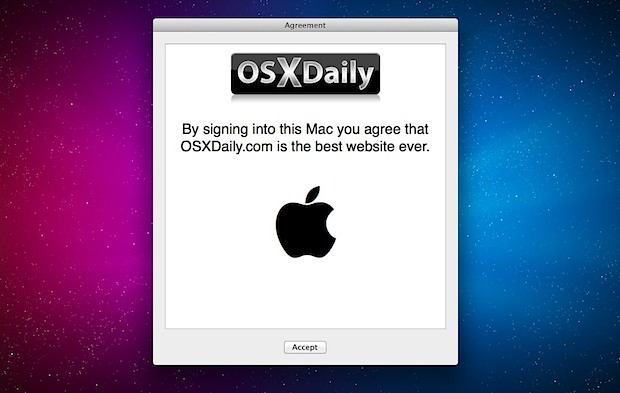
All versions of Mac OS X from Lion onward (meaning Mountain Lion, Mavericks, etc) can display messages that require acknowledgement prior to the standard login screen appearing on a Mac. For administrators, this allows a user agreement or acceptable use policy to be displayed before users can login, and for personal use it lets users include a customized message before logging into a Mac.
How to Create & Set a Login User Agreement in Mac OS X
For OS X 10.7, 10.8, 10.9, or later:
- Open TextEdit and create an RTF containing the the user agreement login message, save this file named as “PolicyBanner” and be sure the extension is .rtf or .rtfd
- From the Finder, hit Command+Shift+G to bring up the “Go To Folder” window and enter the following path:
- Copy the previously created PolicyBanner.rtf to the /Library/Security/ folder
- Authenticate the file transfer by entering the administrators password
/Library/Security/
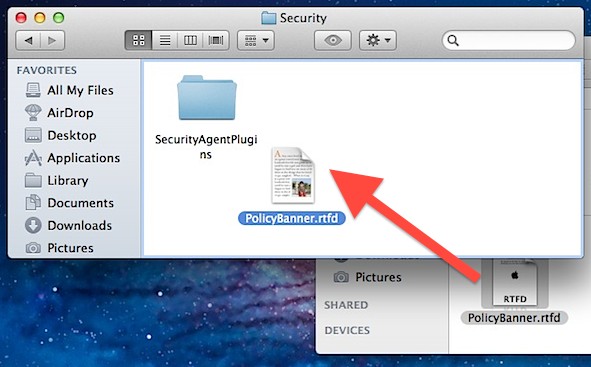
Note: /Library/ is different than the user ~/Library/, with the former being system-wide and the latter being user specific.
To confirm the policy banner is active, log out and log back into the Mac. The user agreement will popup before the standard login screen, and must be accepted before a user can login to the Mac.
Clicking “Accept” will return the standard login screen:
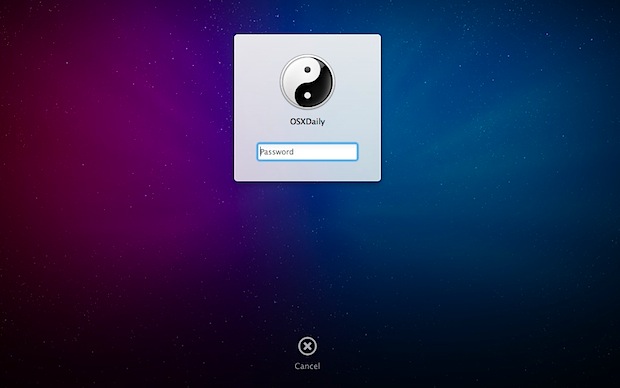
To further customize the Mac login process, add a message to the OS X login screen itself or change the login wallpaper to something other than the default linen.






it would be nice to be able to set this to popup only once or only once per day. very annoying during our particular imaging process for this to run. It seems to be halting installations that require reboot.
Is there a way to adjust the timing at which the banner appears?
At the moment, if you first click accept, but for whatever reason wait at the login window for more than 60 seconds, the banner will reappear.
I’ve looked around but cannot find where there might be a setting to change this timeout.
I have found that I have to do a chown and a chmod on the file after I copy it into the /Library/Security/ folder. This may be because I am pulling the file off of a server, but in any case, it doesn’t appear to work unless the owner of the file is root:wheel and the permissions are set to 755 with chmod.
Anyone else finding this to be the case?
It’s not a big deal, but it is an extra couple of steps I had to do to make this work.
Hi
I’m trying to get this to work with snow leopard, anyone know how? I have tried it on lion and it works fine but i need to have it on a suite of macs running 10.6.8
Thanks
Just did it and it works fine :) Mac OS X 10.7.2 (havent bothered upgrading to .3 yet)
it didn’t work for me, i tried everything you said..and check it, but nothing at all..
i have Mac OS X 10.7.2!!!!
thanks
Ok solved it,I made a mistake,should put it in the security folder not in security agents plugins folder
It doesn’t work for me, I followed everything.
Works perfectly, absolutely brilliant
Do they have it for windows xp and 7
It is Mac OS X Lion, not Windows Lion Edition+
ok ok i solved the problem. it works :)
how did you solve it?
i created policebanner files on textedit. i wrote some sentences. (Extensions is rtf)
after that
Copy the previously created PolicyBanner.rtf to the /Library/Security/ folder but it didnt appear
i have not a security folder in HDD library but users library have.
Yes it works but appears after login just before the Desktop appears.
Will this work with FileVault II?
Yes but it shows up 2 times once when you authenticate to FV2 and the second when you logging to the user account. It is quite annoying actually.
How’d you get the images into the user agreement?
Nevermind. I am dumb.
Copy and paste them in, it will save as an RTFD
Where can I find that wallpaper?
We posted about them a while back, you can get it here:
http://bazdesh.deviantart.com/art/Space-Aurora-198266581
https://osxdaily.com/2011/10/20/6-beautiful-aurora-wallpapers/
Thanks :)
you have to create sutch a document and copy it into the
/Library/Secuiyty folder
Yes place it in the /Library/Security/ folder
ok thx
i didn’t found policy banner docs in library.
i checked users library security docs and system hdd>library>i didnt see security docs
i am using 10.7.2 lion