
How to “Find On Page” on an iPhone with Safari on iOS 6 and iOS 5
 It’s easy to find text on a page with a desktop browser, with just a keyboard shortcut you’ll have a search field. This is a bit different in the world of smaller mobile screens though, and if you need to find text on a current web page with Safari for iPhone or iPod touch you’ll need to do the following instead:
This is the same with Safari for iOS 6 and iOS 5:
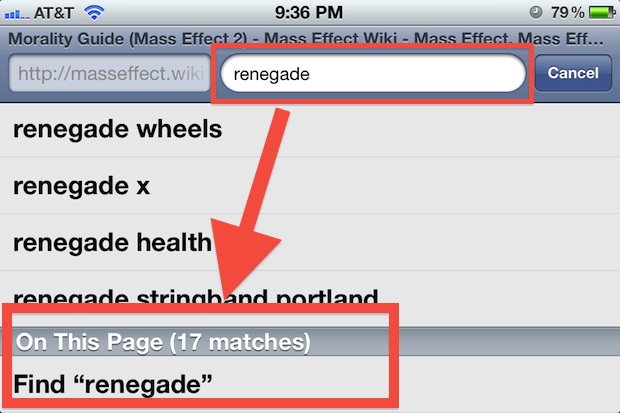
- While on the page you wish to search, type the phrase or text you want to search for in the upper right corners Search box
- With the suggestions populated, swipe down to the bottom of the suggestion list to find “On This Page (x matches) and tap on ‘Find “search text”‘
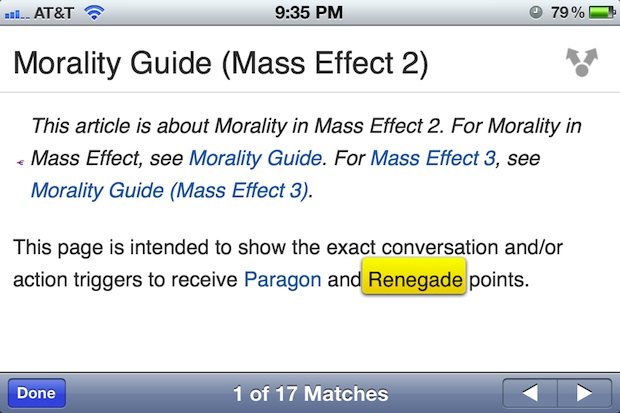
After you type “Find” the matched search terms will be highlighted in yellow, just like in Safari on Mac OS X or Windows. When finished tap on the blue “Done” button and the search phrase will no longer be highlighted.
This is the same for iPhone and iPod touch, though it’s a bit easier on the iPad, where the Find On Page item is attached to the top of the onscreen iOS keyboard.
With Apple simplifying the Safari UI within OS X Mountain Lion to include an omnibar, we should probably expect this feature in iOS to change slightly with it and adopt the same omnibar. If that happens, chances are you’ll just tap in the universal bar to perform the same functionality.






It still works almost the same:
Just touch the address bar at the top of the Safari window. The address will be highlighted. Delete it (or just start typing, since it’s already highlighted and will auto-delete) and type your search term. Then scroll to find where it says “find on this page,” which will be at the bottom of the list below search suggestions and bookmarks. Touch “find ” and you’re done!
Continuing making the iOS user experience more painful and Safari even more undesirable I think Apple has removed that box in the current version. I don’t want to see it either
Does not exist
Brilliant !
Been wondering how to do this for ages.
Thank you!!!!!!
Great stuff, thanks!
Thanks – I was looking for that feature.
Mass Effect, yeeaaaaaaaa buddy!