
Remove the Auto-Hiding Dock Delay in Mac OS X
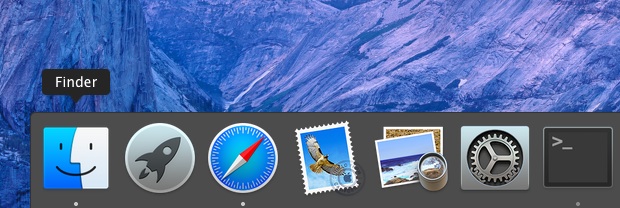
Want to access the Dock faster on the Mac? If you use a hidden Dock in Mac OS X, you can speed up the time it takes to show the Dock with a defaults write command. This command removes the delay from when a cursor is hovered near the Dock location and to when the Dock is displayed, making it show faster when a mouse is hovered at the bottom of the screen. This trick does does not change the animation speed of the Dock sliding in and out itself.
How to Remove the Delay for Auto-Hide & Auto-Show of Dock in MacOS X
Launch the Terminal and enter the following defaults write command:
defaults write com.apple.Dock autohide-delay -float 0 && killall Dock
The tail end of the command includes killall which will cause the Dock to relaunch in order for changes to take effect. After it has been refreshed, hover over the area of the screen where the Dock is hidden and you’ll notice it shows up immediately, without the fraction of a second delay.
This tip also impacts how to show the Dock in a full screen app, preventing the need for a double-swipe down when in full screen mode, and instead displaying the Dock instantly with a hover in the region.
Return to Default Dock Hide / Show Delay on Mac
To return to the default setting and autohide delay, go back to the Terminal and enter the following command:
defaults delete com.apple.Dock autohide-delay && killall Dock
The Dock will again relaunch and settings will return to their default state.

This trick works in all modern versions of Mac OS X, including MacOS Mojave, High Sierra, Sierra, El Capitan, Yosemite, Mavericks, and Mountain Lion.
This is a handy tip from MacWorld, thanks for sending it in Eric






awesome still works
Thanks for this, it helped. Is there a way to get the dock to appear when hovering over the location of where it sits? I always have to move my cursor right to the bottom — nevertheless its much faster!
Thanks, trick with lowercase ‘d’ worked for me on Mavericks
Hi, would it be possible to change the delay time for dock autohide? I would like the dock to wait 2-3 seconds before it hides.
Thanks a lot.
This no longer seems to work on Mavericks, can someone please post an update/fix for it?
It used to work great on Lion and Mountain Lion.
It does work for Mavericks but you must use a lowercase ‘d’ for the defaults command: com.apple.dock
Thank you!
i’m not sure how you got this working, but i can’t get it working in mavericks even with a lowercase d. the damn dock still keeps jumping back out at me in full-screen apps and it’s making me seriously contemplate going back to mountain lion…
can you help me figure this out?
This mostly works for me, but it seems to have revealed a bug. I wonder if anyone else running Mavericks with multiple monitors can verify it. I have a program that I use maximized which has many controls across the bottom of its window. Accessing them, I frequently cause the dock to appear and it pops up in front of the controls I’m trying to use.
I ran this command to increase the delay to 1 second:
defaults write com.apple.dock autohide-delay -float 1 && killall Dock
After running that command and moving the mouse to the bottom of the screen, the dock immediately appears. If I move the mouse away and back to the bottom of the screen, the dock waits 1 second like I asked it to and then appears. If I move the mouse to another monitor, the Dock will appear instantly when I go to the bottom of that monitor. If I move to a new monitor (A), show the dock, move to another monitor (B) and back to A without showing the dock on B, and show the dock again on A, it correctly waits for the delay period before appearing.
[…] to Roman for the tip idea stLight.options({ publisher:'fe5e0a84-1fac-40de-8014-9f89fc1cbe6a' […]
I used this with “-float 1” to increase my dock delay, rather than shorten it! I don’t like it popping up randomly when I’m trying to click things near the bottom of the display in other apps I’m using, so used to not make it auto hide, and lived without the bottom part of screen real-estate. Now I need to really purposefully make it pop up (when I’m not otherwise using Expose/launchpad or all the other ways I access things…). Hurrah!
[…] No Dock Delay […]
Hi Levi. Thanks. The dock is now much faster and better.
Revert command line doesn’t work for me.
:-/
[…] when going to the bottom of the screen to reveal it. It may not be too noticeable at first, but removing the Dock delay makes that delay obvious, resulting in your Mac actually feeling faster. defaults write […]
If you just want to disable the additional delay for showing the Dock in full screen, you can use defaults write com.apple.dock autohide-fullscreen-delayed -bool false.
Well this is just awesome, thanks of much for posting it! I’ve spend the last 2 minutes hiding and unhiding the dock with my mouse making ‘whooshing’ sounds.
…ok 5 minutes.
is there any way to stop this command from also changing how to reveal the dock in full screen apps?
[…] for work, so with its darkest UI color, dock auto-hiding (don’t forget to eliminate that annoying pop-up delay) and Nocturne (a utility that darkens your menubar and even dims / hides it if your mouse […]
Actually, I can enable/disable by clicking on the apple logo on the upper left corner then “Dock” then “Turn Hiding On/Off”
Actually, that completely enables or disables hiding of the dock, which is NOT what this tip is about.
Thanks a bunch I’ve been searching for this solution for a long time.
When “unhiding” from an auto-hide, the animation is too slow for me. Is there a way to speed it up or even eliminate it?
Oh I found it on your site. Thank you so much!
Hey, I like that mod. The Hidden Dock is a wonderful feature, especially on a laptop when doing desktop publishing. The trick of speeding up it appearing is GREAT. I can imagine that over time it will be a good time saver.
BTW, I have my Dock on the left side of the screen, giving me even more desktop space.
Thanks for the tip…
Tom
Ah, that’s such a great tip, i love it!!!!
I am a Mac developer, who made an app that does the same thing as these commends. Now that I know these commands exist, I will be updating my app to use them. This is for anybody who doesn’t like using defaults commands. Here is a link to my app:
http://www.teaksoftware.com/app/slidemode/
Something offtopic: What’s the App next to the Terminal?
Great question. That is Activity Monitor, you can set it to display a variety of system activity in it’s Dock icon. If we haven’t covered it before I’ll write a post on it, it’s very useful.
Definitely do! . . .also I remember a while back you did some commands for changing the window sizes in mission control. I can’t find the article, however.
Safari :P
thanks a lot! that’s what i was looking for.
Can we change the sliding Dock animation speed instead? I think that would be more useful than removing the millisecond delay. Any idea how to accomplish this?
Yes you can speed up the Dock animation with this:
No animation:
defaults write com.apple.dock autohide-time-modifier -int 0;killall Dock
Ultra fast animation:
defaults write com.apple.dock autohide-time-modifier -float 0.12;killall Dock
Restore default animation speed:
defaults delete com.apple.dock autohide-time-modifier;killall Dock
Many thanks Levi! A gem!
Great tips!
Great tip!! Thanks Eric and Levi!
I sped up the animation and added a 50 ms delay with
defaults write com.apple.Dock autohide-delay -float 0.05 && killall Dock
so far I like it. your mileage may vary. Thanks again
I don’t know why someone can hide an application that is so beautiful and symbolic ( of Mac ) as the Dock…
Because sometimes it’s in the way…
It saves quite a bit of screen real estate by hiding the Dock, that matters a lot on lower resolution displays.
I don’t know why someone would have the dock visible. I often wonder if people get Macs to look at app icons or do actually do stuff. You don’t need to see the icon of every application on your Mac at all times.. is it like a reassurance thing, so that you know the apps are still there? or are they badges of cool?
Try going dockless, it’s great.
If you want to open an app, use spotlight or better: Alfred. Use your words.
If you want to switch to an app then command + tab will always be faster. You can use it to quit or hide apps too.