
9 Reasons Why a Mac is Running Slow and What to Do About It
It’s a fact of modern life: Macs can run slowly for seemingly no reason, but chances are there is a reason the Mac is running so poorly and we’ll cover the most common reasons, how to know if each reason is causing the slow down, and most importantly, how to fix it. If your Mac is running slowly and it feels like a snail could launch a new app or load a web page faster than the computer could, read on.
1: Spotlight Search is Indexing
Spotlight is the search engine built into OS X, and anytime it indexes drive data it can slow down a Mac. This is typically worse after reboots between major file system changes when the index is rebuilt, a major system update, or when another hard drive full of stuff is connected to the Mac. Typically Macs with SSD’s won’t feel the slowdown quite so much, but for Mac models still using spinning hard disk drives, it can feel very slow.
How to Know: It’s easy to check if Spotlight is what’s causing the slowdowns though, just click on the Spotlight menu in the upper right corner. If you pull down the menu to see an indexing status bar, you know it’s running.
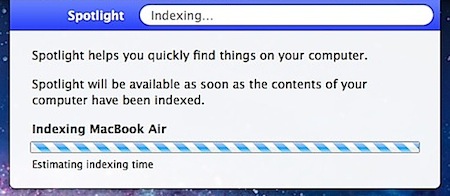
You can also look in Activity Monitor for the “mds” or “mdworker” processes, both of which are related to Spotlight.
Solution: Wait for Spotlight to finish indexing, it usually doesn’t take too long.
2: Software Update Loading
Whether the Mac is newer and updates through the App Store, or older and goes through Software Update, either of these processes can cause a temporary slowdown to the system while they launch in the background, query for available updates, and
How to Know: After a minute or so you’ll get a Software Update notification
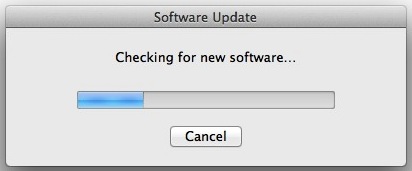
Solution: Keeping system software up to date is one of the best things you can do as part of a Mac maintenance routine. Let it run, install the updates, and reboot.
3: Low Disk Space
Anytime any computer is running very low on disk space, the computer will slow down dramatically, and Macs are no different. The reason is fairly simple; between the operating system and all your apps, a lot of temporary cache files are generated, and things are swapped in and out of memory and to the disk as needed. If your disk is full, those actions take longer because older cache files and swap files must be deleted before new ones can be generated, which creates a stall before any further system process can be taken. This whole thing can be painfully slow especially on traditional hard disk drives, and can leave any Mac feeling as slow as molasses.
How to Know: Checking available hard disk space is a cinch, just go to the desktop and open any folder, then pull down the “View” menu and select “Show Status Bar”. Now look at the bottom of the Finder window you opened, if the number of available space is less than several GB’s, you should take action. If the number is 0, you need to take immediate action!
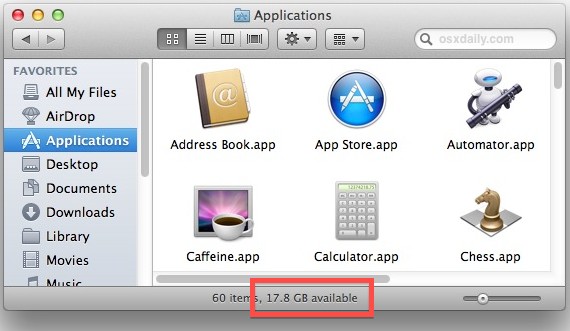
Solution: The best thing to do is clear out files you don’t need any more. First, go to your Downloads folder and remove stuff you don’t need because it can fill up awfully quick if you don’t clear it out yourself. Next, recover disk space by downloading a free app like OmniDiskSweeper to discover where all your storage went. Delete unnecessary files. When finished, reboot the Mac, because rebooting will cause temporary caches to clear out and that can often free up space as well.
4: Out of RAM
There is no bigger slowdown to encounter than when you run out of available RAM. When you run out of RAM, virtual memory takes over, and virtual memory is slow because it relies on your hard disk to store information needed for apps and OS X to run rather than keeping that information in super-fast RAM.
How to Know: Open “Activity Monitor” from the /Applications/Utilities/ folder, click on the “System Memory” tab at the bottom, and look at the colorful pie chart. If you don’t see any green, you’re running low on “Free” memory, and you can check just how low by looking at the “Free” item. “Inactive” is another potentially valuable resource to look at.
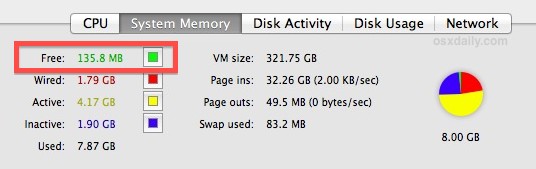
Solution: Quit apps that are no longer in use, and try relaunching ones that you are using. Web browsers in particular, like Safari, Chrome, and Firefox, will often consume more RAM than they need to the longer they are left open, as past web pages are stored in memory. Also, some websites have memory leaks. Quitting and reloading a web browser can often free up a ton of RAM.
5: High Processor Utilization
If an app or process is consuming a lot of your processor, other things going on with the Mac will slow down dramatically. Tons of different things can take up CPU, and though most are temporary as a process executes and completes, some errant processes go wild and continue to hog far more CPU than what is appropriate.
How to Know: Again, open “Activity Monitor” from the /Applications/Utilities/ folder, but click on the “CPU” tab at the bottom. Watch the “% Idle” for a few seconds, if that number is consistently below 60 or so, you have something that is eating up your processor.
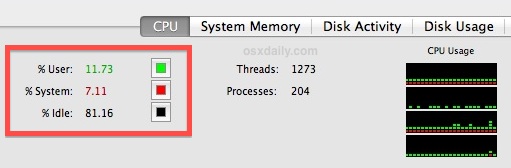
Solution: Still in Activity Monitor, click the “CPU” item at the top to list items by processor usage. The topmost item(s) will be your culprit, if those apps or processes aren’t in use, quit them to free up CPU.
6: Too Many Apps Open at the Same Time
This is simplified way of saying you’re either out of RAM, have an app being a CPU hog, the disk is thrashing, or any number of other problems that can occur when you simply have way too many apps open and running at the same time.
How to Know: The easiest way to tell is if the OS X Dock is a plethora of every app installed on your Mac.
Solution: Quit apps you aren’t using, the more the merrier.
7: Not Enough RAM for Your Needs
Speaking of running out of RAM and having too many apps open, it’s possible that you simply don’t have enough RAM to use your Mac at optimal speeds for your usage patterns. Thankfully this is very easy to determine, find out how to tell if your Mac needs a RAM upgrade by reading this great guide.
8: Your Desktop is Full of Icon Clutter
Did you know that having a desktop full of a billion icons slows down a computer? This is because each icon gets drawn as a window, and OS X renders a preview of the icons and their contents, each of which takes up resources to redraw as things are moved around.
How to Know: Your desktop is a disaster of files, documents, folders, with more icons than wallpaper visible.

Solution: Tidy up your desktop, ideally down to just a few select important things. If this sounds daunting, even creating a new folder called “Desktop Stuff” and throwing EVERYTHING from the desktop into it will dramatically speed things up. Also, there’s some great apps out there that will tidy up your desktop for you, try those out if you’re bad at managing the desktop clutter, or consider hiding the desktop icons completely.
9: The Hard Drive is Failing
Failing hard drives do not perform well, but potentially worse than that is the chance that you could lose all your important data and files. This is perhaps the least likely reason a Mac runs slow, but it’s also the worst possibility.
How to Know: You hear unusual sounds, clicks, or chunking coming from your computer and hard drive. Running Disk Utility’s First Aid fails repeatedly or throws tons of errors that are unrepairable with the “Verify” and “Repair Disk” functions.
Solution: First, stop everything else and BACK UP YOUR DATA because you could lose it if you don’t. Run Time Machine, copy all your most important files to an external drive, whatever it takes. Next, buy a new hard drive, and consider an SSD because they’re faster and less prone to some of the trouble traditional spinning drives are. Finally, consider taking the Mac to an expert, like the Genius Bar at your local Apple Store.
What Else?
Anything we missed? Let us know in the comments. For some general performance tips, especially for older Macs, don’t miss these 8 simple tips that can speed up Macs.






8: Your Desktop is Full of Icon Clutter
The OS option to “Use Stacks” made it look like I didn’t have much on my desktop, but I had tried everything (deleting /Library/Preferences/com.apple.finder.plist, modifying auto_master file, deleting ~/Library/Caches/CloudKit/CloudKitMetadata files). None of that worked. I downloaded the free Clean which moved all desktop files to a new folder. Presto! My Open/Save dialog box no longer makes me wait 30 seconds. It is immediate. Thanks for your help!
I bought a mac as back up for my ubuntu dev laptop. Whoops. So slow… on everything… and I don’t even have anything on it. I’ve never finished setting it up because I don’t have the patience.
I get it. Macs are awesome for some people but oh my God where do you find the time. I7 16 Gig mac mini with an ssd. No excuse.
Back to ubuntu.
Suerte!
Besides 3–7, I’d say the most common reason for Macs running slowly is directory corruption. You really should include that as an intermediate step before hard drive failure, so as not to freak people out. It takes an awful lot—and several years—of directory corruption to cause a hard drive to fail.
EVEN THIS SOLUTION I HAVE TRY IT BACK ..
Shut down your Mac.
Unplug your Mac’s power cord.
Press and hold the Mac’s power button for 15 seconds.
Release the power button.
Reconnect your Mac’s power cord.
Wait five seconds.
Start your Mac by pressing the power button.
Here is the link:
I HAVE TRY ALL THIS SOLUTION STILL THE SAME NOT THING CHANGE ….
You guys worry about your worthless macs, I’m gunna enjoy my Dell xps13
thanks for this advice, i purchased a dell XPS this year 2019 and love the laptop! I still use the MBair 2010 but sparingly mostly for PS and songs for ipod nano.
One solution is upgrade your mac to 16G ram and i7 processors (with at least 2.5 Ghz).
I have my imac is not give me sound i have try this still the same but is show as the sound is ok but is not ok so i did no know what to do…
When I click Systems Preferences > Sound > Input there is no device found.
When I click Systems Preferences > Sound > Sound Effects all the alert sounds are greyed out.
I want to hear the sound on my computer.
How do I get the device in-Built Speakers to appear in Systems Preferences > Sound > Output?
Upgrading to a solid state drive makes in much faster! The OS is too much of a hog for older machines.
One problem not described here is the HD cables. MacBook Pro series of year 2012 have had several problems with bad internal HD cables. Sadly Apple has never taken responsibility for this problem but as a Tech I can tell you it’s very real. The replacement cables via Apple is around $60.00
I am pc user for long time. I am now in a mix environment with Macs. I don’t favor either since both has pros and cons but I do appreciate the many suggestions here since one of my user is fave with beachball spinning. I will give some of the suggestions a try. Thansk all for sharing.
Hi — Thanks so much for all these hints & tips. I utilized many of them on my MacBook Pro. The one that provided the most obvious positive results was not to have so many icons on your Desktop, and one I didn’t see here.
That one was to disable as many fonts as you can get away with, via Font Book.
I also learned a lot about how to re-find the things I liked that were VERY efficiently deleted/uninstalled by some of these tips! :)
I’m an IT pro run Windows all day long. I wouldn’t touch it for personal use or recommend it to any non-tech person.
I only own Mac computers – so many fewer problems. I’m here to check javascript timer for now but found lots of good comments.
None of the above in my case. You forgot the most obvious reason – Macs suck! (this coming from a lifelong Apple/Mac user). Upgrading the OS is the last thing you should do. My fastest Macs are the ones still on Snow Leopard and the slowest one is only a year old on Mavericks. I’m in process of switching to PCs. At least when PCs are slow there’s reason for it (like the ones shown above). Apple quality and usability has dropped like a brick every since Jobs died.
I had a disk issue recently with my 27″ iMac, symptoms were – disk kept spinning and making a loud noise, and my mac was very slow, I fixed it by using disk utility, repair disk, my mac then told me that i should restart with CMD R from the recovery disk, which i did, i ran disk utility from recovery disk, it found a proble, fixed it, and now my disk is MEGA FAST … another reason for lovig a MAC !
This article and comments (minus the trolls) helped. Thanks!
Dude, thanks for the article! If it wasn’t for this, I probably never would have figured out that a cluttered up desktop was slowing me down. Problem solved.
One thing I’ve noticed on my 2009 macbook Pro (running snow leopard) is that when i’m running Safari 5.1.10, it will continuously eat up my ram until I go into the Activity Monitor and quit ‘Safari Web Content’ (this process eats up ram until i’m left with none.) It also happens with Firefox 26.0, and the only way to fix that is by restarting that browser. Is there an easier fix to the browser issues I have?
Reason #5, high processor utilization seems to be my mac’s problem. Usually the % idle is between 85-95%. However, when I opened Youtube, a flash game on the Internet, and Minecraft, the % idle when to 0.00%, and my computer slowed down massively. Does this mean that I cannot do these things in my computer anymore unless I want to bear the EXTREME lack of speed? Is there anything I can do to solve these and raise my % idle when using these apps?
I have been a Mac fan for years. I know computers well and built my fist one in 6th grade in 1983. I use them as a power user all day long. Macs were awesome until 2012 and are so slow and painful to use now. Steve Jobs would roll over if he knew what has happened. I have had every iPhone since 2007 (the first day always) and now i dont want to use it and cant wait to get an android. do yourself a favor and dont get anything Apple. you will be happy you didnt.
All of these tips are irrelevant. The reason a mac is slow.. is cause its a Mac! Get a PC!
Duh. Major Duh. Help boards like these are mainly for people who have older macs, and over time a mac, just like a pc, can become slow. What’s truly absurd, is why people like you are even here, feeling the need to pontificate (vapidly) in order to give yourself a much needed self-esteem and validation boost over having bought a pile of sh*t computer. Get a life, and stick to your Windoze forums, troll.
anybody that keeps a mac, let alone an old one, obviously is blinded by the design. there’s nothing else to it. its just the design.if i were any of those poor unfortunate souls who spend their time with a mac, i get a refund
PC’s are garbage dude. Have fun with all of your viruses and spyware!
Or you could get an App called “Memory Clean” and that will monitor your RAM in the tool bar.
Easy to see and one click to clean the RAM. Though i believe that “purge” works just as well, but doesn’t give you a easy view of the RAM status.
Why cant some one try and come out with a modified versionsied OSX or cutshort mini versions which can have only the essential components and applied tweaks. In windows these tiny versions available from torrent sites. The complete operating system comes in a CD less than 400 MB disk space.
Lack of System Memory is a killer. Firstly run Activity Monitor and click the System Memory tab. You will see a pie chart, The green slice is Free Memory – you need plenty of this. Leave Activity Monitor running so you can see what happens.
Now, run Terminal. Type “purge”, without the quote marks. All running processes are frozen while purge does its job. Eventually, Terminal will prompt for a new command, but wait a bit longer. Looking at Activity Monitor will now show a much bigger green slice.
Some things missing from the article: Running Disk Permissions can speed things up, also clearing out old caches can help (using a program like Onyx). Also good to check the Login Items list in System Preferences as having too many programs starting when the computer does can slow things down, this is more likely to be an issue if you’re running an old install of OS X thats been through lots of different software installs over the years.
Because it’s a Mac, just use a linux.
2: Software Update
Software Update will literally pre-download certain updates in their entirety, before even telling you that “updates are ready”… so while it’s running, it’s hitting not only the CPU but your network as well.
Try something like iStat Menus to monitor your network activity — it should usually be less than 5 KB/s or so. If it spikes up to a higher value, then check to see what’s using it (e.g. Software Update, Dropbox, Google Drive, etc.) Oftentimes these apps are the cause of “slow” internet or sluggish disk I/O speeds.
3: Low Disk Space
Your spinning hard disk should never get below 15% empty space. The number of gigabytes free is not the issue; it’s the percentage. This is because a disk needs 15% to 10% free space for Mac OS X’s automatic defragmentation routine to work correctly.
RE: too much RAM being used.
If you’re running something big, say Photoshop or Premiere, and then close them, your computer holds their files in RAM for a while in case you’re going to open them again.
If you aren’t, and your computer is still mulling over their memory, open Terminal and type ‘purge’ and hit enter. It clears the now-unneeded wired and inactive RAM and returns it to free RAM.
Excellent info. Thanks. My mac runs slow when I have a lot of tabs open and some tracking cookies will slow down my mac (everything is back to normal after I run a anti-malware utility).
oh how is useful ?
about the fire problem there is Terminal command can be solved
/Applications/Utilities/ Terminal
sudo mdutil -E / sudo mdutil -i on /
thank you so much
Why a Mac is running slow?! Because it runs MacOS X.
Why UNIX good?! It speak Engrish.
For #4 you can also just open the terminal and type:
purge
Then press Enter. It’s broken in 10.8.1, but fixed in 10.8.2
My Safari Web Content is almost always over 50% idle and Flash Player (Safari internet plug-in) is usually 30% then Safari is at 13%. How do I fix this?
Delete that crap plugin safari. If you really need it, install chrome and use chrome for the terrible websites that haven’t ditched flash yet.
Crap plugin flash from safari*
Time Machine running……
Sometime it completely freezes when using some app like Indesign or Illustrator (but maybe it is Adobe’s fault…)
Most of the time it is the lack of ram but don’t forget to do a verify disk permission run in disk utility, especially when your mac is a few years old.
I can say that the performance improvements from upgrading the ram and the HDD on a Macbook can be dramatic. I didn’t know that HDDs get slower with time, but some of them do. I upgraded my MacBook Unibody 2008 from 2Gb ram and HDD to 8GB and SSD. I am still amazed by how fast it got. Just make sure you have lots of free space on the SSD
This is common in Macs as Apple typically includes Seagate drives. Seagate drives are ‘faster’ than other brands, but have a usable life of only about 18 months. After that, they become painfully slow. Replacing with a true SSD (NOT a hybrid) will have the most significant performance improvement…assuming you can live with the reduced space.
My SSD had even more space than the HDD. Deh, times achanging.
“also, websites have memory leaks”… Err. What? You want to explain that?
Anything running Flash leaks memory
Anything with poorly written Java leaks memory
Anything with poorly implemented AJAX leaks memory
etc
Try this: Open Safari, then open three tabs. Set one tab to Facebook logged in with all its AJAX rubbish. Set another tab to something with a large java applet. And finally set another tab to something with a lot of Flash video, ads, or games. Check memory usage. Now let those things stay open for 2 hours and check memory usage again. Where’d it all go??
Lesson: avoid Flash, Java, AJAX, etc.
No, no, no – you don’t understand how they work, so probably best to not spread your confusion here.
Java has in-built garbage collection, making it extremely difficult to have memory leaks, unless you are purposely going out of your way to store masses of data.
“poorly implemented AJAX” – again – AJAX itself is two functions – you can’t leak memory from “poorly implemented AJAX”.
Ok first, a gc does not keep you from having a memory issue. Maybe not leak per se but a badly thought through a program could easily keep creating more objects without letting them leave scope.
Also same thing goes for JavaScript. I had a webpage use 20gb of ram once before I had to kill it.
It’s a sad statement really, intended to displace the blame.
The “websites” are not as fault so much as the applications used to render them. The applications have to deal with unanticipated user content, but that doesn’t ameliorate their responsibility for the memory leaks. Proper resource cleanup would minimize or eliminate the leaks. And, of course, disable Java in your browsers on OS X – it’s too far behind the known vulnerability curve so it opens up the computer to unnecessary risk.
My mac was recently extremely slow, causing beach balls all the time. I could not start any apps. Luckily I could ssh with Prompt on my iPad and there I found a process bzip2 that was eating 100% CPU.
It turned out that I had extreme big logs (4GB) – more specificly the kernel log was that big. The bzip2 process was trying to compress the logs.
So another good tip: run console once in a while and check the logs (first for content and then delete them if nothing important was found)
I’m a Windows user.
Enjoy your kernel panics.
Are you a troll in sheep’s clothing? The second line of your post makes me think so.
So why do more windows fanboys troll Mac sites than the other way around?
windows people troll cause they are to broke to afford a nice Mac like use Mac users
True story. An entry level macbook starts at like $1100.00
‘It is not about what you have, but how you use it’
#dualboot#OSX#W10#bestofbothworlds
have to agree about the price. my wife has a mac, superior craftsmanship. i have a dell i am not too happy with but as windows is my livelihood at work…
being a windows user i have a tough time working the mac though, i still like the windows interface better, more intuitive to me. for example, my first use of a mac i sat there for about 20 minutes trying to figure out how to get a cd out of the damn machine.
still, awesome piece of machinery.
i regret buying a mac for school. macs are way down at the bottom of the best laptop’s list.
I’m a Mac User.
Enjoy your blue screen.
LOL! I’m so sick of lame driver issues on windoze. Thank God for mac os unix w/ a gui. Never had a kernel panic unless i plugged in some dodgy hardware w/ crappy drivers.
Best Quote Ever:
“How much faster can you render the blue screen of death?”
http://www.engadget.com/2008/04/10/ce-oh-no-he-didnt-part-lv-nvidia-ceo-says-were-going-to-ope/
http://www.dailytech.com/NVIDIA+CEO+Were+Going+to+Open+a+Can+of+Whoop+Ass/article11448.htm
I’m a Mac and Windows user. I hate that Mac just says “There’s a fatal problem, nothing to see here,” while a Windows blue screen says, “Yup, we exploded, but here’s why.” Mac’s always treat users with kid gloves. I wish there was an “I’m not an idiot” setting for Macs. :P
I’m a PC User.
Build a PC with quality parts and you never get blue screens.
Enjoy your spinning pinwheel and CPU throttling.
UNIX MASTER RACE
Your mac is running slow because it’s most likely running a 1.5 ghz i3 processor with 2 gb’s of ram and intel hd graphics. That’s why your mac is running slow. PC master race.
I find that not letting apps run for extended periods (more than 4 or 5 hours at a time), and doing a complete shutdown, (DSL) modem included once a week seems to do wonders!
I’ve also noticed, that working with large PDF’s in Preview tends to consume free RAM at an accelerated pace.
I find that when I’m using the wifi at Starbucks, OS/X 10.8.2 freezes periodically. Every 2-3 minutes, the computer freezes for 1 to 4 seconds. This happens at every Starbucks, so it’s not a hack attack by one particular person. Its seems to be because of rpcsvchost.
Excellent comprehensive list, thank you!
Good info! I would add that if you really like to have icons on your desktop, you don’t live a spartan desktop life. Simply create aliases of the icons already there, and replace the original folders with the new aliases. Then place the original folders where you like (not on the desktop, of course.)
This scheme has essentially the same result as clearing the desktop altogether, as the limited memory allotted to the Finder deals with Aliases much better since they are much smaller than their counterparts. Things will definitely goes faster.
Advice for anybody using a Mac or a MacBook: don’t freak out if it starts going slow sometimes. It’s 100% annoying 100% of the time, but most of them can be easily fixed unlike Windows. I switched because of the functionality that Apple offers. Just stay on top of that clutter! You’ll notice a lot of extra space and a longer battery life, as well.