Subscribe to OSXDaily

Subscribe to RSS Subscribe to Twitter Feed Follow on Facebook Subscribe to eMail Updates

Shared on Facebook

Shop at Amazon

Ad

OSXDaily on Facebook

Search ultrasn0w

How to Jailbreak iOS 5.0.1 and Preserve Unlocked Baseband for iPhone 4 & 3GS

Dec 31, 2011 - 27 Comments
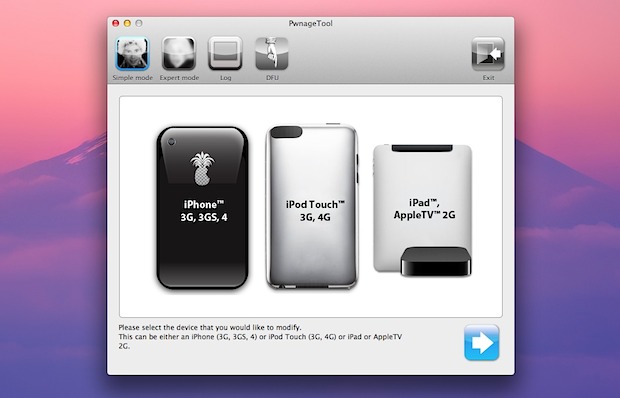
PwnageTool

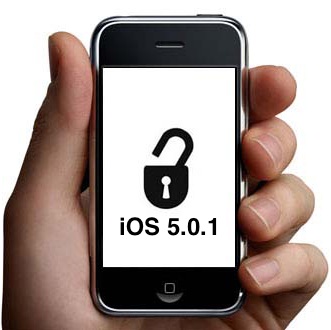
If you’ve maintained old iPhone baseband in order to utilize carrier unlocks, you’ll be pleased to know that you can now upgrade to iOS 5.0.1 and jailbreak untethered the iPhone while preserving the unlockable baseband. The procedure is done by using the newest version of PwnageTool 5.0.1, and if you’re familiar with past versions of pwnage then you should be right at home, but nonetheless we will walk through the entire process.

Note: Only need a jailbreak? If you don’t need a carrier unlock, use this guide to jailbreak iOS 5.0.1 untethered with redsn0w, it’s faster and doesn’t include the baseband preservation.

Before proceeding, make sure you meet the following requirements:

  • iPhone 4 or iPhone 3GS with preserved and unlockable baseband: 01.59.00, 04.26.08, 05.11.07, 05.13.04, 06.15.00
  • iOS 5.0.1 IPSW – optional, depending on if you already have it stored locally or not
  • iTunes 10.5.2
  • PwnageTool 5.0.1 – download now

Assuming you meet all those requirements and you understand the risks, continue on. Read carefully or else you can accidentally update your baseband and lose your unlock.

Jailbreak iPhone with iOS 5.0.1 while Preserving Baseband Unlock

  • Launch PwnageTool 5.0.1 and select your iPhone model, then click the next arrow
  • Let PwnageTool search for firmware (or you can download iOS 5.0.1 firmware manually), select it and click the Next arrow again
  • Click “Yes” when asked if you want to save the custom IPSW file to the desktop, and click yes/no depending on your activation
  • Let PwnageTool build the custom IPSW, enter the administrator password when asked
  • Now connect the iPhone to the computer and place it into DFU mode: Hold power button for 3 seconds, continue holding Power button and also hold the Home button for 10 seconds, release Power button but continue to hold Home button for another 15 seconds
  • When DFU is confirmed, quit out of PwnageTool and launch iTunes
  • Hold the Option key and click on “Restore” and select the custom firmware created by PwnageTool, located on the desktop
  • iTunes will now restore the iPhone to the custom iOS 5.0.1 build, simultaneously jailbreaking the phone and also preserving the unlockable baseband
  • After the device has been jailbroken and booted up, launch Cydia and download Ultrasn0w 1.2.5 to unlock the iPhone

The unlocked iPhone should now be good to use on another carrier. If you have trouble activating, use the original activated SIM card briefly to pass through activation, or run the newest version of redsn0w on top.

Unlock iPhone 3GS & iPhone 4 on iOS 5.0.1 with Ultrasn0w 1.2.5

Dec 21, 2011 - 9 Comments

unlock iOS 5.0.1 with ultrasn0w Ultrasn0w 1.2.5 has been released and it allows for unlocking some iPhone 3GS and iPhone 4 models with older modem firmware versions. Compatible baseband is as follows:

  • iPhone 4: 01.59.00
  • iPhone 3GS: 04.26.08, 05.11.07, 05.13.04, 06.15.00

You can check baseband on the iPhone by tapping on Settings > General > About and looking for “Modem Firmware” near the bottom of the About screen.

If your iPhone 3GS or iPhone 4 has eligible baseband and is already jailbroken, then you can just search Cydia for “ultrasn0w” and download and install the latest version. Reboot the iPhone and you’ll be able to use the new unofficial network. If you’re not sure what to do, follow the instructions below:

How to Unlock iPhone 3GS & iPhone 4 on iOS 5.0.1 with Ultrasn0w

Be sure to confirm baseband firmware before proceeding:

  • Jailbreak iOS 5.0.1 with redsn0w 0.9.9b9 and then boot the iPhone tethered
  • Open Cydia and search for ultrasn0w, installing the ultrasn0w 1.2.5 package onto the iPhone
  • Shut off the iPhone and insert the new SIM card from another carrier
  • Boot the iPhone tethered using redsn0w again
  • Wait for the iPhone to join the new network

Most iPhones won’t be eligible to use this version of ultrasn0w due to the baseband limitation. Keep in mind you can now buy the iPhone 4S unlocked directly from Apple, they aren’t cheap but you won’t have to bother with jailbreaks, software unlocks, or preserving baseband versions between iOS upgrades, and will always be free to use the iPhone on whatever compatible network you have a SIM card for.

Unlock iPhone 4.3.3 with Ultrasn0w 1.2.3

May 6, 2011 - 22 Comments

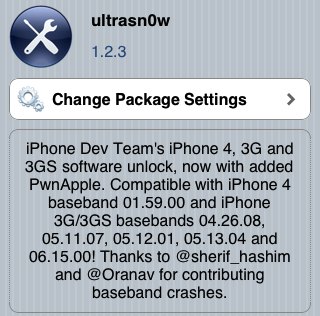
ultrasn0w 1.2.3 for iOS 4.3.3 Ultrasn0w has been updated to version 1.2.3 with support for preserved baseband running iOS 4.3.3. In other words, ultrasn0w 1.2.3 does not unlock new baseband, but it does work to keep your unlock if you have been tugging along iPhone 4 with 1.59.00 or iPhone 3G & 3GS with 4.26.08, 5.11.07, 5.12.01, 5.13.04, and 6.15.00.

If this applies to you, you’ll want to use PwnageTool 4.3.3 (Mac) or Sn0wbreeze (Windows) to jailbreak while preserving your old baseband and updating to iOS 4.3.3.

Install Ultrasn0w Unlock for 4.3.3

After you are jailbroken, ultrasn0w is installed through Cydia. You can generally do this just by searching for “ultrasn0w” but if that fails:

  • Add http://repo666.ultrasn0w.com as a source repository to Cydia
  • Search for “Ultrasn0w 1.2.3″ and install
  • Reboot your iPhone

Assuming you have supported baseband and everything is done correctly, the iPhone will boot unlocked and ready for another SIM card. Remember that many unofficial carriers do not support 3G networks so you should disable that in network settings if things aren’t working as expected.

Unlock iPhone 4 & iPhone 3GS on iOS 4.3.1 using Ultrasn0w 1.2.1

Apr 10, 2011 - 3 Comments

A new version of the Ultrasn0w iPhone carrier unlock utility has been released with iOS 4.3.1 support.

Note ultrasn0w 1.2.1 is not a new unlock and it will not unlock new baseband, but it does allow you to maintain your carrier unlock while upgrading to jailbroken iOS 4.3.1 using PwnageTool or Sn0wbreeze to preserve baseband.

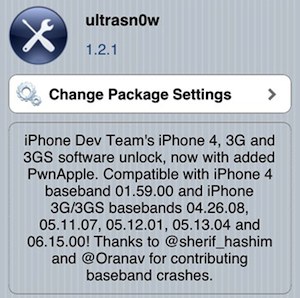
UltraSn0w 1.2.1 will unlock iPhone 3GS or iPhone 4 on baseband 01.59.00, 04.26.08, 05.11.07, 05.12.01, 05.13.04, and 06.15.00, you can check your iPhone baseband from Settings > General > About. Any baseband outside of these versions is not currently unlockable.

Download & Install Ultrasn0w Unlock for iOS 4.3.1

Mac users will need to download PwnageTool 4.3.1, iOS 4.3.1 firmware, and jailbreak the iPhone iOS 4.3.1 using PwnageTool to preserve their existing baseband. Windows users can do this with Sn0wbreeze.

After you have upgraded to iOS 4.3.1 with preserved baseband, here’s how to download and install ultrasn0w 1.2.1:

  • Launch Cydia
  • Tap on “Manage”
  • Tap on “Sources”
  • Tap “Edit”
  • Select “Add”
  • Enter the following repository: http://repo666.ultrasn0w.com
  • Tap on “Add Source”
  • Cydia will add the source repo, now search for “ultrasn0w 1.2.1″ and download and install the unlock
  • After ultrasn0w 1.2.1 has been installed, restart your iPhone

Your iPhone 4 or iPhone 3GS with preserved baseband will now be unlocked with iOS 4.3.1.

Activate Unlocked iPhone 3GS and 3G to Fix Ultrasn0w Battery Drain Issue

Dec 3, 2010 - 11 Comments

You can use a new tool to activate your unlocked iPhone 3GS or iPhone 3G, which in turn resolves the battery drain issue that has occurred on some iPhones unlocked with ultrasn0w. You’ll need redsn0w 0.9.6 beta 6 which was released specifically for this purpose, this allows you to ‘hacktivate’ your iPhone 3GS/3G by installing a new Cydia tool called SAM.

Activate iPhone 3GS & 3G to Fix Battery Drain

You should be familiar with redsn0w jailbreaks and Cydia, the goal is to jailbreak and unlock iOS 4.2.1 on the iPhone 3GS & 3G and then install the SAM tool which enables you to activate the iPhone and relieve the battery drain problem.

  • Launch Cydia and add the following source: http://repo.bingner.com
  • Search for and install SAM and SAMPrefs to your iPhone from that repository
  • Now download redsn0w 0.9.6b6 for Mac or Windows
  • Launch redsn0w and proceed as usual, but be sure and click the checkbox next to “Deactivate”, this allows the newly installed SAM to function

redsn0w 0-9-6-b6 deactivate battery fix

  • After SAM installation and using redsn0w with deactivate, tap on “Settings” and then SAM, and then tap to “De-activate iPhone”
  • Now launch iTunes and let it activate your iPhone
  • If iTunes tells you “Invalid SIM” when you try to activate, you just need to manually select your carrier

The reason the battery was draining with ultrasn0w prior to this SAM tool is because the iPhone was constantly sending out activation attempts, thanks to SAM this no longer happens and you will get a large boost in battery life, plus you can re-enable push notifications (which some people disabled as a temporary solution to the problem).

Jailbreak and unlock iOS 4.2.1 with redsn0w 0.9.6b5

Nov 28, 2010 - 247 Comments

jailbreak-and-unlock-redsn0w-0-9-6b5 Redsn0w 0.9.6b5 jailbreaks iOS 4.2.1 but also provides the added ability to install baseband firmware that can be unlocked for the iPhone 3GS and iPhone 3G. For other iOS devices, redsn0w 0.9.6b5 will simply jailbreak the device but some models will be a tethered jailbreak.

It’s very important to remember that the 06.15 baseband update for iPhone 3GS and iPhone 3G that is required for an update is irreversible and it will void your iPhone warranty with Apple. This is currently the only way to unlock 05.14 and 05.15 basebands. Proceed at your own risk.
Read more »

How to unlock iOS 4.2.1 on iPhone 3G and iPhone 3GS with ultrasn0w

Nov 28, 2010 - 132 Comments

unlock-ultrasn0w-ios-4-2-1 The ultrasn0w unlock for iOS 4.2.1 has been released and it works to unlock iPhone 3GS and iPhone 3G running iOS 4.2.1 on basebands 04.26.08, 05.11.07, 05.12.01, 05.13.04 in addition to 05.14 and 05.15 via updating to 06.15.00 iPad baseband. Using the ultrasn0w unlock isn’t complicated, but it’s a multi-step procedure that carries a few risks and first requires you to jailbreak your iPhone. Before you get started with the unlock, you need to consider the following:

Important notes about iOS 4.2.1 unlock on iPhone 3GS and iPhone 3G

  • Unlocking your iPhone voids your warranty from Apple
  • For basebands 05.14 and 05.15 this iOS 4.2.1 unlock requires you to update to baseband 06.15 from iPad 3.2.2 firmware onto your iPhone, this can not be reversed
  • You can not downgrade from baseband 06.15 (the iPad baseband), and you will no longer be able to restore to stock firmware. This means you will forever need to use your custom saved IPSW files!
  • And finally, directly from the iPhone Dev Team: “iPhone3GS users with old bootroms who want to go to iOS 4.2.1 should not use PwnageTool! Update to stock iOS 4.2.1 first (through iTunes) then use redsn0w 0.9.6b5 to update your baseband.”

It is important that you understand and accept these risks before proceeding.

How to unlock iOS 4.2.1 on iPhone 3GS and iPhone 3G using ultrasn0w

If you have older baseband, you can go straight to using ultrasn0w. You can update to iOS 4.2.1 from iTunes but this will update your baseband and require the use of the iPad firmware. Here are the steps to unlock, the process is basically the same with Pwnage or redsn0w:

  • If you are using PwnageTool, Basebands 05.14 and 05.15 need to download this iPad IPSW file in addition to PwnageTool 4.1.3 Unlock Edition (Mac)
  • You can also just download redsn0w 0.9.6b5 for Mac and Windows
  • If using PwnageTool to create a new custom IPSW, use the aforementioned IPSW download (yes its for iPad).
  • If using redsn0w 0.9.6b5, the app will automatically download the iPad IPSW for you
  • Jailbreak your iPhone 3G or iPhone 3GS, pointing it at the newly created custom IPSW
  • After your iPhone has been jailbroken, reboot the device and then launch Cydia
  • Tap on “Manage” and then tap “Sources”
  • Tap to “Edit” and then “Add” a repository, and then type the following: http://repo666.ultrasn0w.com
  • After the repository has been added, you can search for “ultrasn0w” and download version 1.2
  • Download and install ultrasn0w 1.2, this will automatically unlock your iPhone 3GS and iPhone 3G
  • Restart your iPhone and enjoy your unlock

The process of jailbreaking and unlocking iPhones usually sounds more confusing than it is, just follow instructions carefully. The main problem with this unlock method is that certain baseband versions require the use of an iPad baseband which can not be reversed, this marks your iPhone in an obvious manner to Apple and this is why it voids your warranty with them. Jailbreaking is not illegal but it is frowned upon by Apple, however the difference between a standard jailbreak and this particular unlock is that jailbreaking is reversible, and this unlock is permanent.

Update: the iPhone Dev Team forgot to include the proper bundle for iPhone 3GS users on 4.1 with PwnageTool 4.1.3, but you can fix it rather easily. Here are their comments on the matter:

There’s an error in the bundle for the iPhone3GS 4.1 that prevents the new baseband from being used. If you know your way around OSX, please download the fixed bundle, and unzip it if Safari hasn’t already done so. Then “Show Package Contents” of PwnageTool.app, navigate to Contents->Resources->FirmwareBundles and drop it there. Otherwise, please wait for the updated PwnageTool, or the OSX version of redsn0w coming soon.

Update 2: The redsn0w 0.9.6b5 download is now available for Windows and Mac, it’s an easier method to perform the jailbreak and unlock for many.

Ultrasn0w Unlock for iOS 4.2.1 Download Available

Nov 28, 2010 - 40 Comments

ultrasn0w 1-2 download Ultrasn0w has been updated to ultrasn0w 1.2 which works to unlock iOS 4.2.1 running on the iPhone 3G and iPhone 3GS. If you’re an unlocker that is currently stuck at 05.14 or 05.15 you will need to update to 06.15 (the iPad 3.2.2 firmware) to regain the ability to unlock using the newly available PwnageTool 4.1.3 Unlock Edition or redsn0w update.

Download Ultrasn0w for iOS 4.2.1

You can get ultrasn0w 1.2 from the updated ultrasn0w repository within Cydia, this obviously requires a jailbroken iPhone:

  • Launch Cydia
  • Add the following repository: http://repo666.ultrasn0w.com
  • After the repository has been added, you can then search Cydia for “ultrasn0w” version 1.2

After you download and install ultrasn0w 1.2 you will then be able to unlock your iPhone 3G or 3GS running iOS 4.2.1. This update will allow ultrasn0w to unlock iPhone 3G and iPhone 3GS basebands 04.26.08, 05.11.07, 05.12.01, 05.13.04 and 06.15.00 via the iPad IPSW.