Apple has released iOS 11.1 beta 3 for iPhone, iPad, and iPod touch users who are enrolled in the beta testing programs. Separately, tvOS 11.1 beta 3 and watchOS 4.1 beta 3 are also available for best testing too.
If you played video games in the early 1990s you probably remember Wolfenstein 3D, which was revolutionary at the time for being the first 3D first-person shooter. If you feel like reliving a brief moment of 1992, forget about digging out that ancient DOS PC in the basement, you can now enjoy playing Wolfenstein 3D – the entire game – entirely in your web browser.
Are you having difficulties with macOS High Sierra? While most Mac users who update to macOS High Sierra have no issues with the system software, there are small groups of users who have experienced a variety of problems with the software update. This tends to happen with every major system software release, either due to compatibility issues, third party apps, bugs, or a variety of other reasons. This article attempts to gather a list of some of the reported macOS High Sierra problems, along with possible troubleshooting solutions to those issues, though by no means is this exhaustive.
The Files app on iPhone and iPad is a bit like a light version of Finder on Mac, offering direct access to files and folders in iOS 11. If you find yourself accessing a particular folder often within Files app, you can make it quicker to access by adding it to your Favorites list. Once an item is added to the Favorite list of iOS Files app, it will be visible in the Favorites section of the app, or the sidebar for iPad users when Files app is in horizontal mode.
You can add a folder to the favorites section of iOS Files app with a tap trick or with drag and drop, we’ll show you how to use both. And of course, we’ll also show you how to remove an item from the Files app Favorites list too.
Some MacOS High Sierra 10.13.x users may wish to downgrade back to macOS Sierra 10.12.x or even Mac OS X El Capitan. Mac users can downgrade from High Sierra to a prior Mac OS release, either by formatting the hard drive and clean installing Sierra or another prior system release, or by relying on a Time Machine backup made prior to the update to macOS High Sierra.
The downgrade method we’ll cover here uses a Time Machine backup to restore to a prior version of macOS and downgrade macOS High Sierra 10.13. If you do not have a Time Machine backup made with a previous version of Mac OS, this will not be possible to follow.
If you use the iOS Notes app often and juggle a myriad of individual notes lists, you may find the new notes pinning feature to be helpful. By pinning a note to the top of the Notes list, you can access any particular note easier and faster than ever before, without having to scroll through a lengthy list of notes on the iPhone or iPad since it will be at the very beginning.
If you open multiple images into Preview on a Mac with some regularity, you may notice that sometimes pictures are grouped into single windows, and sometimes images are opened independently each into separate unique windows. If you’d rather all images be opened into a single window of Preview app on the Mac (or into unique windows for that matter), you can make a settings adjustment to achieve this.
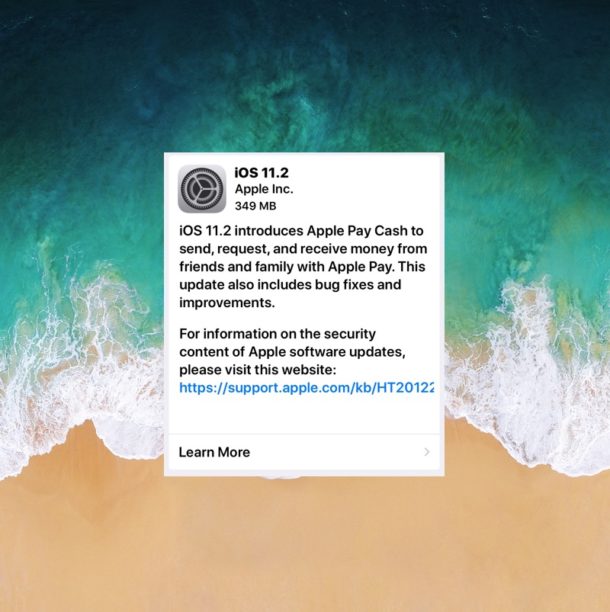
Apple has released iOS 11.0.3 for iPhone, iPad, and iPod touch users running iOS 11. The latest small software update includes bug fixes to iOS and is therefore recommended to all users running iOS 11 on their devices.
Release notes accompanying the iOS 11.0.3 download mention the update fixes an issue here audio and haptic feedback were not working on some iPhone 7 Plus and iPhone 7 devices, and also fixes an issue where some displays were unresponsive to touch on certain iPhone 6s models screens that had been replaced from third party sourcing (perhaps related, we recommend using Apple to replace a broken iPhone screen for best results). It’s unclear if any other bugs or security fixes are included in the iOS 11.0.3 release.
Wondering how you can scan QR codes with iPhone or iPad? Wonder no more, because the iPhone and iPad now include native QR code reading built directly into the camera app, allowing you to scan QR codes quickly using an iOS device and without having to download any third party software.
QR codes are commonly encountered in the outside world, they typically look like a square of some scattered pixelated black blocks against a white background, and they are often used to redirect people to websites, information about products or services, download apps or media, amongst other functions.
Do you miss having the App Store in iTunes? You’re in luck, because Apple has released iTunes 12.6.3, an alternative version of iTunes that retains the ability to download and install iOS apps directly within the iTunes application on a computer. App management via iTunes was a popular feature that was removed from iTunes 12.7 in favor of managing apps directly on iOS devices instead.
Apple apparently released iTunes 12.6.3 as an alternative version because “certain business partners might still need to use iTunes to install apps.” But even if you are not a “business partner” you can still download and install iTunes 12.6.3 and use the version of iTunes to manage apps with an iPhone or iPad connected through a Mac or Windows PC.
Apple has released iOS 11.1 beta 2 and macOS High Sierra 10.13.1 beta 2 for users enrolled in the iOS and macOS beta testing programs. Additionally, the second beta versions of watchOS 4.1 and tvOS 11.1 are available for those in the beta testing programs.
Have you ever wondered how to turn off an iPhone or iPad? If so, you’re not alone. While most users keep their iOS devices turned on all the time, sometimes users may need to power down a device completely, be it for storage, shipping, to preserve battery life, or whatever other reason.
The latest versions of iOS offer a nice software feature that allows users to easily shut down an iPhone or iPad entirely through system menu options, without having to use the power button or any other physical buttons on the device at all. Instead you can turn off the device entirely through software.
This guide will walk through how to perform the shut down function in iOS Settings on any iPhone or iPad.
If you frequently run out of storage space on an iPhone or iPad, you will appreciate a new feature in iOS that automatically saves storage for you. Called Offload Unused Apps, the toggle allows the iPhone or iPad to perform housekeeping and delete apps that have gone unused for a while, just as the name implies. Offloading used apps can noticeably help to reduce storage constraints on a device, since most of us have a handful of apps that may not be getting any usage but are taking up storage space on an iOS device anyway.
There are mixed reports that updating to iOS 11 has slowed down some iPhone and iPad hardware, or that performance of tasks like opening and interacting with apps is slower after installing iOS 11. If your iPhone or iPad feels slow after installing iOS 11, then you might want to try a few of the tricks we have outlined in this tutorial to speed up your device again.
Keeping apps updated on an iPhone and iPad is generally a good idea, as app updates frequently include bug fixes, performance improvements, enhancements to compatibility, or even entirely new features to apps and games. iOS users can update apps by opening the App Store and going to the “Updates” tab, but sometimes an update may not show up despite being available either on other devices or to other users. The solution to such a situation is to refresh the Updates section and check for new app updates available
You can refresh the Updates section of the App Store on an iPhone or iPad, though how you refresh the Updates tab in the App Store has changed in the latest versions of iOS 11 compared to prior versions. The good news is the change is for the better, and now checking for new updates to the App Store is better and easier than before.
With new iOS versions (iOS 15, iPadOS 15, iOS 14, iPadOS 14, iOS 13, iOS 12, iOS 11, and later), the new Control Center toggles for turning off Wi-Fi and Bluetooth do not actually turn off Bluetooth and Wi-Fi on an iPhone or iPad. Instead, if you hit the buttons for disabling Wi-Fi or Bluetooth in Control Center, the iPhone or iPad will disconnect from wi-fi or Bluetooth, but not actually turn off those wireless services on the iPhone or iPad. This can cause some confusion for obvious reasons, and many users are left wondering why wi-fi or Bluetooth is not actually turned off on their devices, or how to turn off wi-fi or Bluetooth in iOS 11 and newer completely.
You can still turn off wi-fi and disable Bluetooth on an iPhone or iPad with iOS 11 and newer, but rather than use Control Center to turn the wireless features off, you must go to the Settings app to disable either.
The App Store in iOS will now automatically play video previews of apps while you navigate through the App Store on an iPhone or iPad. These video previews can offer a helpful look into what an app does or may look like, but they can also be distracting, cause battery to drain faster than otherwise, lead to unintentional bandwidth and data usage, and be annoying if you’re not inclined to enjoy automatically playing videos of iOS apps you may or may not have any interest in.
Users can disable video auto-playing in the iOS App Store by adjusting the appropriate settings on their iPhone or iPad.