Where Mac System Icons & Default Icons Are Located in Mac OS X
Jul 27, 2014 - 24 Comments
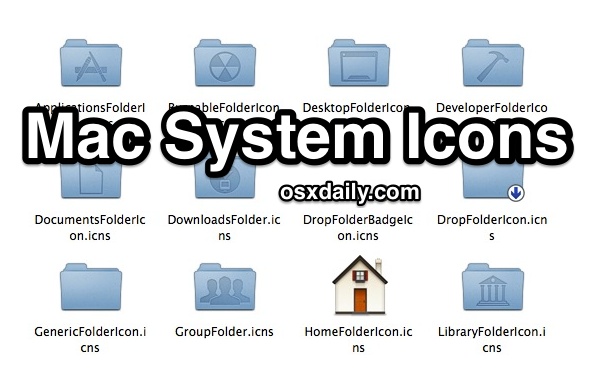
The system icons of Mac OS X decorate nearly everything found within the Finder and desktop, ranging from default folder icons, to the default icons of hard disks, network machines, even the Finder sidebar items, and some toggles found throughout Mac OS X. If you’ve ever wanted to access the full size original resources for these system icons, you’ll find they are intentionally buried within the operating system, but that doesn’t mean you can’t access them, copy them, or even change them if you want to.
By Paul Horowitz - Mac OS, Tips & Tricks - 24 Comments


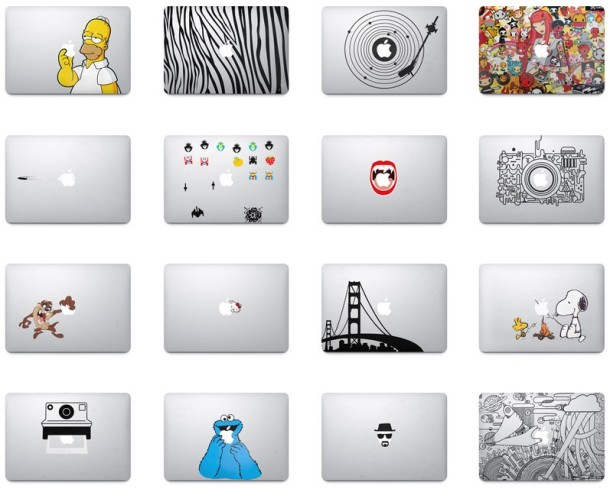
 , a huge assortment of brand stickers, Space Invaders decals, to even an image of the Cookie Monster eating the Apple logo, and many others.

 QuickTime Player, the video player and editing tool bundled with the Mac for ages, received a fairly major overhaul when it turned into QuickTime Player X. While it became free and lost the need to upgrade to a Pro version, it also lost out on a lot of really nice professional features that QuickTime Player 7 had. Perhaps most missed from QuickTime Player 7 is the excellent A/V tools panel, which allows users to adjust the video brightness, color, contrast, tint, playback speed, audio volume, audio balance, bass, treble, pitch shift, and playback.
 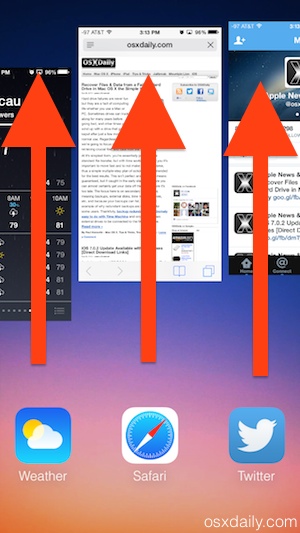 If you ever need to quit out of more than one app on the iPhone, or quit a bunch of apps quickly in iOS, using a handy multitouch swipe gesture at the iOS multitasking screen is enough to quit apps simultaneously. This works really well to quickly clear out the multitask bar of all running apps if you need to for whatever reason, and you can quit as many apps at a time as that fit on screen (and that you can fit fingers onto), which usually means killing running apps in groups of three.
 The iPhone Clock app has replaced many bedside alarm clocks out there, fitting since many of us sleep with an iPhone on a bed stand anyway. While most users know that you can snooze / sleep the iPhone alarm by just tapping on the screen or pressing one of physical buttons on the phone (volume buttons, home, power), fewer know this handy little trick to quickly turn off the alarm completely.