
How to Move the Dock Position in Mac OS X
Oct 11, 2013 - 9 Comments
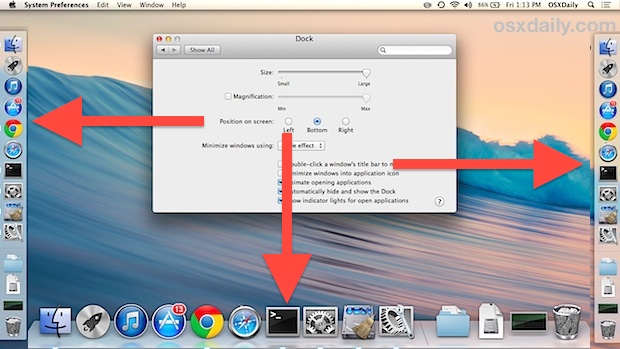
The Dock sits at the bottom of the screen on every Mac by default, and it will stay there unless it has been relocated either with a settings adjustment or a key modifier. If you’d like to switch the location of where the Mac OS X Dock resides, you can easily do so with either method outlined below, using System Preferences which is the better known method, or the faster but lesser known trick of using the Shift key and dragging the Dock handle to a different region on screen.
By Paul Horowitz - Mac OS, Tips & Tricks - 9 Comments

 Those who use Calendar for iOS and who also happen to travel between time zones may have noticed the events show based upon the iPhone or iPads current location rather than a defined time zone, this can cause some scheduled times to be off if you’re not expecting that behavior. The problem with that is pretty obvious for anyone who relies on Calendar for scheduling, but thankfully the solution is easy too, you simply need to enable Time Zone Support in the Calendar settings. This allows you to set a specific time zone for any event, alleviating much of the potential confusion:

 As you may have noticed by now, Siri’s voice often gets an overhaul in the new iOS versions, adjusted just slightly from the now famous female voice used in countless Apple commercials to a variation that is just slightly different, but a bit more refined. The new voice sounds great, but if for some reason you aren’t thrilled with Siri’s new voice, or you’d just prefer to hear something different for a while, you can actually change Siri’s voice completely by switching the voice gender. Doing this directly is a Settings feature added along with iOS, and here’s how to switch Siri from a guy or girl:
 Finding words and searching for text directly on webpages in Safari post iOS 8 and iOS 7 has changed slightly, and though there seems to be significant confusion about how to use the new find words and phrases feature, rest assured the feature has not been removed from Safari, the find feature is just accessed slightly different than it was before.
 Mac OS X has always been able to read NTFS drives, but tucked away in Mac OS X is a hidden option to enable write support to drives formatted as NTFS (NTFS stands for New Technology File System and is a proprietary file system format for Microsoft Windows). Enabling NTFS write support on the Mac is fairly technical and it’s not officially supported by Apple, making it an experimental feature that is best left in the hands of advanced users who understand the process and the potential repercussions.



