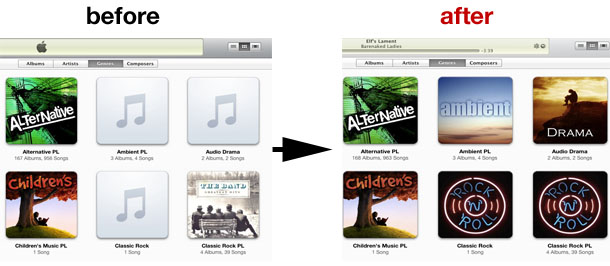
I have a million different genres in iTunes and not nearly enough album art, which is fine and dandy until you put iTunes 9 into genre ‘grid’ view and then suddenly you have a bunch of boring looking music note icons. Apparently how iTunes sets genre art is by looking for album art set in that genre, and if it can’t find any album art it will resort to the boring grey box. But not anymore! Thanks to a crafty Mac user, you can now change those dull music note icons into virtually any image you want, which dramatically spruces up your iTunes grid view appearance. Highly recommended iTunes tweaking! Check out the how-to guide here:
Want Gmail Push Notifications on your iPhone? In a crafty workaround, you can get Gmail to push notifications to your iPhone by setting up Gmail as a Microsoft Exchange account. The downside to this method is that you can only have one Microsoft Exchange account setup on your iPhone at a time, so if you already have an Exchange account configured you would have to replace it with the Gmail one. In any case, you can follow the instructions directly from Google on setting up the account so that you can get push notifications: Google Sync: Set Up Your iPhone or iPod Touch
The “uptime” of a computer is how long it has been since it was last rebooted or started up. Since Macs are very stable and generally OS X users rarely have to reboot their machines, the uptime of Macs can reach impressive numbers. You can check the uptime and reboot history of any Mac if you want to find this information yourself, we’ll show you how.
Here’s how to check the uptime in days (or hours) and the rebooting history both via the Command Line of OS X, and also how to find ‘time since boot’ through the System Information profiler on a Mac.
This is just a quick security tip based on some recent news, a couple Japanese computer scientists have figured out a way to crack WPA TKIP encryption in under a minute. This news came out a few weeks ago but after updating my wireless routers firmware I realized I hadn’t made the encryption type change yet myself, so I imagine many other people haven’t as well.
WPA is still more secure than WEP, but now that TKIP has been hacked, it’s best to change your Wireless Router’s encryption method to AES to continue to be secure.
Making the change is quick and easy, just login to your router’s administrative panel and you should find an option to switch the encryption from TKIP to AES.
Obviously this isn’t strictly Mac news, but since it’s a security issue that effects everyone equally, it’s worth posting here. You can learn more from the linked article.
The key takeaway is this: make sure you use the strongest wi-fi security protocol that your wireless router supports, and WEP is not secure. Use WPA2 or WPA anytime it is available, and with a strong password.
MouseOver popups, self-starting blasting audio, auto-refreshing webpages, random sound effects, obnoxious flash ads, resizing of your browser window… oh the web is filled with all sorts of things that are sure to annoy web browsers a world over. Lifehacker came up witha great list of fixes that you can implement in Firefox to reduce the most obnoxious encounters on the web (some work in Safari too). If your pop-up blocker isn’t doing enough for you, try these tricks out too:
First a quick note, we absolutely adore Apple and all it’s software and hardware offerings, but… Hackintosh machines offer an impressive alternative to the official Apple hardware that we all know and love, and in some cases even fill a niche where Apple has yet to dabble (eg: Netbooks). If you’re in the market for a new Mac and you don’t mind sacrificing Apple hardware’s good looks, and you either want to save some serious cash or just want to geek around a bit, building a Hackintosh is a great solution. The Hackintosh movement is growing strong and steady, so grab a Netbook or build a Desktop PC, follow these hackintosh guides, and join us!
Hackintosh Netbook
Here’s a whole slew of guides for creating a Hackintosh Netbook, and some other very helpful links. I’d personally recommend the Dell Mini 10v for ease of use and functionality, but my own hackintosh is actually an Acer Aspire One (which works great with 10.5.6 but wasn’t easy to get there, required a wifi card upgrade, etc).
Hackintosh Mini 10v – this is our guide on how to get a Hackintosh Dell Mini 10v that runs Mac OS X for just over $200. In my opinion, the Dell Mini 10v is the best option for a really awesome Hackintosh Netbook, it’s got good looks, a 10″ screen, and you can get one extraordinarily cheap by following these steps. Only downside is the RAM upgrade hassle.
Dell Mini 9 / Vostro 90 – if you can get over the awful keyboard on the Dell Mini 9/Vostro 90, it makes a great little hackintosh netbook
MyDellMini Forums – Snow Leopard – the most helpful forum group for the Hackintosh Netbook community is catered to Dell Mini owners, check out the Snow Leopard guides and if you have any questions or problems the MyDellMini forums should be your first line of defense
Asus EEE 1000h – a Hackintosh walkthrough for the Asus EEE PC 1000h
HP Mini 1000 – guide for hackintoshing the HP Mini 1000, just about everything works
Lenovo S10 – onboard ethernet does not work but otherwise following this guide you’ll get a fully functional Hackintosh S10
BoingBoing Netbook Compatibility Chart – a pretty solid chart to see which Netbooks can be turned into a Hackintosh and what works and what doesn’t, last updated in July 2009
Virtually Scale Window Size – very helpful hint for Hackintosh Netbook users with limited screen resolutions and real estate to virtually scale down window sizes
Desktop Hackintosh
Here’s the best information I know of for building a desktop Hackintosh machine, it’s all based around the infamous Lifehacker guide that shows you how to build a really sweet desktop Hackintosh PC for around $900. The process has gotten even easier thanks to a PKG from Stella and it requires no hacking, just a simple pkg install.
Snow Leopard Hackintosh Compatible Hardware List for a Desktop
Webcams:
* Dynex DX-WEB1C 1.3MP (Fixed Focus Cam and mic built-in)
* Xbox 360 Live Camera (Manually adjustable Cam only)
* Logitech Quickcam Vision Pro for Mac (Autofocus cam and mic built-in)
* HP KQ246AA (Autofocus cam and mic built-in)
Looking for a free iPhone Twitter app that is awesome? Allow me to rave for a moment about Echofon (previously Twitterfon), it’s without a doubt the best free iPhone Twitter app I have found and it has become an integral part of my day. I know there are various paid solutions out there which are pretty cool too, but since Twitter is free, I’m looking for a free solution for the iPhone, and Echofon does exactly the job I need it to do and quite well. You can easily tweet out, follow your friends, and track @messages going back and forth, and so much more. If there is a better free iPhone Twitter app out there, I want to know about it!
I apologize to everyone that has seen this, but if you haven’t it’s pretty funny. It’s the entire Apple 9-9-09 keynote address condensed into just under two minutes of superlative adjectives. It’s incredible, awesome, easy, better and better, wonderful, remarkable, easy, amazing, awesome, amazing, amazing, easy, great, great, easy, great, amazing, awesome. It’s awesome. Check it out.
Though the Mac is fairly error free and tends to run much more stable than some of the competitors out there, many of us will find a bug or two in day to day usage anyway.
Sometimes the bugs are minor, sometimes they’re fairly major and can dramatically impact how Mac OS X or iOS works or behaves.
Bugs are just a reality of software development, but that doesn’t mean we as end users can’t do or say anything about it.
An interesting opinion piece on kottke.org can be summarized as: the iPhone is taking over the world. Arguing that between the iPhone’s built-in functionality and the myriad of apps developed for it, the iPhone is going to win the fight for consumers limited pocket and purse space, and many devices (and thus, companies) are doomed as a result. The readers digest version for those of you who don’t want to read the entire article says the following devices are either now or going to be in direct competition with Apple:
* Mobile phones (duh)
* PDA’s
* iPod (duh)
* Power and shoot cameras
* Personal computer
* Nintendo DS
* PSP
* GPS (duh)
* Flip video camera
* Compass (disagree based on personal experience)
* Watch (yup)
* Portable DVD Player
* Kindle
* Pedometer
* Tape recorder
* Heart monitor
* Calculator
* Remote control
* USB key
* etc
The iPhone and iPad are amazingly stable, but every once in a while you may run into an app that misbehaves itself and seems to become stuck in some infinite loop of iPhone-frozen madness. Thankfully, if you find yourself in that situation you can force quit a frozen application on your iPhone, iPad, or iPod Touch.
The secret to force quitting on an app in iOS is by holding down the Home button for 10 seconds from the shut down screen. We’ll detail the steps below for completing this procedure.
For anyone looking to have a great desktop Mac without paying a small fortune, creating a Hackintosh is becoming an ever-popular solution, and building a Hackintosh just got even easier. Assuming you have the supported hardware, this awesome tool from LifeHacker makes creating a Hackintosh Mac even easier by eliminating some of the more complex technical hacks in favor of running a simple installer! I absolutely adore Apple and their products, but I’m a big fan of the Hackintosh movement, in part because it’s fun and also because it’s a more affordable way to run the best operating system in the world.
If you’re in the market for a new desktop Mac, don’t ignore the Hackintosh option, especially with how easy this is getting to do… Check out the full article on Lifehacker.
The next super secret Mac OS X alpha is in the works! In an obvious jab at the feline obsession with Mac OS X build names, a satirical image of a 10.7 build installer has appeared on Flickr, titled…. Mac OS X 10.7 Ceiling Cat! I’ve never really understood Apple’s cat naming system, if anyone does please explain it to me, but Ceiling Cat does make you wonder what cat name we’ll see in the upcoming versions of Mac OS X.
We know that Snow Leopard added some features to Mac OS X, but what about the things that Snow Leopard took away? Waffle has an updated list of things known to be removed from Snow Leopard, and there’s some interesting stuff on there. Here’s what I found to be most interesting (and surprising) that was removed in Snow Leopard:
* AppleTalk Printing
* Project templates in XCode
* Preinstalled developer examples
* Preinstalled API documentation
* ZFS Support
Now obviously some of these things were removed to save disk space, but I’m actually really surprised by the XCode and developer examples/templates being removed. Many beginning developers lean heavily on examples and now it looks like you have to fish around on Apple’s Developer Connection website to find this information.
Other noteworthy things missing include PowerPC support (this was expected) and the QuickTime Pro for $29, but check out the full list here:
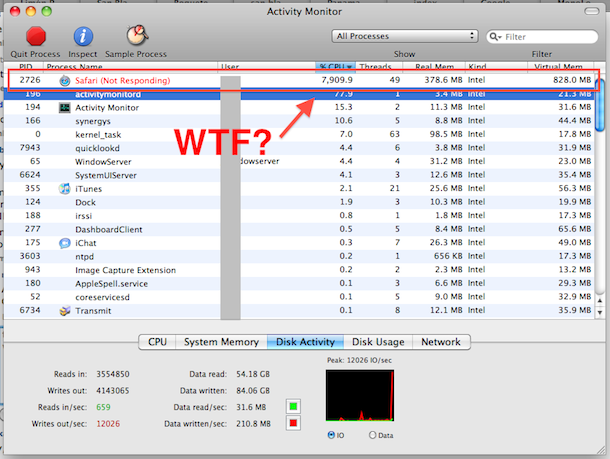
Bonjour is a great service that runs in the background of your Mac to auto-discover network resources, that is, it’s great until mDNSResponder goes haywire. I was recently in a very creatively crafted network environment that made Bonjour absolutely freak out and tax my CPU with a million processes, so I opted to just disable the service temporarily.
Generally speaking you should leave Bonjour enabled since it’s functionality is ubiquitously used throughout Mac OS X, but if you DO want to disable mDNSResponder, here’s how to do it:

 Want Gmail Push Notifications on your iPhone? In a crafty workaround, you can get Gmail to push notifications to your iPhone by setting up Gmail as a Microsoft Exchange account. The downside to this method is that you can only have one Microsoft Exchange account setup on your iPhone at a time, so if you already have an Exchange account configured you would have to replace it with the Gmail one. In any case, you can follow the instructions directly from Google on setting up the account so that you can get push notifications:
  The “uptime” of a computer is how long it has been since it was last rebooted or started up. Since Macs are very stable and generally OS X users rarely have to reboot their machines, the uptime of Macs can reach impressive numbers. You can check the uptime and reboot history of any Mac if you want to find this information yourself, we’ll show you how.
 MouseOver popups, self-starting blasting audio, auto-refreshing webpages, random sound effects, obnoxious flash ads, resizing of your browser window… oh the web is filled with all sorts of things that are sure to annoy web browsers a world over.
  First a quick note, we absolutely adore Apple and all it’s software and hardware offerings, but… Hackintosh machines offer an impressive alternative to the official Apple hardware that we all know and love, and in some cases even fill a niche where Apple has yet to dabble (eg: Netbooks). If you’re in the market for a new Mac and you don’t mind sacrificing Apple hardware’s good looks, and you either want to save some serious cash or just want to geek around a bit, building a Hackintosh is a great solution. The Hackintosh movement is growing strong and steady, so grab a Netbook or build a Desktop PC, follow these hackintosh guides, and join us!
 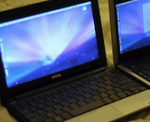 Here’s a whole slew of guides for creating a Hackintosh Netbook, and some other very helpful links. I’d personally recommend the Dell Mini 10v for ease of use and functionality, but my own hackintosh is actually an Acer Aspire One (which works great with 10.5.6 but wasn’t easy to get there, required a wifi card upgrade, etc).
 Here’s the best information I know of for building a desktop Hackintosh machine, it’s all based around the infamous Lifehacker guide that shows you how to build a really sweet desktop Hackintosh PC for around $900. The process has gotten even easier thanks to a PKG from Stella and it requires no hacking, just a simple pkg install.
  Looking for a free iPhone Twitter app that is awesome? Allow me to rave for a moment about Echofon (previously Twitterfon), it’s without a doubt the best free iPhone Twitter app I have found and it has become an integral part of my day. I know there are various paid solutions out there which are pretty cool too, but since Twitter is free, I’m looking for a free solution for the iPhone, and Echofon does exactly the job I need it to do and quite well. You can easily tweet out, follow your friends, and track @messages going back and forth, and so much more. If there is a better free iPhone Twitter app out there, I want to know about it!
 Though the Mac is fairly error free and tends to run much more stable than some of the competitors out there, many of us will find a bug or two in day to day usage anyway.
  An interesting opinion piece on

 For anyone looking to have a great desktop Mac without paying a small fortune, creating a Hackintosh is becoming an ever-popular solution, and building a Hackintosh just got even easier. Assuming you have the supported hardware, this awesome tool from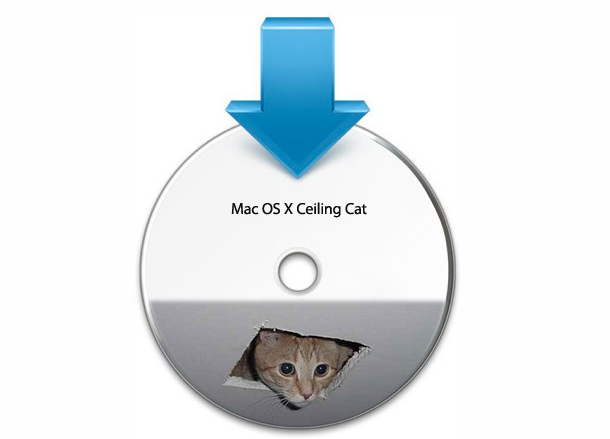
 We know that Snow Leopard added some features to Mac OS X, but what about the things that Snow Leopard took away?