If you’ve ever needed to troubleshoot a network or internet connection, you know how frustrating it can be (particularly when you’re on techsupport with various broadband providers). This quick tip can make the job a little easier on yourself by retrieving all relevant DHCP information, like DHCP server IP, client, subnet mask, router, DNS servers, everything – directly from the command line.
I like Safari but find myself in Firefox nearly always because of a multitude of reasons. One thing I’ve long missed though is the ability to view PDF’s within the browser within Firefox, which Safari does wonderfully. If you’re tired of Firefox launching the Preview app (or even worse if you’re settings are different: Acrobat), then try this great little Firefox extension, which will pop open the PDF file into a new browser tab. Note this requires Firefox 3
In some trickier network situations, your computer may be assigned an IP but need an entirely different IP address to access certain network resources. You might be wondering, how on earth do you have two IP addresses at once on the same Mac? The answer; Create an IP Alias!
Using an IP alias allows your Mac to have more than one IP address at the same time, this can allow you to have multiple IP addresses that reference the same machine.
While this is fairly advanced topic, you will find that creating an IP alias is easy to do with the powerful Mac OS X command line utility ifconfig.
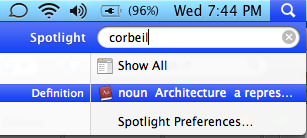
Using your Mac, iPhone, or iPad, and you need to know the meaning of a word, and quick?
That’s easy. Just bust open Spotlight with Command + Spacebar on the Mac or iPad, or pulling down from the Home Screen on iPhone, and type in the word you want to get the definition for.
One of the top results will always be the dictionary definition of the word you entered, coming right out of Apple’s built-in Dictionary file.
This feature goes back a long while too, so as long as your Mac, iPhone, or iPad, has Spotlight, you’ll have the ability to use the software dictionary that is included with the operating system.
Remember, you can even edit the dictionary on your Mac too, if you find that a particular word is not defined as you see fit, or not defined at all. Maybe you’re inventing new words, who knows? But it sure is useful to be able to modify the dictionary if you need to, and to be able to add words to spellcheck too.
I’ve been bored with the standard Mac OS X boot up screen and it’s grey Apple logo, and a few times I have scoured around trying to change it manually to no avail. Today though, I stumbled into a post on my friends blog that makes changing the Mac OS X boot image a snap with a nice little program fittingly called BootXChanger.
With this free little app you can change the image to basically anything you want as long as the background color is the same shade of grey. The image to the right shows this done with a replaced colorful Apple logo if you want the retro look, it’s easy to get that or whatever else, or if you want to design your own little boot logo that’s fine too.
Using the app is super simple, it just requires dragging and dropping another image over the existing one. Then save and reboot to see the difference. Nothing special, but kind of a fun way to customize a Mac a bit more.
Keep in mind this app is limited to OS X 10.4, 10.5, and 10.6, so newer Macs running OS X Lion and OS X 10.9 Mavericks probably aren’t going to be able to use it.
I just found out about Skim and I find it to be wildly useful for personal use, but I can imagine this could be a huge productivity booster for anyone in academia in particular. In short, Skim views any PDF files quickly as expected, but more importantly it allows you to take notes and annotate sections of the PDF file itself, how cool is that? If you’re a student, teacher, researcher, educator, or anyone using PDF files regularly, you absolutely have to try out Skim and you will thank me later.
Creating your own cheap Mac Hackintosh out of a PC Netbook is pretty popular right now, so I compiled a list of various how-to guides mostly for myself but figured I would share it with our readers as well. The guides rank from reasonably easy (Dell Mini 9) to an arduous hack, and it’s technically against Apple’s OS X EULA agreement, so whether or not it’s worth proceeding with making one of these frankenstein Macs is entirely up to you.
It’s worth mentioning that BoingBoing has a pretty good OSX/Netbook compatibility chart but much of the info looks out of date (from December of 2008) so it’s worth doing some of your own due diligence before relying 100% on the chart.
Have you ever wanted to have your Mac require a password on waking from system sleep, but not ask for a password when the screensaver is on or the screen was locked? Well, me neither, but someone out there might and it’s kind of a nifty customization tip that has some valid uses in some environments when a Mac at screensaver mode shouldn’t require a login, but waking from sleep should.
Here’s how to accomplish this rather unique login authentication requirement on a Mac:
I really enjoy videochatting with friends and family using iChat, so I was pretty frustrated when seemingly out of nowhere iChat video started freezing completely after a video chat session was initiated. I searched around a bit and noticed other people having the same problem and symptoms – iChat video freezes but iChat audio still works, so I know this isn’t a rare thing. While I don’t know the cause, I did manage to find a solution, and here it is:
How to fix iChat video freezing problem
1) Launch System Preferences and click on the QuickTime preferences pane. Under the “Streaming” tab, set streaming speed to “1 Mpbs Cable” and close the System Prefs
2) Now within iChat, open the Preferences and select the Audio/Video pane, set the Bandwidth Limit to “500 kbps” and close the preferences
3) Try starting an iChat Video Chat again – should work fine now!
This seems to work by forcing a slight reduction in the video quality based on available bandwidth, although I can’t tell a difference in quality myself. It’s worth mentioning that I’m on a fast broadband cable connection, so your mileage may vary with DSL or slower networks; you may try reducing the settings even more if you’re on a slow network and still having problems.
Mac users are largely immune to the world of virus and trojans, but it’s not uncommon for you to be a Mac user in a LAN sea of Windows PC’s. The Conficker Virus is Windows only but it’s garnering a lot of attention, so if you’re on a Windows LAN at home, work, or school, you may want to check if the Windows machines are vulnerable or infected with Conficker. You can do this from your immune Mac OS X machine pretty easily with a cool command line utility called nmap. Here are the steps:
It’s very easy to mirror an entire web site on your local machine thanks to the terminal command wget, this tutorial will show you how to do it via the command line. wget is available for Mac OS X, Linux, Unix, and many other popular operating system platforms, thus this is universally applicable assuming you have wget anyway.
Need to show hidden files on a Mac? This is pretty common if you find yourself needing to access hidden files on your Mac, like an .htaccess file you downloaded, a .bash_profile, a .svn directory, – literally anything preceded with a ‘.’ indicating it is invisible by default – you can run the below command from the terminal to set hidden files to become visible throughout Mac OS X.
For some quick background to fill in those who don’t know, files that are hidden in Mac OS are determined so by preceding the filename with a single period symbol (.), you can actually make any file hidden by placing a period in front of the name, thus making it invisible to the Finder. Let’s walk through making all hidden files become visible in Mac OS X, regardless of what system software version is on the Mac.
If you are anything like me, you may struggle to keep up with a years worth of Hollywood releases. One easy way to sort through the noise is to focus on what the awards and festivals determine are worthwhile investments for your time, and you can further narrow the movies down by looking at the trailers for them. But Apple and iTunes makes it easier.
MAMP: It stands for Mac Apache MySql PHP, and it’s a fantastic setup for Mac based web developers. Basically, think LAMP but for Mac OS X users, and in a pre-packaged, simple to use environment, which also indludes PHPMyAdmin, perl, python, and SQL Lite.
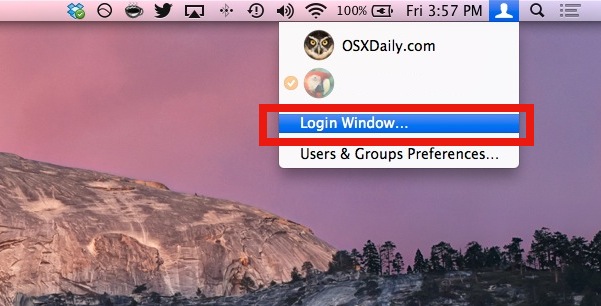
A quick way to lock your Mac desktop is to hit Shift-Command-Option-Q to do a fast user log out. This logs the current user out of Mac OS X, which is one way to initiate a login screen when the Mac needs to be used again.
Another method is brought to us by inaminit who left the following in our comments: “If you have Fast User Switching enabled through the System Preferences/Accounts, you can just click on Login Window in the drop down menu from the menu bar to do the same thing.”
What inaminit is referring to is the Fast User Switching menu bar item, which is in the upper right corner of OS X if you use the feature. Pulling it down and finding “Login Window” is what immediately logs out and password protects the computer.
Have you ever wanted to listen to Pandora from a Mac, but without opening a web browser like Safari? Some of us just use Pandora on our iPhone or iPad as we work on a Mac, but what if you could stay on the computer entirely? While there is always Pandora.com and there are a few tools out there that allow you to stream Pandora on a Mac, if you want a simple approach to accomplishing this, you may be interested in a tool called PandoraBoy.
Available as a free download, and totally open source, PandoraBoy offers “Pandora.com on your mac … without a web browser.”. If this sounds good to you, then check out the Github project below:
The PandoraBoy project is available as source code, so you’ll want to build the project yourself in Xcode.
For many, listening to Pandora is as routine as brushing their teeth in the morning, so it’s always nice having additional ways to stream your music.
PandoraBoy vs PandoraMan
PandoraBoy offers a newer solution to another app that has ceased development called “PandoraMan”, which likely doesn’t work on the latest Mac OS X releases. PandoraMan is another option you may have come across by browsing through the the various Mac application downloads related to Pandora.
According to the developer, PandoraMan is “a small Cocoa app to run the Pandora mini player using WebKit. Created so you can quit Safari, Camino, etc. without killing your music stream.”
Excellent! No longer do you need to spawn an entire web browser just to hear your favorite Pandora stations. Place this app in your dock, launch, and you are one click away from listening to Pandora radio!
You can still grab the PandoraMan download by heading over to the IntraArts development studios website for a closer look if you’re interested, just note that that’s a bit more limited in compatibility.
Of course you can always just listen to Pandora on your iPhone, iPad, Android, or other phone or device too, but that’s obviously not going to be on your Mac.
As always, feel free to chime into the comments below with recommendations for your own solutions for alternative methods of listening to Pandora on a Mac or computer!
Spaces. Personally, it is my favorite addition to Apple’s Leopard operating system. I have become very accustomed to working with Spaces and have long desired the ability to set a different background for each virtual “space”. That is now possible thanks to SpaceSuit. Installation of SpaceSuit is a breeze and setting your backgrounds involves a simple drag and drop. The only downside or complaint I have thus far is that I can not figure out how to set unique backgrounds across my multiple monitors. Maybe a reader out there has figured out how to do this and can chime in. Anyways, Enjoy.
I have been a long time user of Skype and recently some of the features unique to the beta have caught my attention. In particular, I am enjoying the new screen sharing functionality. Frequently, I work remotely and find screen sharing crucial to collaboration. If you haven’t already, I encourage you to cruise over to skype.com and download the new beta. In addition, you can now use your SkypeOut credits to access participating public wifi hotspots across the globe!

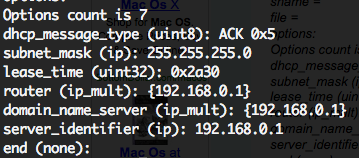 If you’ve ever needed to troubleshoot a network or internet connection, you know how frustrating it can be (particularly when you’re on techsupport with various broadband providers). This quick tip can make the job a little easier on yourself by retrieving all relevant DHCP information, like DHCP server IP, client, subnet mask, router, DNS servers, everything – directly from the command line.
  I like Safari but find myself in Firefox nearly always because of a multitude of reasons. One thing I’ve long missed though is the ability to view PDF’s within the browser within Firefox, which Safari does wonderfully. If you’re tired of Firefox launching the Preview app (or even worse if you’re settings are different: Acrobat), then try this great little Firefox extension, which will pop open the PDF file into a new browser tab. Note this requires Firefox 3

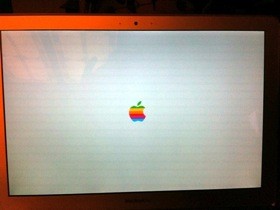 I’ve been bored with the standard Mac OS X boot up screen and it’s grey Apple logo, and a few times I have scoured around trying to change it manually to no avail. Today though, I stumbled into a post on my friends blog that makes changing the Mac OS X boot image a snap with a nice little program fittingly called BootXChanger.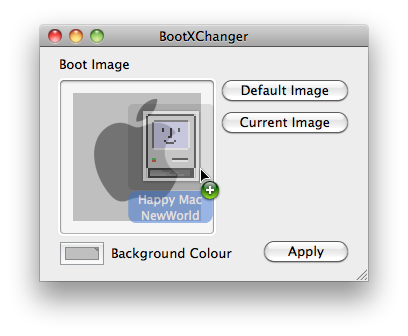
 I just found out about Skim and I find it to be wildly useful for personal use, but I can imagine this could be a huge productivity booster for anyone in academia in particular. In short, Skim views any PDF files quickly as expected, but more importantly it allows you to take notes and annotate sections of the PDF file itself, how cool is that? If you’re a student, teacher, researcher, educator, or anyone using PDF files regularly, you absolutely have to try out Skim and you will thank me later.
 Creating your own cheap Mac Hackintosh out of a PC Netbook is pretty popular right now, so I compiled a list of various how-to guides mostly for myself but figured I would share it with our readers as well. The guides rank from reasonably easy (Dell Mini 9) to an arduous hack, and it’s technically against Apple’s OS X EULA agreement, so whether or not it’s worth proceeding with making one of these frankenstein Macs is entirely up to you.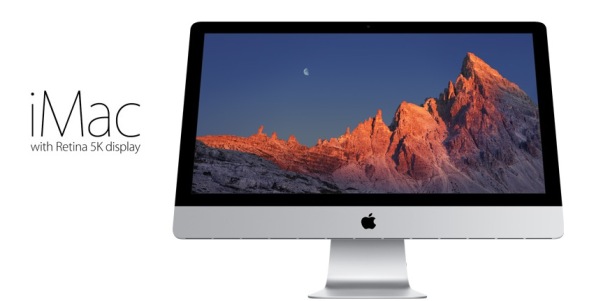
 I really enjoy videochatting with friends and family using iChat, so I was pretty frustrated when seemingly out of nowhere iChat video started freezing completely after a video chat session was initiated. I searched around a bit and noticed other people having the same problem and symptoms – iChat video freezes but iChat audio still works, so I know this isn’t a rare thing. While I don’t know the cause, I did manage to find a solution, and here it is:
 It’s very easy to mirror an entire web site on your local machine thanks to the terminal command wget, this tutorial will show you how to do it via the command line. wget is available for Mac OS X, Linux, Unix, and many other popular operating system platforms, thus this is universally applicable assuming you have wget anyway.
 Need to show hidden files on a Mac? This is pretty common if you find yourself needing to access hidden files on your Mac, like an .htaccess file you downloaded, a .bash_profile, a .svn directory, – literally anything preceded with a ‘.’ indicating it is invisible by default – you can run the below command from the terminal to set hidden files to become visible throughout Mac OS X.


 Spaces. Personally, it is my favorite addition to Apple’s Leopard operating system. I have become very accustomed to working with Spaces and have long desired the ability to set a different background for each virtual “space”. That is now possible thanks to SpaceSuit. Installation of SpaceSuit is a breeze and setting your backgrounds involves a simple drag and drop. The only downside or complaint I have thus far is that I can not figure out how to set unique backgrounds across my multiple monitors. Maybe a reader out there has figured out how to do this and can chime in. Anyways, Enjoy.
 I have been a long time user of Skype and recently some of the features unique to the beta have caught my attention. In particular, I am enjoying the new screen sharing functionality. Frequently, I work remotely and find screen sharing crucial to collaboration. If you haven’t already, I encourage you to cruise over to skype.com and



