
Resize Partitions in Mac OS X with Disk Utility
 You can easily resize any disk partition in Mac OS X using the included Disk Utility app, located in /Applications/Utilities, and you can even resize a mounted volume. In fact, you can grow or shrink HFS+ (Mac OS X) Partitions on the fly, with the resizing done live regardless of whether the drive is internal or an external drive, or even the boot volume.
A word of advice: Resizing mounted boot volumes isn’t always the best idea in the world because there’s a tiny potential something could go wrong. Before you go messing around and resizing your partitions, be sure to backup your data using Time Machine or whatever other backup service you prefer and make a recent back up.
Resizing a Mac Drive Partition with Disk Utility
It is recommended to back up the drive before modifying the partition table, do that before beginning. When ready, here is how to resize a partition from OS X:
- Open Disk Utility, found in the /Applications/Utilities/ folder, and select the hard drive with the partitions you wish to resize
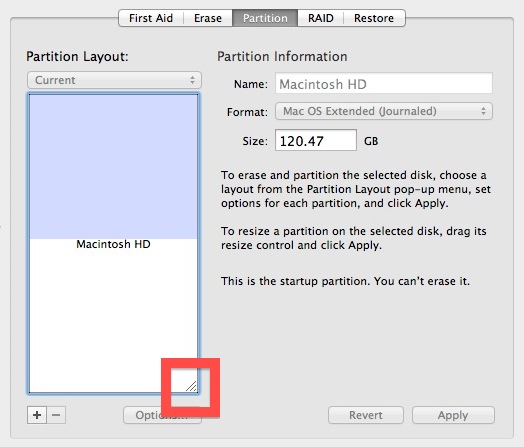
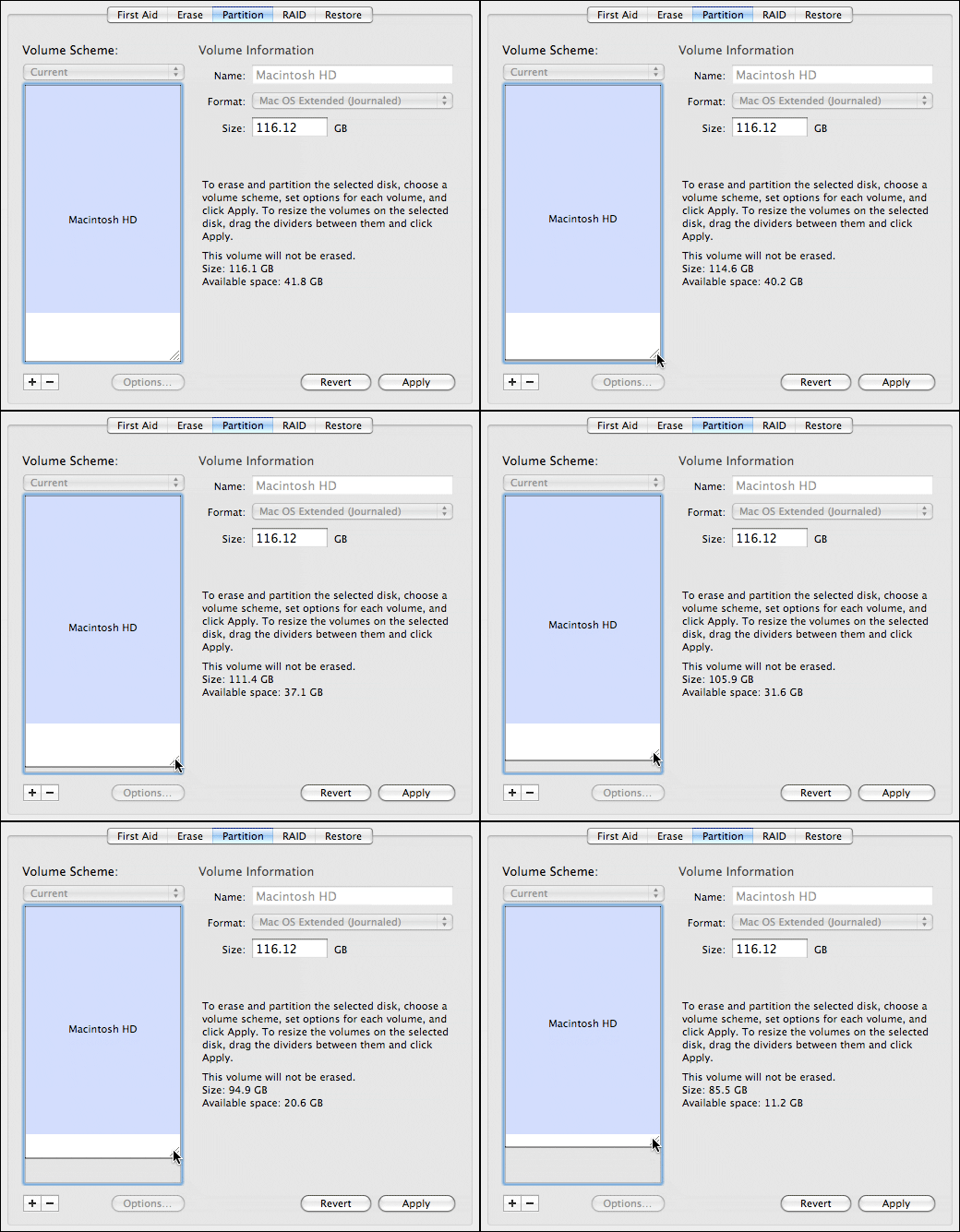
- Select the “Partition” tab and then click the partition to resize, then click and hold on the little dragging widget in the corner as shown in the image below
- Size the partition as you wish, then click “Apply” for the changes to take effect
Optionally, click the [+] icon if you need to add a partition, read more about that here
This has been possible from Mac OS X Leopard onward (and obviously Snow Leopard, Lion, and Mountain Lion). As mentioned earlier, it’s always a good idea to back up important data before making adjustments to partition schemes, Time Machine is by far the most efficient way to do so.
[ animated gif from CreativeTechs ]






I bought a Lacie Thunderbolt Big 3TB x2. It has two 3tb drives in it. Can I merge them together as one 6 TB disk? I have been looking through Disk utility but havn’t come up with anything.
Thank You Jeff Aspnes
Hello,
Thanks for sharing the solutions, I have tried to resizing the partition but its now being it has stucked on some verifying hirarchy while resizing and get error.
Please help
Thanks for the guide, very useful :)
This really helped. Thanks and God bless.
Thanks for this tip.. I had to enable journaling for the triangle to appear.. (obviously) remove any excess partitions so there is unallocated drive space free to drag to.
I am installing a new 240GB SSD as my system drive in an iMac 27″ (mid 2011); I had been using a 1TB internal drive (with a 1TB partition) only for the system and data drive. I had planned on just cleaning up my 1TB drive and get it down to just the system file / OS and under 240GB. I was able to get it down to about 100GB and that by moving all my data off to an external drive – no sweat there. The drive has been in use for SOME time now with no specific defragmenting or anything on my part. If anything runs on the backend behind the scenes I don’t about it…. So with all this in place I installed the new SSD and a new internal 4TB drive (to be used for data only) and connected my old 1TB to an external USB drive caddy and fired it all up. I followed several success stories for the setup and everything connected and booted up fine. I went into the Disk Utility and began the partition resize of my 1TB to get it down to the 200GB mark (to leave some headroom for the unknown). I hit apply and away she went. I am now on hour 92 of shrinking the partition. The external drive caddy light still shows activity as it has all along (same on/off patterned). I have had many other things to do so letting it run has not been an issue… but, I am ready to get on with this and put it back in use. I am concerned of stopping it but, does anyone know if it should be taking this long or do you thing something is pooched???? If I stop it what is the real risk and likelihood of causing more harm or losing the disk data entirely???
Thoughts/Suggestions are welcomed!
hi Steve, I’m having the same issue… did you eventually stop the drive shrinking or let it finish? I’m shrinking my 2TB down to 1TB and I don’t have 90+ hours to wait. Thanks!
Has anyone run into issues with the new 3T drives? I followed all of these steps recently in order to split my drive up to where BootCamp could work with it (needs to be 2.2 TB or less). First of all, I started off trying to split the 3T into two 1.5 partitions. That should have left enough for Bootcamp to use disk0s4. Instead, Disk Utility gave me one 800G and one 2.2T partitions! AND, there was no option to resize. So, I followed Apple’s How to’s to resize the first partition (necessary, because 800G left me with only 90G free space!), which was to remove the second partition. I did, and now I can neither resize the old partition or add the second one back.
The issues arises when we decrease one partition and try to merge that free space into another one. It can’t be done with disk utility. I did the job with Stellar Partition manager, without any extra effort.
Huh? I have done this more than one on more than one Mac, so I strongly disagree. I’m pretty sure this is the topic of this article.
works great
Hi, I got a question as simply as it gets about Disk utility. Some time ago I did two partitions on my Hard Disk, One called Macintosh HD with 435,00 GB long and other One called Windows 7 with 203,00 GB long, it was planned to install Windows 7 on the second partition but i´d definitely not since I purchased a laptop with Windows 7 on it.
So now I want to delete the Windows 7 partition and enlarge the main partition so that I just have one partition of 638,00 GB long. the question is ¿the process of enlarge the main partition from 435,00 GB till 638,00 GB would end up on a lost of main partition data? Thank you very much in advance.
You can delete the Windows 7 partition without impacting the primary OS X partition with Disk Utility. Just remember to back up your Mac beforehand just in case something goes wrong, which there is always a chance of when editing file systems and partitions.
I know that, I do remark my question ¿the process of enlarge the main partition from 435,00 GB till 638,00 GB would end up on a lost of main partition data?
No loss of data on the Mac OS partition unless something goes really wrong (power failure, for example). Always keep a backup, even if you don’t plan to change anything about the partitions. You just plain need a backup. If you remove the Windows partition, you can add the available space to the Mac OS partition, and then “Apply”. Removing any partition removes all files on that partition. DUH! Sorry to say the obvious, but someone may need to know.
BTW, you must use Boot Camp to create any Windows partition on a Mac. Boot Camp creates a hybrid MBR partition on a GPT scheme drive.
found out issue, if u want to transfer files instalations to another disk – if ur old disk is for example 500gb and u want to transfer to 256gb ssd it will say – not enought disk space even if ur 500gb disk is filled with 100gb info, u need to resize it first to a size your new disk have
try to boot with recovery hd and then resize partitions
Use first aid and it should remove the master boot record. It worked for me.
First Aid tab allows Verifying/Repairing a partition or Verifying /Repairing permissions for Mac OS. It has nothing to do with master boot record.
using the ‘first aid’ worked for me also !!!
contrary to Lance’s discouraging comments I tried it,
…subsequently it solved my one-hour long problem,
….in a matter of seconds it was solved.
Thanks to John !!!
Was looking for some partitioning information and stumbled across this posting. I tried out of curiosity and it works perfectly fine. If we have multiple partition on a disk (internal/external), we need to choose the main disk from the Disk Utility by clicking on the disk and not on the partition and select tab and it works beautifully. I did this on my boot volume (system partition) while running applications without any issue I could partition. But I see that this is not helpful for my situation as this doesn’t let one to grow the partition. i.e. say if one has 100 gb x 3 partitions, we can’t resize and increase the size like, say make one partion 50 gb and use the 50 gb to make the other partition 150gb. But you can free up 50gb and create a new partition to make it 2x50gb and 2x100gb.
Yes thats right. Any application cannot be applied to resize the boot volume of the current system. It must be attached as an external hard drive to resize the boot volume. Well , a few days ago I have tried the Stellar Partition manager successfully.
Disk Utility does not let you resize a partition that has a Master Boot Record (MBR). You can see at the bottom of the window in the information if that is the case for your partition. These type of partition are the ones that are used for booting a system.
No. MBR is never used as the partition scheme on any EFI system. GUID Partition Table is the type of scheme.
Did you ever get an answer? I’ve got the same problem and haven’t found a solution yet. Thanks.
I see that the article is almost a year old, but I have a question about this and hope you can still answer this.
My Mac HD is also formatted as Mac OS Extended (journaled), but won’t allow me to resize (enlarge) this partition. I haven’t got a ‘drag’ corner.
It says something about being my startup disc, which isn’t being mentioned in the article.
Is this what causes the problem?