
Forgot Mac Password? How to Reset Your Mac Password (with or without CD)
So you forgot your Mac password… uh oh. Don’t worry, it happens and you aren’t out of luck. You’ll need to reset the forgotten password and there’s several ways to do this, we’ll focus on the three best methods; the first is dirt simple and will utilize the Apple ID (yes, the same on you use for iTunes and App Store purchases), the second method is a hack of sorts and does not require a Mac OS X recovery drive or CD and is guaranteed to be effective, and the third trick is fairly simple but it requires either a Mac OS X DVD, boot disk, or Recovery mode partition to use. Use whichever method works for your situation, but whichever method you choose you will have your password reset and gain access to your stuff again.
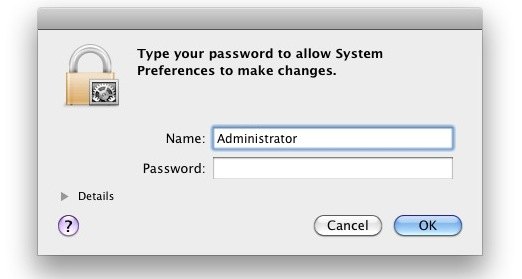
Resetting Lost Mac Passwords with Apple ID
This is the best approach for Mac users running new versions of OS X (Yosemite, Mavericks, Mountain Lion, and Lion) because it’s extremely fast and simple. The only requirements are that you must have tied an Apple ID to a user account, and you must have internet access so that the Mac can contact Apple to initiate the reset procedure.
- From the Mac login or boot screen, enter any wrong password three times to summon the “Password Hint” box and a message saying “If you forgot your password you can reset it using your Apple ID”… click on that (>) arrow icon to start the Apple ID based reset
- Enter the Apple ID credentials, this is the same information used to log into the App Store, iTunes, and iCloud, then click “Reset Password”
- Confirm the new password and let the Mac boot as usual
That was easy, right? Indeed, the Apple ID password option is the fastest and simplest method available to Mac users, and when that option is available it’s the preferential method. But what if you don’t have an Apple ID attached to the Mac account? Or what if you don’t remember that password either, or if there’s no internet access? If you find yourself in a situation where the Apple ID approach is not possible, don’t worry, because that’s what we’ll cover next.
Reset Mac Password – without a CD or Boot Drive
 Using a pretty nifty trick you can reset a forgotten Mac password without a Mac OS X installer CD/DVD or any kind of boot drive or recovery partiton, and without having an Apple ID. This is basically the be-all-end-all approach if nothing else works, because it’s guaranteed to get you back into a Mac when the other options are available, and it works in literally all versions of OS X. The steps may seem a little intimidating at first but I assure you it’s easy if you follow them exactly, here is exactly how to do this in three stages:
Stage 1) Boot into Single User Mode and remove a setup file
- Restart the Mac holding down the Command+S keys, this will take you into Single User Mode and it’s Terminal interface
- You’ll need to check the filesystem first:
- Next, you must mount the root drive as writeable so that changes will save:
- Now, type the following command exactly, followed by the enter key:
- After removing the applesetupdone file, you need to reboot, type ‘reboot’ and hit enter
fsck -fy
mount -uw /
rm /var/db/.applesetupdone

Stage 2) Create a New User Account upon System Boot
You aren’t finished, but the hard part is now over – no more command lines, you’ll now be in the familiar Mac OS X GUI to finish the password reset process. In this step we just create a new user account as if you just got a new Mac:
- Upon reboot, you will be presented with the traditional “Welcome Wizard” startup screen just like when you first get a Mac
- Follow the welcome wizard and create a new user account – making the account name different from the account whose password you want to recover
- Continue on and boot into Mac OS X with this newly created user account, this new user account is an Administrator and has administrative access
Stage 3) Reset the Forgot Password via System Preferences
You are almost done, now you just need to reset the forgotten user account password using the Accounts control panel:
- Once you are booted into Mac OS X, click on the Apple logo and then navigate down to “System Preferences”
- Click on the “Accounts” icon in System Preferences
- Click on the Lock icon in the lower left corner of the “Accounts” preference window and enter the newly created user credentials, this enables you to change other user accounts and reset other users passwords
- On the left side user panel, select the user account containing the forgotten password
- With the user of the forgotten password account selected, click on the “Reset Password” button
- Enter a new password for that user, be sure to include a meaningful hint so you don’t forget it again!
- Close System Preferences and reboot the Mac
- You can now login to the previously inaccessible user account using the newly reset password! All user files and settings are maintained as before the password was forgotten
Optional: If you’d like, you can delete the temporary account you created to reset the users password. This is wise for security purposes.
Here’s how this works: by deleting the .applesetupdone file, you are telling Mac OS X to re-run the setup wizard, which by default creates a new user account with Administrative abilities, which can then reset the forgotten password of any other user on the Mac. This is a great trick and excellent troubleshooting technique if you don’t have a Mac OS X installer CD/DVD laying around, which is pretty much the norm as many people tend to lose or misplace the installer disks that come with their computers. I have used this exact method multiple times to restore various Macs with forgotten/lost passwords.
Reset Mac Password – with installer CD/DVD, boot drive, or Recovery Mode Partition
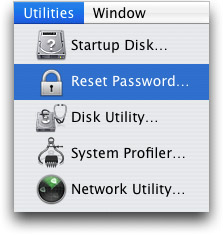 Resetting a forgotten Mac password is pretty easy if you have an installer disk, drive, or the recovery partition handy, which method you use here will depend on the version of OS X the Mac is running.
For OS X Mavericks (10.9), Mountain Lion (10.8), and Lion (10.7) with Recovery Mode:
- Boot into the Mac OS X boot loader menu by holding down the OPTION key at system start
- Choose the Recovery drive to boot into recovery mode and wait until the “Utilities” screen appears
- Pull down the “Utilities” menu and choose “Terminal”
- At the command line, type “resetpassword” without the quotes
- Confirm the new account password, then reboot the Mac as usual
For Mac OS X Snow Leopard (10.6), Leopard (10.5), and before with install DVD/CD:
- Insert the bootable DVD into the Mac and restart or start the computer
- Boot the disk by holding down the “C” key at system start
- Select your language preferences and then under the “Utilities” menu select “Password Reset” (it may say “Reset Password” instead, depends on the version of Mac OS X)
- Select the hard disk that the forgotten password is on, then select the username of the forgotten password, you’ll then be asked to select a new password
- Reboot as usual from the hard drive, using your newly reset password as the login!
This older trick is borrowed from our article on how to reset a lost password with a CD.
These boot menu methods are obviously easier than the #2 manual trick, but whether or not they will work for your depends on if you have a recovery partition (all new Macs do), or with older Macs, if you have a DVD installer laying around. Because we’ve covered solutions for every possible situation though, one of these options will work for you to reset that password and be using the Mac again.






I had no success, I have an imac 2013 with the same defect, I can’t enter the line or terminal to follow these step 1, what should I do?
I had no success, I have an imac 2013 with the same defect, I can’t enter the line or terminal to follow these step 1, what should I do?
very useful thank you so much…
It Works!!!! just follow all the steps closelly! I finally recovered the data on a macbook that I had in 2011 and I completely forgot the user password, plus it was a different iCloud account so no way I could recover the password using the icloud. May god Bless u!!!! Obrigado!
Morning all, l reset my 2018
MacBook Pro to factory new now I get a flashing folder with a question mark, can anyone help Paul w
Waste of time doesn’t do anything.
cmd+s does nothing system just loads as normal then asks for pin.
Load recovery mode it has padlock no options.
Tried using macos bootable usb drive it pays no attention to it.
This is on a macbook air 2015 11.
I cant access appleid anymore the phone number that was linked with it i no longer have and it wont let me access the account without sending verification code to that number and apple support are just as useless asking for purchase receipt from them I didn’t buy it from them it was fine until I did an update which now locked me out.
You need to do it other way, press command+r on startup.
After that it will boot into recovery mode. Click on the above GUI Utilies, Terminal.
After you did that type in resetpassword and continue on the screen.
Hope it worked!
pls how can i reset my macbookair password i just forgotten the password
So helpful blog and its work like magic… today i successfully reset my macbook pro and it,s working fine. Thank you so much!
It’s like magic 🙂👍, thank you sooo much!!!
Hi, I’m having trouble entering a space in the code for the 2nd option. The space bar works. Does anyone know how to resolve this.
Brilliant – deleting .applesetupdone worked precisely as advertised.
I am upgrading an exceedingly old mac mini and forgot the admin password. I found your recipe and 10 minutes later I was up and running.
Very much appreciated.
Does all of your mac restart and every account get’s deleted?
Did you put a space in the “rm” command after a “/”? That would cause it if you did “rm / var/db/.applesetupdone”, “rm /var /db/.applesetupdone” or “rm /var/db/ .applesetupdone” would delete all of /, /var/, or /var/db/
So helpful… today we successfully reset our password and our macbook pro is working fine. Thank you!
“The certificate couldn’t be verified because a wrong system time (mine was reset to 31/12/2000). You can check by executing `date` from the terminal (is located under the utilities).
To fix the date execute: `date MMDDHHMMYY` (M=Month, D=Day, H=Hour in 24-hour notation, M=Minute and Y=last 2 digits of year).
After this you can install Mac OS…”
This helps :)
Tried doing the 2nd option (without a CD/DVD or boot drive) in resetting my password, worked like a charm. Thanks!
Thanks so much this worked perfectly and was so fast.
THANK YOU!!!!!!!! You seriously saved my life on this one – – – I used the 2nd set of directions (by removing the applesetupdone file). I was a skeptic – but it worked!!! AND – it fixed the computer from being in a foreign language (Maybe Portuguese?) The previous owner was a student and studied abroad. :) Thank you!!!!! <3
Bullet
After step 1 on the instructions without the disc, my computer would get past the apple symbol and the loading circle keep on spinning In other word it won’t boot up to the accounts choice place, but I already did step 1. It is also stuck there. Can someone please help me?
This is total rubbish this didn’t help one bit
It helped everyone but you Bethany, that suggests you may not be following the instructions.
If you have Sierra try this: https://osxdaily.com/2017/01/31/reset-macos-password/
want key is command
Thanks,
I used the command + S -method and got my two salvaged mini macs operational in no time. :)
I am on the front screen where is nothing but asking for password. I have tried command r and command s. Neither do anything after restarting computer it just takes me back to the password screen
Thank you so much, I have an older Mac (2012, I think) that I forgot the password too and Command+R recommended by all the other sites was not working but the second option that you recommended worked like a charm!!
Worked great! Thank you
Awesome! Thanks a lot mate. it did help me to fix the issue i faced with my mac. now works like charm.
Thanks a lot man, thanks to you now I have my mac working again!
very useful to make new mac
WHEN I WANT TO USE APPLE ID.
PLEASE WHEN I CLICK THIS (>)ARROW, IT DOESN’T SHOW ANYTHING. BUT I EVEN HAVE A FAST INTERNET NETWORK.
WHAT CAN I DO?
i forgot my password and apple id password for my macbook air i tried everything and nothing works due to a drive asking for password which again i dont know can you please help me before i slamm my laptop
You need to enter your password and authenticate your Mac, or use the method in this article to bypass and reset the forgotten Mac password. https://osxdaily.com/2010/08/10/forgot-mac-password-how-to-reset-mac-password/
If you live near an Apple Store the Genius bar may be able to help too.
Nice work boss…
Do you need to be on line, to reset a forgotten password ON THE MACBOOK PRO?
This is awesome.. Just curious, but isn’t this a major security hole? I can essentially become a master Admin on any Mac and access all user data?
It didn’t work
I have a tried everything but nothing worked
when i boot from an external Hard I have a Lock on screen
nothing repaired the problem
This worked to create a new account but my other account along with all my files on it is now gone. Please help! I don’t know how to get my files back and need them to study for midterms!!!
So helpful… today we successfully reset our password and our macbook pro is working fine. Thank you!
is it possible to do this on a logitech keyboard? i dont own an apple keyboard
hi thank you so much , I was able to remove the apple set up file and reboot as a new user
Very helpful… I used Stage 1, 2 and 3 and after a moment of indecision on my part (could not believe I did it)… it worked perfectly.
I sincerely wish to thank you for this article.
Hey, sorry if this is a silly question.
Once I did the initial batch of steps everything ran smoothly. Upon reboot I am taken to the Welcome Wizard screen. This tutorial says to setup a new user account. At the ‘Do you already own a mac?’ screen do I choose the ‘Transfer from another Mac’ / ‘Transfer from a partition on this mac’ / or ‘Do not transfer my information’?
Thanks!
Hello…. Your friend I need your support, I have forgotten my Apple ID and but can only remember the password, which when I on my Mac book Pro it takes me to reset password, and there it does not respond but when press “N” as next it moves to Apple ID and Password. what do I do, since I have missed my Apple ID….. Help please I have lot of assignment to do on it
I did the second one where we don’t have to use anything but remove applesetupdone. But now after rebooting when I start my Mac it loads for one second then again shuts down. Please help ASAP
Neil, I am having the same problem. Did you ever figure out how to fix this?
Thanks OS X daily. this thread has been running a long time.
guess i’ll necro-post then.. :)
i reverted back to 10.6.8 on my Macs, i had this great idea to use different passwords on all of them, except, my memory isn’t great.. so yup, you can imagine what happened.
this worked 100% on the portables, but for some reason on the iMac here, the only issue is that every time i boot the computer i must login now, i checked in keychain and everything *seems* ok, and i can log in as normal, and it seems as the “disable automatic login” tickbox is ticked, in the ‘system preferences / security’ prefpane – but it isn’t.
I toggled this and noticed no change. The OS works as normal in every other way though.
It’s not a problem, but i do prefer auto login.
I checked/fixed permissions but no change.
very odd. i cant see different hardware having much bearing on it, so any ideas ? i’d be interested in any suggestions.
Thanx
I am not getting the message saying
“If you forgot your password you can reset it using your Apple ID”
even after entering the password for 3 times.
please reply me ASAP
Same here. Did you get a reply to this by email?
as a non computer person, it took me many tries to fully understand the steps of writing code, but after many many tries….SUCCESS!!! Thanks!!!!!!
Hi, Can U tell me if there is a possibility to boot in SUM if your drive is encrypted with filevault, because when I press “command S” to boot in SUM it doesn’t work, I see the black screen with texts but immediately I get the opening session screen asking me for password.
Thanks
I got through the second option until the last step – the old account was grayed out and I can not select it.
Don’t have a boot disk either … am I screwed?
Hello . I did all three versions. On one it tells me “cannot lookup child”
Another one gets me through setting up my account only to hang when I press enter on the last window/dialog box, just hangs and hangs and hangs_uggghhh!
I did notice it mentions having to enter the information exactly as before?? Maybe this was the problem but If I can’t remember the password how would I be able to remember exactly how to I entered this information years ago EXACTLY??? Uughhhh.
ANYONE have a clue to help me with this?? Would be greatly appreciated. Thank You.
K
This is the most helpful article I have read, this helped me reset my Mac password that I forgot, thanks this is so great!
this is absolutly amazxing whoever you are i love u
i got to the black page with all the codes. i saw that fsck and mount were on there then i typed in the rm thing pressed enter arden reboot and enter but it wont bring me to wizard. HELP!!!
thats the same thing that happened to me help!!!!!
My account was not setup to allow unlocking with Apple ID so used the 2nd method, it worked as expected. THANK YOU!!
Tried the first method and it worked without a hitch. Thank you so much!!!
Thanks Paul! It works for my system. Appreciate ur sharing.
Leaves footprints changed passwords. Daughter would know cking up on :(
No way to do this w/o leaving footsteps ie changed passwords girlfriend wife would know
But theses no way to do any of these w/o leaving footprints or changed pwds wife will get back and her psswrd won’t work thoughts?
I wiped my MacBook’s harddrive recently, but I forgot to remove the password and I didn’t know how to install the new OSX so all I get now is a flashing folder with a question mark in it, and a lock, I’m assuming it’s asking for a password but sadly I can’t give it one! Any ideas?
The flashing question mark is showing up because it can’t find the operating system, which makes sense if you wiped your Macs hard drive.
thank you so much, you are a great person. bless you.
If I reset the password- without the CD or boot drive, will everything on my Mac be lost? What will happen? Please help I am a person who doesn’t know shit about technology.
it works. thanks
I am a complete computer dodo, and my macbookpro is 6 yrs old running on lion. I followed instructions about booting in mono and after few try’s ( space, no space etc) I got it to work. Whoever you are sir, I LOVE you . Now I can upgrade to Yosemite .
Thanks! Rebooted my old password using the second method. Entering command lines is scary but after one misentered command it all went through.
I don’t now all this can someone teach me
Thank you! Number 2 worked perfectly.
The keychain issue a couple of people mentioned two years ago got me today for a while. The instructions above worked great (Thank you!) to give me back access to my account, then the Mac prompted me to create a new keychain if I didn’t know the password to the old one. I created a new one but every time I did something using the keychain (such as logging into iCloud) I got the message that the Mac couldn’t find a keychain to store the info. That prevented me from logging in to iCloud at all.
Finally, I thought to play around with the Control key in Keychain Access, and found that two additional commands did the trick: Add Keychain… (which prompted me to add the new one I had created) and Make Keychain ” ” Default.
OK – I just went through this with my older mac – I don’t think removing the .AppleSetupDone is the best way to fix this problem. When I followed those directions – The setup kept looping around and made me do it over and over again. I ended up having to find a way to add back the .AppleSetupdone and then changed my password like this.
1. cmd-s (you do this while the computer is turning on)
2. mount -uw /
3. cd users
4. ls (list the shortnames of all profiles)
5. “shortname” passwd (type the shortname of desired profile — minus the quotations
new password ******
retype password ******
6. reboot
Be sure your spacing is correct – If you want to learn how to add back the .AppleSetupDone follow these directions
1. cmd-s (you do this while the computer is turning on)
2. mount -uw /
3. touch /var/db/.AppleSetupDone
4. reboot
As I have read over and over in this – you have to type carfully. They are right. Spacing and capitalization is very important.
Good Luck
Thanks so much! It worked!
HELP- I hold down command+s and it does nothing, i can not figure out how to the single user mode.
You have to hit the power button and in the middle of restarting you hold command+s
it is probably 2006… Is that new enough to boot? I have no idea what all of this stuff means… I hope I can do it correctly… Thanks Rick
HELP… I have several IMACs and forgot my password on one. My mom passed away and that computer has my last videos and pictures of her on it. Every option I see above deletes and reboots the computer. I don’t even care about the computer…I just wanna get my moms pics and videos I took back off the computer.
PLEASE advise
Rick
The solution outlined above does not delete any files if done properly, you’re just resetting the password.
If it’s a new enough Mac you can also just boot into Recovery Mode and reset the password from there.
Best of luck getting access to your videos and pictures!
WOW !!! It really worked. Thanks a lot. The second option is the greatest. After deleting .AppleSetupDone, it allows you to create a new user with Administrative. This saved my day, otherwise I was trying with CMD +R and it was trying to bring new OS from net.
Again thank you for the post. It has worked on OS X Mavericks for me.
Thank you so much, did help me big time, instructions were clear and easy to follow. The guy at the apple store tried to resolve this with one service representative, he was absolutely clueless on how to do this. Again many thanks. God bless.
Ok so here’s my dilemma. I need to regain admin access on os x 10.8. My kid brother got on and did something and now the system auto logs in as a user but without admin privileges. Because of that I can’t change auto log in from preferences. I never changed accounts so I don’t remember my admins password. Secondly, it’s set up with firmware so I can’t boot into any other modes.
Is there a way, using terminal or anything else, that I can either reset the admin password, look it up in a file and decrypt it somehow, or do any of the tricks listed above without the ability to act as root user or admin or boot SUM etc. ?
Yes follow the instructions to reset the admin account password. Setting up a new admin user will let you change the old admin password.
Thank you very much!
Once I rebooted the laptop, the welcome wizard didn’t show up. But why??
But with the time and advancement, when internet took over the whole
industries, locating such companies has not at all remained challenging.
Every person is guilty of this mistake at one time or another.
A company that has bern around for more than two
deczdes is a good bet.
Absolute life saver, tearing my hair out wish i found this 4 hours ago!
Hi I have read the above and there are 4 people sharing the 0s x and it’s mine that wont let me sign in. It starts and then throws me out. How do I reset just my password and will affect everyone else?
Thank you! A friend bought a new MacBook Air in Dubai. They set it up, then didn’t give her the password! She didn’t notice until she had left. This worked perfectly
I used the last option, luckily I had my installer Boot DVD it realy worked for me great and thanks for the help.
It worked!!! Thank you so much!
Okay so I followed every step, my problem is when I reboot it takes me to the set up wizard page so I follow those instructions then it takes me back to the set up wizard page it just keeps doing this over and over again. Please help!!
Hello, it tried the method of command +s but the computer coud’nt boot it shows the grey window with the apple then it shuts down, please anyone help :(
It worked like a charm….thank you for your help….Just a quick questions…..I tried to update the keychain (it asked me to) but it isnt accepting the new password….it isnt a biggie because the person that knows the password will be available tomorow….but just wanted to complete swapping out the hard drive before they get home!!
Please help my screen on my 09white mac is locked screen says disabled try again in 60 minutes and I’m trying the command s and nothing and I tried removing ram and I hold r s and it goes to screen with a padlock and a password bar and I’m not hearing any chimes ever not what so ever don’t know what I can do I will try anything please please anyone help me if you open it I’ll send you money please
It works!! Thank you!!
thanks thanks have been battling with this problem for days now its ok
Magnifique
Merciiii !!!
Hello th,
Nothing seems to work. If I hold down the OPTION key I get a screen with a locked lock icon, but cannot type anything in the text box. Doing the same with an install DVD in the drive results in nothing. I have tried everything and simply cannot get into Single User Mode. Would replacing the hard drive remove all password and allow me to reinstall the operating system?
I thought the keyboard might have been suspect, but when the password screen comes up, I can type characters just fine.
Solved! There was a firmware password set up. I removed one stick of RAM, reset the PRAM and was good to go. Now all I have to do is get reacquainted with OSX after being on the dark side for many years…..
None of the above worked for me. The single user terminal never came up. Holding down the “C” resulted in nothing, the DVD wasn’t accessed. What other option, no matter how wild, might work?
Hold down OPTION during boot and you may be able to boot from your DVD
The above trick works but you must enter into Single User Mode with the proper command sequence on boot, try again
Wow! Wow! Wow!. Well appreciated for this method (#2). Been fighting with a locked out MacBook Pro for months. Thank you! Thank you! Thank you!
Step 2 worked perfectly! Thanks!
how do you remove the applesetupdone ? please reply ASAP
After reboot the grey screen comes on as soon as the progress bar loads, the unit shuts down! Help pls!
I have followed your suggestions step by step and I am very grateful and very happy with your fantastic help. All works perfectly as before.
Very big thank you for your great help
Thank you
if i do the hack method, and reset it, will everything on my pc be gone ? like pictures and music ?
Thank you so much!!! This was really helpful and made my life a whole lot easier! :)
This worked for me! Just make sure you hit Command and S AFTER the computer is powered off and starts to turn on. I hit it as it was restarting and it never worked, hehe. Silly me. Anyway, everything else worked like an absolute charm!
Thanks!!!! You ve saved my day!!!!!
Command+S does nothing for me…. I can’t even start step one…
Try hitting Command and S AFTER the computer is powered off, once it starts to turn on then hit and hold Command and S. I hit they keys as it was restarting and it never worked.
Does this still work on macbook laptops. An also i dont have a password hint so i cant do it
The 3rd action using the disc worked like a dream,thank you so much. I had tried all sorts before this.
Please can anyone help me?
I get a message “no such file or directory”
Also please confirm if I need to press enter after fsck-fy
I am new to Mac and have to log in ASAP. Running late on a deliverable…not sure how on earth I forgot this password/ Please someone help me with detailed instruction, I am not a technical person at all and I have no cd or Apple id.
Yes you press enter after typing something, the computer isn’t going to read your mind. Here are detailed instructions on how to do what you are looking to do if you forgot the password to the Mac: https://osxdaily.com/2010/08/10/forgot-mac-password-how-to-reset-mac-password/
I have followed every step for “no cd” option. Everything works perfectly until I type: rm /var/db .applesetupdone. It says that .applesetupdone does not exist PLEEEEEASE HELP!
Thanks:))
LOOOOVEEEE U!!!!!!
THANK YOU SOOOOOOOO VERY MUCH!!!!
Thank you
Thanks man steps worked for me , after boot and create new user account- it shows the desktop how can I reset the previous account?
I clicked on Users and groups and shows the other user as inactive
please help
Regards
Thanks a lots for the tutorials. I’ve unlocked my macbook pro successfully using the method “Unlocking without a CD or Boot Drive”
Merci encore !
Yeah…..Its working for me.
Thanks a lot.
How long is it suppose to take after I type in mount -uw /?? Plus after i typed it in a lot if lines said device is write locked
Whoever posted that tutorial to reset the password without a CD is a GENIUS.
Thanks Theresa, we’re glad we could help!
It worked!!!!
But i dont seem to see my old files. how do i get them??
See “Step 3” above. Once you’ve created a new account, you then need to go in and reset the password of the account you lost the password for. Once you’ve reset the password, you’ll login with the old account info and new password (you just reset) and your stuff will be there.
I tried what was on the apple web site after 3 hours of it not resetting…
I found this and I can say it worked great!!
Thanks so much…
thanks your the best!!!!! Works flawless!
This article saved my arse. Thanks for posting it.
reset Mac password without CD worked excellently from the steps mentioned here. Only thing is that after rebooting in the last step of stage 1, “create new user account” does not turn up always. So it should be mentioned once the machine starts after rebooting in the last step of stage 1 alt/option key has to be kept pressed and the screen pops up the ” create a new user account” in the screen
You Rock
I did the “no boot cd no apple id version” and it worked perfectly thank you!!!
This worked when I followed the steps exactly. Great Post, Thanks!
[…] manager. Because of this, this is not a solution for retrieving forgotten Mac login passwords (go here for that instead) or other login information that isn’t specifically for a web site or service. […]
10.8.3 OS X MacBook Pro. Worked well for me.
fsck -fy
mount -uw /
rm /var/db/.applesetupdone
With one exception, obviously Home file is different, I have no log in icon, iPhone, iPad ect will not sync.. All programs think its a fresh install like user. I’m unable to delete “Super User”.
Also iTunes, iPhoto, everything gone. Any advise would be appreciated greatly. Oh, I took it to a friend and her created another Jon Doe, I know all PW and I honestly just wanted to see how it worked. I’m almost done reading C+ prog book, great book just not done or have executed many terminal commands. So frustrating I’ve noticed through Directory Utility jay•••35 short name which is original wheel, super user, my group ID used to be 403. Now I have 2 nested groups but can’t log in at all have to go through Jon Doe.
Forgot to mention, I know it’s 101 but I’ve never backed up untill now. To top it off my son locked his iPad, which will not synce to mbp. I can reboot but don’t want to start fresh in his iPad either. Any help would be a life saver. I have FV2 codes for 10.7 and 10.8 as well not sure if that will help..
LOVED it… After trying many other webs this finally worked. Thank you so much.
it keeps saying no such file or directory when i type in rm /var/db/.applesetupdone
Everything worked wonderfully. The only issue is that after I logged in with new password it asked about the updating the keychain with the old password. What to do?
Update the keychain with the Admin password
tried Single User mode pwd reset
This worked like a breeze for me
tnx!
thanks to the person who made this.. it works in 5 minutes i am done…
p.s.
u will not loose any data.. purpose of this is you are creating another user with admin rights that will enable you to reset the old account.
Brilliant
Wow.
I just got a request to remove a local password on a MAC and I am surprised that it is that easy (using a MAC installer CD).
And I though Windows would be unsecured :)
Anyhow. In that case I am glad it is the way it is.
Hopefully it still works with the latest Version .
Thanks for the manual.
kind regards
edit: I assume the user won’t lose any data?
(Never touched a MAC before to be honest)
Great help. Thanks!
Perfect, thanks!
worked fast and flawlessly. ( just a side issue that it asks for keychain pass. when i input the pass for the old problem acct, it does not accept it. but you know what, everything else works except keychain.) thank you people that pioneer these hacks and work-arounds. so good the way you guide us where the cosporates fail to support us. thanks!
I went through this to create a new account and reset a password without a cd. It worked, but now my bookmarks are gone!
There is not library/safari or library/firefox folder with a Bookmarks.plist on my hard disk or on my time machine backup.
I googled and did not see this mentioned anywhere. Can anybody help?
I figured it out. My mac(os 10.6.8) was logging me in under the new User Account which had no setup or bookmarks, etc. I have no login (password) when I power up so I did not know it logged me in under an admin account. I found the “change default login” under Account Preferences and changed this back to the original admin account. Bingo- my setup was all back!
This worked for me in terms of it creating a whole new account on the Mac. But omg now there are certain things missing – Like Safari the Internet browser. Would anyone please be able to help me with this? I can’t afford to bring this into a shop and I’m so upset that this happened.
I would be so greatful if anyone could offer advice on how I might be able to fix this.
Thank you!
Thank you!!! This completely worked! –don’t forget to type ” reboot ” at the end. I almost missed that the tutorial said that.
Man U are d best. It worked like magic. Thanks man.
Ive tried this and it is not working. Can anyone maybe give me more specific instructions?
THANK YOU SO MUCH. You saved me from so much grief!
I am a complete amateur on this subject but I did find a way for this to work.
This is a great guide but I think that the language in the steps can cause a bit of confusion. The first time round in single user mode I didn’t type in “fsck -fy” or “mount -uw /”. This caused the following prompt to appear: “override -w—-r– root/wheel for /var/db/.applesetupdone?”. When this came up I typed in “exit”, which canceled the prompt, and then I typed “reboot” which restarted my mac. When my system turned on again nothing had changed.
The second time around I did the following in single user mode:
1. type in “fsck -fy”, press enter and wait for “:/ root# ” to appear.
2. type in “mount -uw /”, press enter and wait for “:/ root# ” to appear.
3. type in “rm /var/db/.applesetupdone” press enter and wait for “:/ root# ” to appear.
4. type in “reboot” and wait for system to restart.
When my system turned on the welcome wizard had launched and I followed steps 2 & 3. I created my admin account and then granted admin for my old account. Success!
This honestly saved me. The / at the end of step 2 was what made it work! Thank you!!!
HI,
this worked. thank you very much. Great tutorial!
how can i recover all my old data please help:””'(
Pfew! Thank you so much x
Followed you instructions to the letter and it worked first time and only took a few minutes.
Thank you sooooooooo much for this information
Good job! It sure helped me!
Do you lose all your work and music?
My girlfriend changed her username so it had a peace symbol in it and then she couldn’t log on. This method worked for me.
Thanks!
Worked perfectly. Making me look good for boys. Thanks do much!
WTF!!!! You’re so good man!!!! You save my career! Thanks alot!
So, I’ve tried both ways and when I tried without the disk the Command+S didn’t work and when I tried with the disk holding down “C” didn’t work either. Do I actually have to hit install again or am I supposed to just hold “C” down when you put the disk in. I feel like I might have misread the instructions, I’m really confused, any advice?
Hi. It worked! But when I try to change the password for the old account, it says “reset password failed” and “CSSM_ERRCODE_MEMORY_ERROR”. Any suggestions please?
It worked marvelous!
Thank you, this solution saved me a lot of time and I´ve won the recognition of my team at the office.
WORKED GREAT!
THANK YOU.
This worked up until the point where I had to enter rm /var/db/.applesetupdone. My MacBook told me that no such file or directory exists. Please help.
UPDATE*Solution for – rm /var/db/.applesetupdone Bricking.
1) Take out battery and put it back in.
2) Hold power button for 15seconds.
3) Close the lid then plug power cord.
4) Mac boots up after a few minutes on it’s own.
This bricked my Mac after typing
rm /var/db/.applesetupdone
What should I do now?
Thank you for the help this was brilliant (beginner)
I have put the disc in but it has been on a black screen with white writing for ages and I’ve been pressing ‘c’ for ages or esc or eject but nothing is happening, this is on a MacBook Pro, what do Ido?
I followed these steps and am transferring files from my old mac. It has been hung up for 2 hours on “transferring your network settings. Less than a minute remaining”. The firewire cable is still connected and everything. What to do?
thnx………pfff
At first it didn’t work, but after 3 tries, it did……..
Hi i have followed the instructions to the letter, as soon as i click to create a user account, it suddenly pauses after 1 – 2 seconds then repeats the whole brand new set-up cycle again with video and everything. I now effectively have a macbook air that is in a permanent loop!
Please help!!!
i did everything and it says applesetupdone. read only filesystem?
thanks man,,that really helped..
It worked! Thanks!
Thanks! This worked perfectly.
This worked great, thank you very much!
This is useful indeed. And it is also a huge big humongous security flaw….. granted: one has to have physical access to the machine, but once it is stolen…………
Thanks Much. Worked for me just like butter.
All the old accounts remain intact & could able to reset their password. Thanks again
I did this and now I get the spinning circle, no sound and it eventually shuts down. I found my OS disc but it won’t let me repair the disk. I have some very sentimental pictures on there, can anyone help??
god bless you,hurra hurra
Hi
Thanks for the tip – it certainly works.
Unfortunately, you fail to point out that it also wipes the computer of all files and settings, so I have lost a whole load of work and all my email and contact settings too. Thanks for that.
Perhaps you should consider this sort of thing before giving advice – however effective it may be.
Marc
But it does work, and it did NOT wipe out al the settings or files! Those are still stored on the computer under the original user name that i forgot the password to, so you should re-check that Marc!
excellent tip, saved my bacon!
Would my file be lost after i reboot?
THIS DID NOT WORK FOR ME. I typed in every thing correctly and it rebooted. Then as its powering up, it had a loading looking bar. It seemed like it got to about 10% and then cut off, when I turn it back on, it does the same thing. PLEASE HELP!!! Now, my computer won’t get past that point and simply isn’t working anymore.
Thank you OS X Daily -_-
Reboot and follow the instructions here, it works.
https://osxdaily.com/2010/08/10/forgot-mac-password-how-to-reset-mac-password/
Tried it. Worked perfectly on macbook air osx lion. Thanks so much!
does anyone know if this works on a macbook air with lion
I’m actually quite surprised i didn’t botch that and have to call in my IT brother. Thanks so much for this help!
So, I forgot my password a few days ago and followed the above steps in order to get back into my computer. They worked, and I can now access my account again; however, a lot of the apps no longer work, like photobooth or ms word. Does anyone know what I might have done and if there is any way to fix it? Thank you!
Thank you, i’m able to login to my apple right now.. phew
Thanks! My mom really needed some remedial help.
Thank you so much, I was able to reset my password! How do I delete the new user I created and leave my old one? When I start up my computer it boots up to the new user which is no big issue…. I just have to log out and back into the old user account. Do I type in the commands
fsck -fy
mount -uw /
rm /var/db/
And leave out the .applesetupdone ?
Thanks so much for you help!
Never mind…. Got it, duh! Lol thanks so much for your help! Amazing!!!!
Hi! after writing applesetupdone.. it asks me applesetupdone?
<hat do I have to do before step2 pleeease!!
Where can I find the filesystem???
How do I find the filesystem?
I did what it said and it did work. However now the new user (which is also an admin) pops up first. It also shows that my new account is the main admin and my previous was the other account now. How do I get rid of the new account so I can just deal with my old account now?
thanks very much
I tried this on my iMac (OS v10.4.1) and after following each step, my iMac will not start up unless I unplug and plug the power cable back in. The display on screen is completely black (nothing shows at all, nor do any lights start up). I can hear the fan working when it’s plugged in but I can not turn the computer off unless I unplug it? Do you have any idea why this has occurred?
if i do it with the cd installer to reset my password , does that mean that all my data pics videos documents etc … will erase ????
Thank you very much! Your instruction is simple and it worked like a charm.
Oh sweet baby Jesus, it worked!!! Thank your ever so much for helping me. You have no idea how much of a lifesaver you are. I will always be grateful for your help. You are a genius xxx
How do I reset my mac pc box password
You are Super man…. Thank you so much
after filling new user account name and password, it doesnt go ahead.right side of this window, “select a picture from the list” and there is no any list.admin plz help me plz.
thanks you; this a miracle :)) keep up the good work, god bless.
Life saver. New MBP shipped with Lion, while the iMac we migrated from (with Migration Assistant) was running Mountain Lion. Account imports fine, but password is dead as a doornail.
Thanks very much for posting this simple workaround!
Thanks so much.
Thank you for saving access to my Macbook. One Wookie is very happy, and we were able to retrieve the plans to the Death Star.
Hi – did anyone resolve the problem with the keyboard not responding? It would really help to have an answer for this issue.
Awesome! Thank you!
Forgot the password to a MacBook I haven’t used in 3 years….followed your instructions and WOW I was able to get in and fix it….THANK YOU SO MUCH……
Ive just done this and it works perfectly
Im am not very good at computers and it took about 5 minutes
Thanks
Got the set up wizard part done, however system preferences and a number of other applications on the dock appear as question marks and do not open. Can anyone help me fix this ?
Fantastic used the method without CD worked perfectly… thank you!!!
Hey!
Ok so I have the CD but nothing happens when I restart holding command C ?! Help!!!
I am so happy~~~~~~~ just follow everything and type in the stuff in shadow and follow the steps and everything shall be DONE~~~~~
This worked awesome!!! Don’t be intimidated by the terminal portion, it is super simple and works on pretty well any Mac THANK YOU!!!
I have done the back to factory standard reboot apple set up done thing but now my keyboard won’t work for me to input my username, password etc. how can I fix this.
Thank you. My father really should have paid more attention when setting this up at the Apple store!
This was very easy and straightforward, even without a disc.
i cant get command + s to work !
i buy a new macbook pro md313 . but i didn’t lock it any more. it requires a password to make changes to my preferences or requires a password to install software.
can i do something else without reseting my password ??
actualy im afraid of doing this.
After typing rm /var/db/.applesetupdone it continues saying “No such file or directory” then makes me type it again.. What do I do???
me too :( I tried 3 times with whole steps as above
Any luck? Having the same problem. Thanks
DOES THS MEAN EVERYTHING ON MY COMPUTER WILL BE ERASED AFTER I DO THIS…?
Man it doesn’t work it shows no such a file applesetupdone
what should i do
thanks very muck you’re the best
never mind! Thank you! Thank you! Thank you! Thank you! Thank you! Thank you! Thank you! Thank you! Thank you! Thank you! You saved my life! (And my macbook air)
Ugggghhhh I don’t understand any of it!
It worked!!
You are a genious!!!
Thank you very much
I Did this thing and after
rm /ver/db/.applesetupdone
it’s say that this file not exsist…
what i did wrong?
/ver isnt a directory, /var is
syntax is everything
I did step one but when i go to step tow the computer doesn’t give me wizered set it return me to the same screen
Does this work in a MAC OX S? VERSION 10.6.4?
Hello,
I am trying to do this on my Mac os x 10.7.4, but as soon as I check the filesystem I get this:
Clares-MacBook-Pro:~ claregrogan$ fsck -fy
** /dev/rdisk0s2 (NO WRITE)
Can’t open /dev/rdisk0s2: Permission denied
/dev/rdisk0s2 (hfs) EXITED WITH SIGNAL 8
Clares-MacBook-Pro:~ claregrogan$
Can you please help me, I’m a basic mac user!
Best Regards,
Clare
Type this first:
mount -uw /
then type:
fsck -fy
Hi Peter,
Thanks for your reply! Unfortunately I still got
Last login: Tue May 15 12:39:59 on console
Clares-MacBook-Pro:~ claregrogan$ mount -uw /
GetMasterBlock: Error 13 opening /dev/rdisk0s2
mount_hfs: Operation not permitted
Clares-MacBook-Pro:~ claregrogan$
Any more Ideas?
Best Regards,
Clare
Does this erase all my files?
Works great, thank you!
Followed the steps thru Stage 2. I created a new user account. But instead of logging on, it goes right back to the beginning of the account setup. I setup an account over and over again without going anywhere. If someone has an idea of what may be wrong, please let me know.
Thanks! It worked perfectly!!!
buddy u have saved me n my mac…………
thanks a lot………..
Lifesaver! Can’t thank you enough!!! cheers!!
Can anyone PLEASE tell me how to delete the admin account I just created..
From another admin account. Go to Users & Accounts, select the account, press the minus button.
I followed the instructions to reset my Mac password without a CD, when I get to the final step to reset the password of the administrator it takes me through the process then comes up with the message reset password failed. What can I do to remedy this problem I’m having?
Ive gotten to the screen where it says “Finishing Up” with the multi-touch gestures, but it wont let me click “Start using Mac OS X Lion.” Can anyone help me out?
thank you.
does it erase all of your pictures and files and etc
need to know how to reset master password on a apple computer desktop mac os 9.1
i done stage 1 and 2 sucesfuly.but in the end , after registration, new window come “create your account” i fill all the fields but i m unable to add a photo.on the right side “select a picture from the list above” there is no list.plz sum body help md.
I could kiss you silly right now. I can believe I got this to work!!! Thank you soooo much!!!
Holly F…ing Crap… I could kiss you silly right now. I can believe I got this to work!!! Thank you soooo much!!!
please help me loll D;
Hey if you can some how disable the s key on boot up you can’t access the root mode,is this possible ?
Brilliant, I really appreciate the help, this worked great. many thanks
Hi Everyone,
Thanks for creating this post.
My landlord found a mac book pro in the middle of the road this morning, and thanks to this post, I was able to bypass the main log in screen in an attempt to find out who owned the laptop.
Access to the laptop provided a name found on a photo; a Google name search lead to a YouTube video, which in turn lead to a former employer.
A couple of phone calls later, I was able to connect with the owner and return her laptop.
Thanks again, this information was a big help in finding the laptop owner, and couldn’t have been done without it.
I completed the first step.
I got the wizard screen as you would on the very first start up.
However I can’t type in ANY of the fields.
I tried restarting the Mac and repeating step 1.
Again the same problem…
I can’t type on any of the 5 keyboards I hooked up to the Mac.
PLEASE HELP!!!
Were you able to fix this problem? I can’t type either!! I’m going insane. I just get the PONG! sound. Please, help. I’M DESPERATE.
thanks very much
really
Thank you so much for this, I left my installer CD in the US where I bought my Macbook pro from.
Thank you so much! This worked perfectly!
Thank you VERY much !!
I had my Pro back up drive connected to a new Mac mini during first time set up and it just grabbed my PRO user name, ( w/o asking me! ) but NOT my actual password.
Saved me lots of driving, thanks again.
Thanks! Worked like a charm!!
the grey one with with the around circle spinning as if something is happening in the background and ofcourse the apple logo. from there it does nothing. i left the machine on the all night thinking it will work in the morning for me to proceed to the screen where i can use the new account(administrator)
please I’m having a problem like some of the commenters here.
i do everything as going to the single user mode and run the commands but when the machine is asked to reboot with the ”shutdown -r now” command, the grey screen doe snot take me to the screen where i have to setup the account to logon. can someone help me please. i have this problem and now this is the second day that it is happening. i have very important work but i dont know when this can be resolved. i see some people here have done it without a hitch and surprisingly i have done the same thing but mine wont work.
So what screen do you end up at?
the grey one with with the around circle spinning as if something is happening in the background and ofcourse the apple logo. from there it does nothing. i left the machine on the all night thinking it will work in the morning for me to proceed to the screen where i can use the new account(administrator)
How do you bypass if its firmware locked??
Well like magic !!!!
Tried to use the install disk and when ask to select a disk the only disk it showed was the install CD, no Mac HD was listed.
So I used the rm .AppleSetupDone method and it worked great!
Thanks
it worked thks
Nice! Thanks buddy!
Please friends I really need help I just brought a new MacBook Air 13inch and my password doesnt work Im locked out on the Login screen…the main first screen just after you wake it up.
The problem is I dont even get to the desktop and Holding COMMAND & S doesnt do anything
Id appreciate any advice
one thing i noticed is that once you’re in terminal mode, the first command:
fsck -fy
takes a long time to execute. You’ll have to wait (at least I had to) until you get “the volume (whatever your hard disk is named) appears to be OK.” And the rest of your directions worked perfectly.
To everyone who asked this question: Will it wipe out my hard drive? Read through the threads! The answer is NO!
cmd+s isnt rebooting plz help me…this was a ray of hope…but ain’t working!!!awaiting your reply
Fanatastic. I was able to change password with no problems following instructions.
Thank you.
you can change the password without cancel install folder.. You can use passwd after remount filesystem for change root password and then you can use su “username” for log as user and use passwd for change personal password.
:)
I typed “exit” instead or “reboot” after issuing the commands, and was brought to the grey boot screen. After 15 minutes I manually powered down and tried to reboot. But I’m still getting hung up at this grey boot screen.
Help, anyone?
Boot into safe mode and see what happens, or boot from Lion Recovery HD by holding down Command+R
Thanks for the reply Dou.
I ended up unplugging the unit from the wall and waiting for awhile, then plugged back in and booted up. I don’t know if my logic was correct, but it worked! I got past the grey screen and was able to finish the rest of the guide successfully.
(typing this from the MacPro in question…yay!)
That was cool!!!!! Thank you for posting! Saved me a lot of headache ;)
what version did you use while booting/resetting your mac? mac os x? version 10.6.4?
I had to press applekey+s multiple times at boot. Just holding it did not work. Furthermore for me just mount -auw worked. mount -uw did not remove all write restrictions.
have no idea what happened but my mac just doesn’t let me to log in . tried your suggestions but Cmd S doesn’t work on y Mac 10.6.4. don’t know why
Plz help , people
This worked great for my college daughter and now I am a HERO!! Thanks
You can also make a usb drive into a copy of the disc if you have an air. Borrow a friends computer to make it.
This was brilliant, thanks so much for posting!
Saved my life!!! Thank you!!!!
Why does it work for you and not for me?
This tip worked great. I acquired a Mac from someone but had no CDs with it and was able to erase everything from the previous owner and start from scratch. Thanks!
Hey,
I am at the moment still not able to solve this problem. I forgot my initial admin password and have successfully set up a new admin with another name and a password i remember. However, my system is set up so that i automatically log in to the admin account whose password i forgot which is useful cuz it has all my stuff. Is there a way to change my original admin password via the admin rights of the second admin i made?
It is suggested to do so via ‘system preferences’ and then change password but even if i log into the second admin i cannot change the password from the first login (maybe because i am at the time logged into that first admin as well). Is there a way around this???
Thanks
I did, and all my files gone, Please help Thanks
will this erase any of the files on my mac? please help thanks
Thanks heaps, very helpful & well written instructions :D
You saved my life.
Excellent work. I rescued my old Mac Mini with your help.
Thank You very much!
Thank’s a lot! It was a life saver!
my administrator account stays logged in, so when i turn my computer on, it goes straight in. the problem is that i cannot download any softward becasue there is a password on the account. and i cant access it, i got my macbook OSX from my aunt that died and have no way to recover the password. do i have to log out of the account and then shut off the computer? i tried the method and it didnt work for me so i was wondering if i need to just log out THEN shut down the computer and restart the process? please i need this done ASAP!!
Okay, so I’ve tried this option, and on reboot it asks for a software key to redo the setup. am I missing something here? I acquired my machine from an out of business ISP. Apple won’t support it because it’s in the VINTAGE era. It’s a G4 Xserve. If I had the install CD, this really wouldn’t be an issue, but I don’t.
I’ve had this machine for awhile and hadn’t booted it up, so I never thought about it. Now that I need it, I can’t even get into it other than in Single User Mode.
Anyone have some extra ideas?
Thanks!
I’m using the metode with a CD and i got a little bit of a problem here, I restarted the Mac by pressing the off button, and holded the C-key, as told. But the screen is now just blue (after the rs) and it seems like nothing is ever going to happen here, so my question is, how do i solve this problem and is it dangerous to do a new restart after i did it once and pressed C ?
Okay, so NVM people, i figured it out, but still, i didn’t figured it out, I restarted it again, and the screen is still just blue? it seems like it doesn’t reed the CD or something… Any suggestions of what i should do?
[…] you keep that disc with your computer and your computer is stolen, a thief can just as easily change your master password of the administrator giving them access to all your […]
Had to do this because I bought a corporate used Macbook off Ebay that included no disk or password…worked like a charm…and I know nothing of script.
I have a MacBook pro Smith MAC os x 10.6.3 and i forgot The password TO login. I read the info in this blog, but the problem is that I have to press “alt” when I turn the computer on, so I can pick the Mac os drive instead of the windows drive. And after I do to this, if I press cmd+s it doesn’t do anything. Please help.
To answer a question already answered:
No, neither method will erase any files except for the NOCD method which deletes a single file. This is not a normally used file by the user.
Love it worked great thank you!!!
If I restart my MacBook, because I forgot my password,will all of my pictures and downloads like skype and quicktime be lost? Will I have to re-download all this? I do have the CD so it can be easily done. I’m just scarred it will delete my files.
NO.
[…]All user files and settings are maintained as before the password was forgotten[…]
I need help! I did that and I have the set up screen but now my keyboard won’t work and I tried multiple keyboards. Every time I press a key all you hear is a sound.
I need help! I did that and I just see a grey screen with my mouse! That’s it!
Is this going to delete all my files and work?
[…] you ever forget your administrative password, there are two easy methods to reset the password. One requires the Mac OS X Install CD and the other does […]
Will this work on a new MB Pro running Lion? Thanks!
Yes.
I tried following the instructions on resetting password without a cd and it got me to the point of setting the Mac like when it was new. The only problem is it just keeps on going back to registration over and over again. It just won’t log on… Is there any help out there?
Not sure if this will work but go into Single User Mode again, do these commands.
cd /var/db/
touch .applesetupdone
If that doesn’t work, do:
rm /var/db/.applesetupdone
cd /var/db/
touch .AppleSetupDone
I’m using MacBook Pro 15″ 10.5.08, I’ve tried all the cmnd up here but when I typed in
“….applesetupdone” it says “No such file or directory”
I rebooted it and it brings up
“the mac has been offline for more than two months. As a result this mac has become unusable”
yet in a voice prompt
“help I’m a stolen mac computer, please return me to the rightful owner”
please I need your help, what do I do or how do I restore it back to normal status. I will appreciate your swift response.
hey dittue I have the same promblem as your, have you got any answer? please if you did you can help me also. thank you
Thanks so much for this – it worked!!
i tried command+s didn’t work….please help!
After I reboot system sits on grey screen and just spins what am i doing wrong !
Just want to say “Thank You”! You are awesome. It worked in just as little as five minutes.
Worked like a charm on osx lion MacBook Air! Followed Kaushik’s advice to keep checking to see if the .AppleSetupDone was deleted before rebooting. Awesome!
Does this method erase all of your documents and photos?
NO. Other comments like yours all get the same answer, so browse the comments before posting.
thank you! this works perfectly!
will doing this with the disk delete old files, for example- songs on itunes?
No, no files are deleted.
[…] menu item that used to be in place prior to OS X 10.7, which was one of two original methods of resetting a Mac OS X 10.6 or prior password. Why the change to the Terminal method? Probably for increased security now that recovery […]
THANK YOU! You totally saved my butt. Well-written instructions. I’m so happy to have my MB Air back! :)
if you use the one without a disk, and you have software installed, i have office 2011 on there and i was wondering if it would delete anything because i don’t want to loose anything :0 someone please reply if they know the answer :)
No its will not delete anything. The whole purpose of deleting the applesetupdone file is to prompt you with a setup wizard screen so that you can create a new Admin account and reset the old acount’s password. Worked for me like a charm. Follow the instructions carefully.
I did this and created a new Admin account, but I can’t find the files from my old admin account (like my itune, iphoto and important excel docs are MIA). How do I now access them with my new Admin account?
You don’t, from the new admin account, you go into system preferences and reset the password for the old account. You don’t use the new account as your primary account.
You saved me and my Mac!!! After long hols I even forgot that I had changed my password…. Instructions are so clear even for a non techy savvy like me :-) thx again!
For those who are having problems here is my experience:
Step 1: Keep rebooting and pressing Command+S till you get to the black terminal. Read Apple’s comment on “keep on trying”:
After typing in rm /var/db/.AppleSetupDone make sure the file is really removed by typing
ls -a /var/db/.AppleSetupDone
In my case it did not remove the file.
So I entered:
su
You will see the prompt changing to something else.
Then type again:
mount -uw /
Now try the rm /var/db/.AppleSetupDone and it should delete the file. Make sure to check if the file is deleted before typing in reboot.
This is how one can break into Linux too. Single User on GRUB+Password change. Nice to see someone found a way to do that trick on Mac. I am new to Mac but a very old Unix/Linux hand… :-)
I didn’t bother reading the comments but once you mount the filesystem type
passwd USERNAMENEEDINGPASSWORD
and it will ask you for the password you want to use
I already sucessfully reset the password, but when i open mail dan safari, the system ask for old login keychain. How can I solve this? Please help.
after that i cant in my macbook air
damn stuck at loading very long…still cant in how help me ?
How can I reset password on Macbook Air..?i also lost the disk
Some people should just stick with making an appointment and going to the Genius Bar. Just sayin’
Does it cost money? I don’t have a warranty anymore! and some of my keys on the board don’t work, unless i type carefully.
i make Stage 1) Boot into Single User Mode and remove a setup file
•Restart the Mac holding down the Command+S keys, this will take you into Single User Mode and it’s Terminal interface
•You’ll need to check the filesystem first:
fsck -fy
•Next, you must mount the root drive as writeable so that changes will save:
mount -uw /
•Now, type the following command exactly, followed by the enter key:
rm /var/db/.applesetupdone
but i cant open system preferences why?
After i type mount -uw / it says ” Disk is write locked”. what do I do?
This will be a new one for all you whiz’s out there…The situation goes as follows:
Forgotten password for login so:
Entered SUM, Changed password for admin..gained access.
Shutdown mac, Turned back on and Login screen appeared. Attempted to login….No go.
Entered SUM again, Deleted applesetup done, Created new Admin account. Changed passwords, restarted system, attempted login, No GO.
Entered SUM AGAIN!!…enabled root user, changed Passwords for all accounts…Restarted system and you guessed it….STILL cant login to any user account. SO…..Did some research and tried Resetting Login Keychain. Still not able to login after restart.
So I tried resetting the memory upon start up by holding Option Cmd R+P until 4 chimes have sounded. Still not able to login.
So I once again changed the admin password via SUM and downloaded a MAC OS X 10.8 upgrade. Installed to a new Administraor Account and restarted the system. STILL CANT LOGIN!!!!!
I have been sitting on this bloody machine for 4days straight now trying to gain access to it without having to change the password through SUM everytime I login, and It seems that no matter what I do.. The mac just reboots with the old Account login settings once I shut it down and try to restart with a new login.
WHAT AM I MISSING HERE PEOPLE? how can I try all of these things and still not be able to login to my damn computer? LMFAO!!!
To sum it up I’ve tried:
CMD+S
/sbin/mount -uw /
cd db
ls
rm /var/db/.AppleSetupDone (and) rm ./.AppleSetupDone
reboot
FAIL!!!….
CMD+S
/sbin/mount -uw /
passwd admin
NEW PASSWD
REPEAT NEW PASSWD
exit
login with above^…..shut down>attempt login with above^
FAIL!!!
OPT CMD R+P
Hold until 4 chimes have sounded ( resets memory )
attemp login
FAIL!
Repeated CMD+S admin passwd change and once into comp..reset Keychain…changed passwords for all accounts
Attemped login after restart
FAIL!
SO to sum it up…I can gain access to thee mac through SUM, but no matter what I do once I’m in.. once I shut down the Comp and Turn it back on…I still can’t login to any of the user or Admin accounts. I have even tried enabeling the Automatic login and restarting. Nothing is working.
Does anyone have any suggestions of how I can fix this problem, without having the Discs to restore Factory settings?
hi,
Doing this on a black macbook… After Stage 1 it all seemed to be restarting – but it never made it. I get the apple, the spinning round circle, and then blue. Then grey with a big black square in the centre, only for a moment. Then blue again. Then grey, then blue… and it stays on blue.
I used my install disk from a macbook pro 13″ (more recent, running 10.6, while the macbook in question is running something earlier, .4 or .5) – and ran repair disk – it said it had repaired something. Tried to restart though and same problem occured again.
I have no clue what to do… can’t restart, and continue with Stage 2. Any help hugely appreciated.
Tried stage 1 after that nothing happened. can’t get to stage 2, just getting a white screen with the apple logo and the little round circle keeps going and thats it.Please help soon.
yeah’ a big thanks.. my maC will now be fixed…
you guys make this sound so eazy
I am surprised a person can get a shell or command prompt without being prompted for user name and password. Which I am sure could be very easily added as a feature, then what you would do in theory is boot from a usb drive using a temporary ram drive placed on the installed hard drive and an os using the same file system as mac, the os you boot would be modified to read and write from the user information already on the hard drive after you have already booted with administrator on another copy of mac os you would then add change and remove as usual, however if these files were encrypted you would have more trouble, but seeing we know what the files should look like, we could compare and make deductions pragmatically and fairly quick if we are able to recognize where the start and end of a file are and could match them by name, so if we just encrypted the file names and added decryption into the browser retained only during session where the key is entered when you log on, then a successfully logged on user would in theory be able to differentiate file names, where user holds private key and his profile has the public key stored. Seeing the machine loads certain files in a specific order with file names, system files used in the boot would have to remain named correctly, the best thing to do is create your own file system and conversion where you boot and everything you look at is in a way unzipped as you browse. You could really make things confusing by encrypting the directory structure and any type of registry, where when it is decrypted it get placed in a temporary ram disk or (temporary store on hd) so then you stay compatible, with all but detour anyone with a common knowledge of the directory structure, they then will have to attempt to recognize the hd fragmentation in comparison to other drives they have studied…. How to do this not sure, I am still working on distributed session and user management with php considering a high level of information encryption so I figure by the time I get to studying file systems and hard drives more in depth I will be a weary old man who has forgotten why he started, so if you encrypt files that are the same throughout installations, make sure they look like one big clump with a hundred different files un-determinable, like save ten bytes in Florida, ten bytes in Minnesota, 10 bytes in California, ecetera. So yes your right it is almost impossible
[…] you happen to forget your Mac password, you can reset it through a few different […]
I appreciate the help, but after using the no cd method it booted up as if I was setting up the new user account. Thing is, it asks me what language to use. I select English, but it just reloads back to the same language screen over and over. I tried safe boot, it just gray screens with the wheel running forever. Any suggestions?
same problem here. did you get this resolved?
[…] can check out some other articles related to password recovery, including how to reset a forgot Mac password and how to bypass a Mac firmware […]
I tried to enter rm /var/db/.applesetupdone. My mac then says override rw——- root/wheel for /var/db/.applesetupdone?
What should I type next?
If I use the option 2 with the disk, will I lose the files I have on my computer?
This is what I got too!
Someone please clarify what we should do!
Please :)
Weird. My Macbook running 10.6.4 doesn’t have /var/db/.applesetupdone .
Granted, I didn’t boot into single-user mode, but I did open Terminal and check from there. I even did “sudo bash”, in case it was restricted to root. The file just ain’t there.
[…] enabled only in the form of a user login and password. If this is the case, you can use methods to reset a forgotten Mac password to get around the user login […]
Question #1: This has no effect on the information on the hard-drive does it? (This wont whipe the harddrive clean will it?)
Question #2: Once shes created her new account, i dont think the information from the original one will be there…how would you access it? Or am i wrong entirely? jajaja
*im asking for a friend who is locked out right now hahaha
I should’ve mentioned…she locked out on the Login screen…like the MAIN one you use when you startup the comp or when u bring it back from sleep before you can even see the desktop
Will this still apply?
yes it works fine. just transfer all files from the old user to the new user and you’ll have no problem.
it works because the newly created account is superuser, and can see files from all users on the machine. you just navigate to their directory and copy the files.
your hard drive information will be fine, it doesn’t effect anything except create a new user account.
you can also do this but it might be above your skill level:
1. command-s on boot
2. mount -uw /
3. cd users
4. ls (list the shortnames of all profiles)
5. passwd username (type the username of desired profile)
new password ******
retype password ******
6. reboot
What do you mean by profile? Do you mean Short Name? Also, how would I separate each profile name, would use a comma? Thanks!
Hi Moz,
Your code worked for me, but I have a problem. 1. some of the keys on my board dont work so I have had to be VERY delicate to input your code. It was the only code that actually got some where. 2. the top left hand side of my screen has a big blob, but i can still see alot.
Once I was able to use your code it went back to the same login in screen that I am trying to get away from. I know my password I just can’t type it in because of all the key letters that I need. Help!
Do you just type these steps or what? Will you explain more details please
Thanks a lot
this thing help me alot but i have one question.
does this will erase my all data also?
please give me reply on my email just in case if i don’t find out this web again cause i am searching on google.
again thanks a lot sir
(In case of Read-only file system) First you have to use this command:
mount -uw /
before you can use:
rm /var/db/.applesetupdone
Basic user here.
Does using the above simply create a new user account? By that I mean that browser history and passwords would not be accessed? Also what about if particular folders were password protected, could they be accessed??
If someone can get physical access to your machine, they can get in no matter the platform. Encryption is the solution. Truecrypt for Win, OS X, and Lin. Filevault is OS X only.
Apple did recently hire a heavy-duty security guy. So here’s hoping they lock things down better. But they’re never going to take away the ability to reset the pw if one has physical access to the machine.
I agree with other posts. People say Mircosoft has bad security thinking, but this is redicilous. I really hope Apple fix this “bug” asap.
no an apple bug as much as it is a unix feature — can do the same thing to linux boxes. like the others have mentioned the firmware password is the “fix”……..but there’s a work around for that as well ;)
Hi
I have forgotten my firmware password on MacBook Air. That’s the one password programme. I can’t even get to Any screen. Do you know the work around please ?
In hope
Since Mac OS X Lion is now the OS for new Macs, I decided to try this “hack” out on my iMac. It didn’t work for me. Maybe I’m doing something wrong or maybe Apple changed something, but you could try it out for yourself to see if it can be done to your Mac (if you have Lion of course).
I just tried it out on my mac I bought straight from the apple store, Lion and all, and it worked perfectly. Pretty paranoid now!
I want to have a direct chat with u pls.
That password is big joke if that can change so easily! Apple should inform more of this to basic users so they could protect data and files much better!
whats the point of setting a password if its this easy to bypass it then?
Does this change the Keychain’s password to the new password?
No, if you change the passwd from CLI
at the startup:
1. Cmd-s (boot in SUM)
2. mount -uw /
3. launchctl load /System/Library/LaunchDaemons/com.apple.DirectoryServices.plist
4. cd /var/db/shadow/hash/
5. guid=`dscl . -read /Users/myuser GeneratedUID | awk ‘{print $2}’`
6. cp $guid $guid.old
7. passwd myuser
Changing password for myuser.
New password:******
Retype new password:******
8. reboot
tested on 10.5
one that’s easier to remember than that is
1. cmd-s
2. mount -uw /
3. cd users
4. ls (list the shortnames of all profiles)
5. “shortname” passwd (type the shortname of desired profile — minus the quotations
new password ******
retype password ******
6. reboot
Thanks for saving my bacon. What a relief to know there are people out there who are not as thick-headed as I am!
This is the best solution and the quickest one
Agree this is the easiest and best. BUT got caught on number 5. You need to put passwd shortname – not shortname passwd as I read the instruction at first. So happy it worked and I’m in !!!
I press command+S and doesnt do anything :(((((
this is frustrating
Followed directions and hit reboot, now I just get a grey screen and the circle of death, any fixes for that????
Ive got the same thing its been doing it for about a week haha. Did you manage to fix yours?
motoko,
Let’s take your #1 – #6, for example. Just typing in lines of apparent nonsense (to me) does not help new users. You need to say exactly what and where to do things. In other words, you need to annotate each number of your instructions, as if a third-grader who never saw a computer before was trying to follow them.
This applies to everyone giving advice here. You are familiar with Apple products, so you assume others are. I’m not. I got my first computer, and also an iPhone a month ago, and I’ve probably learned about 0.001% of what the phone can do. Friends who have had iPhones for years tell me they’re still finding out new things about them.
While I’m posting here (off-topic, I know; sorry), no one seems to know how to delete emails from an iPhone wholesale. Can I just click on some command to delete all emails from my phone at once? The old emails are still on my desktop computer, so I don’t need them piling up on my phone. Thanx for any advice.
Back to the password reset. Still having trouble… I’m not going to get promoted to the 4th grade at this point.
Thanks for the replies! This means I will finally do something to encrypt my data.
@ Mathias:
Technically, yes. Please use responsibly.
Does this mean you can hack into any mac this way by just resetting the password??
Yup, you can prevent that by using FileVault or a boot level password though
So how could you get around that?
reset the motherboard… just unplug the machine for a while and press the power button(hold it on a laptop) and if there is a “clear cmos” button push that…
Does what you just mentioned remove the Firmware Password that someone can place on your computer if they have the Mac OS X Install DVD’s. I heard that you had to change the amount of ram in the computer. For example if there is 2 GB of ram, take one out, then turn the computer on and the Firmware Password would be gone. Then you would put the ram back in. Is what you said an easier way of doing it? Also, could you please be more specific in the process of resetting the cmos. How long do you have to unplug the machine for? Also, do you plug the machine back in then hold the power button or do you do it while it is unplugged then plug it back in to turn it on. Also, I am doing all of this on a recent generation iMac. Please help me out; I would very highly appreciate it. Thanks!
The no CD technique is really crafty, I haven’t heard of that one before.
[…] If you don’t have a CD or DVD handy you can still reset your forgot Mac password. […]
i forgot my password i even forgot about my mac too!
lol I don,t undersand how you can forget about your mac…
os x daily
how do i delete the applesetupdone file
[…] you do not have an installer CD or DVD handy, you can also reset a forgot Mac password using a crafty […]
No you can not you have to replace the hard drive and start from scratch
This is not true
It works
Try it
it say’s
“no such file or directory”
it happened to me too help
I hold down command and s and it does nothing, i can’t get to the single user mode.
I am a total non-geek, non-Mac person and I finally got this to work for me!
I have an old Imac I set up for my wife and the PW was lost. I’ve been pulling my hair out for months. I just got a replacement OS X Snow Leapard disk but the Command-R would not take me to recovery mode. I found this artical while looking for better instructions. I used the Command-S trick. This worked slick, Thanks!
Yeah, maybe if the hdd is bad…but this worked fine for me.
Works great thank you so much
Thanks, it worked with me…good instruction, just need to be careful with spaces ..
holy f’ing sh*t !!!!!!!!!!
it worked !!!!!!!!!!!!!!
Man, i just said the same thing. xD
Holy Mother F’ing Sh*t!
It worked for me too?
Your a Lifesaver. I would have been in forever detentions if u werent alive
Yes you are a lifesaver. It really does work, I can’t believe my own eyes. THANK YOU.
Thank you!!!
Followed advice and get
override -w—-r– root/wheel for /var/db/.applesetupdone?
What next??
I get the same thing. Did you get it figured out? I tried “yes”, then reboot. Still didn’t work.
idiot you must have done something wrong it worked for me
help?? I’m dealing with the same thing and don’t know how to remove it?
hi i get this to and i dont whats the next step did u figure it out
I did this and my keyboard won’t work. I hear a “pong” when I try and type (like the registry screens) but nothing is typing – help!!
This is happening to me too… HELP! Pong! Pong! Pong!
Were you able to get your keyboard to work, and to create a new user? How?! Please help.
you need to shut down the computer first. when you reboot, press command and s at the same time right after you turn it back on.
We’re you ever able to figure out how to fix this issue with the keyboard not responding and only making the PONG sound??? I’m desperate.
It’s the KB drivers, try using any other USB Kb. If it’s a Microsoft KB the win logo key serves as the command key. Wireless KB will also not work as I tried 2 Logitech ones, dell USB Kb also did not work. I used a cheap made in China generic MS KB. Simple really, simply Fustrating for such a simple thing lol
I reached the point of typing in the rm /var/db/.applesetupdone
but when i type it in and hit enter, it says that no file exists. so when i reboot, the welcome wizard does not come up and everything’s the same. why is that?
Hey were you ever able to figure it out?
Type in rm /var/db/.AppleSetupDone
i got the same thing!! someone please help!! I dont know what to do!
OK I got same problem. now I found what was my problem. that was I didn’t typed ‘/’ in the second command which is mount -uw/
after I did it right it worked.
Will resetting your admin erase anything on my computer and I or will everything be safe????
If you would of read carefully then you knew that the answer would be NO – because it deletes your user so it deletes all the files on it too
You should read carefully, the answer to Tim’s question is YES. The steps here do not erase the original account. Deleting the file mentioned only causes the Mac to enter into a “First Boot” mode.
Go through the steps mentioned above and create a new user (and it will have admin rights). After logging in as the new user, the old user acct still exists. Reset the password on that acct and you can log in and all the data will be intact.
Let me restate something, just to be clear: These steps do not erase any data from the Mac. All data will be safe.
Hi I did the above and I am able to get into account but it seems to now have lots of software missing, like advanced photoshop type of software I had here before…can u help please why this is? Thanks
I was trying to work around the password for a friend who lost it, and didn’t know where the install cd was. I even called Apple, and the only advise they could give me, was to take it to an Apple store. These instructions worked perfectly and saved a lot of time!!! Thanks so much!!!
What can I do if command + S keys does not work. I’ve tried over a dozen times and it won’t boot. Help please!!!
Sorry if i insult you as i currently think you may be new to mac. Are you hitting the power button then command S or just command S?
I do not see anything where I can check the filesystem or mount the drive as writable after I click command S.
Are you pressing the power a couple of times and pressing command S?
will this delete all my old info?
One word “AWESOME”. It’s the right thing to do. If u r not an expert in computers or Macs, so you have been messing up your computer and it needs some order back again so it runs like it should and all does files u shouldn’t had move but you did, then this is the best way to go. You will be happy with your “new Mac” and I still have the apps I installed wich is even better. For best practice, follow the instructions to do this from your phone. Oh!! And don’t forget to write somewhere your network connection password, you will be asked to entered it again.
I am new to a mac computer-mine is old and was used by my ex-i want to change the password-but since he is no longer living I do not know the old one-I don’t even know where the command button is-my computer is a mac10.04 can any one help make sense of the instructions?
I tried this on my macbook pro and it doesn’t work – any suggestions?
All that happens is I get back to my home screen, “utilities” doesn’t appear nor ‘language selection’. I tried both methods same result – its about to go out the window and I’m on the 2nd floor.
HELP
When i Press Command+S nothing happens, :(
Someone Help Me, Please!!
mines either!!
do it wright after the chime
switch off your pc then turn it on holding down the Apple key+R key simultaneously.on the next screen click Terminal and it sholud give you an option to reset your password.all the best
That didn’t work.
HELP ME!!!
This does work to reset a Mac password, you must follow the instructions. This is for advanced users. If you are a newcomer to the computer world, call the official Apple Support that came with your Mac.
Is the command key the same as the apple key?
Yes, but what keyboard are you using that still has an Apple logo on it? Must be retro Mac! Command key = Apple key = weird logo key
Same
dosent work. command and r, also commands and , both dont work.
Wow, just tried it, and it worked like a charm. And I had already called Apple tech support, and they didn’t have a clue, had no idea there was this fix.
I did this and was about to click reboot when my computer shut off. Now it will not turn on or connect to the charger
Help me.
HELP PLEASE SAME HAPPENED FOR ME :(((((
Worked Perfectly for me Guys!!! life saver
Yep this works, much to my surprise.
BTW should add my thanks to whoever posted this, forgot my manners.
Would be screwed without this tip.
Brilliant. Worked like a dream. Thank you so much!! x
Let me explain why this works for some and not all.
you have to write it like this
/sbin/fsck -fy
/sbin/mount -uw /
Then the
rm /var/db/.applesetupdone
Thank You. Thank you. Thank You. putting / before the sbin commands did the trick. Much appreciated. Im now getting the welcome intro.
Thanks a lot for your help…very simple, very easy and I really appreciate it.
This method of the second account is fantastic!!!!
thank u so much! it was nearly one year that I was looking for the right solution to solve this prob!!!fantastic!!!
After step 1 on the instructions without the disc, my computer would get past the apple symbol and the loading circle. In other word it won’t boot up to the accounts choice place, but I already did step 1. It is also stuck there. Can someone please help me?
This worked perfectly (the second option), thank you!!!
it looks like it would work but when its supposed to have a hint i didn’t set one!!!! What do i doooo!!!!!!
when using this method are any of my computers files at risk of being lost. files such as apps, music, programs, etc.
I have Maverick and do everything as instructed in Single User Mode.
I hit reboot the comp restarts, the grey screen with apple icon appears for about 5 secs… but then -everything shuts down! When I restart, the same thing keeps happening. What gives????
It still asks for a master password before entering new password. Can anybody help me? Thanks
I just locked my mac using find my mac app through i cloud and put my mac on 4 digit passcode now i can unlock my mac how can i do it ??
Use the same iCloud passcode to unlock the Mac from an iCloud lock
I’ve been typing in something I doesn’t even recognised what I’ve typed in the “old password” column, two times. If you does the same with me, here’s a good and easy way to fix. Just go to the system preferences, then security and privacy, turn off the password for like 5-6 seconds, turn it on again, reset it, ignore the password column, after typing something in the new password column, press “Enter”. It works and you don’t need to wash out your laptop and backup or anything. Hope it helps (:
I did the re-start and set-up following the second method (command prompt). I then went through the “Welcome Wizard” to set-up my new account. However, when I’m done filing out the information, the “Welcome Wizard” restarts. I’ve done this 5 times now and it keeps restarting at the “Welcome Wizard.”
Can you help me?!?!?!?
Complete the welcome wizard, then log in with the newly created account. Done.
Maybe try the command line:
touch /var/db/.applesetupdoneThat will create an empty file to indicate setup wizard to stop running, but without an account it will do no good.
I am having the same problem as Dayn. I go through all the steps of the Welcome Wizard and after the final step the Wizard starts all over again. It’s like stuck in a loop. Help please!
The above would not work for me as I could not get the reset window to appear after the 3 failed attempts. Oddly, i kept trying random keyboard strokes and was finally on the User’s desk top. The user being the administrator as well and the main password for the computer, Mavericks OS.
What did work:
I had not previously “unlocked” the Users & Groups window at the lower left of the box…. only after clicking the lock in order to unlock was the change screen provided…. then all was reset and good again. Thank you for the guidance to help fix this
Worked flawlessly
Thanks a ton, after I was told by the Mac store that they could not help me because they were not trained with old Mac’s like mine, this was the solution and I am far far away from being computer intelligent…I even forgot my passwords after I had changed it!
Many thanks for this! :-)
Iii Do you want my Apple ID and Password.
If anyone is still on this thread, can you help me? I get to the terminal, type in the first command (fsck -fy) and then get a series of checking notes. Then when I type in the second command (mount -uw/) I get the reply “mount: illegal option — / and a bunch of other stuff
You are entering the syntax wrong, you need a space between -uw and /
mount -uw /This is for advanced users, you could really mess something up by not entering exact precise syntax at the command line, there is no confirmation and everything is taken as literal command like a robot with no undo. Use at your own risk.
I have a 2017 Imac pro I installed high sierra a day later I turned it on only for it to stay stuck on apple loading bar. Ive tried just about every thing. option is the only thing that works and it takes me to my filmware password witch I put in it just pauses or freezes for a few seconds and the password disappears and computer does nothing, can you help? ive tried every keyboard command I know, thank you
i forgot my admin i was trying to change new password than it field to login what should i do?
Am able to reset Admin password successful without any difficulty after reading and applying your procedures you gave.
It works 100%!
Thanks you so much.
Single-user mode with Command-S: “This is basically the be-all-end-all approach if nothing else works, because it’s guaranteed to get you back into a Mac”
Guaranteed? Not really! I’m getting the dreaded BuildError(): error building a user of type 0x20010008 error in single user mode, then it proceeds with the normal boot… So much for guarantees
Second Option: Reset Mac Password – without a CD or Boot Drive.
Worked well for me but a couple of discrepancies in the instructions.
Stage 3) second step, insert “Users & Groups” THEN click on Accounts.
After step 6 and you’ve entered your new password, close the lock then close System Pref. (Note: this may not be necessary but I did not take any chances.)
I have been working on my password problem all day with many different ways and this one finally worked. Make sure you enter all Terminal commands exactly as shown. Include / and spaces where shown.
Another point of confusion – This does NOT affect any data or configuration other than password and user ID that you are trying to change. It is completely safe as shown.
Mac OS 10.12