
Start an FTP or SFTP Server in Mac OS X
 If you’ve visited the Sharing Preference panel in the newer versions of Mac OS X you may have noticed there is no longer the direct option to enable an FTP server to share files and folders. Well, at least there isn’t an obvious option, but the FTP and SFTP server function does still exist, the two have just been split into different functionalities, with the new versions of OS X preferring SFTP rather than FTP. Regardless of what you want to use, setting up a server for either of them is extremely simple, and we’ll walk through how to start either an FTP or SFTP server in OS X.
Each of these FTP/SFTP server tricks work in all new versions of OS X, be it OS X Yosemite 10.10.x, Mavericks 10.9, Mountain Lion 10.8, or 10.7 Lion.
Start the FTP Server in OS X
This will start a generic FTP and FTPS server on the Mac, but not an SFTP server:
- Launch the Terminal (/Applications/Utilities) and enter the following command to start the FTP server:
- Confirm the FTP server works by typing:
sudo -s launchctl load -w /System/Library/LaunchDaemons/ftp.plist
ftp localhost
If you see the familiar FTP login:
$ ftp localhost
Trying ::1…
Connected to localhost.
220 ::1 FTP server (tnftpd 20100324+GSSAPI) ready.
Name (localhost:Paul):
You know the server is running. If you don’t see that, then the server either hasn’t finished starting yet or you didn’t enter the command properly. You can then FTP from other Macs via the same ftp command, or by using the “Connect to Server” option in the Finder.
Enabling the SFTP Server in OS X
As you probably know, FTP is unencrypted and as a result as fallen out of favor for security reasons. Enabling SFTP is actually easier than FTP on the Mac these days:
- Launch System Preferences and go to “Sharing”
- Click on the checkbox next to “Remote Login” to enable SSH and SFTP
Update: Our much more detailed guide on Remote Login and SSH Server is here.
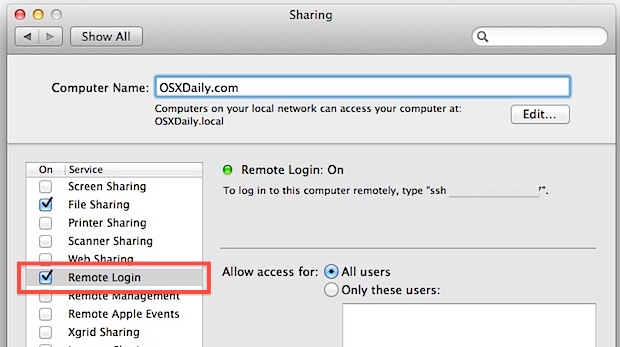
You can verify that SFTP is working by typing this at the command line:
sftp localhost
Note: The FTP and SFTP servers are different, and enabling one does not enable the other. SFTP is recommended because of the default encryption layer and secure transferring.
Disable FTP or SFTP Server in OS X
Here’s how to disable the FTP server:
sudo -s launchctl unload -w /System/Library/LaunchDaemons/ftp.plist
As the command suggests, this unloads the ftp daemon and shuts down the server. Obviously you can only shut down and disable the FTP server if it was enabled to begin with.
Disabling SFTP is just a matter of unchecking the “Remote Login” box that sits within the Sharing Preference Panel of OS X.
If you’re wondering how any of this is different from prior versions of OS X, you would have to look to Snow Leopard (10.6) or before to find the difference. Previously, an FTP Server option was a toggle within the general sharing preference panels like this:
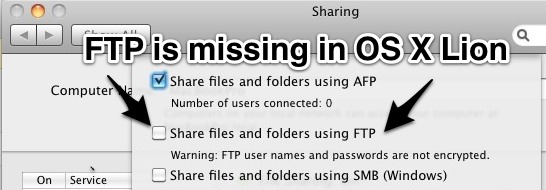
Though it’s not entirely clear why Apple pulled the easy frontend to FTP sharing, it’s possible they are simply choosing to favor SFTP because it’s a more secure protocol, and by enabling one you enable both. Nonetheless, FTP and FTPS servers are still around (as are clients for that matter), so it’s simply a matter of using the terminal to enable the server side of things. Generally speaking, because SFTP is much more secure, that is what you should be using for remote file transfers and connections though, so keep that in mind if you plan on hosting any kind of server to the outside world, or even if you just want to have secured file transfers yourself to and from remote Macs.
This is an elaboration on a tip from Land of Daniel via TUAW, who goes on to explain how to get ftpd to launch automatically on reboot, so if you’re interested in that, don’t miss their post.






It’s 2019. I’m still using SFTP and FTP natively in OS X.14.6.
I had a friend who could no longer use DropBox because it wasn’t supporting his OS anymore. I set up SFTP access on his computer, and was able to transfer files. His end was read only for drag and drop. But, transferring through the terminal worked fine.
This still does not work in Mac Mojave.
sudo -s launchctl load -w /System/Library/LaunchDaemons/ftp.plist
/System/Library/LaunchDaemons/ftp.plist: No such file or directory
SFTP continues to work in all MacOS versions. Meanwhile FTP is considered antiquated but you can still download and install FTP, ftpd, and telnet in MacOS Mojave (or later) if desired by following these instructions here:
https://osxdaily.com/2018/08/07/get-install-ftp-mac-os/
FYI this does not work in High Sierra or whatever the fck it’s called.
Do someone have tried whit 10.13? i get “No such file or directory” may be Apple has completely removed FTP?
Thanks in advice
It worked, thank you!
my results from ftp localhost
> ftp localhost
Trying ::1…
ftp: Can’t connect to `::1′: Connection refused
Trying 127.0.0.1…
ftp: Can’t connect to `127.0.0.1′: Connection refused
ftp: Can’t connect to `localhost’
ftp>
That means you don’t have an ftp server running. Suggest using sftp rather than ftp. Starting the sftp server using the “Enabling the SFTP Server in OS X” steps in the article is super easy.
> Though it’s not entirely clear why Apple pulled the easy frontend to FTP sharing, it’s possible they are simply choosing to favor SFTP because it’s a more secure protocol[…]
ftp has been considered obsolete in favour of sftp since 1999. It’s not unclear why they dropped support, what’s actually unclear is why they did so fifteen years later.
Except 10 billion devices have built in FTP support (including for example CCTV IP cameras) but not SFTP. So it’s is still very much required.
Does anybody knows how i can enable the ftp in OSX 10.9?
The command “sudo -s launchctl load -w /System/Library/LaunchDaemons/ftp.plist”
Doesn’t work anymore.
Kind regards,
Manuel Torfs
Love you, thanks
i do the step of sudo, but it asked me for password, and i can’t type anything in the password line, but it gives me option of ctrl+c to apport, if i press entre it says wrong password
sudo hides the password from being visible, enter it as usual and hit return
ftp is perfectly safe ^
good article but how do i share specific folders via FTP (via the terminal)
Enabling the FTP server via terminal does nothing for me if i can’t select which folders I want to share via ftp
I am also looking for similar solution.
After enabling ftp, how do I limit a specific user to access only a specific folder on the disk?
i beg to differ. if you’ve ever been hacked by a blackhat, you know NOTHING is “perfectly safe”.
regaining control over your machine is nearly impossible, especially if you bought your computer for home use, and are not part of “an enterprise”.
a “regular” person can’t get help, anywhere. This is the best site i’ve come across, because i can find out what i can disable to keep him out… temporarily.
i was not planning to become an InfoSec professional.
ftp is not safe, thats why it is removed. simple as that…
[…] going to need to use FTP at some point, so I kept looking and found an article on OSXDaily about enabling FTP with a command line string. However, buried in the article is a gem that took me by surprise. By enabling remote login in […]
Forgive my ignorance but I have an iMac that, after installing Lion and restarting, I cannot log in to. I can still boot into single user mode. Safe mode does not work. I tried creating a new account via the deletion of the startup file and went through all of that and it still does not work. I can access the files on the iMac from my MBP because FileSharing is enabled. Unfortunately I did not enable Remote Login on the iMac before I had the problem. Since I can boot into the root account via SUM, I assume that I could turn on Remote Login if I knew what to do. I have tried /sbin/service ssh start while in SUM but when I restarted I have been unable to ssh into the system which tells me that login is refused or words something like that. Any ideas? Thanks.
[…] inclusion of SFTP through Remote Login also explains why Apple ditched the FTP server in Lion, they opted for the infinitely more secure SFTP option and bundled it within Sharing’s […]
If I did this, is it secure enough for me to give the address to a client that needs to download a large file from me?
What address would I give a client?
Thx
If you only need / want sftp there is no reason to run the command to enable standard ftp, simply enabling remote login (ssh) will also enable sftp.
What if you restart the computer? Does the terminal command need to be entered again?
Should stay up, that’s the nature of loading anything into launchd
The reason this was removed is that Apple is slowly simplifying OS X so that when it merges with iOS there will be no options to run servers or share files, any sharing will be done through iCloud and within apps.
Are you retarded?
Apple will never merge them, it will loose its web developers, program developers and more if it did.
As a web developer, you seriously don’t know how useful the precompiled Apache is
Wow, you’re an idiot. I wish I would’ve found this post four years ago so I could’ve responded sooner.
On another note, them Sharing things have nothing todo what iCloud does, how would SSH or CUPS be emulated in iCloud?
Hello Douglas.
You are quite the prophet and I can´t beleive you reallised ythis already in 2011 but now there is little doubt that you were right.
Happy New Year.
Lasse