
How to Disable (or Enable) Spotlight in Mac OS X Mavericks & Mountain Lion
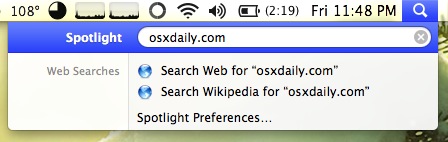
Completely disabling and reenabling Spotlight in Mac OS X Lion, OS X Mountain Lion, and OS X Mavericks can be done with the help of the Terminal. The following command unloads the Spotlight mds agent from launchd, thereby preventing the daemon from running or indexing any drives entirely.
Open up the Terminal (found in /Applications/Utilities/) and enter the following commands based on the need to either disable or reenable Spotlight indexing. This will effect indexing on all drives connected to the Mac.
Disable Spotlight
The primary method is using launchctl, this will require the administrative password:
sudo launchctl unload -w /System/Library/LaunchDaemons/com.apple.metadata.mds.plist
Another approach is to use the older indexing method of “sudo mdutil -a -i off” which turns off indexing only, but more on that in a minute.
Reenable Spotlight
The guaranteed way to reenable Spotlight is to reload it into launchd using launchctl:
sudo launchctl load -w /System/Library/LaunchDaemons/com.apple.metadata.mds.plist
Again, the alternate approach is the indexing related “sudo mdutil -a -i on” command, but that method can throw the “Spotlight server is disabled” error and not allow you to turn it back on. If you run into that problem, use the sudo launchctl load command instead to enable both indexing and Spotlight.
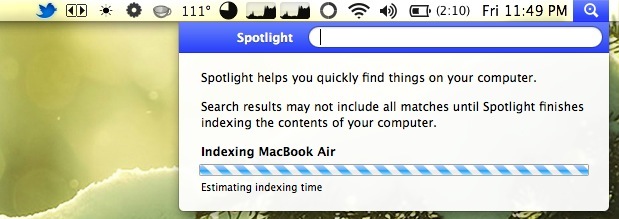
With Spotlight reloaded launchd, the mds agent will immediately start running again to reindex the filesystem. Depending on the amount of changes and new files since the last time MDS ran, this can take quite a while. You can verify that MDS is running through Activity Monitor or by pulling down the Spotlight menu to see an “Indexing Drive Name” progress bar. Don’t be surprised to discover that MDS, mdworker, and the accompanying Spotlight processes take up CPU and use a fair amount of disk I/O as they reindex the drive, that is completely normal especially on initial reindexing after it’s been reenabled again. Simply waiting for it to finish is the best course of action.
Another option is to selectively disable Spotlight indexing of specific drives or folders by excluding them from the index, that is much easier to do and does not involve the command line at all, and instead you only need to drag & drop items into the Spotlight control panel.
Use whichever method is most appropriate for your needs. Spotlight is a powerful search tool for the file system and also works great as an application launcher, so it’s often best to selectively exclude items rather than to disable the entire service. Nonetheless, there are cases where turning Spotlight off completely makes sense, and knowing it can easily reenabled by using the command discussed above makes the process easy to reverse should the need arrise.






Whooops. I think I trumped the F up on this one.
I copied and pasted the post commands and all into notes… so I could find it easy later if I decided to re-enable spotlight.
However… in my haste…. after I pasted I quickly copied the first command and entered into the command line. But immediately after hitting return I realised I missed a huge part of the command.
I only pasted
‘sudo launchctl unload -w /System/Library/’
And now it seems I’m locked out completely. Tried re-installing a fresh Os in repair mode but no good.
Just read and tried Matts idea from sept 8 2014 but no good as I think my problem was bigger.
Just trying to exit single user command but coming up continuous slow error daemons….
Any ideas greatly appreciated ✌️
Thanks! Helping even in 2016. I succesfully troubleshoot stuck time machine backup thanks to your adwice.
Okay, a quick solution is entering filename:*filename* into the search field.
Talking about 10.11, but this was already an issue for me in older versions. However, the dimensions of the mess spotlight shows me grew too big now, that’s why I ask so late.
Is there a method to disable the searching of the contents of a specific file type?
I’ve got tons and tons of txt files in many different folders and I wish to be able to find them by using their names (Read: I want them in the index, so putting them on the privacy list is not an option), but starting a search for everyday normal stuff (e.g. a dmg file), always shows me thousands of txt files which contain the word I was searching for.
That makes finding the file I was searching for equally hard as manually navigating to it, so all in all Spotlight is kind of “useless” the way it is right now.
Any input or solution would be greatly appreciated.
Yeah, that is a crying shame. At this point, would a recommendation be to re-issue the sudo command correctly (as a single command), or follow the command to re-enable Spotlight? No knowledge of Unix here.
Thx.
I tried the sudo command on El Capitan to disable Spotlight and it sped through a bunch of ‘Path not searched for services’ messages. The last two commands (/LaunchDaemons & /com.apple….. returned ‘no such file or directory’. I’m guessing El Cap is different than the previous versions in this area, but have I done anything serious to my system? I fear the re-boot.
It looks like you have the same problem as Matt on September 8, 2014
It is a single command “launchctl” not three, and after launchctl there are several “arguments”. You should have typed the whole thing on one line without until the end. And don’t put spaces into the path name.
Safari and Firefox will insert newlines after a / when code with a long path name is displayed. That confuses noobies. The following specifies a file with a path name whether your browser displays it on one line or multiple lines.
/dir0/dir1/dir2/dir3/dir4/dir5/dir666/aLongerDirName/file
In fact, on my display using Safari, because of insertion of an ad, it looks like the example to disable is not only on two lines, part of it is missing! If I use Firefox it is all there, and on three lines.
If you are unsure, re-read the page with different browsers, in reader mode and regular, and on displays with different resolutions. Understand when a filename is specified…
The following command might work to disable spotlight on the main drive:
sudo touch /.metadata_never_index
This is an epic waste of time. The fix didn’t work.
This is how you disable or re-enable Spotlight, it’s not a fix. It’s disabling, or re-enabling something you turned off. Do you fix a glass of water after you drank it? No, you refill it.
I disabled indexing/spotlight on my imac and haven’t noticed any issues. The only thing I miss is searching for e-mails in mail. Is there a way to reenable indexing/spotlight and have all that information stored on an external drive, rather than on my main ssd?
Be aware that in OSX Yosemite the ‘App Store’ app appears to use spotlight to find applications. When I disabled spotlight, I began to get endless notifications to reinstall the same updates over and over again. I solved this by re-enabling spotlight and then leaving all but applications unchecked in the spotlight preferences.
Use this in your terminal. User password is required:
sudo launchctl load -w /System/Library/LaunchDaemons/com.apple.metadata.mds.plist
Then this to confirm that the indexing has been enabled:
sudo mdutil -a -i on
I disabled spotlight and realized that I actually used it a lot more than I thought I did… I tried to re-enable it with the terminal code and that didn’t work. After restarting and trying it again, it said “operation already in progress.” I’ve tried this for a few weeks now and I still don’t have the spotlight in the top right corner of my screen that I need. I’m not going to use alfred, I just need spotlight back. Any suggestions? Maybe a different code to use?
Disabling spotlight also disables search in Apple Mail on Mavericks. You’ll just end up with an empty set of messages when searching or using Smart Folders. So be warned!
Open Terminal
sudo chown root:wheel “/Applications/Microsoft Office 2011”
sudo chmod 755 root:wheel “/Applications/Microsoft Office 2011”
sudo mdutil -a -i off
sudo rm -rf /.Spotlight-V100 (get this command right)
sudo mdutil -a -i on
Thanks
istiyaqtelgi.com/sig.jpg
Ok, there’s no one to blame for this but myself, but just wanted to point out the default rendering for the article makes the command look like:
sudo launchctl unload -w “/System/Library/LaunchDaemons” “/com.apple.metadata.mds.plist”
It whined about “couldn’t find /com.apple.metadata.mds.plist”…then proceeded to turn off *all* of my daemons, *permanently*! My Mac wouldn’t boot anymore, even to safe mode. Reinstalling the OS didn’t help.
If anyone else commits this bonehead move, the solution is to delete /private/var/db/launchd.db/com.apple.launchd/overrides.plist. Of course you should restore your backup of that file once you boot successfully, but deleting it will at least allow you to boot.
As always with the command line, commands must be entered *exactly* to achieve the desired result. This is why copying and pasting commands is a bad idea, you may put a line break in somewhere that it doesn’t belong.
Command line usage is best reserved for advanced users who understand the risks and limitations, it’s very powerful and not as forgiving as the GUI. This is why Apple hides it within a buried Terminal application.
Thanks, useful. I had a corrupt file system that I could not repair because spotlight kept causing a kernel panic as soon as it tried to mount. Completely killing spotlight allowed the system to be repaired.
However, I must point-out. Your sentence “This will effect indexing on all drives connected to the Mac.” is a perfect example of the difference between affect and effect and has the oposite meaning from the one you intend. You meant all indexing will be *affected* which is the same as saying NO INDEXING will be *effected*!
Why is it, when someone using Mac OS asks a perfectly valid technical operating system question, who is presumably interested in Unix/BSD security or tweaking their system for speed, battery life, stability, efficiency or whatever, on Mac forums or countless Blogs, – why is there always one who (obviously being ignorant or not interested in the technical aspects of computer operating systems themselves) decides to pipe up and type out with something unhelpful like ‘ leave it alone ‘ ‘why would you want to do something like that ‘or ‘ dont touch it ‘ ? while knowing nothing ?
This mindset is that of an ignorant smug ‘Apple fan’ who think Apple know best and let Apple do all their thinking. its smug, unhelpful, small-minded lazy thinking, zealot-like in the extreme and makes non Apple users laugh at their ignorance, while making real tech savvy people irritated beyond belief.
99% of this philistine mindset is curiously only in the Apple world, and is makes them seem foolish, most folks, while knowing little or nothing say nothing and read to learn, but ‘dont touch it’ zealots are oddly very vocal. that say an empty can rattles the loudest.. by the way Apple zealots, trust your government. stay in line. shut p and dont ask questions.
There is no file /System/Library/LaunchAgents/com.apple.Spotlight.plist
in LION ?
Also, when I tried to to add/remove the HD from the Spotlight privacy prefpane and was told:
Privacy List Error
The item couldn’t be added or removed because you don’t have the appropriate permissions.
I’m guessing this will likely end in a clean system install, but I’m open to suggestions.
I recovered a failing partition to a new drive. It looked like most everything copied except for some garageband files. But on restarting from the new drive, spotlight wasn’t even there. So I repaired permissions, installed the 10.7.5 combo update, and ran Onyx. After restart, Spotlight icon was back, but didn’t return any results. I tried the following in Terminal:
sudo launchctl load -w /System/Library/LaunchDaemons/com.apple.metadata.mds.plist
To proceed, enter your password, or type Ctrl-C to abort.
Password:
com.apple.metadata.mds: Already loaded
Peters-MacBook-Pro:~ peter$ sudo mdutil -E /
Spotlight server is disabled.
Peters-MacBook-Pro:~ peter$ sudo launchctl load -w /System/Library/LaunchDaemons/com.apple.metadata.mds.plist
com.apple.metadata.mds: Already loaded
Peters-MacBook-Pro:~ peter$ sudo mdutil -a -i on
Password:
Spotlight server is disabled.
Any ideas where to go from here?
mdutil(1) BSD General Commands Manual mdutil(1)
NAME
mdutil — manage the metadata stores used by Spotlight
SYNOPSIS
mdutil [-pEsav] [-i on | off] mountPoint …
DESCRIPTION
The mdutil command is useful for managing the metadata stores for mounted volumes.
The following options are available:
-p Spotlight caches indexes of some network devices locally. This option requests that a
local caches be flushed to the appropriate network device.
-E This flag will cause each local store for the volumes indicated to be erased. The stores
will be rebuilt if appropriate.
-i on | off
Sets the indexing status for the provided volumes to on or off. Note that indexing may be
delayed due to low disk space or other conditions.
-s Display the indexing status of the listed volumes.
-a Apply command to all volumes.
-v Print verbose information when available.
SEE ALSO
mdfind(1), mds(8), mdimport(1)
Mac OS X September 1, 2005 Mac OS X
(END)
If you just want to prevent indexing on some HDs (for example, stop indexing your external and keep indexing your boot volume, for Mail search functionality, etc.) just create a new empty file at each HD’s root, named
.metadata_never_index
You can of course add your HDs to the Privacy tab of Spotlight’s Preferences but I found it doesn’t work with some HDs (eg. FAT32).
I’ve been disabling Spotlight for years as it always and consistently ends up running amok. Things will be okay for a while, but then out of nowhere “mdsworker” and other processes related to it will start going crazy. The HD never stops working and the searches themselves get glacial. The amount of work the process taxes the system with gets more and more ridiculous over time. The difference between a machine running Spotlight and one not running it is incredible. I really don’t care about the App Store, not while I’m still in Snow Leopard. Maybe it will be a problem when I have to go to Lion or ML someday. For now however, it can go back to the dark hell hole from whence it came.
I’ve used all the above described terminal methods to do so. However, the most fail safe method (and easiest to recover from) is using and app called Spotless. Yes, it is a GUI front end to all those commands, but it does a spectacular job of keeping me out of the terminal. That and Onyx to disable the Spotlight icon and my MacBook Pro runs so much more calmly and stably. The only thing you really lose is the App Store, which means nothing to me. I love Apple, but draconian moves like that crap hole make me wonder where the vision is coming from these days.
I couldn’t agree more, Andy. It’s interesting because I always liked these system-indexing services. For example, I just love (yes, I DO!) how Windows 7 indexes my main folders, even though I have very good control over it. Spotlight seems to depend on the weather to do its job. Works great for some, and for others, like me and you, it’s near disaster. I’d rather keep on good and old Locate/UpdateDB (recently came from Linux), most of the time my searches are for file names.
But what it’s better: even if it doesn’t come ready-made in the OS, we can choose! ;-)
Thank you all of you guys, great hint about disabling the search button and also for your opinions.
It is a file or a set of files that it tries to index, but it is corrupt or the reader it uses is buggy. Many apps add to the ability of Spotlight to index their proprietary file formats. I once had a single JPG file that was corrupt and Spotlight was eating my CPU and Disk IO to index it, until there was no free space on the boot disk. I searched through the console log files and found it was an image. But still it was hard to track down. Another time I had an MKV video file that was giving Spotlight headaches, thus Perian.prefpane was the problem in my case. So… don’t blame the butler.
I tried the method for disabeling my spotlight while I downloaded from another drive but when I tried to turn it back on I got this error…
launchctl: Error unloading: com.apple.metadata.mds
Any advice?
Use Onyx (free) and you can turn it off/on any time.
I can’t enable spotlight. I get the following errors when I try both approaches sams-macbook:LaunchDaemons samflower$ sudo launchctl load -w com.apple.metadata.mds.plist
launchctl: no plist was returned for: com.apple.metadata.mds.plist
launchctl: no plist was returned for: com.apple.metadata.mds.plist
nothing found to load
sams-macbook:LaunchDaemons samflower$ pwd
/System/Library/LaunchDaemons
sams-macbook:LaunchDaemons samflower$ sudo mdutil -a -i off
Spotlight server is disabled.
sams-macbook:LaunchDaemons samflower$ sudo mdutil -a -i on
Spotlight server is disabled.
Any help would be much appreciated! Its driving me mental….
sudo launchctl load -w /System/Library/LaunchDaemons/com.apple.metadata.mds.plist
Thanks for the workaround – with Spotlight disabled Time Machine is functioning normally again… Hope Apple fix the problem with 10.7.5 soon.
At least it allows Time Machine to function at reasonable speed after the disastrous 10.7.5 “upgrade”
At least it allows Time Machine to function at reasonable speed after the disastrous 10.7.5 “upgrade”
Disabling spotlight messes with downloads in app store. You will [at least] no longer be able to get updates. You get a message saying:
“You have updates available for other accounts. To update this application, sign in to the account you used to purchase it.”
If you have this issue, renable spotlight server and you’ll be good.
I just wanted to add that disabling Spotlight will also disable the search function in Mail. I was really scratching my head trying to figure out why Mail wasn’t finding anything in my emails, and then I remembered I had disabled Spotlight. I re-enabled it and all is well again.
To turn back on in Lion use in terminal:
sudo mdutil -a -i on
Yep. Same for mountain lion.
sudo launchctl load -w /System/Library/LaunchDaemons/com.apple.metadata.mds.plist
doesnt work
sudo mdutil -a -i on
does
I too used the relaunch code on Lion and it didn’t work. So be aware!
You can turn it off using info above but NOT back on. I have no idea what the correct coding is. I regret turning it off.
You should know that disabling spotlight, also disables the search function in Outlook 2011…
my sad had better performance specially when running intensive apps like final cut pro with indexing disable
[…] How to Disable (or Enable) Spotlight in Mac OS X Lion […]
I try your code today on lion. But with error on launchctl. Any suggestion?
[…] that easy to do otherwise). There are a couple of terminal commands which will kill the function. How to Disable (or Enable) Spotlight in Mac OS X Lion It's a lot to type, but it worked. The alternate command is as follows: sudo mdutil -a -i off of […]
[…] is a much better approach than disabling Spotlight if all you want to do is hide certain files from prying […]
[…] Via | OSXDaily […]
[…] you are disabling Spotlight or just wanting to reduce menubar icon clutter, it’s possible to hide the Spotlight icon. […]
I have a suggestion for the article:
You should mention that this will disable spotlight ACROSS the OS (using the search tool in a finder window won’t turn any results). Even if I am an avid Alfred user, I think that the search tool in finder windows is pretty helpful so I had to rush and re-enable spotlight to get that functionality back.
Alternatively, if you just want to remove the spotlight icon you can open terminal and type :
sudo chmod 600 /System/Library/CoreServices/Search.bundle/Contents/MacOS/Search
and then type
killall SystemUIServer
This will effectively remove the spotlight icon from the menu bar, yet you’ll keep the functionality.
It is amazing how customizable OS X really is.
I have not needed to disable Spotlight for any reason. I would like to know why people might want to do this.
That being said – it is good to know that it can be done.
Well, I had to disable it because it would start eating up 100% of my cpu quite frequently, and was nearly impossible to stop. Once it restarted, it was back at it. It never would “finish”. This would happen a few times a week, and I can’t have that when I’m working. So I had to disable it.
Also, some people frequently use removable drives. Spotlight is stupid enough to try to index them. It just go to be too much of a pain to get to behave properly, and it has no *meaningful* controls or options. It’s basically a black box, and when it stops doing what you want your only choice is to disable it. You can’t just say “only index this volume”, or “prompt first” or “only index these folders.” I have what seems like millions of dev related files scattered around… I can’t just exclude them all, i only want to exclude some of them, but if one folder is inside another… ouch, out of luck.
But really, it was the 100% cpu and disk thrashing that finally did it for me.
If you on SSD, there is no point of doing this. Just for the performances.
I know this is off the topic, but I have tried to get Spotlight to work in Lion, and I never succeeded.
My problem is that spotlight finds items, which do not exist. If I search for a set of characters, which are almost certain not to exist on my computer, such as “h3%n9q”, Spotlight finds hundreds of files if searching by name or by content.
I re-indexed Spotlight, disabled Spotlight, re-enabled Spotlight, deleted all cashes in Lion, deleted Spotlight preference file. Did this using Spotlight preference panel or Terminal.
I once got Spotlight to work for about three days, then the same old problem was back.
Anybody else has the “find-nonexisting-items” problem?
I’ve never heard of this issue, have you tried deleting all the preferences and caches? Do you have FileVault encryption enabled? If you’ve been upgrading from Mac OS X version to Mac OS X version, there could be some legacy preferences or otherwise corrupting Spotlights index and causing it to behave like that, the solution may be to backup and reinstall Lion, as annoying as that is.
Will, thanks for your suggestions.
I do not use encryption. I did a clean install of Lion–I think because I installed over the internet as anybody else. I don’t remember if the Internet install gave me a clean install option. I always used a clean install for new systems installed from a DVD.
A wile ago I set my normal HD to be excluded, and set my backup HD for search. After indexing was complete, I had the same problem. Confirming the problem is not caused by a faulty HD. I will use another HD just to be certain, just in case the bug got copied to the backup drive.
Then I tried something else. I searched Spotlight using the terminal, e.g. mdfind h3%n9q. Works OK, no files found. Also finds files with valid search input.
I guess this means the Spotlight database is OK, and the problem is in the Spotlight interface. Strange! BTW, I get the same bad Spotlight results in searches from a window as I do searching from the Spotlight menu.
Or the Spotlight interface is connected to some phantom index.
Following up on the last idea, I did a terminal ls.
MacPro:~ Udo$ sudo du -m /.Spotlight-V100 produced this:
570 /.Spotlight-V100/Store-V1/Stores/308A3197-7E1D-45CE-B998-6E40C7C2CB9C
31 /.Spotlight-V100/Store-V1/Stores/BEDA5A58-9744-4E2D-A693-24F43A3884E7
601 /.Spotlight-V100/Store-V1/Stores
601 /.Spotlight-V100/Store-V1
4 /.Spotlight-V100/Store-V2/7D6EA8C8-E0E8-4184-85F6-39EE2B5A52B2/Cache/0000/0000/000a
7 /.Spotlight-V100/Store-V2/7D6EA8C8-E0E8-4184-85F6-39EE2B5A52B2/Cache/0000/0000/000b
45 /.Spotlight-V100/Store-V2/7D6EA8C8-E0E8-4184-85F6-39EE2B5A52B2/Cache/0000
45 /.Spotlight-V100/Store-V2/7D6EA8C8-E0E8-4184-85F6-39EE2B5A52B2/Cache
1 /.Spotlight-V100/Store-V2/7D6EA8C8-E0E8-4184-85F6-39EE2B5A52B2/journals.live
0 /.Spotlight-V100/Store-V2/7D6EA8C8-E0E8-4184-85F6-39EE2B5A52B2/journals.repair
0 /.Spotlight-V100/Store-V2/7D6EA8C8-E0E8-4184-85F6-39EE2B5A52B2/journals.scan
1049 /.Spotlight-V100/Store-V2/7D6EA8C8-E0E8-4184-85F6-39EE2B5A52B2
1049 /.Spotlight-V100/Store-V2
1649 /.Spotlight-V100
Is this typical? What is Store V1 and Store V2?
Store V1 and Store V2 are normal part of Spotlight, they’re just metadata cache
I did try another HD, which contains only data files (no system installed). Spotlight works Ok. So, the problem is caused by something on the HD, which contains the system.
Finally solved the problem.
I had run Apple disk repair before, and it had not fixed the problem. Running it today (OS X 10.7.2) it fixed the Spotlight problem. Message was: “Updated boot support partitions for the volume as required”.
Why would you want to do this?
I use Alfred instead and never use Spotlight so having it indexing my drives on connect and disconnect and once a week is annoying. Without a special use case, you wouldn’t want to do that though.
But Alfred uses Spotlights data?
just realized this. glad the command was there on how to enable it again :)
I am using quicksilver so spotlight isn’t needed.
is there a way to index a connected network server?
any chance to get rid of the search/spotlight icon top/right?
Yeah there is :)
Open terminal and type
sudo chmod 600 /System/Library/CoreServices/Search.bundle/Contents/MacOS/Search
press enter (type your password in if you have to) and then type
killall SystemUIServer
Should be gone now !:)
worked, thanks for the help!
This helped me as well. Thanks for this advice!
What about getting rid of it with OS X Yosemite? That is not working anymore :/
I used a rather low tech option…I renamed spotlight snotlight and rebooted…no more spotlight or icon
^ any performance gains?
Also, what are all those icons in your screenshots… man that’s a lot of apps you have running. (may grab a few, so let me know what they all are)
Is there any performance improvements when spotlight is disabled?