
Stop Spotlight from Indexing Time Machine Backup Volumes & External Drives
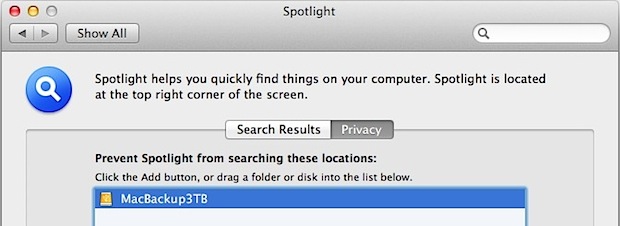
The default behavior for Spotlight is to start indexing any drive as soon as it’s connected to a Mac, a task that can take a very long time with larger volumes. The problem is that for larger external backup drives and Time Machine volumes, you don’t necessarily want it indexed by Spotlight. This is particularly true if the drive gets used on multiple machines, where indexing on each Mac isn’t necessary.
Preventing Spotlight from indexing a Time Machine volume, or any other external drive, is quite easy, however, which is what we’ll detail in this walkthrough.
Preventing Spotlight from Indexing Time Machine Backups & External Disks on a Mac
The solution is simple enough, the same method used to exclude something from Spotlight can also be used to stop Spotlight from indexing a Time Machine drive or other external volume:
- Connect the volume you want excluded to the Mac, even if Spotlight is currently indexing
- Launch “System Preferences” and click on “Spotlight” followed by the ‘Privacy’ tab
- Drag the drives icon into the Privacy window
Even if the drive is currently being indexed by Spotlight, this will cease the indexing process and prevent the drive from being reindexed again on that Mac. You’ll have to redo this process on each Mac that the drive is connected to.
If a drive is removed from the privacy list, it will automatically start a rebuild of the Spotlight index for that volume, however.
Stopping Spotlight from Indexing Backups & External Drives from the Command Line
If you’d rather prevent a drive from being indexed from the command line, you can do that with mdutil and the following syntax:
mdutil -i off /Volumes/VolumeName
When the command has executed properly, you’ll see something like this:
$ mdutil -i off /Volumes/MediaCenterMovies

/Volumes/MediaCenterMovies:

	Indexing and searching disabled.
Be sure to specify a full volume path, because if you just use / or don’t use proper syntax you could wind up disabling Spotlight systemwide.
Reversing this and reenabling indexing on a per volume basis is just a matter of changing the flag from off to on:
mdutil -i on /Volumes/VolumeName
Again you’ll get a message, this time confirming the path and “Indexing enabled.”






I followed the procedure, but the dialogue box jumped out says “‘My Passport’ is a Time Machine backup folder. You cannot add it to the Privacy list.” What the heck… this feels like a brick wall I’m hitting. (I’m currently using my “My Passport” 2TB external hard drive as my backup hard drive.) But according to the article, if I understood it right, both Time Machine and external hard drive can be unindexed. So what’s the problem here? Anyone can please shed some light on this??
Well, this article here is eight years old, and something has apparently changed regarding Time Machine and Spotlight since then. Don’t worry, Time Machine backups don’t seem to be indexed in detail anyway anymore, but apparently some smaller subset of Spotlight is used (perhaps for the file names only and not the file contents?) and also depended upon by Time Machine.
Wanted to drop a hint… if you get an error saying that you cannot resolve path /Volumes/TimeMachine … you need to run the command with sudo… (e.g. sudo mdutil -i off /Volumes/TimeMachine)
Ok, so I have disabled the indexing function of spotlight on my external hard drive but surely I should still be able to search that hard drive for something or I am being thick here.. does indexing =searching?
Hi Adele, did you ever find out an answer to your question of indexing = searching? I have the same issue. I turned off indexing to my external Time Machine drive, and now when I go into Time Machine to search a specific date, I am no longer able to find any files. Let me know, thanks.
“Indexing a drive” means making it available for fast-search (as in, via Spotlight), so, yes, if you disable indexing on an external drive, then you cannot Spotlight anything on that drive.
You cannot disable indexing of Time Machine backup locations in Lion. The commands you mention just don’t work. Well, at least when the backup location is an external drive like my USB drive.
I tried disabling indexing system wide and got a backup error shortly thereafter. Not sure if one caused the other.
Great tip, Shame there could not be footnote on the privacy page within Spotlight preferences to make it obvious that this was the way to do it because I did look there before googling for this answer. All they need to do is add two words so that it reads “Prevent Spotlight from searching OR INDEXING these locations”
When I drop the external hdd Mac mini Time Machine into the Privacy tab of Spotlight, I get the message:
“Mac mini Time Machine” is a Time Machine backup.
Spotlight will continue to search Time Machine backups but will not search other items on the disk.
Yup same message for me but it stops indexing the same
Yes, same message on Mountain Lion 10.8.2
I gather this means that Spotlight has to be allowed to index TimeMachine backups. Disabling this via terminal might be unwise.