
How to Enable and Use Text to Speech on iPhone & iPad
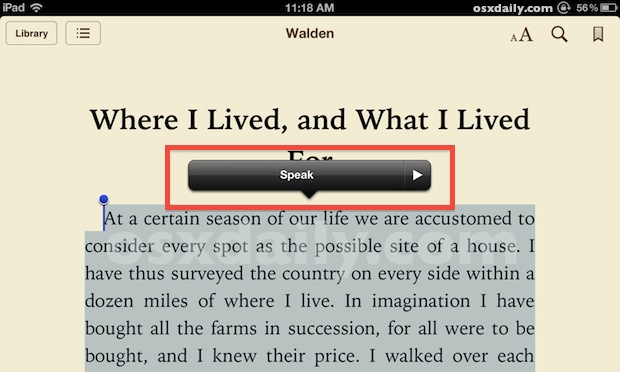
The newer versions of iOS include a fantastic text to speech engine that lets you select any text and have it spoken to you. This basically means you can have an iPhone, iPad, or iPod touch read you the content of any web page, notes, text files, or even eBooks and iBooks. Before you can use the text to speech function though, you have to enable it.
Enabling Text to Speech in iOS and iPadOS
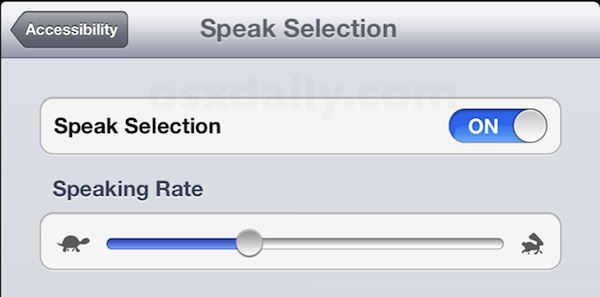
In modern versions of iOS and iPadOS, enabling text to speech is done as follows:
- Launch “Settings” and tap on “Accessibility”
- In Spoken Content, tap on “Speak Selection”
- Slide the Speak Selection toggle to “ON”
- Optionally, adjust the “Speaking Rate” slider to an appropriate setting for your preferences
In older versions of iOS, Accessibility is tucked under the General settings and thus the steps are as follows:
- Launch “Settings” and tap on “General”
- Scroll down to “Accessibility” and tap on “Speak Selection”
- Toggle the Speak Selection toggle to “ON”
Now that that speech feature has been enabled, it’s time to use it. You can now select text on the iPhone or iPad and have iOS read the text to you aloud.
Using Text to Speech on iPhone and iPad
Getting your device to read selected text is quite simple, here’s all you need to do on any iOS or ipadOS version:
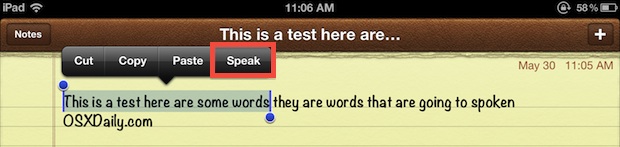
- Tap and hold on any text until the selector tool comes up
- For a single word, tap “Speak”, otherwise to speak everything tap on “Select All” followed by “Speak”
Once speech has started the “Speak” button turns to “Pause”, making it easy to halt and resume any spoken text.
A great way to test this feature out yourself is in Safari, like when you’re reading this very article. Just select some text and use the Speak tool. Or you can read the entire article if you select all the text on a webpage!
You’ll notice the voice is that of Siri’s, which depending on the version of iOS you have is either a voice you set for Siri, or the same voice of Samantha in Mac OS X which you can add yourself if you haven’t done so yet for Mac users.
With speech enabled, speaking text is available in just about any app as long as you can select the text. This works perfectly in Safari, Notes, Instapaper, Pocket, and even iBooks if you want stories read to you, though you’ll have to select all the text again on each page when it’s finished reading the current page. Preferably a future version of iBooks will just include the speech engine natively and we won’t have to do that. Anyway, enjoy!






on my 2016 iPad –
1. Accessibility
1a. SPOKEN CONTENT
1b. Speak Selection
Hello! My colleague and I are currently writing an article on educational technology that can be used to support students with special needs. We were wondering if it would be okay with you if we published the images in your article above for using Speak Selection as well as enabling text-to-speech in iOS? Please email me at the address above either way.
Thank you!
My speech stoped working on my i-phone 6s, in message, on e-maim, u-tube, dictionary, Siri does work work so it’s not my phone speaker… stopped working after last OS update???
I reset my i6. Now I have no – speech to text inside email or texting. There used to be a microphone icon btween the emoji icon and the space bar- now not so much. ANY idea how Ican get it back? I do not mean text to speech.
I set my ipad 2 to Speak Selection, but now my ipad will not let me open it. Perhaps because I enter passcode of 4 digits, the ipad also speaks the ‘letters’ associated with each digit. I am unable to access settings menu to turn off Speak Selection. Anyone know how I can get my ipad to boot up?
Thanks it helped me :)
I love this TTS future , on the way in car very handy. I wonder if android do it have? My girlfriend would love to be able to do it. Pleas help me find it
Another distraction. Pay attention to your driving instead.
I’ve found that the new “speak page” feature, which is easily turned on in settings which I ha to add, the newest IOS 8.1 is beautiful and the fluidity of the new OS is an amazingly surprised welcomed update, especially on the new iPhone6 as apposed to the iPhone 5 & iPhone 5S, the new IOS is so nice & easy to use!! I love the new iPhone 6 and I can wait to get the
iPhone 6 Plus since they were on back order and I wanted to go with the 6 for my work phone & I think going with the iPhone 6 Plus for my personal iPhone will be the best of both worlds because the iPhone 6 is in my opinion (I’ve had the iPhone’s ever since 2007-2008 when they were first released and could only be gotten through AT&T because of the contract Apple had exclusively with AT&T for the first couple of years) and I’ve always upgraded when a new Apple iPhone or iPad has been released, and I’ve seen them come out with very few products that weren’t amazing, but by far Apple Redesigning and making major advances over the years, has outdone themselves in this release!! The IPhone 6 & iPhone 6 Plus/ The IPad Air 2 have absolutely over delivered by all means in my opinion one of the BEST New Product & Software that Apple has come out with thus far!! Way to go Apple!! I can’t wait for the Apple Watch To Finally Be Available!!! That’s going to be the icing on the cake when I can pair it to my IPhone 6 & IPhone 6 Plus, I’m positive it shall prove to be irreplaceable!!
I have iPads in my classroom now and am trying to get them to be able to read books to my students….I am able to highlight words but am unable to deselect them….WHAT AM I DOING WRONG???
Unless I misunderstand this feature, it is an incredibly short sighted. When would I want text to speech? When I am driving. Why do I need it? So I won’t ‘text and drive’. Having to select text kind of defeats the purpose.
What a bunch of goobers.
I use it to proofread what I type. It catches a lot of the kind of typos that I make, esp. dropped words.
Don’t you think it would be handy for someone like my dyslexic son as he researches his school projects Gregg?
Excelent its work perfectly !!!
How can I adjust the volume of highlighted speach on my iPad mini. The volume is way too loud and the volume buttons do not adjust it.
Wow thanks! I use it to rehearse my drama lines. Thanks.
I found out you can have it read the whole book to you, while automatically turning currently if you turn on VoicOver and swipe the text with one finger.
wow, a hidden gem, great tip
My Mac doesn’t have the same voice as my iPad and iPhone (Siri female), can I change that?
Great question, yes you can. Go to the Speech preference panel and you can add new voices from there. Siri is called “Samantha”. Here is a quick how-to guide for bringing it to Mac OS X:
https://osxdaily.com/2012/06/04/add-voice-of-siri-to-mac-os-x/
This works beautifully on my iPad but does not seem work on my iPhone. I changed the settings, when highlighted the speak does not show! Any ideas what I am doing wrong?
Wow! Thank you!
My iPad (set to British English) speaks with a male voice that I assume is the same as Siri UK. Anyone know which voice I need to install to get the same on my Mac?
I think that’s true!
Thank you so much for this tip :)
Great tip, thanks!
Sorry, disregard the last post. It appears it was a fluke. I wasn’t able to do it agin. Oh well, i’m glad the speak is available.
I tried it in ibooks and found a suprise. Select text of any size and then choose speak. Now, as words are spoken, clicking anywhere on the page will deselect the text but wont pause the speech, therefore the text will continue to be read throught the entire book. You can stop it by selecting new text and seclecting pause.
Thank you Slvrfx! I couldn’t figure out how to pause or stop it if the pause bubble disappeared! You are the only source I have been able to find that gives this tip. 😎
This is absolutely brilliant, why isn’t there just a button in Safari Reader or iBooks Viewer to read to you without having to scroll? That would be amazing for car and bike rides.
In the messages app, if you have emoji enabled enter several characters into a text and send it, then highlight the text and have it spoken to you…
“Winking Dog with stuck out tongue, Bouquet, Dog”