
Transfer a Playlist from iPhone, iPod, or iPad to iTunes
Do you have a music playlist on an iPod, iPhone, or iPad that you want to move to iTunes on your computer? It’s fairly easy:
- Connect the iPod, iPhone to the computer and launch iTunes
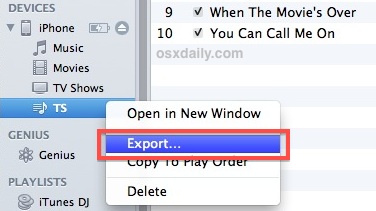
- Under the “Devices” menu locate the playlist you want to copy to the computer and right-click on the playlist name, then select “Export”
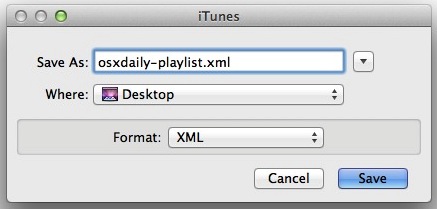
- Name the playlist and select “XML” as the filetype format and save the file to somewhere easy to find, like the desktop
- Pull down the “File” menu, go to “Library” and now select “Import Playlist”, choosing the XML playlist file you exported in the previous step
The playlist from the iOS device is now in iTunes on the computer, find it under the Playlists menu. You will obviously need to have the music featured in the playlist within iTunes in order for the playlist to work, if you don’t have the music because you switched computers you will need to transfer the music from the iOS device to the computer first.
This is a great solution if you’ve lost playlists from iTunes and the standard recovery process didn’t work, or if you’ve just spent a lot of time customizing playlists directly on an iOS device and you now want to enjoy them on the computer.
This works the same in Mac OS X and Windows.
Thanks to Jennifer for the tip idea






I just tried this and where my computer did save the list and imported my playlist, it told me not all songs could be moved over because they weren’t found? I have over 500 songs on a playlist and only 191 songs moved over.. Help!
Thank you thank you! This worked. Right clicking did not… but options available under file, export as you commented. This is a great helpful article!!!
I am not computer illiterate however this what should be so simple to do it completely frustrating me. Back to the beginning. I have playlists on my phone. Go into iTunes they don’t show up. Try to import file, when it takes me to my I phone area it only comes up with my bloody pictures so I can’t import music at all.. Help please!
I get the same message that some songs cannot be found so they aren’t imported. Is there a way around this?
When I try to import them again onto my itunes it keeps on saying some songs cannot be found so it cant import it. help!
This worked except not every song made it back in my playlists. However, highlight your playlist on ipod. Go under file and down to library. Choose export playlist. When box opens, save to desktop and in the dropdown section of box, change file to xml. This puts it on your desktop. I did this for all the lists I needed. Then I ejected my ipod.
Do the same procedure you did initially minus the ipod again, but just going straight to file, choose IMPORT playlist, chose it from desktop and it is back.
I did not get every song in my playlists back but you can manually add these back. Helpful, was to save the playlists as text as well, because then you have a printable/savable list of what should have been there.
This didn’t work at all for me. It doubles the playlists I alreay made… Is there an other solution?
Apple! They removed the export button!!
Like Amy says, there is no “export” option.
Yes, you have to click on the Export button to export the playlist from iPhone or iPod to the iTunes
I don’t have an “export” option. The only options I have are “play, play next, add too, and add to up next”. PLEASE HELP SOMEONE. I just got a new lap top and I want these playlists on there.
Jennifer!!!!!!!!! thank you sweets!
What will happen to the music already in my iTunes if I follow your procedure?
When I right click on my playlist I don’t have the option to export. Only play, shuffle. Play next. Add to up next. Does anyone know another way round this?
i’m having the same issue! I hate the new versions of itunes!
Try selecting the playlist and then going to file > library > export playlist.
If file doesn’t show up for you press ctrl B to bring up the tool bar.
Thank you, that seems to be the solution!
For those not finding Import Playlist it is now under File=>Library
When I right click on the playlist on my device I want to move to itunes it does not have the option “export”.grrrr
Thanks for the great advice. This worked with my regular playlists, but not for my smart playlists. I lost all my ratings on iTunes after a computer crash, but I have two large smart playlists (my top rated and 5 stars) based on my ratings still on my iPad. When I follow this method for them, iTunes still treats them as smart playlists and only includes songs I’ve re-rated. Can you think of any way around this, other than re-rating all of my songs?
THANK YOU!!!!!!!!!!!!!!!!
And thank you to the other replies which clarify a problem I was having with it. This is so easy and time saving.
THANK YOU FOR YOUR WISDOM!
very useful, thank you very much
Why doesn’t my iTunes have “import playlist” after I choose file-library? I also chose “add file to library” and this did not work. Any suggestions? I have a new pc and all of my iTunes music transferred but none of my playlists did. Thank you!
I am on a windows PC and don’t have the ‘import playlist’ option either.
Same with me. FRUSTRATING!!!!!
same with me… i have an older ipod and i’m on windows… right clicking on an ipod playlist does not offer the option of exporting.
Wow, that saved me a lot of work! Thank you very much.
Thank you! This worked perfectly — still works great with iTunes 11. Huge timesaver here…. big thanks.
my god you’re a life saver, who could have imagines that lol! thanks! :)
Awesome. Thanks!
wow thank you so muchhhhhhhhhhhh!
I accidentally deleted one of my favorite playlist this morning from iTunes. Performed several searches on the web for way too recover the playlist. The first procedure I found wanted me to move a file from the iTunes directory to the desktop. Then delete another file from the same directory and then import the moved file back to iTunes. This procedure did not work. I wondered if it was possible to restore the playlist from my iPhone back into iTunes. I located Jennifer’s write up on the procedure, followed her instructions and restored my playlist. My thanks to Jennifer.
My computer crashed, but I had my iTunes library on a secondary disk. I’ve got iTunes installed on my new computer and moved my whole library over, but my playlists aren’t there. My next thought is to plug in my iPod, get iTunes to see it – but not to sync yet (don’t want to delete my playlists on my iPod!), then follow your directions above to get them back in iTunes.
Can you think of a better way?
Outstanding! Worked perfectly and effortlessly. Thanks Jennifer!
Worked flawlessly. Placed all of the playlists into a folder i created called itunes playlist. Tried to import them all at the same time but ended up doing it individually. May have cost me 1 minute to import 10 playlists. Quite simple indeed!
Thank you!!!…saved me hours,much appreciated
I used this for a Win 7 PC and it worked great! Thanks a ton! Saved me a lot of time having to manually recreating these lists. :D
Jennifer, I found the answer. it was a “Control S and Control B solution. Now I can view the sidebars….;
Jennifer, your explanation seems simple, except I do not se the “Devices” label or menu on my itunes? I have my nano plugged in… any help is appreciated. I’ll check other surces as well
Thank you so much. I called Apple and they told me once I transferred my iTunes library if I didn’t see all my playlists I was pretty much out of luck and had to MANUALLY add them all back. I didn’t believe them and found your help page. Thanks again!
THanks alot this was the fastest and most sensible answer! And it didn’t require downloading some garbage software like all the other sights kept telling me i needed to do! again thanks.
Thank you, thank you, thank you!
This saved so much time and was so easy….
And didn’t try to sell me software like the first four search results (software I did NOT buy…as you can tell from my website name “cynical musings”, I am fairly cynical…ha-ha).
What if the playlist doesn’t show up under device? I created it on my phone, and it is still there and working, but doesn’t show up under with the other playlists under device when my iphone is connected to itunes.
Did you ever figure this out? I’m having the same issue – I created a playlist on my iPad and don’t see it when plugged into iTunes on the home computer. Getting an update on the iPad now.
thank you very much.the only issue i had that my playlist was to long and it took me hours. the good thing was that i recovered all my playlist. again thank !
This did not work for me, if i right click on my device, there is no “Export” option. I am using iTunes 10
You do not right-click on the ‘device’…. Right-click on the playlist that you want.
If the playlists on your device are not showing, click the tiny blue sideways point arrow and it will drop downwards and show you the entire list of playlists on your device. Then do as in above para.
Hope that helped.
Sorry, this does not work anymore?
Itunes 12.1 on windows.
Look the image:
http://namikoohanzee.myhome-server.de/wp-content/gallery/itunes_1/itunes-no-export-playlist.jpg
It still very much works.
Highlight the playlist you want to export
then go to FILE->Library->Export Playlist
They just moved it to a place thats a pain in the A$$ with
no shortcuts.
Oh i should add, File is hidden by default, press ALT and it appears.
its not in the little drop down, you HAVE to go through File.
Thanks. Worked just fine.
Thanks to Jennifer and Thomas. Saved me hours of reconstruction in iTunes.
No Thanks to lame apple software developers.
Thomas – This worked for me BUT it only imported 191 of my 550 songs.. I got a message saying some of the songs could not be found?
Nice sharing from author! If this didn’t work, you should try other transfer tool. I recommend you the FonePaw iOS Transfer which can support the latest iTunes. And it can transfer all kinds of files from iOS devices to iTunes. Easy to use, hopes it can help.
Yes, indeed, great idea. The problem is that i got a lot of playlists. Is there a way for taking all of them altogether, not one by one?
Thanks.
Jennifer, you’re simply the best. thank u for ur help.
Thanks Jennifer this saved a bunch of time for me. I used a duplicate remover tool for iTunes and lost my playlist. The play list were still in the side colum but the info was gone. This worked grate for me I can’t thank you enough!