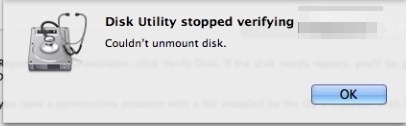
Disk Utility usually works trouble-free, but a frustrating “Couldn’t Unmount Disk” error can halt whatever the attempted task is right in its tracks. This can happen during partitioning, disk verification and repair, and even during formatting, and there’s usually little to no additional information provided as to how to resolve the problem or even what the problem is with regards to the error message or the app in Mac OS.
The visually overhauled iOS 7 beta includes a handful of nice new default wallpapers, two of which are static (the left pink blue dots and galaxy image), and two are animated (the right two varieties of blue and purple vector bubbles). Obviously without iOS 7 you won’t be able to get the animated wallpapers, but you can get a static image of them and they still look pretty nice. These are all sized for the iPhone and iPod touch with 4″ displays at a 640×1136 resolution. They’ll look fine on the smaller 3.5″ displays too, but trying to size these up for an iPad or Mac just won’t look that great.
Save the full sized images below, or you can download them all in a convenient zip put together by CultOfMac.
Need to dial a vanity number from iPhone? You know, the phone numbers that are listed as letters rather than numbers? These phone numbers are mnemonic and listed as letters and are often called vanity numbers, typically they will be in a format like 1-800-COMCAST, 1-800-MY-APPLE, 1-800-SOS-APPLE, etc, and they are not always automatically detected by iPhone or iPad. At first glance they don’t appear to be usable on the iPhone, but it turns out they are, with a little trick.
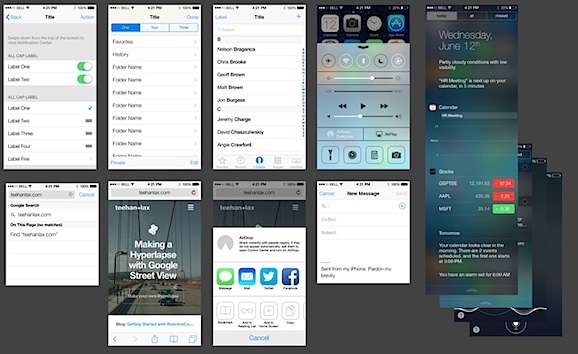
The designers at Teehan+Lax have built a complete iOS 7 GUI elements template, and are now offering it for free as a very functional PSD file. Everything is fully layered, well-labeled, and organized logically, making it an excellent tool to use for mocking up apps and concepts as they would appear natively in the completely redesigned iOS 7 interface.
Being a PSD it is obviously aimed at Photoshop, but it works perfectly fine in Pixelmator in our testing, and all layers remain intact (at least in Pixelmator 2.2).
Do note that because iOS 7 is currently in beta, some of the elements may change slightly from the beta release to the final release. We can expect Teehan+Lax to update the template file for any significant changes though. Happy designing. Read more »
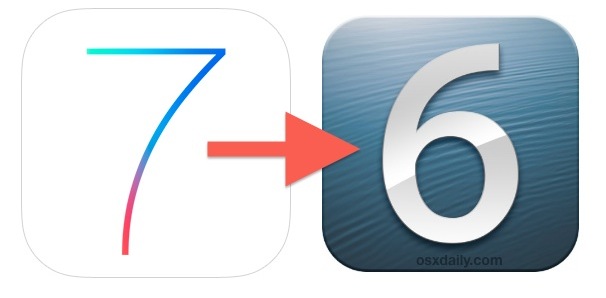
Fed up with iOS 7 beta and it’s quirky bugs? You can downgrade fairly easily, which is probably a good idea for most casual users who aren’t accustomed to handling beta OS releases in various stages of development, because it’s really not meant for everyday use on your primary device anyway. Yes, Apple’s developer notes attached to iOS 7 beta releases specifically say that any iPhone or iPod touch that upgrade to iOS 7 can not downgrade back to iOS 6, but that’s not actually true in practice. In fact, just like with prior beta versions of iOS, you can downgrade back to whatever the most recent stable iOS release is with relative simplicity, so ignore the dev portal message and get back to a stable version. It only takes a few moments, and it’s not much different than restoring iOS in general.
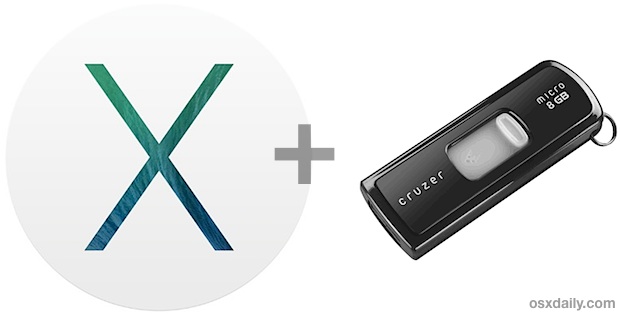
Just like other recent major Mac updates, OS X Mavericks arrives as an app that wants to update the current OS X installation, and with a little work you can make a bootable USB installation drive. This allows you to easily perform partitioning for dual boot situations, clean installs, upgrades on multiple Macs, and more, plus it’s just really convenient to have for troubleshooting and simple future installations, without having to re-download OS X 10.9 every time you want to install it or perform an upgrade.
Of course the best way to preview iOS 7 would be to install the beta, but let’s face it, that beta is buggy, incomplete, and besides, it requires a developer account to use, which makes it inaccessible to the vast majority of people. So what’s the next best thing to preview the new iOS without installing the beta? Viewing full-sized, full-screened videos and screen shots directly on your iPhone or iPod touch. This gives you an excellent idea of how iOS 7 will look on your device, and with the videos, it also gives a good preview of how certain aspects will behave. This goes far beyond just viewing feature screen shots and visual comparisons between iOS 7 and iOS 6, and it really is the next best thing to just installing the beta, but without the hassles.
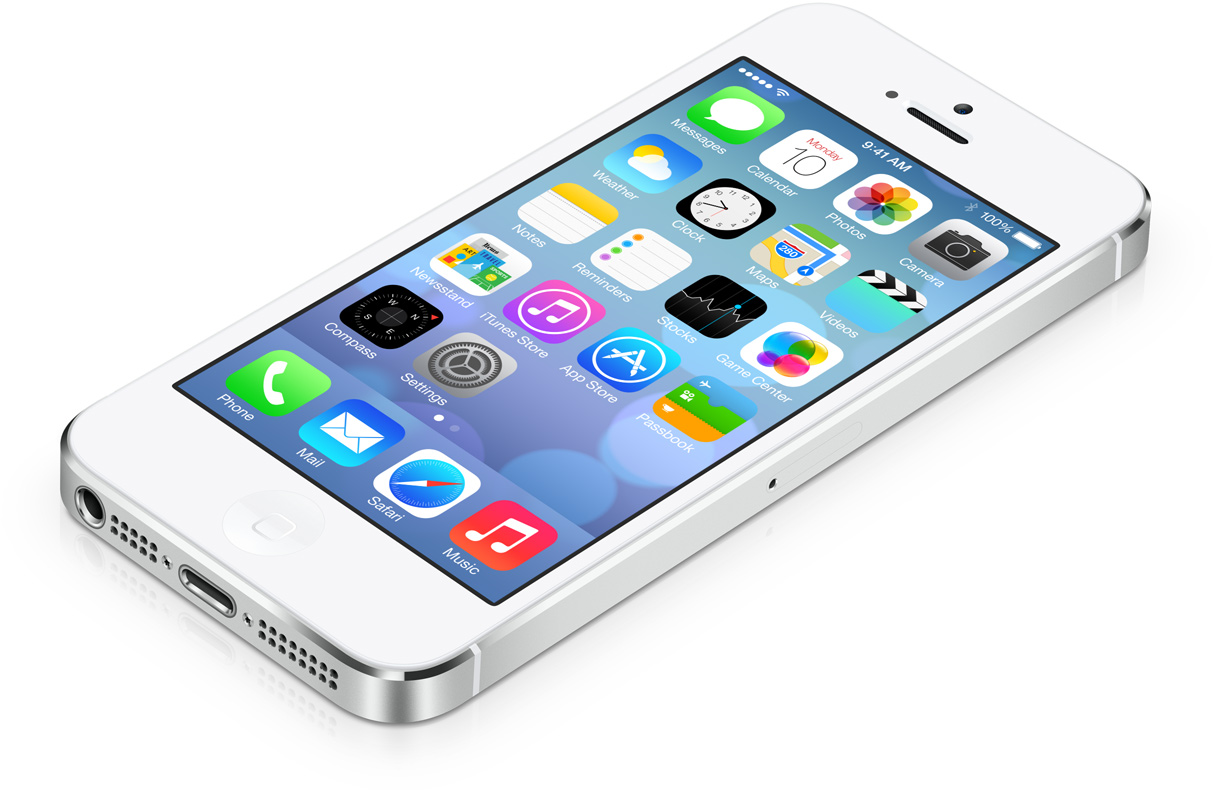
iOS 7 brings a significant user interface overhaul to Apple’s mobile devices, and though it’s best to be experienced and used first hand, screen shots can do a fair job of demonstrating the differences. If you’re not a developer and can’t use the beta releases yourself, then comparing iOS 7 to iOS 6 side-by-side can give an appreciation for the changes ahead, so we rounded up a few comparisons of the home screens, common apps and app interfaces like Notifications, Siri, Messages, Mail, multitasking, and Weather, and also a large side-by-side chart showing the differences between icons in both iOS versions. Take a look. Read more »
Apple has yet to provide an official list of OS X 10.9 compatible Macs, but as we mentioned before regarding the first Mavericks Developer Preview, most Mac hardware that supports OS X Mountain Lion (10.8) should be able run OS X Mavericks (10.9) without any issue. This has been confirmed apparently by AppleInsider, who notes that Macs can even upgrade to Mavericks directly from OS X Snow Leopard 10.6.8 without having installed 10.7 or 10.8, assuming they meet the system requirements. Read more »
OS X 10.9 Mavericks Developer Preview 1 is now available to download directly from Apple. Registered developers can access the installation from Apple’s Developer Center. Much like prior OS X betas, installation of OS X Mavericks is done through the Mac App Store, and it is highly recommended to back up OS X with Time Machine before beginning installation of any beta operating system.
The first developer release of iOS 7 has arrived and is now available to download. iOS 7 beta 1 has a build number of 11A4372q, and can be installed onto any compatible iOS device, including iPhone 4, 4S, 5 and newer, iPad mini, and iPod touch 5th gen. Currently, iOS 7 beta does not yet support any iPad model, but that is expected to change in the coming weeks as Apple continues to create new image assets for the major interface overhaul for the larger screened iPad, which it will be compatible with for nearly all versions post 1st gen.
OS X Mavericks (10.9) will be out later this year, but you don’t have to wait that long to get the sweet new wave wallpaper that will be the default desktop background on future Macs and OS X releases.
Obviously iOS 7 looks incredible enough that virtually every single iPhone, iPad, and iPod owner on the planet is going to want to run the amazing new iOS on their devices… leading to the big question on everyones minds being, what devices does iOS 7 support? And what new features work on which device? The full lists are below, but it’s safe to assume that basically any semi-new iOS device has full support, though not all devices compatible with iOS 7 will get every single feature (like AirDrop).
Here is what we know so far, courtesy of Apple: Read more »
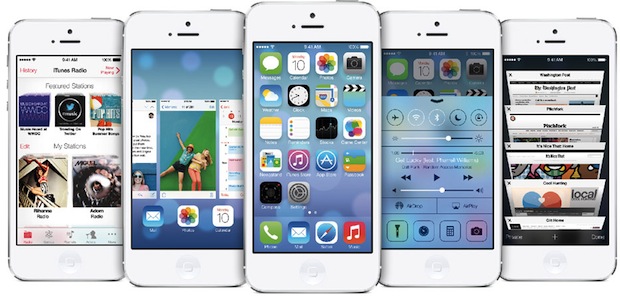
iOS 7 is the most significant update to iOS since the original iPhone debuted, and Apple executives are describing installing iOS 7 as “like getting an entirely new phone”. Packed with tons of features and a beautiful new interface, with tons of animated interface elements that respond to movement of the device and provide a 3D appearance, it really must be seen to believe. Let’s review some of what was shown today at WWDC 2013, covering some of the major features and, of course, some screenshots too.
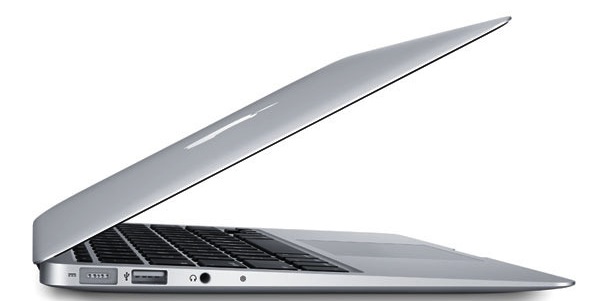
Apple announced a significant MacBook Air update today at WWDC alongside the all new Mac Pro, and the new Air includes dramatic battery life that lasts all day. Read more »
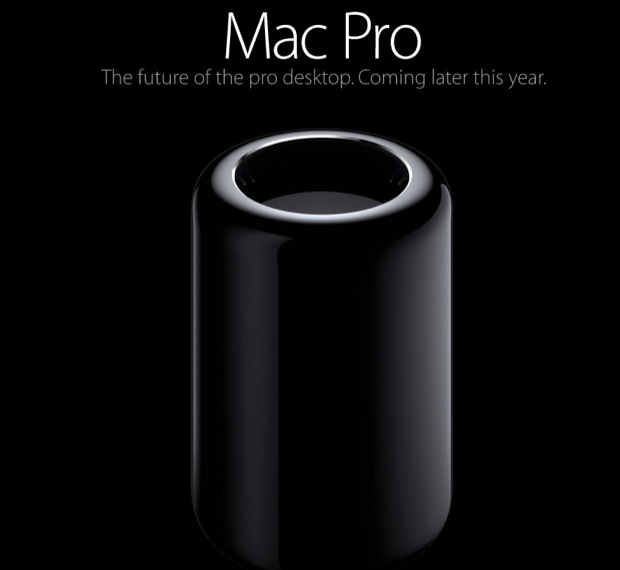
Apple gave a sneak peak of the all new Mac Pro at WWDC 2013, setting very high expectations for the release later in the year. Professional users will be extremely excited with the new Mac Pro, which looks like something out of the future that has been somehow transported to our era, and the specs are equally as impressive.
The next version of the Mac operating system, OS X 10.9, is officially labeled as OS X Mavericks. Mavericks, named after an epic surfing spot in northern California, has a lot of new features, but also represents a change in naming conventions away from the familiar cat themes. In future versions of OS X will follow the same naming convention and all be named after inspirational places throughout California, where Apple is located. Read more »
Need to securely delete a file, group of files, or an entire directory, insuring that it’s quite literally never recoverable by any known possible means? You can do this easily from the command line with the help of an incredibly powerful tool called srm. srm, as you may have guessed, stands for ‘secure removal’, and is a secure version of the commonly used ‘rm’ command that exists in virtually every flavor of unix, Mac OS X included. Be advised this utility is not for everyone and certainly not for novice users, srm should be considered an advanced tool, and it’s best used by those who are comfortable with the command line and understand the data repercussions of secure delete functions.
How secure is srm? Well, the default for secure remove is the incredibly secure 35-pass method which uses the “35-pass Gutmann algorithm”, that basically means that first the data is removed, then written over 35 times using randomly generated patterns, making recovery quite literally impossible. For some comparison on how secure that is, srm also has a “medium” option setting which uses 7-pass security, and 7-pass meets the US Department of Defense standard for securely erasing data… thus, theoretically at least, the 35 pass method is 7 times more secure than what the US DoD accepts as their standard for secure data removal. We’re not going to focus on the medium option though, we’re going to use srm as it was intended to be used, with full 35-pass data removal. Read more »



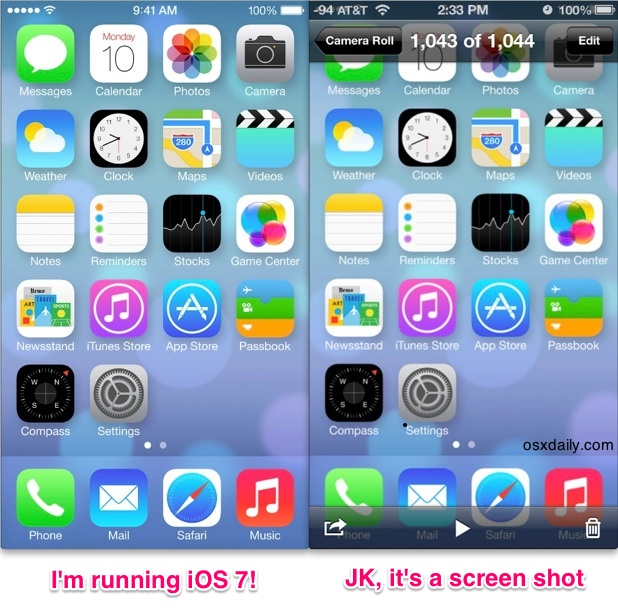
 iOS 7 brings a significant user interface overhaul to Apple’s mobile devices, and though it’s best to be experienced and used first hand,
  Apple has yet to provide an official list of OS X 10.9 compatible Macs, but as we

 Need to securely delete a file, group of files, or an entire directory, insuring that it’s quite literally never recoverable by any known possible means? You can do this easily from the command line with the help of an incredibly powerful tool called srm. srm, as you may have guessed, stands for ‘secure removal’, and is a secure version of the commonly used ‘rm’ command that exists in virtually every flavor of unix, Mac OS X included. Be advised this utility is not for everyone and certainly not for novice users, srm should be considered an advanced tool, and it’s best used by those who are comfortable with the command line and understand the data repercussions of secure delete functions.



