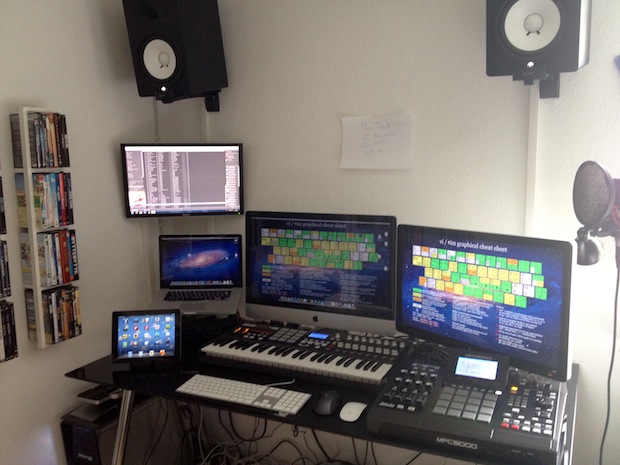
This weeks Mac setup is brimming with hardware for both work and play. Coming to us from Terkel G, this awesome workstation features a couple of decked out Macs, iOS gear, and lots of other hardware for programming and making music. Hardware shown includes:
iMac 27″ top line 2011 model
Apple Cinema Display
MacBook Pro 17″ fully upgraded
iPad 3
iPhone 4S
Dell XPS 22″ Monitor
Akai MPK MIDI Keyboard
Akai MPC5000 Drum Machine
Senheizer Mic
TC Electronick Sound Card
I don’t know a thing about music but this setup looks pretty great. The floating speakers above the desk is a nice touch too.
For anyone else who was wondering about the vi/vim cheat sheet wallpaper, we’ll post a link if we get our hands on it.
Want your Mac setup featured on OSXDaily? Send in a good picture or two with a list of hardware and a brief description of what you use your Apple gear for to osxdailycom@gmail.com
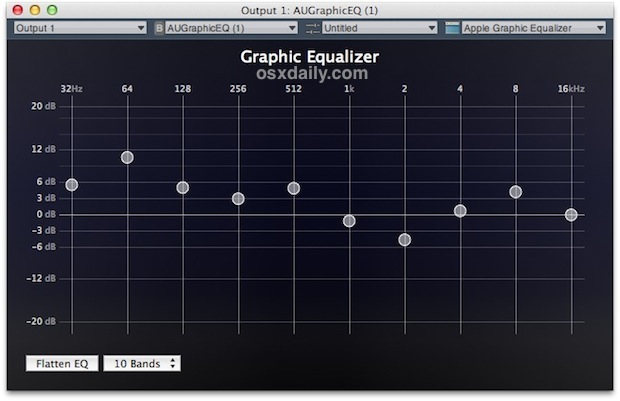
Ever wish you had a system wide equalizer to adjust all audio output in Mac OS X and not just in iTunes? Maybe you want to adjust the way all audio output sounds or maybe you just want to boost the output volume of the built-in Mac speakers. We’ll show you how to do both by creating your own universal EQ using two free tools, follow along:
AU Lab – free download from Apple Developers (requires free Apple Dev ID)
Download and install both Soundflower and AU Lab, you will then need to restart your Mac to have full access to the audio components. Once rebooted, follow along with the instructions below:
Set Up a Universal Audio Equalizer for Mac OS X
Set System Volume to the maximum level, do this either through the menu bar or by hitting the Volume Up key repeatedly
Open System Preferences from the Apple menu and select the “Sound” panel, followed by the “Output” tab. Select “Soundflower (2ch) from the Output list
Now launch AU Lab, found in /Applications/Utilities/
From the “Audio Input Device” pulldown menu, select “Soundflower (2ch)”, and then from “Audio Output Device” menu select “Stereo In/Stereo Out”
Click the “Create Document” button at the bottom of the screen
At the next screen, look for “Output 1” column and click the “Effects” dropdown, selecting “AUGraphicEQ”
This is your new system-wide equalizer, set it how you see fit. Changes here will impact all audio output on the Mac
When satisfied with the EQ settings, hit Command+S to save the EQ settings file and put it somewhere easy to find like the Documents folder
Now open AU Lab preferences from the AU Lab menu, click on the “Document” tab and click the radiobox next to “Open a specific document”, selecting the .trak EQ file you saved in the previous step
Optional final step: If you want the EQ settings to load on every Mac OS X boot, right-click on the AU Lab icon, go to Options, and select “Open at Login”
It’s important to note that AU Lab must be running in order for the equalizer to have an effect, keeping it running will consume a small amount of CPU resources but it’s much less process hungry than some of the third party alternatives available on the market.
A new report from Bloomberg appears to confirm rumors that the next iPhone will have a larger display. Although Bloomberg doesn’t mention a specific screen size, the earlier reports from Wall Street Journal and Reuters claim it will measure 4″ diagonally.
According to Bloomberg, the late Steve Jobs worked closely on the redesigned iPhone project before his death last year, reiterating rumors that surfaced last October that the so-called iPhone 5 was his last big project.
The report goes on to speculate the next iPhone will also include 4G LTE internet access, a longstanding rumor that gained significant strength after Apple released the 4G LTE equipped 3rd generation iPad.
No release date is known for the next iPhone, though most assumptions point to a release on the same Fall schedule set last year by the iPhone 4S, suggesting an announcement sometime around September or October.
Photo Stream is an excellent iCloud feature that automatically syncs all pictures taken on an iPad, iPhone, or iPod touch to one anothers Photo libraries, and it will even sync with Mac OS X through the iPhoto app. Not everyone uses iPhoto to manage pictures though, and if you just want quick access to those pictures from the Mac Finder you can use a neat trick to access the entire iOS Photo Stream directly from the Mac desktop.
There are tons of interesting pictures posted to Instagram all the time, but unless you’re using the iPhone apps, the website, or Android app you can’t really see what’s going on there. That’s where Screenstagram comes in, it creates an attractive screen saver using an array of images pulled from either public photos or your personal Instagram feed, and sets those images as a lovely changing grid screen saver in Mac OS X or Windows.
A recent tip covered how to announce when a command line task finished by using OS X’s text-to-speech abilities. The obvious downside to that method is the sound makes it less useful to those who are using Macs in quiet environments like offices, schools, or libraries. An alternate solution is to use growlnotify to create a silent notification when a command line task has finished.
Assuming both Growl and growlnotify have been installed, append growlnotify to the end of another command and use the -m flag to specify the notification message to use after the initial command has finished running. For example:
make install && growlnotify -m "Install Completed"
The Growl message “Install Completed” will appear when make install has finished running.
Growl also makes it simple to send notifications to other hosts running growl, this can be done with the -H flag and by specifying an IP address. This is helpful if you’re compiling something large on a desktop Mac and want to send the completion notification to a MacBook Air while you’re working elsewhere.
The notification icon and other details can be modified through growlnotify command as well, use the –help flag to see all the options.
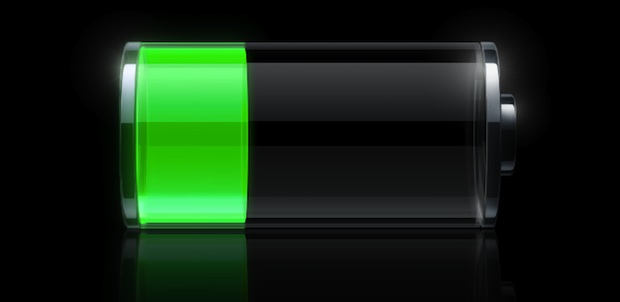
iOS updates can come with some unexpected surprises regarding battery life and iOS 5.1.1 isn’t much different. While there are a fair amount of reports of positive battery improvements not all of us were so lucky, the battery life on my iPad 3 absolutely tanked after updating to iOS 5.1.1.
After rebooting several times and trying a handful of troubleshooting solutions, I discovered this to be a fairly common issue with users who updated iOS through on-device OTA updates, though there doesn’t seem to be much explanation as to the cause. Fortunately the fix is simple, so if you have experienced a drop in device longevity after the 5.1.1 update try the solution below.
Before proceeding you should perform a quick manual back up through iCloud or iTunes just in case something goes wrong. This process resets all iOS device settings, meaning you will have to re-enter Wi-Fi passwords, auto-fill info, Apple ID, etc.
Open “Settings” and tap on “General” then “Reset”, tap on “Reset All Settings”
Enter the passcode if you have one set, then tap “Reset” to confirm the settings adjustment
Reboot the device and set it up as new, reentering personalization data as necessary
Battery life should be immediately improved, though a comment left on Apple Discussion Boards suggests letting the iPhone/iPad/iPod touch drain down to 0% and then recharging for an hour or so past 100% before disconnecting from a power source is a good follow-up.
This worked wonders for my 3rd gen iPad and battery life is now back to the 10+ hours I had before the update. If you’re still having problems you can try some of our past tips on improving and maximizing battery life for iDevices.
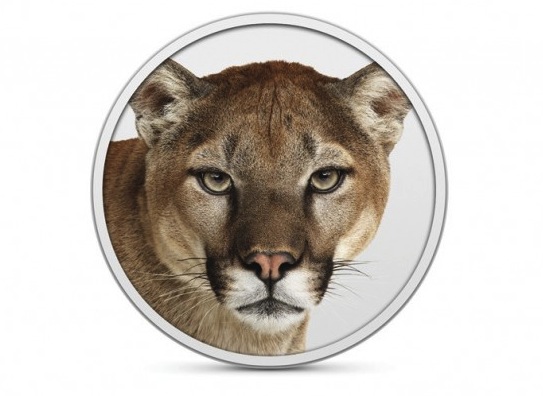
Apple has pushed out another update to OS X Mountain Lion Developer Preview 3, as the anticipated summer public release of OS X 10.8 nears. The new build is 12A206j and can be downloaded through the Mac App Store by any registered Mac developer running 12A193i or later of Mountain Lion.
The latest build includes noticeable changes to Notification Center, Notes, Share Sheets, and several other prominent OS X 10.8 features. 12A206j also features many bug fixes though it continues to have a handful of prominent issues that are yet to be addressed. Additionally, some 2007 MacBook Pro models are currently missing support in the new version, though that is expected to be resolved in a future update.
Having a backup of your iOS device and its settings is important, so rather than completely disabling iOS backups in iTunes, you can choose to selectively disable only the automatic backup process. This is a much better solution because it allows you to create and retain local backups of an iPad, iPhone, or iPod when you want them, but they are no longer initiated on their own during the sync process.
The vast majority of users should retain the default behavior and allow iTunes to manage and back up your devices. This tip is intended for advanced users who have a compelling reason to disable the automated process.
Disable Automatic iTunes Backups
Quit iTunes and then launch Terminal, found in /Applications/Utilities/
Once automatic back ups are disabled, you can backup manually at any point by right-clicking on the device within iTunes sidebar and choosing “Back Up”, and you can continue to use iClouds manual initiation as well.
Re-Enable Automatic iOS Device Backups in iTunes
To reverse the change and re-enable automatic device backups, open Terminal and use the following defaults command before relaunching iTunes:
We’ve all had the experience of one of our favorite app getting updated and the new version being worse than the previous version. Maybe it’s more intrusive ads, maybe it’s a terribly annoying feature, whatever it is, a poor app update can easily ruin your app experience. The easiest way to avoid this potential letdown is to save a copy of iOS apps, allowing you to downgrade them if you discover the new version is worse. This is much easier to do than you may think, we’ll cover the process of saving a local backup of the app and also how to downgrade to the prior version if you dislike the newest iteration.
Note that if you backup exclusively through iCloud you won’t have this option because the apps will not be stored locally. You can always backup locally in addition to iCloud to prevent that being an issue.
Save iOS Apps & Easy Version Downgrading
This process is best done manually before you update an app.
Saving & Backing Up Individual iOS Apps
Navigate to the iOS app location, this can be done by right-clicking the app in iTunes and choosing “Show in Finder” or by manually going to the local iOS app location at ~/Music/iTunes/iTunes Media/Mobile Applications/ and finding the app
Copy the app file to another location to serve as the backup, the iOS app files have a .ipa extension
If you feel like it, you could backup that entire directory to another location, though that’s usually unnecessary.
Sidenote for Windows users: the directory you are looking for is: C:\Users\Username\My Music\iTunes\iTunes Media\Mobile Applications\
With the app backed up, you can now safely update to the newest version directly on the iPad, iPhone, or iPod touch. If you decide the new version is awful, downgrading is very simple.
Downgrading to Previous Version of an iOS App
On the iOS device, delete the app you wish to downgrade
On the computer, quit iTunes
Again navigate to the local iOS app location at ~/Music/iTunes/iTunes Media/Mobile Applications/
Remove the newest version of the app .ipa file from that directory
Copy the previously saved version of the app to the /Mobile Applications/ directory
Relaunch iTunes
Resync the iPhone, iPad, or iPod, and the older app version will restore to the device to complete the downgrade
In some situations the older versions of apps won’t be compatible with the newest version of iOS, you’ll know this is the case because the app won’t launch when you attempt to open it on the iPhone/iPad, or you will get a message stating a new version is available and asking to upgrade.
Finally, if you use something like Time Machine, you can always dig through the Time Machine backups to access older versions of apps if you’re in a pinch, but it’s generally easiest to just keep a specific backup of an app if you prefer a past version.
The next generation iPhone will feature a 4″ display, according to two separate reports from Reuters and Wall Street Journal.
The dual reports appear to confirm long existing speculation that Apple would increase the size of the new iPhone screens from the current 3.5″ display to a larger 4″ display. Larger displays are increasingly common in the smartphone world, and both Reuters and WSJ cite competition from Android phones as part of the motivation to increase the screen size.
Other details are scant and the source of the information is the routinely vague “people familiar with the situation”, but WSJ and Reuters have a history of providing accurate Apple rumors and leaks in the past.
Assuming existing iPhone 5 rumors pan out, the next-gen phone could potentially include the following features:
4″ Display at similar screen resolution to existing iPhone models
4G LTE connectivity
A5X CPU borrowed from the iPad 3
10 megapixel or higher camera
All new redesigned enclosure
Ships with iOS 6
The next iPhone is expected to launch later this year, likely around September or October.
Automatic termination is a feature of macOS since OS X Lion that comes from the realm of iOS, the idea is that after an app is unused for a period of time and becomes inactive, it will automatically terminate to free up resources for other tasks. With the help of the new auto-save feature, the user should theoretically never notice any of this going on and they can continue on with their work as usual when they need to, letting Mac OS X manage processes and resources for them without quitting apps or manual interaction through Activity Monitor.
Anytime an iOS device is connected to a computer it will sync and backup the device, and though the syncing process can be annoying sometimes, the backup process should be considered crucial so that you always have a way to restore your iPhone, iPad, or iPod should anything go wrong.
With that said, there are a few limited situations where some users may want to disable the iTunes & iOS backup process completely, which is different than stopping iTunes from automatically syncing because it continues to allow for device syncing but minus the backing up aspect.
We’ll show you how to turn off backups, but we want to warn everyone this is not a good idea unless you know what you’re doing and why you’re doing it, leaving this option best for select jailbreakers or just for demonstration purposes.
Disable iTunes Backups for iOS Devices
Quit out of iTunes and launch the Terminal, then enter the following defaults write command:
Relaunch iTunes, connecting iOS devices will sync but without a backup copying over
With backups disabled nothing will be added to the local directory or iCloud, and anything already there can be deleted through iTunes or manually. Remember, disabling this feature removes the ability to restore an iOS device should you need to, which for 99.9% of people is a bad thing.
Re-Enable iTunes & iOS Backups
Quit iTunes again and launch Terminal, entering the following defaults command:
Relaunch iTunes and connect an iOS device to confirm backups are working again
The instructions above are intended for Mac OS X, but Windows users can disable the device backups by launching iTunes with a flag attached to it, this can be executed from the Run menu or by right-clicking iTunes:
By using a custom URL inside of an anchor tag, you can place a link on any website that will initiate a new iMessage conversation. Anyone clicking the link will then launch the Messages app in iOS or iMessages in Mac OS X to begin a new conversation with the specified Apple ID.
Even if you have limited knowledge of HTML the link structure is easy to use, here’s the format you’d want to use for Mac and iOS;
Apple will release a new thinner MacBook Pro next month at the annual Worldwide Developers Conference (WWDC), according to a report from Bloomberg.
With a thinner design, the new MacBook Pro is expected to feature “high-definition screens like those on the iPhone and iPad” commonly referred to as a Retina display, and also include SSD storage which will extend battery life and increase performance. The new laptops are said to run on Intels newest Ivy Bridge processors, though precise clock speeds are currently unknown, and there is no word on bundled graphics card capabilities.
Earlier today, 9to5mac had reported on some information they had received regarding the new MacBook Pro model, and the Bloomberg report seems to confirm much of it. 9to5mac suggested the new MacBook Pro won’t have a tapered enclosure like the MacBook Air, and instead would resemble a thinner version of the square unibody enclosure that already exists but without a SuperDrive.
Rumors of retina Macs have swirled for quite some time, and evidence has been piling up since early OS X Lion developer previews were released. HIDPI mode is currently buried in OS X and can be enabled manually, though there is no official Apple screen capable of utilizing the high resolution.
WWDC 2012 is scheduled to run from June 11 to June 15. Other than an all new MacBook Pro, the event is expected to reveal iOS 6 beta for the first time, in addition to providing a GM build of OS X Mountain Lion, the latter of which is set to be released this summer.
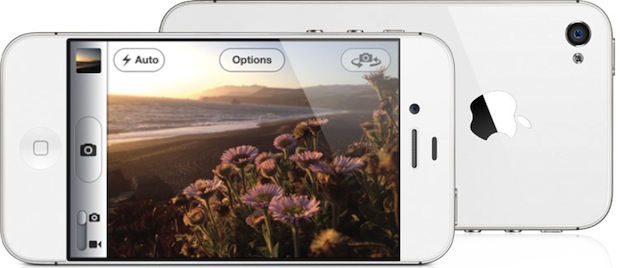
Saving pictures from websites or emails on to the iPad or iPhone is very easy once you learn how. This may be a bit of a beginners tip, but after fielding the question multiple times from relatives and even seeing it popup in comments on wallpaper posts, there are clearly a fair amount of people who aren’t aware of how simple the process of saving images directly to iOS devices is, and that’s OK, we’ll teach you!
In this walkthrough we’ll show you how to save pictures that are either included in an email from the Mail app, and how to download and save an image from the web through the Safari app. Both methods are extremely simple and quite similar, they rely on a tap-and-hold method that is frequently used in iOS. You’ll find this is the same on any iPhone, iPad, or iPod touch, and the pictures will download from the web or email to the local device. OK let’s get to it…
Many Mac users have an external hard disk for Time Machine backups or other media storage purposes, and if you leave it connected to the Mac all the time you’ve probably noticed an annoying side effect: the drive will spin down when it’s not in use, only to be spun up again unnecessarily at random during unrelated operations.








 Saving pictures from websites or emails on to the iPad or iPhone is very easy once you learn how. This may be a bit of a beginners tip, but after fielding the question multiple times from relatives and even seeing it popup in comments on