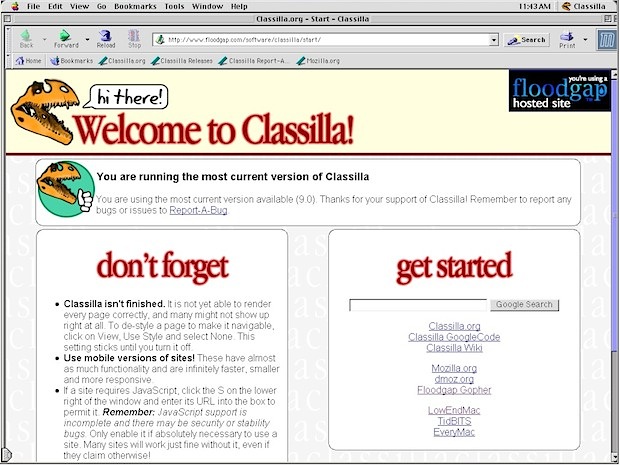
Do you have an old Mac running Mac OS 9 laying around the closet? Dust it off and bring it into the modern age (of the web at least) with Classilla, an open source port of Mozilla, the same underpinnings of Firefox. It’s a work in progress so don’t expect it to be perfect, but alongside iCab it’s probably the best web browser option available for the classic Mac environment, and it works great for getting on the web in Mac OS System 9.
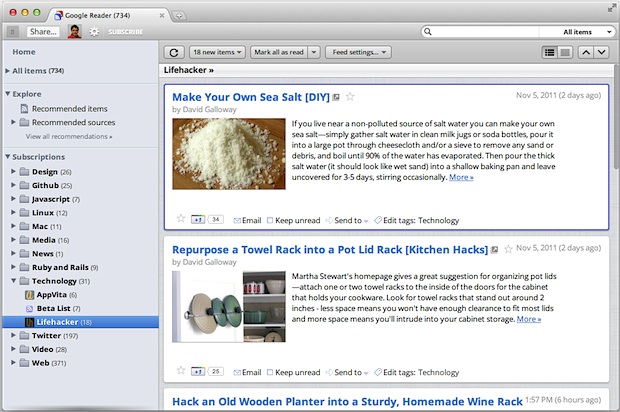
Google recently revamped their popular RSS aggregator (subscribe to our feed while you’re at it) Google Reader with a new look, if you’re not thrilled about the new appearance you can apply a theme to make G Reader look similar to a native OS X 10.7 application. You’ll need to be using a newer version of the Chrome browser or Firefox for the best results, although a beta version for Safari is also available from the themes GitHub page.
Installation within Chrome and Firefox is a simple two step process:
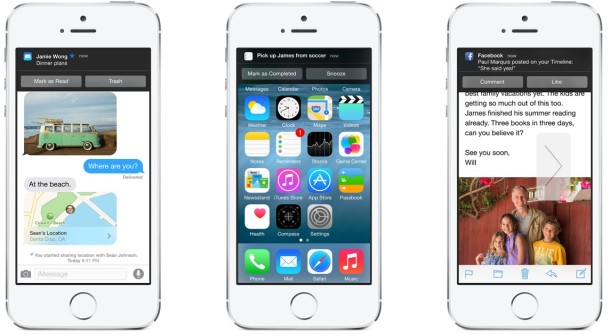
If you get a ton of alerts or use the iOS Notification Center as a queuing system, sorting them by most recent event is preferential to grouping them by app. This makes it so you can quickly scan Notifications on iPad and iPhone by what came in most recently, rather than by what application the notification came from.
Fieldrunners is a very popular tower defense game for iOS and Android, it usually costs between $3-$8 depending on the version, but guess what? You can download and play it for free using nothing but the Chrome web browser and Google’s web store.
You’ll want to download the game to be able to resume games, but you can also just play the game directly at the appspot url. The game can be loaded in either standard or high def mode, so choose accordingly based on your screen resolution.
Technically it’s supposed to be for Chrome only, but you can usually load the game with Safari or Firefox as well. You won’t need Flash either because the app is HTML5. Similarly, you can download and play Angry Birds for free with your browser too, just in case you haven’t beaten that dead horse enough yet.
Over-the-Air (OTA) updates are one of the better refinements to iOS as part of the whole “post-PC” thing, they bring delta software updates directly to your devices, making for quicker updates and using less bandwidth (a delta update means only the differences between the iOS versions are sent, preventing a much larger package from being transferred iTunes or Apple). OTA updates work on all iPhone, iPad, and iPod touch devices, but sometimes the over-the-air download does not work, or does not display. If you run into those issues, we’ve got solutions to fixing OTA updates for iOS.
Siri’s gender and voice accent is different based on the region, with a female voice for USA and Australian users, and a male voice in the UK. Regardless of which location you’re in or where you bought the iPhone, you can change the gender and the accent of Siri yourself just by switching the language settings.
iOS 5.0.1 has been released to the public, the update addresses the battery problems that were associated with iOS 5 and the iPhone 4S, but also brings multitasking gestures to the iPad 1 and resolves several other bugs and issues. The update comes as build 9A405 and is highly recommended for all iPhone, iPad, and iPod touch users running the newest iOS.
Download and Update to iOS 5.0.1
There are several ways to get iOS 5.0.1:
OTA Preferred method: download through Over-the-Air update by tapping on “Settings” > “General” > “Software Update” and then tapping on “Download and Install”
Download from iTunes: launch iTunes and you will get an update notification
If you’d rather download and install the firmware yourself and you know how to use IPSW files, use the links below.
iOS 5.0.1 Direct Download Links
These are direct download links from Apple’s servers. Right-click and “Save As” to avoid problems:
For those wondering, GSM is generally AT&T and CDMA is generally Verizon.
The brief release notes are as follows:
– Fixes bugs affecting battery life
– Adds Multitasking Gestures for original iPad
– Resolves bugs with Documents in the Cloud
– Improves voice recognition for Australian users using dictation
From our own experience, iOS 5.0.1 makes a significant difference in battery life. How does it stack up for you?
Does anyone like the CAPS LOCK key? Yes, it can be useful for typing some things that happen to be all uppercase, but as many internet readers know, it can also be an obnoxious key that many Mac users accidentally press on their keyboards, leading to ALL THEIR LETTERS APPEARING UPPERCASE.
If you’re a Mac user who has become fed up with caps lock, either because you think it’s annoying or because you accidentally hit the key sometimes when typing, you’ll be pleased to discover that you can disable that key on any Mac keyboard completely, rendering it inoperable. This is done through an OS X systems setting, and requires no manual intervention with the keyboard itself, it’s all handled through a preference panel.
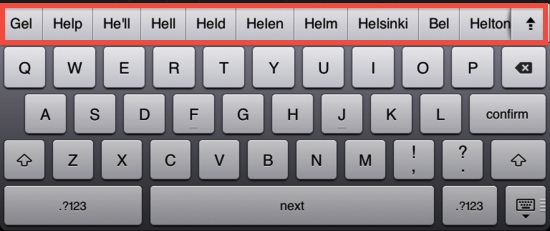
A hidden autocorrect suggestion bar has been uncovered in iOS, and with a bit of patience you can enable it yourself with any iPhone, iPad, or iPod touch running iOS 5+. The discovery was made by iOS developer Sonny Dickson, who provides the details on how to edit your iOS backups to turn the feature on without a jailbreak. This is pretty easy to follow, but it helps if you have even a tiny amount of experience editing markup or code:
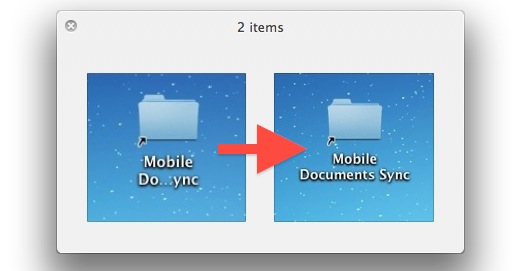
Have you ever noticed that some files and folders display truncated names when they’re placed on the Mac OS X Desktop? A file or folder named anything over a certain character limit will be shortened with a series of three periods, something like “Mobile Documents Sync” will display as “Mobile Do…ync” and so on. One of our readers ran into this when setting up file syncing between Macs with iCloud and wrote in suggesting it was a bug, but it’s not.
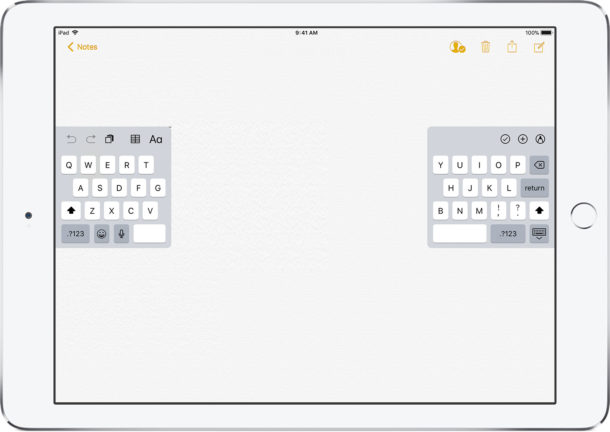
Typing on the iPad onscreen keyboard can be a little strange for some users who are accustomed to either an iPhone and typing with their thumbs, or even a Mac or PC and accustomed to typing on a regular touch keyboard. But one great way to improve iPad typing and make it faster is to use the Split Keyboard feature of the iPad keyboard.
The split keyboard is one of the most under appreciated features that iOS has with the iPad, it makes typing while holding the device significantly easier in both landscape and portrait modes by allowing you to use thumbs to type, rather than setting the iPad flat and trying to type like a normal keyboard, which is cumbersome and difficult for many of us.
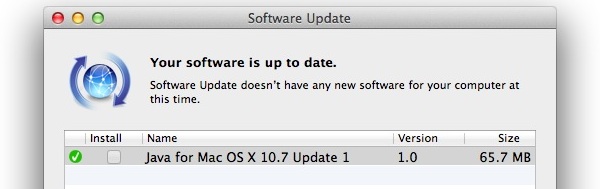
Apple has pushed out a Java update for Mac OS X 10.7 and 10.6 users, the download weighs in between 65-75 MB and includes a variety of performance enhancements, bug fixes, and security updates. No reboot is required for installing the update.
You can grab the update from the Apple menu’s “Software Update” or through a direct download from Apple’s servers. The direct download links below are for the Java update for both Mac OS X 10.7 and 10.6 in .dmg format:
You can now delete songs directly from the Music app on your iPad, iPhone, or iPod touch. The music removal action is achieved directly on the iOS device without having to re-sync to iTunes, allowing you to rapidly clear out music or songs you don’t want stored on the device.
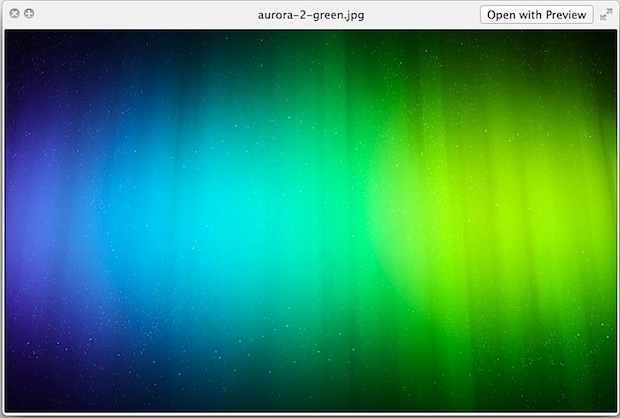
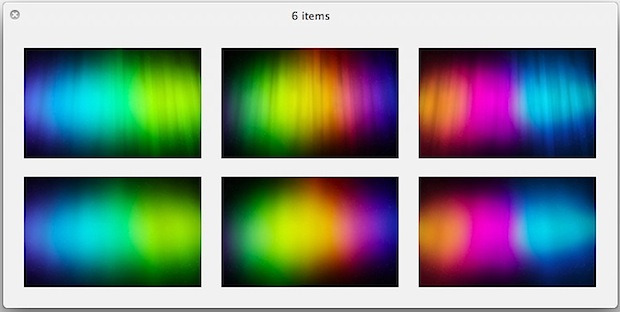
Looking for a few more gorgeous wallpapers for your desktop? This pack of colorful aurora themed images should do the trick, with two variations of each image, one with a Windows 7ish aurora stripey look and the other a blurred faint aurora more reminiscent of OS X. They all look great, and with the 2560×1600 resolution they should fit just about any screen size you’re working with.
The wallpaper pack is hosted on DeviantArt, if you’re having trouble finding their download link it’s highlighted clearly below in an image, just look on the right side of the DA page.
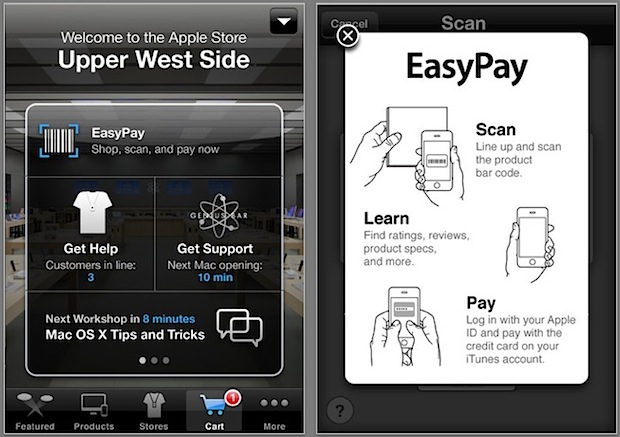
If you’re in a hurry, visiting a busy Apple Store for a quick purchase can be the worst part of the experience. With all the store reps tied up with other customers, you can just sit around waiting aimlessly to buy something you already know you want. Apple’s newly updated Store app aims to reduce that wait time, by allowing you to pre-order Apple products for quick in-store pickup, and with some other items, just buy them outright from your iPhone via the apps self checkout EasyPay option, skipping the lines completely.
Install the app on your iPhone, and with eligible store items you use the iPhones camera to scan the bar code and pay directly from your own iPhone with a credit card, no interaction with store personnel is required. Pay and you’re on your way.
For those wondering, the EasyPay portion of the app requires an iPhone 4 or newer due to the higher resolution of the camera used for scanning barcodes.
Here’s the official feature list via the iTunes App Store:
– Buy products on the go and pick them up at your favorite Apple Retail Store, or have them shipped to your door.
– Personalize an iPad or an iPod with free engraving, plus get signature gift wrapping for select Apple products.
– Buy an iPhone with just a few taps.
– While in an Apple Store, quickly purchase accessories on your own with EasyPay (requires iPhone 4 or iPhone 4S)
– Request help, check in for reservations, and meet up with a Specialist at the store.
– Make Genius Bar and One to One reservations and sign up for workshops and events.
This is a pretty great app for anyone in a time crunch (or for the agoraphobic), hopefully Apple expands the purchasable items list to include even more products.
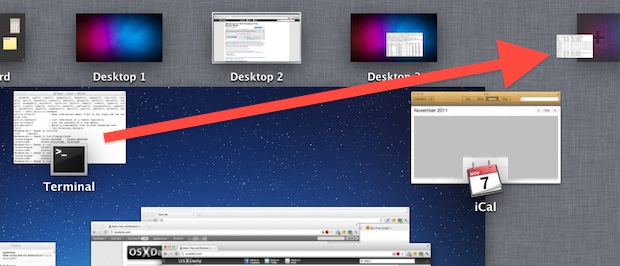
Using Mission Control on the Mac, you can quickly create a new Desktop Space just by grabbing an app from the Mission Control window, and then dragging the window into the corner, then letting it go on the “+” plus icon.
This will instantly generate a new desktop space, or a virtual desktop, with that app or window you dragged and dropped onto the plus icon.
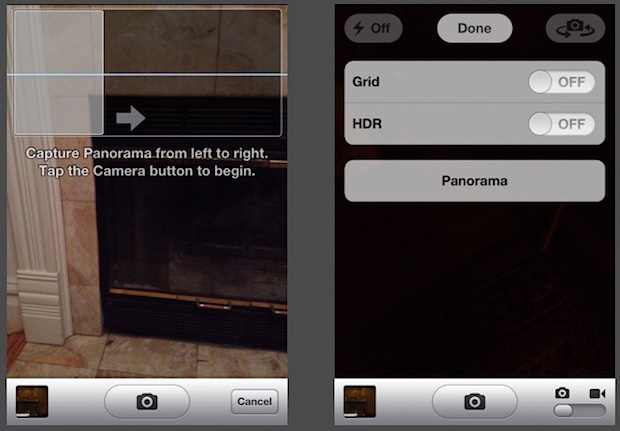
A hidden panoramic photo mode has been discovered in currently shipping builds of iOS 5 by an iPhone developer. The panorama option is enabled by adjusting a plist file in the Camera.app, but making modifications to plist files in iOS requires a jailbreak.
After the com.apple.mobileslideshow.plist file has been modified by setting ‘EnableFirebreak’ to YES, the Camera app shows the panorama option and will take and create panoramic images which can then be saved or sent just like any other image.
The discovery was made by @conradev and @chpwn on Twitter, who both posted individual photos demonstrating the user interface and resulting images (shown above).
The panoramic camera option will be available to current iOS 5 jailbreakers through the Cydia store shortly with an app called Firebreak, but for those who aren’t interested in jailbreaks the discovery indicates that Apple is likely working to bring such a feature to future versions of iOS and the iPhone’s camera app.


 Siri’s gender and voice accent is different based on the region, with a female voice for USA and Australian users, and a male voice in the UK. Regardless of which location you’re in or where you bought the iPhone, you can change the gender and the accent of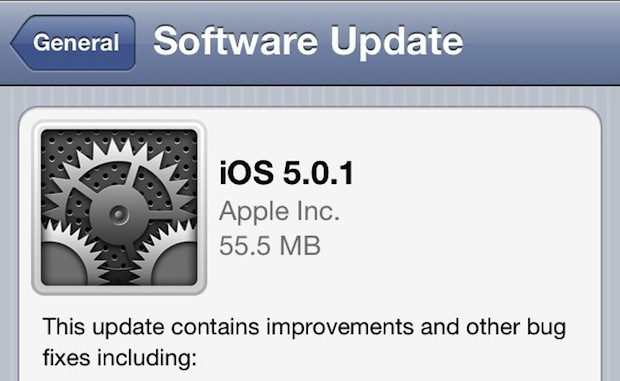
 Does anyone like the CAPS LOCK key? Yes, it can be useful for typing some things that happen to be all uppercase, but as many internet readers know, it can also be an obnoxious key that many Mac users accidentally press on their keyboards, leading to ALL THEIR LETTERS APPEARING UPPERCASE.