
Create an Instant Photo Slideshow with Quick Look

Quick Look is one of the many Mac OS X features that make my OS choice cemented, I use it so often that I simply can’t live without it, and here’s a tip that I’ve been using a lot lately.
If you want to create an instant slideshow of images, simply select multiple images in a Finder window, and then hit Command-Option-Y to launch them into a full screen Quick Look mode. Now just press play, sit back, and enjoy!
Alternatively, you can hit the Spacebar to quickly enter Quick Look, and then manually select the Full Screen button, but the keyboard shortcut is much faster method. This is a really underused feature of OS X and deserves to get some use by anyone who frequently browses through images or just wants to show off some pictures to another party without any desktop clutter or launching additional apps.
 Recently the LAN at my office had been running slower than usual, and I couldn’t pinpoint what was using up all the extra bandwidth. I had a suspicion that P2P traffic was to blame but I just couldn’t see anything obvious on the offending machine. So the question of course, is how do you see what processes are connecting to the internet or the outside world from Mac OS X?
 After reading all the bad press for iPhone OS 3.1, I decided to hold out on upgrading, which means that I also can’t get MMS working, right? Wrong! The only thing you need to enable MMS on iPhone 3.0 (or 3.01) is the updated carrier file, which you can

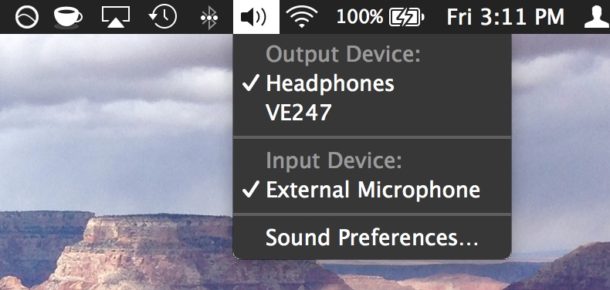
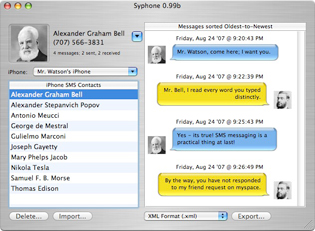 Backing up your iPhone text messages is made extremely easy thanks to a freeware utility called Syphone. Since the iPhone has a limited number of text messages it can store at any one time, Syphone allows you to backup all the text messages and read through the archived text messages yourself on your Mac in an easy to read iChat-like interface.
  iTunes 9.0 removed the ability to click the green ‘minimize/maximize’ button to get into iTunes Mini Player mode, you had to hold down Option to get the Mini Player. iTunes 9.0.1 Update fixed this problem (as if it was a bug, but I imagine it was changed back due to user confusion and complaints), but if you happened to like the way the iTunes 9.0 green widget button behaved, then you can get that quirky maximize behavior (and option-click for Mini Player) back with the following Terminal command:
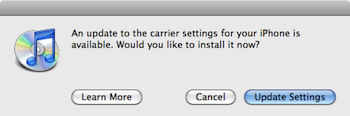 AT&T iPhone users of 2009 can now officially join the cellular world of 2002, with the ability to finally send and receive MMS messages. You have to upgrade to iPhone 3.1 and download a new carrier file to enable MMS on your AT&T iPhone. After reading so many


 I had to develop an iPhone specific website recently and working with the iPhone resolution was a key aspect in this development process. The actual pixel density differs on the iPhone models as well, which will effect the appearance of interface elements and graphics for websites and iPhone applications. Of course knowing the resolution and PPI should not be limited to developers, it dramatically effects the graphic and picture quality of any user experience with the device. Here are each iPhone’s details and a picture comparing the two screens:


 Someone recently sent me a Nero Image File and I had no idea what to do with it, but after some looking around I discovered you can easily convert a Nero image File to ISO format.



