
How to Burn an ISO on your Mac
Burning an ISO in Mac OS X is very easy thanks to the built-in Disk Utility application that is included from Apple on every Mac. With Disk Utility being bundled with Macs directly from Apple, it also has the huge added bonus of being free, and although there are plenty of paid options out there, why buy something new or install new apps if you don’t need to? With that in mind, here’s how to use Disk Utility to Burn an ISO image onto a disc using just your Mac, and completely for free.
Before proceeding, it may be helpful to place the ISO image somewhere easy to find so that you can access it quickly with the Disk Utility app, the ~/Desktop/ is often a good place for that. That isn’t necessary though, so as long as you know where the ISO image file is stored you can proceed as usual. You’ll also need a disc and a SuperDrive, but that should be fairly obvious if you’re looking to burn a disk image of any sort to physical media.
Burn ISO in Mac OS X
This process will be the same on virtually all versions of OS X:
- Open the “Disk Utility” app, it’s located in /Applications/Utilities/
- Pull down the File menu and select ‘Open Disk Image’
- Navigate to the ISO image file that you want burned and click “OK”
- Insert a Blank Disk (CD or DVD, use the appropriate disk as necessary depending on the ISO file size)
- Click ‘Burn’ and wait until the image has finished burning to the disc
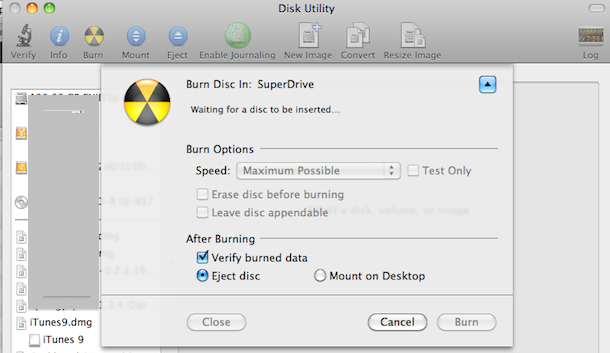
Simple right? That’s really all it takes. The time it takes to burn depends on how fast the drive is and how large the ISO image is, but it shouldn’t take too long to finish. Of course if you’re burning something like a BluRay disc then it can take quite a while.
This works to burn ISO images on all Macs with a CDRW, DVD-RW SuperDrive, either built-in, external, even utilizing the remote disc feature for newer Macs that don’t have hardware disc drives any longer. And yes you can burn an ISO in all versions of Mac OS X, including the newest versions, whether it’s Mavericks, Yosemite, Mountain Lion, Lion, Leopard, Snow Leopard, Tiger, and every other version of Mac OS X that I have ever used.
If you have a DMG file, you can burn those too, or you can convert DMG to ISO and burn it afterwards. Disk Utility is a surprisingly powerful app, enjoy.
Note the difference between burning and ripping, the terminology used when talking about copying or writing to discs – burning is the process of actually writing a disc image to a physical media like a DVD, whereas ripping is the process of copying the physical media into a disc image file like an ISO. If you want to make an ISO, you can do that too using Disk Utility or the command line with the hdiutil command and -iso flag.
Updated: 10/30/2014 for clarification with modern Macs and with OS X Yosemite.






Mac is fine it is Apple that is junk
When I click open image on disk utility, nothing happens… nothing opens. Tried to open a Linux Open Suse iso file downloaded from the official website, no way to use disk utility. Also tried with Linux Mint iso file, nothing happens either. Drag and drop isn’t more effective.
Will try the command terminal method.
Oh sorry my bad. I have the “El Capitan” OS and it is no longer available from disk utility.
Now this worked nice:
https://osxdaily.com/2015/11/22/burn-disc-images-os-x-finder/
Thank you
I was burning a dvd on my imac and I cooked my pants.
lol nice..it was easy..i wasted hours trying to make a bootable usb stick but this is easy!!
nice………
It’s awesome!
For quite a long time, I have been using a piece of software called DVD Copy Pro to help me create ISO files on my Mac machine. It also has other powerful DVD copy functions, the detailed of which can be found at: http://www.softdiggs.com/mac-dvd-copy-pro.php
Way to SPAM your POS Software. You should also have your scripts updated by somebody over the age of 13 because you obviously have no idea on how to exploit a MAC.