
Stop Software Update from Bugging You in Mac OS X
Keeping software up to date is one of the top maintenance tips for Macs, but sometimes those Software Update notifications can be just plain annoying. Whether you’re just trying to focus on work, or the update that’s bugging you is irrelevant to your needs, here is every possible way you can stop software updating from haranguing you, broken into temporary and permanent solutions.
Temporary: Swipe to Ignore the Notification Temporarily
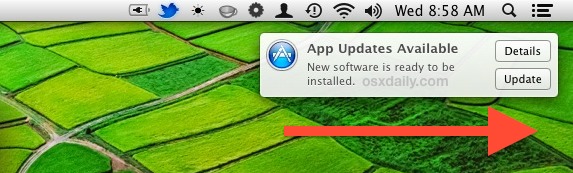
Very much a temporary solution, you can swipe right on the Notification banner to ignore it for a few more hours. If you have an update waiting for you in the App Store, you will have to do this at least once or twice a day. This is the best approach for when you’re trying to work and you don’t have time to install a software update when it bugs you, but you want to be reminded again to install it later the same day.
Temporary: Disable Notification Center for the Day
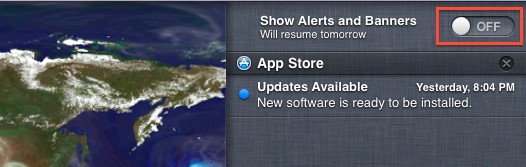
Option+Clicking on the Notification Icon button will turn it grey, disabling Notifications for the day. You can also temporarily turn off Notifications by swiping down from the Notification Center and flipping the switch to OFF. Notifications will resume again the next day as usual. This is best for when you want to not see the Notification reminder for a full day. The primary downside to this approach is that it temporarily disables all notifications, not just Software Update.
Semi-Permanent: Hide a Specific Software Update
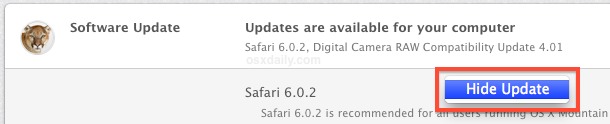
If you’re getting pestered about a Software Update you don’t need, have no use for, or just don’t want to install, you can also choose to selectively hide that update in the App Store. This is a half-permanent solution because that update will never bug you again, but the update will always be available to you should you want it sometime down the road. Doing this is easy:
- Open the Mac App Store, and choose the “Updates” tab
- Right-Click on the update you want to hide, and choose “Hide Update”
Should it be needed, you can reveal the hidden updates again by pulling down the “Store” menu and choosing “Show All Software Updates”.
Semi-Permanent: Turn Off Automatic Software Update Check
This is not recommended, mostly because keeping software up to date is an important means of maintaining a Mac. Nonetheless, if you’re completely fed up with Software Update pestering you, you can always disable the automatic checking feature. This leaves you to manually check for updates yourself, something which is easy to do, but also easy to forget.
- Go to System Preferences from the Apple menu, then choose “Software Update”
- Uncheck the box for “Automatically Check for Updates”
If you choose this approach, remember to manually look for updates once a week or so either by opening the App Store or using the Terminal.
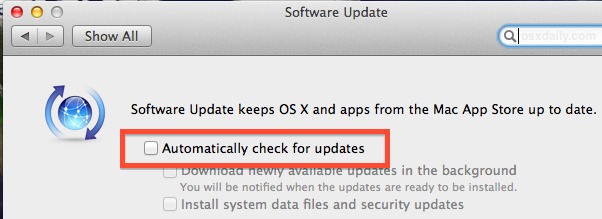
A decent compromise for this is to instead turn off automatic downloads.
Permanent: Install the Update
Installing updates is really the best way to handle them, if you can spare a few minutes this is always the best approach. Consider the Software Update notifications as a good opportunity to stretch your legs, grab a cup of coffee, make a phone call or two, or just take a break from whatever you’re doing. Keeping everything updated to the latest version insures maximum compatibility, stability, security, and is just good practice.






I tell the update message to remind me later or tomorrow…and it downloads anyway slowing down my whole system for at least 24 hours
I’m missing the item
PERMANENT: STOP SOFTWARE UPDATE COMPLETELY.
What do I need to remove on my system to stop software update?
I have one app on 10.8.5 that will not quit trying to update and the right click trick is useless. The app is one I got deleted and then installed the one that the author provided that works and does not crash every the app store craps out on us. Now that I don’t have that app on the computer it still trys to update. How do I get it to stop???
You say the permanent solution is to just do the upgrade. WHAT!!! I can’t tell you the number of times I have done that and then not been able to use a certain piece of software or a utility that I need in my work for a month or so until that developer can get around to upgrading to match the new system. I like to wait (at least on my work Macs) until at least a month or two after the update comes out. And with Sierra, I am still not sure what there is in it that I want. I have done that update on my MBP and other than Siri (which is still worthless and beyond frustrating) I have not seen a reason to update.
That was EASY! That was so easy! (the right-click/hide update option) Thank You! You’ve saved me so much time wasted in frustration and annoyance.
Cheers,
M
JL –
I have 10.8.5. There is no App Store in System Preferences in this version of the OS… just fed up with having to put up with App store reminders appearing every time i open.
Just go to System Pref > App Store > Uncheck Automatically Check for Updates…. also you can turn on Do Not disturb in Notifications.
No matter how many articles I read about this app store notification (( I’m trying to disable the stupid thing )) nothing works.
NOTHING
It seems that there are a hundred different approaches and they all lead to the same outcome … which is that no matter what I try this crap keeps coming back.
What do I want specifically?
Simple … to stop the constant harassment from OSX Mavericks and Yosemite to upgrade. I DON’T WANT THEM … period.
Does anyone have a solution different from what’s posted above because I’ve tried and failed with ALL of them :(((
little snitch.
you can block the request from appstore that let it know what and when to update/notify you.
than u can manually ipen the conection to allow checking updates when u want to update other software. you’ll still get maverick and yosemite nag but only when you allow appstore to connect.
You can try this article for High Sierra too
https://osxdaily.com/2018/01/22/stop-upgrade-to-macos-high-sierra-notifications-mac/
“Keeping everything updated to the latest version insures maximum compatibility, stability, security, and is just good practice.”
Sadly, i have to oppose this enumeration in 2015.
Thanks! – I went through Apple > System Preferences > Software updates and De-selected Automatically check for updates.
I am running OS X 10.8.5 Mountain Lion
I am not able to right click and Hide updates either – I would have chosen that option if it were available.
I will periodically enable update Auto check – in order to update the programs I wish to change.
Thanks for the article
Unfortunately, in Yosemite the “Hide Update” option is there but when you click on it nothing happens. In older systems, it works from what I understand. I just transferred from Windows which allows you to ignore or uninstall updates. Hopefully, Apple will fix Yosemite’s weaknesses here.
Hmmm, I still see the update and Hide Update also shows for it, but because I just hid it, I’m not sure it will prompt me any more, which is mostly what I care about… although, I did do something that caused Yosemite to not bug me to update and I never saw it again in the App store and did not get prompted. I’m not sure what I did to finally install Yosemite – it was either from the Apple menu (upper right) or I actually went to apple.com and selected install, download, or whatever.
at the moment I agree with you, hide update is broken in Yosemite.
Wanted to get rid of iTunes 12.0.1 update , I don’t like the looks , its meant for Yosemite . Clean installed the OS X with instalable drive . But still the update notification hanging onto AppStore icon was annoying for me , and then this article did the job for me , thanks
This was a lifesaver. Thank you. I’m running OSX Mountain Lion (haven’t upgraded to Mavericks in light of recent controversy over hard drive erasures), and I kept getting that annoying notification which was prompting me to upgrade my OS. Now I’m not getting it.
Auto correct sucks as well. point->won’t.
I did the OS update when it became available and several of my very expensive apps quick working. I went to a lot of work to rewind my system back to the OS that everything works on. I do not want to take my machine forward regardless of what Apple idiots say is best for me. So I would really like to get the update off my notification reminder and never see it again. (It point let me type the period any larger.)
Don’t worry, I downgraded all the way back down to Snow Leopard 10.6.8 and it still sends me a reminder to update to Mavericks for free. I found by reinstalling OSX and avoiding the update that installs the Mac App Store…no more issues…It’s crap like this that’s pushing me back to Linux.
I am running 10.7.5. I keep getting nag screens about how I can upgrade to Mavericks for free. They couldn’t pay me enough to do that — I want a computer, not a tablet! I wish I could downgrade to 10.6 but it doesn’t run on my Air.
Anyway, this nag screen has no close button, it’s not an application, and I don’t know how to get rid of it. The App Store solution doesn’t work. Any other ideas? Thanks!
Came here to disable the annoying notification for a useless update. Should have known it would say to just install the update /facepalm
I have three applications on my mac purchased by another Apple ID that I don’t have the password for (I bought the MacBook used.)
I don’t see any “Hide Update” button. In fact nothing happens when I right click.
Thoughts?
Chuck- from 20131209.1630 – I don’t know if this helps or is any longer relevant (almost 2 years later) but I found out today you have to right-click in the correct area of the update itself. For me it was a Safari update. I use Safari much less than 1% of the time. Right-clicking only seemed to work in the central area where the update text is that describes it, not too much to the left or right of that central area.
I never noticed this before as I usually update so I don’t have to hide anything. (Although, I did hide Yosemite for more than a year when it wouldn’t update due to some hard disk issue which was never found by the routines they told me to run, but the last Yosemite update attempt did not report that issue. I still haven’t found a good reason to go to Yosemite.)
Its hopeless… every day I get reminded of what I DO NOT WANT TO INSTALL.
New Numbers and Pages are awful apps, the worst that Apple has come out with — destroys all our older files and years of spreadsheets we’ve worked on.
Apple — you take the cake for arrogance and stupidity !!!
Really, can’t say this enough….
This is so you will click update on an operating system that will turn your computer permanently into a useless paperweight with the speed of a locomotive that’s run out of coal and have to go to a “genius bar” where you’ll be told to buy another one of their overpriced, obsolete pieces of garbage.
Holy crap. I thought the update pop-up was annoying.
Hiding does not work in Mavericks for the new iWork apps, nor for iMovie. Right-clicking does nothing at all, and ^click starts the update. Any terminal command for this?
Grrrr.
I just want notifications turned off, permanently.
I still want to auto-check for updates.
I still want them downloaded in the background, and installed if important.
Guess there’s no way to do this. In iOS land, on the other hand, there’s a whole management system for notifications, right?
The “notification center” is the most annoying, idiotic, thing I’ve ever seen. I thought growl was bad, but this is just unbelievable.
This is royal, royal pain. Messes me up when I’m using Photoshop, After Effects or anything else where I need the majority of the screen. I’m just turnin’ the darn thing off.
Yeesh.
TH
Actually the notifications I get for software updates on my Mac OS X aren’t bothersome at all. They are quite unobtrusive, actually. All that shows up is a little barely noticeable box in the upper right hand corner. That isn’t any big deal at all.
There must be an alternative because I had an update pending for a couple of weeks recently and I only dismissed the reminder once…usually I click on details to see what it is and then just close App Store if I don’t want to do the install right away. The dock icon has the (1) indicator but it doesn’t remind me again…
my mac hasn’t told me i have updates since i updated it to mountain lion even though i have it set to say i do…
# crontab -l | grep software
0 4 * * * /usr/sbin/softwareupdate -ai
Deal with it automatically in the middle of the night. I haven’t seen Software Update bother me in a very long time.
hey, whats this command for, how to use it ?
can please explain this in detail ?
thanks alot!