
Troubleshooting macOS Sierra Problems
For most users, installing macOS Sierra has gone without a hitch and they’re left with a trouble-free Mac that works great with the latest macOS system software release. But, not everything goes smoothly for everyone, and sometimes updating to macOS Sierra can lead to a variety of problems.
We’re compiling a list of common problems in this troubleshooting guide to remedy issues with the macOS Sierra download, installation, update, and post-install process. Unfortunately for me (but fortunately for you readers), I personally have had the joy of encountering many of these problems during and after updating one particular MacBook Pro to Mac OS Sierra 10.12, so I have very recent extensive firsthand experience with troubleshooting much of what is covered here.
To be perfectly clear this is meant to be a compilation for potential issues experienced with the macOS Sierra update process. Most of this will not be encountered by the average user, and is in no way suggestive of what to expect during the Sierra update or installation process. The vast majority of Macs update to macOS Sierra without any adverse incident.
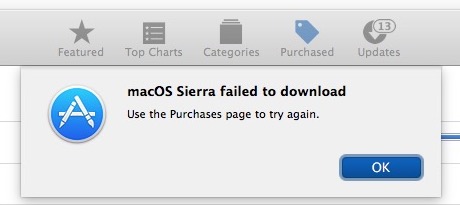
macOS Sierra Download Stops with “An error has occurred” or “failed to download”
Sometimes when users attempt to download macOS Sierra from the Mac App Store they will confront a “An error has occurred” red message and the download stops.
The solution to this is fairly straight forward: Delete any existing Sierra installers, whether they are half-downloaded or not, reboot the Mac, and try again.
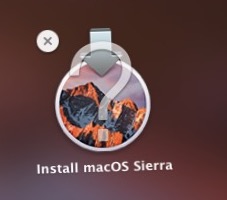
I ran into variants of the download trouble several times. What finally resolved it was to delete the half-cooked “Install macOS Sierra” file from Launchpad (which had a big question mark on it), then rebooting.
Unable to Download macOS Sierra, shows as “Downloaded”
If the Mac App Stores shows that “macOS Sierra” has “Downloaded” and the button is not possible to click again, you likely had one of the beta or GM builds and you will need to remove any existing “Install macOS Sierra” application installers from the Mac, or any connected drives. That last part is critical, because it appears the Mac App Store has no trouble locating a named “Install macOS Sierra.app” located on an external volume. Yes this includes even the GM builds which share the same name as the installer app, and prevents the installer from downloading again.
Of course the other reason macOS Sierra will show as “Downloaded” under the Mac App Store Purchases tab is if you are actively running macOS Sierra, in which case you will not be able to re-download the installer easily.
Error “This copy of the Install macOS Sierra.app application is damaged, and can’t be used to install macOS.”
Something happened during the installer download where it was either interrupted or became corrupted. Typically this means the internet connection was disrupted, or the file itself somehow was interfered with during the transfer.
You will need to delete the “Install macOS Sierra.app” and download it again from the Mac App Store.
MacOS Sierra Wi-Fi is Dropping or Unusually Slow
Some Sierra users have found wi-fi drops or is abnormally slow. If this applies to you, you will likely need to trash the wi-fi prefs and then create a new network location to resolve wireless networking problems like this. We have a detailed guide to fix wi-fi problems with macOS Sierra here.
The good news is that wi-fi trouble is usually really easy to fix and the above article details specific steps to take which remedy the vast majority of wireless networking difficulties.
macOS Sierra Boots to Black Screen, Stuck on Black Screen
Some users have discovered that macOS Sierra will boot to a black screen and get stuck, unable to go further. This gives the appearance that the Mac is off, but it’s actually on and the screen is just stuck dark, with the Mac doing who knows what. This can happen right after the initial installation, but also during a standard Mac system restart after having updated to Sierra. I personally experienced this in the latter scenario during a regular reboot, and as you can imagine it’s fairly annoying to discover the Mac won’t boot up normally. Fortunately with prior experience handling a similar issue, I was able to resolve it with the following steps in this order:
- Disconnect all USB cables and USB devices from the Mac, aside from a mouse or keyboard if applicable
- Shutdown the Mac
- Reset SMC
- Reset NVRAM/PRAM
- Boot as usual
It may not be necessary to reset both PRAM/NVRAM and SMC, but since you’re already doing one you might as well do the other. You’ll lose a few basic power settings by doing so, but it’s not a big deal, and it resolved the stuck on black screen issue for me.
Some MacOS Sierra users have reported similar issues with their Mac getting stuck on a black screen when waking from sleep. Often the same SMC and NVRAM reset procedure remedies those difficulties.
Unable to Shut Down macOS Sierra, Unable to Reboot macOS Sierra
There appears to be a bug for some users that prevents the Mac from using the Apple menu Shut Down and Restart services. Selecting the menu items results in no activity and no action, the Mac does not reboot and it does not shut down.
Sometimes a third party app can be holding up the shut down and restart service, however. If you suspect this is the case, quit out of all open apps before attempting to shut down or restart the Mac. You can also try disconnecting all external devices, which has been reported to help some users shut down MacOS Sierra.
The other option is to forcibly shut down and reboot the Mac by holding down the Power key. The forced shut down and forced reboot procedure is a measure of last resort and should not be used as a means of initiating any normal restart or shut down process.
Some users have resolved the hanging on shutdown issue by rebooting into Safe Mode. Booting a Mac into safe mode is easy, just hold down the SHIFT key on system boot until you see the bootup progress bar, then let go. Safe Mode will clear out some caches and disable some functionality, but it can often be a helpful troubleshooting measure.
Constant iCloud Error and iCloud Authentication Pop-Up Messages
Many components of macOS Sierra are dependent on iCloud, and during the initial setup process you’ll be asked to enable various iCloud features including Storage Optimization and iCloud Documents and Desktop. Whether you want to use all of those features or not is up to you, but an odd side effect encountered by some is constant iCloud error messages and pop-ups to authenticate.
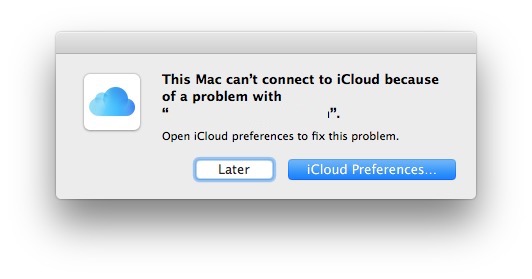
Two persistent popups that I was running into were “This Mac can’t connect to iCloud because of a problem with (email address)” and “Error connecting to iCloud”.
I was able to fix the iCloud errors and make them go away by doing the following:
- Go tot he Apple menu and choose System Preferences
- Go to “iCloud” and click on “Sign Out”
- Reboot the Mac
- Return to the iCloud preference panel ( Apple menu > System Preferences) and log back into iCloud
After logging out and back into iCloud, the iCloud error pop-ups went away.
Safari Can’t Find Server, Unable to Load Webpages, Links Don’t Work, Can’t Render CSS
Some users are reporting that Safari is problematic after updating to macOS Sierra, where links don’t work at all, or you type a URL into the address bar and hit return and nothing happens.
If you experience the unresponsive URL issue issue, you can empty caches in Safari for Mac, then quit and relaunch the app and it should work fine again.
Another separate problem with Safari in macOS Sierra seems to be sporadic difficulties loading webpages and contacting servers, leading to an inability to load any webpage at all.
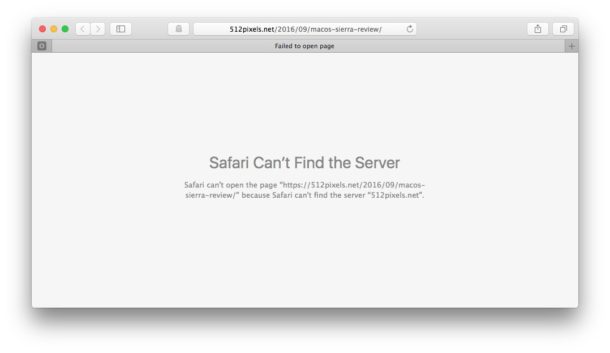
A quick side note: the “can’t find server” message can be due to wi-fi dropping, so if the connection difficulties are not limited to Safari you may want to use the wi-fi fix mentioned above.
Another odd variation of this is Safari failing to load webpages repeatedly, but after persistent refreshing, Safari may be able to successfully load a webpage but minus CSS (CSS being what styles the majority of webpages).
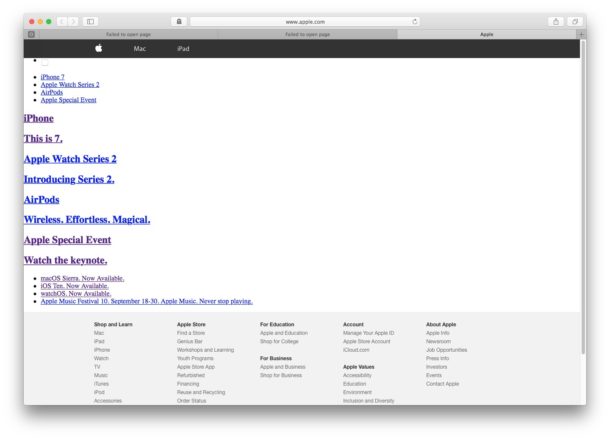
Additionally, another oddball Safari problem is when the browser URL bar and buttons vanishes entirely and no webpage loads at all.
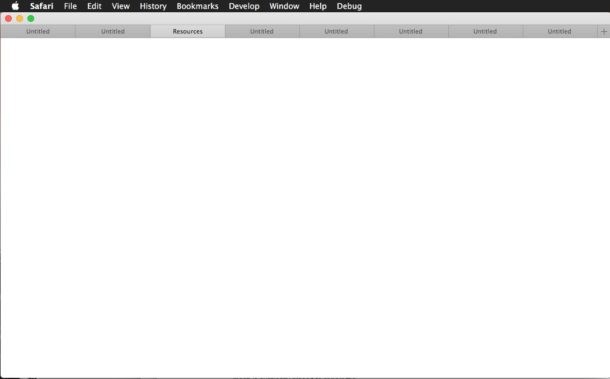
Sometimes quitting and relaunching Safari will remedy these issues, but usually you will need to reboot the Mac to get Safari working again for a while.
Another unusual error message you may encounter with Safari problems in macOS Sierra is an inability to load a webpage, where the tab or window renames itself to “Resources” and you get a blank page loading stating: “Your copy of Safari is missing important software resources. Please reinstall Safari.”
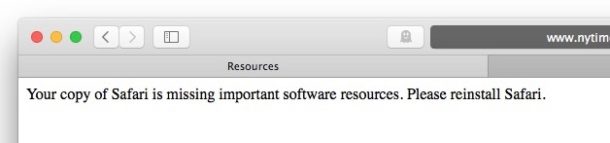
Since you can’t really “reinstall Safari” in macOS Sierra, the error recommendation is not particularly helpful, and instead you’ll likely want to reinstall all of macOS Sierra or revert to the prior Mac OS version from a backup.
Spotlight Doesn’t Work with macOS Sierra
Some users, myself included, have noticed that Spotlight just stops working entirely at random in macOS Sierra 10.12. Sometimes Spotlight will sort of half-work, but the results returned are completely inaccurate and don’t match the search term. This is not because of indexing, mdworker, or mds, however. You can kill the Spotlight process, it will spin back up, but the Spotlight search ability does not regain functionality.

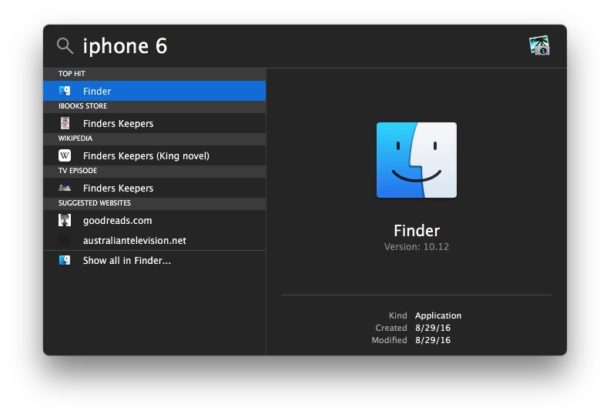
The only way to return Spotlight functionality in this situation is to reboot the Mac. Inconvenient, a bit Windows-esque, but it works.
You can also try to rebuild the Spotlight index directly, but you’ll still likely need to reboot the Mac to have Spotlight start working again as expected.
Mouse Not Working, Mouse Functionality is Erratic with macOS Sierra
Some users have discovered their mouse is not working at all, or the mouse may be working erratically after updating to macOS Sierra. For example, the scroll wheel functionality may become unresponsive or not work as intended. Some of these mouse issues have been narrowed down to Logitech and Razor brands, perhaps pertaining to drivers or software, but some of the erratic mouse behavior can occur with generic USB mice as well.
One possible fix for these issues is to connect the USB mouse directly into the Mac, rather than going through a USB hub.
Mac is Hot, Mac Fans Running at Full Speed After macOS Sierra Installation
If the computers fans are running after updating to MacOS Sierra and the Mac feels hot to the touch, it’s very likely to because the Mac is indexing. This is not indicative of a problem in and of itself, and it’s perfectly normal for the Mac to require reindexing the entire hard drive for features like Spotlight and Siri to work. Additionally, the new Photos app for Mac index the Photo library to identify places, features, faces and people, and other landmarks, which can also take a while. It’s also likely that Time Machine will be running to backup the Mac again after updating the system software. Just let all of these processes complete, do not intervene.
Thus, if the Mac is running warm or the fans are blazing away after updating to macOS Sierra, the best thing you can do is simply wait. The vast majority of the time the indexing process simply needs to run and complete, and the Mac will become usable with low fan usage and a cool temperature again.
For most users this process can take an hour or so, but with many documents or Photos, it can take quite a bit longer. If the Mac is still misbehaving after leaving it to index overnight, open the “Activity Monitor” application (found in /Applications/Utilities/) and sort by CPU, so that high CPU usage is at the top. This will tell you what (if any) applications or processes are consuming the processor and could give you an idea of where to look to troubleshoot further, which is typically an errant task or process.
macOS Sierra Video Problems, Hypercolor Rainbow Display Craziness
This is a weird one that I experienced on a Retina MacBook Pro: the built-in display suddenly encountered severe video display problems, ranging from improperly rendered drop-shadows to – and here’s where it gets really out there – psychedelic hypercolor rainbow display oddness, permeating throughout various onscreen elements.
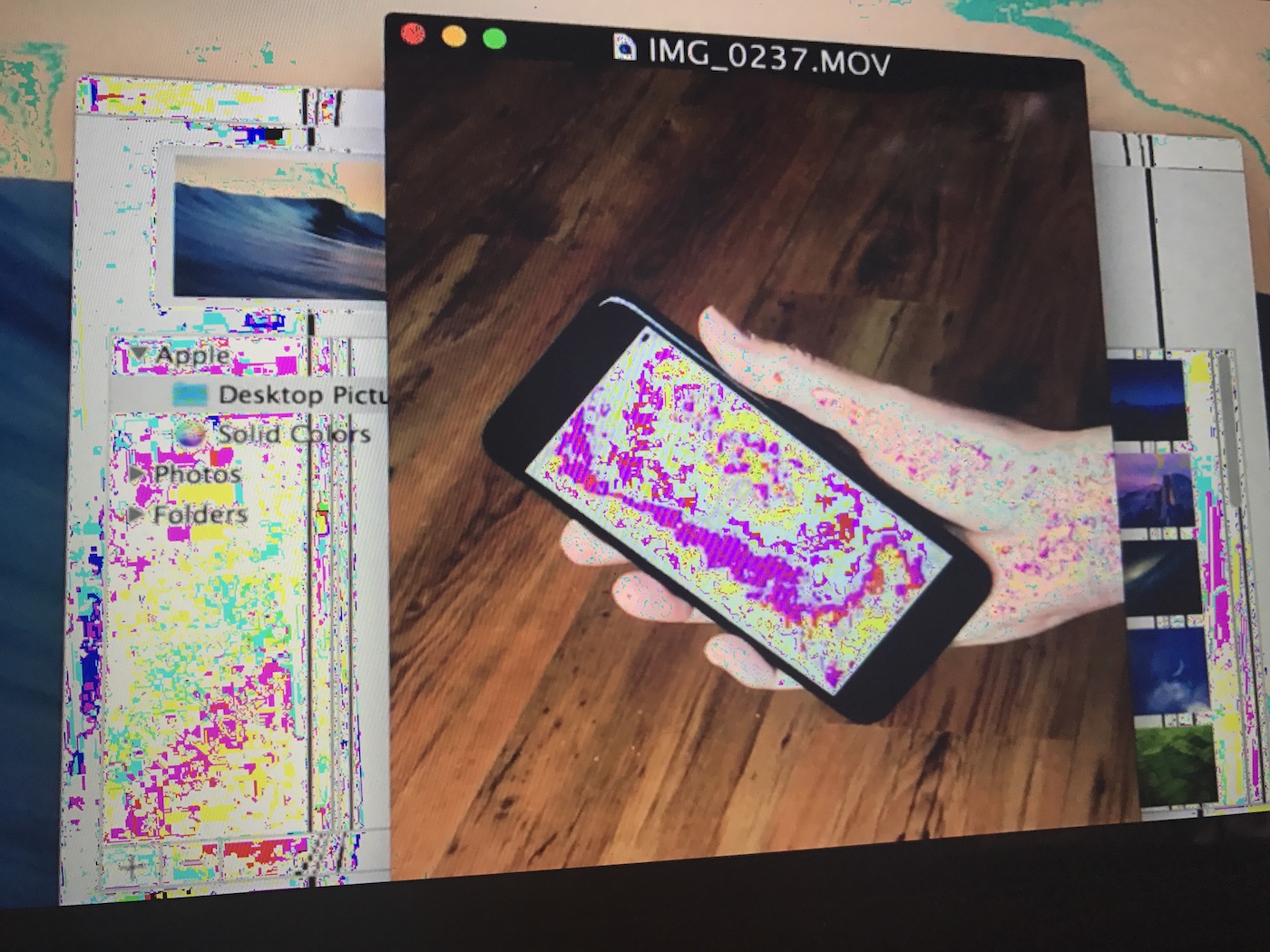
In addition to the psychedelic color experience, dropshadows and other UI elements would appear obviously broken and display errantly:
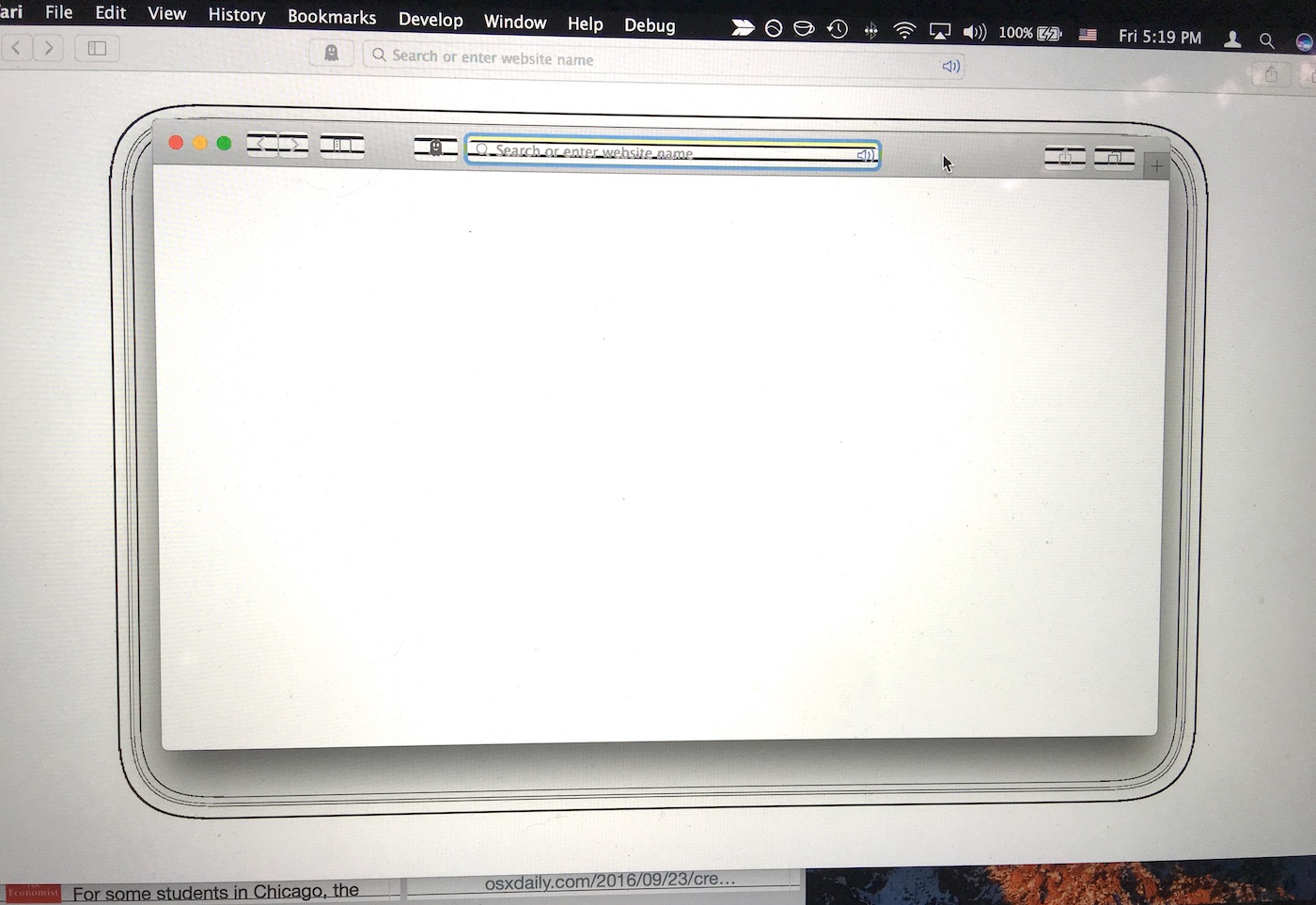
Here’s a brief video demonstrating what the crazy video situation looks like on a Retina MacBook Pro display when it’s changing wallpapers:
The solution? Another SMC reset.
And yes, if you’re following along, that’s two different occasions where trouble after updating to macOS Sierra was resolved with an SMC reset…. hmm.
Finder Not Responding, Apps Crashing Constantly, Apps Won’t Open, Constant Beachballs
Finder not responding? Apps not responding? Apps won’t open? Apps say they are damaged? Constant inappropriate beachballs for no apparent reason? Well, you can temporarily remedy these issues by rebooting the Mac. And then rebooting the Mac again. And again.
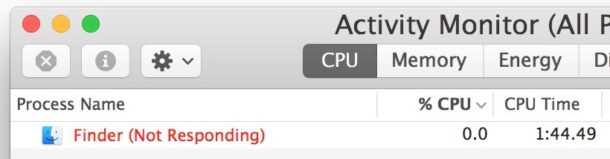
But here’s the bad news; if you are experiencing those type of issues consistently and have to reboot once or twice a day as a temporary workaround, you should give in and reinstall macOS Sierra.

Speaking from direct experience, I battled and troubleshooted for several days the unresponsive apps, apps unable to open, inappropriate beachballing, but no matter what I did, no matter how many caches and app data was trashed, whatever troubleshooting hoops I jumped through, the problems returned in a matter of time after the next reboot.
The only way to finally remedy these problems was to completely reinstall macOS Sierra via Recovery Mode. It takes a little while, but it seemed to have fixed the problem (for now anyway, knock on wood). Update: reinstalling macOS did not fix this problem on my specific MacBook Pro, your results may vary.
“The application ‘name’ can’t be opened” or Error -41
A variant of an aforementioned error message where apps don’t open is when the application reports a direct error message when trying to open, often in the form of an onslaught of error pop-ups stating “The application (name) can’t be opened” and sometimes accompanied by an “Error -41” message pop-up message. This seems to occur after macOS has
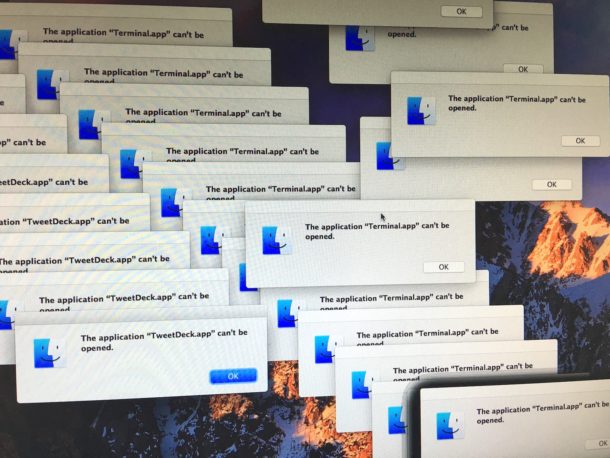
The only solution to this particular meltdown of macOS Sierra is to reboot the Mac. If you continuously experience this error or variations thereof it is likely a good idea to wipe the drive and clean install macOS Sierra.
Kernel “File: table is full” Errors Filling Console Log
On some user configurations, there appears to be a problem with Mac OS not properly closing files, though it is unclear what the cause or solution is. Eventually this can lead to “kernel file: table is full” errors flooding the Console log, requiring a manual forced reboot.
Time Machine Stuck “Preparing for Backup” in macOS Sierra
A fair amount of macOS Sierra users who rely on Time Machine for backups have discovered the Time Machine backup is perpetually stuck on “Preparing backup”. There are several possible reasons for Sierra and Time Machine to not work well together. One of the most common causes is a third party app, typically anti-virus software from Sophos or elsewhere, which seems to interfere with Sierra and Time Machine backups.
If you have Sophos Antivirus or any other Mac antivirus or similar scanning or “cleaner” software installed, disable it. Time Machine should resume backups once the software is disabled.
If you have disabled all antivirus software on the Mac and Time Machine is still not working in Sierra, try this fix for when Time Machine is stuck on preparing backup which involves disabling Time Machine and trashing a temporary file.
Sierra Bricked Mac Completely
A bricked Mac means it won’t boot up at all. This is very rare, but there are varying reports online of Sierra just outright bricking a Mac after a failed install.
If this happens, you’ll almost certainly need to initiate a reinstall process of macOS or Mac OS X, though some users have had to go so far as to take their computer to an Apple Store for hands-on support.
Troubleshooting Difficult macOS Sierra Problems
One of the best ways to troubleshoot some of the aforementioned unusual or more difficult Sierra problems is to create a separate Administrator user account on the Mac, and use that new separate account exclusively for a few days while performing regular computing activities. The reason for this is quite simple; if the problem does not occur on a separate user account, it suggests the underlying cause is related to the other user account, perhaps in the form of a corrupt preference file or a process that is unique to that user account.
The key is to create a brand new user account, then log out of any other user accounts on the Mac. Only use the newly created user account as you attempt to reproduce the problem.
- Open System Preferences from Apple menu and go to “Users & Groups”
- Add a new user, named something obvious like “Troubleshooting” and set it as Administrator
- Log out of the existing user account (and log out of any other user accounts as well)
- Log into the newly created Administrator test account and try to reproduce the difficulty here
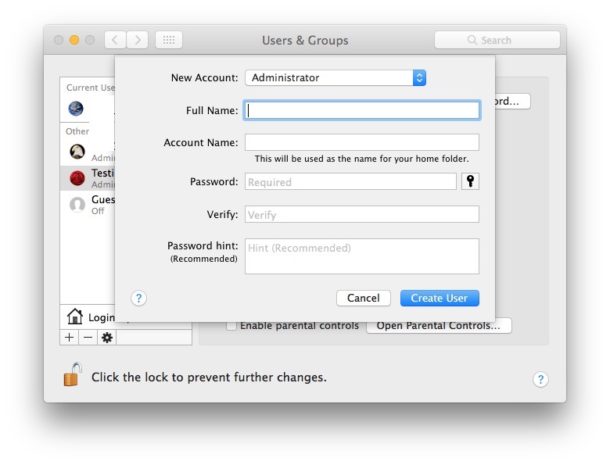
If the problem still occurs in the new user account, it suggests a deeper issue with the Mac OS systems software, an underlying system-wide process, or even the specific installation of MacOS.
Backing up thoroughly and then performing a clean install of macOS Sierra may offer a resolution or improvement to an issue that is reproducible from a new fresh user account.
If the problem returns after a clean install, there may be an outright bug with macOS, or there may be a problem with the Mac itself. If possible, contact the official Apple Support channels for further assistance. Downgrading macOS Sierra to El Capitan or Mavericks may offer a solution as well.
Disconnect Peripherals, Quit Apps, Try Again. Does the Problem Still Occur?
Another common troubleshooting technique for various issues is a process of elimination.
Try disconnecting all peripherals (except a mouse and keyboard if applicable). Does the problem no longer occur? If so, this could suggest some sort of issue with third party peripheral compatibility. It’s rare, but it does happen. Contacting the vendor who made the problematic peripheral may lead to a solution.
Next, try quitting all apps, and using each app one at a time. Does the problem still happen? Does the problem only happen with one specific app running, and not others? If so, this may be indicative of an issue with the specific app that is in use. Perhaps it needs to be updated to support Sierra, and contacting the developer of the app may be worthwhile.
The process of elimination works well in conjunction with the new user account method outlined before this. Sometimes it’s just a matter of narrowing down a problematic app, process, accessory, and sometimes that can only be done through trial and error.
Should You Wait for macOS Sierra 10.12.1?
It’s easy to read this article and conclude that macOS Sierra could be a pain-in-the-behind to deal with and troubleshoot. The good news is that the vast majority of users won’t experience any of these problems, most software updates go without a hitch.
Nonetheless, the difficulties described offer further evidence to support why you should always backup before updating any system software. Backing up is arguably the most important part of preparing for and successfully installing macOS Sierra (and any other OS for that matter), as it insures your data will be there in the event something goes wrong and you need to roll back or restore.
For me personally, updating a 2015 13″ Retina MacBook Pro to macOS Sierra from OS X El Capitan 10.11.6 has proven to be an unusual headache. As seen in this article, the problems have been pervasive and arrived as a deluge, with one issue appearing after the other. (For some background, I run a very vanilla and boring OS for my work machine with very few third party apps on this Mac). Ultimately I have reinstalled macOS Sierra and things are working more smoothly (at the moment anyway) but if the same variety of problems crop up again I’ll either perform a clean install or downgrade back to El Capitan and wait until 10.12.1 comes out (which is currently under beta development). Some Mac users routinely wait for the first major point release to install a major software update anyway. There’s certainly nothing wrong with that conservative approach to software updates, but obviously in the interim you’d be missing out on any of the great new features in macOS Sierra.
Anyway, what has your experience been with macOS Sierra? Did it go great or did you have any difficulty? Have you experienced problems afterwards? Did the troubleshooting methods outlined here help? Let us know in the comments.






I open the Sierra installation .dmg file which puts a 16MB white disk image on the desktop. The installer runs through that file as an installation like it’s working … no upgrade in MacOS.
I have a 5GB install MacOS dmg file but it simply won’t work.
I’ve re downloaded
Tried installing from another startup disk
On & on with all the usual trouble shooting suggestions.
Installed PIA VPN. Lately, it disappears from the sidebar and top of the screen menus, and won’t start when I click on it in launchpad or in the Application folder. What might be blocking it? How can I stop this from happening?
I have this very annoying, inconvenient problem in iMac 2017 on Sierra that the content of ANY page in ANY app will eventually move erratically in ANY direction, seemingly to the point which it assumes is most convenient for me, even in the very process of typing. I can locate NO option ANYWHERE remotely conceivably applicable. Nor do ANY of the reboot options improve things, even after the use of ALL applicable options in ONYX, TechTool Pro, etc. Any relevant assistance would be VERY much appreciated!
I am a teacher. I use my MacBook Pro (13-inch, Mid 2012, 2.5 GHz Intel Core i5) daily in class, hooked up to a DELL 1210S projector to display material (I usually mirror my display). After (reluctantly) installing High Sierra 10.3.3, I have had NOTHING but problems – the most significant one being the colors on my projection screen are washed out, no white balance and horrible contrast – the images stink, to put it plainly.
I reinstalled a new lightbulb, thinking it was a hardware issue – but soon realized everything was fine until High Sierra was installed. I tried zapping the PRAM, calibrating the display options, resetting profiles, turning off/on the mirror option – everything that is available in the System Preferences options!
Then I messed around with the control bar on Night Shift (which is “Off” on the schedule dropdown, ironically) – low and behold, the contrast returned – but now I have to adjust my laptop display horrible to get the projector to display better (and it’s still not the best) – then reset my laptop display once I disconnect from the projector in order to work on my laptop.
But now I have to do this laborious trick everyday, all the time – whenever I reboot or reconnect.
Is there anyway to just turn that silly Night Shift off entirely so I don’t have to add more to my daily routine?
Or is there another idea someone has for how to keep the colors from washing out on a projector with High Sierra?
Yes you can disable Night Shift in System Preferences.
Another solution is to downgrade from “High Sierra” to “Sierra” which is my personal approach, I refuse to run High Sierra on anything more than test hardware. It is just too problematic, and consistently so. I would not recommend it to anyone, but that is my personal opinion.
I have installed Sierra 10.12.6 on my MAC Pro mid 2012. It is very disappointing. I can’t print to my HP Dekjet 1220 C any more (rastertogutenprint crashes out), my backup disks (WD 2T) won’t open because, first it won’t see them and then when I open WD security it just crahes out so I can’t see why I have a problem. Disk utility sees them but declines to do anything like repair so I am unable to restore to El Capitain on my backup discs. Need I go on?
It is all a complete disaster! What has happened to you APPLE??
I was away from my home for more than 6 months. Coming back, I found that my iMac 27 inches that worked fine with El Capitan can be downloaded. So, I was happy to try it. Now it is frozen with gray color. I used First aid utility and it run fine. A major problem was in finding the partition function is not functioning. This brought new problems. In trying to solve my frozen iMac, I made something wrong things that brought a failure of First Aid running for OSX. In checking iMac system, I found it of OSX10.11.6. Going to my registraton in my apple account, I found it OSX10.7.5. I was happy with El Capitan, and my questions are:
1) Is there a way to go back to El Capitan?
2) Can I make the utility partition active?
3) Is there a way to make First Aid runsuccessfully for OSX?
I do appreciate very much your care and help.
Nice writing . I loved the info ! Does someone know where I can find a fillable DS-82 copy to complete ?
I finally upgraded to Sierra yesterday after not being able to open my documents in Windows Office for Mac. I dreaded it. I was so afraid I would lose stuff. I kept ignoring the critical update for Office. It couldn’t update because I was under the required 10.10. I hate Sierra. I have done 3 iPhoto albums in the past. I had an iPhoto album that was 98% done. And I lost half of it after the update. I have to start all over again. Now I can’t drag and drop my photos into the album. This is beyond frustrating. I want to cry. The album is so small I can’t read or see what I have done. What is the solution?
I am having severe display issues after having installed OS Sierra. I have a large 1.5 inch white (sometimes even other narrow multicolors but mostly white) vertical stripe running down the right side of my display (making it virtually useless to read any sort of document or file) that will not go away despite SMC and PRAM resets, rebooting in safe mode, and a fresh reinstall of the OS.
I am currently running Sierra 10.12.2 on an early 2011 13-inch MacBook Pro that is in otherwise excellent condition, with all software regularly updated. It has never been dropped or mistreated. All diagnostic testing comes back as “passed”. I feel that this computer should last more than 5 years although it is now considered “vintage” so is no longer under warranty!
This vertical stripe was not there in El Capitan but since OS upgrade, my laptop developed this particular “hardware” problem. I have read numerous articles about display, logic board and graphics card problems in the early 2011 15 and 17 inch MacBook Pro models, but apparently the 13 inch was not included in any recall. Yet here it is and here I am with this issue! I do not know if downgrading back to El Capitan will fix the hardware problem or if they are totally separate issues but if anyone else has seen this same situation and has resolved it, I’d love to hear how. Would it be worth it to go back?
It has been recommended by technicians that I replace the entire display or buy a new machine. However, I hate to do anything till I know for sure that this laptop cannot be salvaged. Since the only thing wrong with my computer is this faulty display which arose only after the new OS installation, I am inclined to wonder if they might be somehow related unless my computer just “happened” to break concurrently when Sierra was installed.
Also, does anyone know if there is a Sierra software update (i.e. beyond 10.12.2) currently in progress that might deal with this particular issue? Any advice greatly appreciated. Frustrated and disillusioned.
I updated to Sierra yesterday and now I cannot turn my imac back on. I have done reset the SMC and PRAM but it hasn’t worked. Is there anything else I can try?
I just upgraded from 10.11 El Capitan to 10.12.2 Sierra. The MBP and MBA went well.
The iMac (late 2015) seemed to go fine, but now anytime I do anything in a “Server” window, Screen Sharing goes to 100% CPU and keystrokes go through at about once per second. A few seconds after I stop typing the Screen Sharing CPU goes back to 0% CPU. As soon as I start typing again Screen Sharing is back to 100% CPU.
Connecting to the “server” via a different route–such as SSH–is snappy with no delays. It makes me suspect this is a Screen Sharing problem, not a network problem.
Has anyone else seen this?
OK, I figured this out. After installing Sierra, the resolution of the iMac display was changed from the alternate scaled setting I had before: 2880×1620, down to 2560×1440. The problem is that the server I was connecting to was displaying at 2880×1620. So Screen Sharing was having to interpolate between the two resolutions. With the iMac display set to match the remote server, Screen Server is back to using ~2.5% CPU as I type.
I hope this will help out someone else, because I did not find it with an Internet search.
In apple mail, a significant lag occurs once a few sentences in to an email. It’s worst when spellchecking, but occurs regardless. This problem spans across all three apple computers: Mac mini, MacBook Pro, and MacBook Air. The problem began with sierra upgrade which was also the time I upgraded iCloud to 50gb.
Any known solutions??
My sister’s iMac was running Sierra fine until today when it now seems to hang when starting up: sometimes stopping at a login screen when no login should be needed, sometimes going to show the Desktop with all icons and Dock visible but no menu bar and many features greyed (eg Finder window side bar items unresponsive). Sierra reinstalled using recovery mode, but no change. PRAM and SMC cleared/reset but no change. Now when booting it just gives a black screen half-way through initial startup (white apple on black background), and hangs – pressing Return gives the faint ‘bong’ sound like entering the wrong password. Any suggestions to correct the fault would be welcomed.
See if you can boot into Safe Mode by holding SHIFT key on boot. Also try to use a different user login account if the primary account is getting stuck, that can narrow down issues sometimes too (suggesting login item or other user level issue).
If the Mac is old it could be hardware, and if the Mac is new enough it should be under warranty and might be worth a call to Apple Support.
Typically reinstalling MacOS will resolve the tricky OS type issues, and PRAM/SMC will fix many problems too. But you have tried all that and still have difficulties.
Could always roll back to before Sierra too, if there is Time Machine to use. Sierra has been a total mess for many of us but works great for some others. El Capitan is pretty stable.
I have a MacBook Pro 15in Mid 2010
After upgrading to macOS 10.12.2 last night Safari no longer appears to work. Clicking on any bookmark link results in no page download. No blue bar appears in page address field. I have cleared all history. No change. I have unchecked all proxy settings in Network preferences, but to no effect. Startup in safe mode makes no difference. ClamXAV has been totally removed. Firefox 50.1.0 ,most recent release, is working fine, so what is wrong?
Can you help?
My 2014 MacBook Pro did an auto software update last night, now this morning it boots to a black screen. There are notifications that pop up in the right hand corner, saying updates were performed to your computer and was restarted. I can also see the mouse and move it around no the black screen. I tried resetting smc and pram, with no luck. I did see a flash of my desktop after the pram reset but still black screen with only my mouse. Any suggestions?
Is Fips 181 installed still by MacOS Siierrs?
Where can I find Alistair of what options are installed by Apple on their install?
Mine is beachballs in Finder 1-3 minute wait. If it stops and looks ready to go, I click and new beachball, well a much improved beachball, but way too much.
I get this same thing if I am “Choosing” in any of my browsers, Chrome, Opera, Firefox or Safari.
It takes nearly a minute to open the finder window then 1-3 minutes of beachball and stops, I click and beachball while it connects to that choice, then select and 1-3 minutes and half the time, just nothing.
Any fixes?
Thanks in Advance
Doc
Oh, yes I am using Apple’s Official 10.12.1 and did 2 bck to back clean installs after Diskutilities repaired the main HD and the partition.
Also resetting my NVRAM makes my Mac decide to open the 10.6.8 partition I need for an old copy of Garageband.
Dear Sir The Problem We are Having is When we go to print a page from safari, The Safari Screen blanks Out & an Apple widow appears asking “Do we Wish to cancel or Continue”? Which then after selecting Continue reopens the Safari Window you were using. When trying to Print the item again, the same thing occurs Multiple Times.
This is for Printing our Sales Invoices.
This has been Primarily since we experienced an Electrical Storm, which Disconnected all Power Points, House-Wide. This was just a fixable Problem as a Fuse had Tripped in our Meter Box. Can you Please Help?
Ever since updating to Sierra my mac no longer will restart on its own. I have to force power off my machine with the power cord removed every time… Pretty weird.
I’ve also noticed the google chrome now is way slower with the User Interface and updates…
I have a macmini (2014). Sometimes the pc boots to black screen, what I found is if you press the brightness + key on the keyboard the screen will power on and the OS will be there.
I have no keyboard viewer access in Sierra. Icon doesn’t show in the menu bar and there’s no input menu. Going to preferences/keyboard and clicking on show keyboard and emoji viewers in menu bar does nothing.
ok, I can’t get it to recognize my persons recording interface through firewire now after downloading Sierra. any help is much appreciated. closest Apple Store is 140 miles…..
Just downloaded Sierra.
The Pictures Folder usually in Finder has disappeared, but individual photo’s are still there somewhere. Info shows the path Users/etc but Users has disappeared too. Where are my photo’s and associated folders?
Barry: I have the same problem. I installed Sierra yesterday (December 1) and most functions seem ok. The system is slower, but I’m hoping things will get better. But the Pictures folders in both my husbands partition and my own are missing. Like you, I can see the individual pictures in My Pictures, but the folder is gone. I think I can restore it from Time Machine, but am afraid I’ll mess things up farther! Your post is the first I’ve seen for this problem!
Sorry, I mistyped…I can see the individual pictures in the All My Files folder. (Not in My Pictures!)
I upgraded to Mac OS Sierra shortly after it became available. I had no problems upgrading, but right after the upgrade, I noticed a serious lag right after rebooting, when my MBP 13 would drag for a few minutes, then operate normally. I also noticed shut down was much slower, sometimes taking three or four minutes to completely shutdown.
A few days ago, I went to boot up my computer, it went through to the log in screen, and then went to a black screen with a mouse pointer. It would do nothing, no response to anything. I let it sit for over five minutes, then, after I could not get it to reboot (keyboard inputs did nothing), forced it to turn off. After that, it would only get partway through booting, and then it would just shut off on its own.
After using the Apple diagnostics, I could find nothing wrong with the hardware. Additionally, diagnostics said the drive could not be repaired, but could be accessed, recommended file backup, and then reformat as soon as possible. So I reformatted the drive, did a clean install of Mac OS Sierra, and it seems to be working perfectly, with no boot up lag and quick shut down.
Not looking for advice, as the MBP is working fine. Just wondered if anyone else had a similar issue with upgrading to Sierra.
I have almost the same issue. I can only boot my Guest account which is only Safari, but on my user login the white download bar stops a little after halfway, then shuts down, but it is really on. No fix out for this yet?
To upgrade your “need to reboot to fix it” mac OS, just get a Windows machine. These comments seems like the 90’s all over again.
Welcome to MacOS in 2016!
I still run Windows, both on my Mac (Parallels) and on a Windows tablet. While Win10 is a huge improvement over past versions as far as stability and ease of use (Win10 FINALLY recognizes other monitors and automatically configures for them!!!), it is still a long way from being as easy to use or as reliable as the worst of Mac’s OS.
My Windows tablet is a Microsoft. Two weeks after getting it, I had to reformat it and reinstall Win10. Why? Don’t know. It came with Win10 reinstalled by MS, yet it had issues, froze up, rebooted on its own. I was going to return it, but MS suggested reinstalling Win10. That worked. But, why?
My Mac OS problem came after a major upgrade, not after a factory OS install.
I use Win10 because there are programs I need that don’t run on Mac. But I run Mac for everything else because I long ago got tired of the continuous problems that ate into my productivity when running various Windows versions. Apple may not have polished its latest OS the way it used to, but it’s still far more polished than Win10.
“A supported tablet was not found on the system”
A can´t work my Wacom Intuos3 anymore.
I’ve donne everything as they recommend.
Can anyone help, please?
thx
RT
Hi there,
Thanks for this great article and some little glimmers of hope today! Last night, my Apple Imac (late 2012, 3.4 ghz Intel Core 1.7, 16 gb ram) started to behave erratically. Beachballing, very slow to open apps, does not shut down properly and hangs on a black screen. These are the most frustrating problems as they appeared from nowhere – everything had been working great!
I’ve gone through and tried all of your advice including a fresh install of Sierra. But still having the same problems. So sad.
Any more advice to share or should I be taking this in to a technician?
Thanks again – this is one of the best troubleshooting articles I’ve read, honestly.
Best, Christine
hey guys just wondering if you could email me as much as possible. thanks ;)
Just keep experiencing a lot of little things that add up to one BIG PAIN IN THE…..
Won’t sleep on command
“about this Mac won’t display”
Graphics breakups
Adobe suite hangups
Won’t shut down/restart
…and so it goes.
I bit the bullet and upgraded to Sierra yesterday. The first thing I noticed was a massive battery drain. Then, I had issues with javascript. After a lot of troubleshooting, I chalked it up to a browser extension I have run for ions without issue. The final broken straw for me occurred when I opened Word for Mac and discovered scrolling through documents was fine so long as I was flipping through several pages at a time, but when I tried to scroll slowly to sift through a few lines of text, nothing happened, nothing happened, nothing happened, and then the document leaped to the top, bottom, or another page depending on how many attempts I had made to scroll slowly.
I searched the web and found numerous complaints about scrolling issues and wireless mouse failures. So, I decided to downgrade to El Capitan 10.11.6 which was working fine for me. That’s when the real nightmare began. I booted to the utility page (shut down, restart, hold command + R until the logo and progress line appeared). I connected the external drive, selected restore from backup and followed the prompts. An hour and a half later, El Capitan has been restored…without Safari or Mail. Nothing there but big fat question marks. I searched within Applications and Launcher, nope, nada, zip. I called Apple support and they were stumped. I was escalated to a senior advisor who said the only option was to completely erase the hard drive and then restore from my backup.
Okay, so I shut down the computer, reboot to utility mode, selected the bottom option (utility), ticked the hard drive, and erase. That process didn’t take too long ~ fifteen minutes and then restore from backup. Yes, it took another hour and a half to re-install. (Btw, this time I selected a backup from two days prior than the previous backup just in case the anomaly was caused by a freaky, faulty backup, though I suspected that was impossible.)
Imagine my irritation when I was greeted with the same big fat question marks. I called Apple again, was put on hold for quite some time. When the advisor came back on the phone, I was told I would have to erase the hard drive AGAIN, then install the original OS from the web, which thankfully was El Capitan.
I erased the hard drive, shut down the computer, restarted the computer while holding down the command + option + R keys. The globe appeared and I waited another hour and a half for it to download. Once that finished, the computer restarted automatically (at that point I was thankful that my system had not been bricked, but I was also thoroughly irritated), then waited another half hour for the download to install. And…Voila, FINALLY El Capitan 10.11.6 was successfully reinstalled. The Word for Mac program actually functioned properly. As far as I’ve been able to ascertain this morning, all is working as it did prior to the horrendous Sierra upgrade, though to me it was a catastrophic downgrade with many bugs and shouldn’t have been released.
I always wait to install an upgrade until after it has been released for a couple of months so that hopefully all the kinks get worked out, but in this instance, that precaution didn’t work for me.
I have seen on the web that I am not the only one with this problem: selecting icons does not work properly if you use the keyboard. Hold down SHIFT while using the arrow key, and you do not get usable results. In fact, the results are too odd to be deliberate.
I have a theory that Apple only fixes bugs that reduce sales or cause security problems. This bug won’t make you mad enough to buy a PC, so they won’t fix it.
They continue to have UI problems, even if they stick with the current circus-poster motif. Quite often it is, impossible to read fields, because the highlight color is too dark or too similar to the text underneath it. Contrast and saturation continue to be major usability problems.
People are getting used to the circus-poster UI, just like I got used to the rhythmic banging from construction next door, but that doesn’t make it a good design.
Apple doesn’t seem to be able to chase more than one butterfly at a time, the Mac is not their butterfly right now, so I don’t expect them to expend much in the line of resources to fixing macOS.
After upgrading to Sierra, the first time I restarted it asked me for my password normally, I entered it, and took me to another signin screen, asking for a name and password again. There was no other option besides shutdown, restart and sleep. It was like I was a guest user. The screen does show my name and phone number like I’m logged in already but I can’t get away from that screen. Trying to do a reinstall now…
the 10.12.1 update broke hotcorners for turning on the screensaver on my 27″ 2010 iMac . . .
I have a MacBookPro 17in late 2011 with an AMD Radeon HD 6770M video card.
I’m using the MBP in clamshell mode with a BT keyboard and two 27in Thunderbolt displays daisy-chained with Thunderbolt cables.
I’ve recently installed Sierra 10.12.1 the other day.
Now when the MBP goes to sleep for more than 15 minutes (approx – I haven’t timed it) the primary display sluggishly wakes up after hitting the return key several times. However, the 2nd display won’t wake up until I unplug its Thunderbolt cable from the back of the primary display.
Has anyone seen this happen?
Any suggestions for fixing this irritating problem are welcome!
I downloaded the Sierra beta version back in August. I figured, ‘what can go wrong? it’s apple.’ I have never been so disappointed in my life. the Install went fine, but as soon as it finished, my mouse became hyper-active, and now all of a sudden my battery needs attention?? It’s gone through 295 cylces, and it’s a mid 2013 MBP. I took it to the genius bar, and after investigation, the tech told me the battery wasn’t swollen causing the erratic mouse problem, just the both my touch pad and battery were dying, and it was purely a coincidence. They want me to pay over $250 to replace it, and not only do I not have the money to do that, I just don’t want to. Why would i pay for a problem that they created?? Any and ALL advice would be much appreciated.
1) Beta means beta. Never expect a beta to behave as released software would. You’re putting your machine’s stability at risk. It’s a _test_ release.
2) It’s not for sure that the mouse problem isn’t bad for the battery, but software isn’t going to cause your battery to fail, and certainly not at the speed that you are saying this happened.
I had nothing but trouble with Sierra. First thing I noticed was that the Safari cache grew about 5 or 6 times faster than it used to…….then came the lock ups……first I’d get a spinning beach ball, then that would lock up and I’d have to reboot…..that was happening three or four times a day. Finally I just reinstalled El Capitan…..lost a month’s worth of emails, but my iMac is working good again….. maybe 10.12.2 or 10.12.3 will fix it……..
I just upgraded my iMac to Sierra and when I call other people with Facetime, they can see me but I can’t see myself – there’s no small box in the corner showing me. Obviously the camera is working. I don’t see any option to turn the camera on and off.
Since installing Sierra, I cannot log out of Gmail on my iMac, but only when using Safari. Works fine with Chrome, etc.
Anyone have a solution to my problem?
I’ve macbook pro 2015.
After updating to Sierra from Captain my keyboard and touchpad have not worked. Sometimes after restarting or reseting SMC (several times) they was working but when I close monitor or go to sleep after some time they don’t work again. I’ve returned to a backup to OS before Sierra it didn’t help. After full reinstall to Sierra didn’t help, and after reinstall from internet to Yosemite (first OS on the mac) it didn’t help too.
Did someone resolve the issue?
I have a similar problem with my iMac (27-inch, Late 2009).
After updating to Sierra my usb-keyboard does not turn on when the computer is asleep for a long time.
Resolves this issue only disconnection and reconnection of usb plug.
Sierra OS 10.12.1 does not recognize the scanner function on my HP Photosmart 2610. I can print and fax, but not scan. I never had a problem scanning before this install. Anyone have a fix?
Downloaded Sierra without a hitch, problems started when I tried to log in using the new password they make you do. Now I can’t do anything. Help!
I installed Sierra last week. Nothing but issues with no RAM, slow start up (with scary black screen that stays for almost 1 minute), the constant appearance of the pinwheel of terror, and now, the latest – I can’t go into Slideshow mode for Powerpoint 2011 (vers. 14). This is a nightmare. I really need help with this Powerpoint issue
I have exactly the same problem…I have taken help from Apple support through their chat, and she reset few things…but no help…Honestly I have already hit few times to my mac out of frustration…I close almost all application to free up some RAM, but soon again the RAM shows insufficient. I wish I shouldn’t have upgraded to Sierra.
Installed Siera last night. It didn’t reboot and won’t start now. Nothing seems to help.
I have used Google Chrome for six months + and have had no problems. I use a Mac (a 2010 model) recently updated to Sierra OS. Now it appears that there is an issue with Safari keychain which will not allow me to change its password. This seems to have impacted upon the Chrome password system as it no longer saves passwords, despite asking if I want it to. As keychain won’t accept my reset password I cannot delete it.
Any ideas?
Updated to Sierra and now getting folder with question mark on boot. have not been able to resolve yet (do not want to wipe files on drive – i dont have a backup either!!) Lesson learned about backing my drive up i guess but still want to recover irreplaceable files from built in HD.
Next step is to try and find a friend with a macbook and connect to the drive via thunderbolt cable to try and access and pull files from the drive before i try and wipe and install fresh.
any other suggestions on how to restore without wiping are greatly appreciated!
Bouncing apps …. that never opens …. u have to FC the app … and reopen every single app I use …… it´s very frustrating
Autoimporter Problem
Since updating to Sierra I’m having trouble with Autoimporter.
It just sits there with
“Preparing import from…..”
Before I had it setup so that it would copy all the photos from an inserted SD card to a specified folder on the Mac and would delete the photos from the card once the files were successfully copied.
It was sensational….. now not so much.
Weird.
Started working again.
Sorted. But I have no idea why.
Since Sierra 10.12 I’ve experienced constant issues with USB drives either locking up/unresponsive or just dropping off (ejecting unexpectedly). Consequently apps freeze, Finder freezes.
Tried resetting SMC, tried the Seagate Paragon NTFS driver.
Upgraded to 10.12.1, still no joy.
My external drives contain Time Machines backups, photos, iTunes songs, and personal videos so I’m VERY concerned about losing them.
Drives are all Seagate, purchased at different times, 1TB & 2TB, USB 2 & USB 3.
I’ve never felt this close to rolling back an OS upgrade than this before and had previously been enjoying my move from Windows to Mac OSX.
After installing Sierra on my 2011 Macbook Pro, it keeps rebooting itself. Like several times a day. Kernel panic? I think I’m going to end up rolling back to El Capitan until this particular hot mess is cleaned up.
Issue: copy a portion of the screen to the clipboard, press Command-Control-Shift-4 and paste elsewhere.
When you paste the image, it’s distorted, shifted at an angle.
Issue: unable to left click to open apps and file since MacOS Sierra update.
Workaround: Navigate to Accessibility> Select Mouse and Trackpad> since the os update the default speed for double click are set to maximum speed, you need to reduce the speed to half (Normal), it will fix this issue.
Mail will no longer access Gmail:
“Google will continue to block sign-in attempts from the app you’re using because it has known security problems or is out of date. You can continue to use this app by allowing access to less secure apps, but this may leave your account vulnerable.”
Setting Google to allow less secure Apps to connect did not work for me.
Since I installed Sierra, I cannot attach anything to email using Safari. I use Optimum (Cablevision) as the browser, and am in New York. Neither Cablevision nor Apple are taking responsibility for fixing this problem.
Also, since installing Sierra, Microsoft Word is behaving very erratically, sometimes leaving a white blank page on the desktop, always responding very very slowly.
Should I get rid of Sierra and just go back to El Capitan?
after upgrading to os sierra, i can no longger print with my canon printer, then i delete the driver, and now i can’t install driver printer my canon g g2000 printer. i’m so desperated by this, help me please..
Connect the printer to your home wifi network. once connected, go to system preferences > select printers and scanners, you should be able see the printer on your network, connect to it and your mac should automatically install the drive associated with your printer.
For more information please refer to:
https://support.apple.com/en-au/HT201465
I have been having a Gmail problem since Sierra installation. Gmail frequently locks. I’m unable to do anything. The solution is to close Safari and reopen it. This works for a while and then happens again.
Any ideas?
Thanks
The safari gmail add-on or the website?
I am also having big troubles with MAIL & GMAIL after installing Sierra. MAIL does not sync properly. Message take forever to download. You can trigger a download by disconnecting MAIL and reconnecting. Emails deleted in MAIL remain in GMAIL etc. I am looking forward to a fix or at least insight.
Total clusterffffff….
macOS could not be installed on your computer.
File system verify or repair failed.
Quit the installer and try again.
I restart, same message.
I try Quit macOS installer
I try restart on this – doesn’t work
I try the startup disk and restart – also doesn’t work.
Tried shut down (pause) then restart, same messages….
Laptop now fffffed…. And I haven’t a clue where to start. Just stuck in a restart cycle that doesn’t work, try another one, that doesn’t work.
Thank gods I did a backup before I started this, but my usual tech support is away for a week…
DO NOT INSTALL SIERRA if you have a MacBook Pro from 2011 at the moment (25/10/2016) and don’t know exactly what you’re doing otherwise you’re stuck with a laptop that doesn’t work. I now have a 70 plus mile round trip to the nearest Apple Store to find someone who can help…
At least I have an iPad to keep some things ticking over, but I now don’t have access to my work…
Any thoughts anyone?
I am unable to open Microsoft Powerpoint. When I do, I get the following error message: Microsoft Powerpoint has encountered a problem and needs to close. We are sorry for the inconvenience.
I can still open Microsoft Word and Excel, I am only having troubles with Powerpoint.
Install the updates available for Microsoft Office
I have serious delay in volume, F11 F4, switching between language like it happened in maverick
am considering downgrading to El captain
First the links in emails didn’t work but somehow I fixed it, unfortunately I can’t remember how. The remaining problem is my signatures in Mail disappeared so I recreated them (I have 3) but they still don’t work. When creating a new message, the only options in the signature drop down are “none” or “edit signatures.” Nothing works.
I have exact same issue….did you find how to solve?
Thanks
My VPN does no longer works on the private network that is set up via my Time Machine. This stops me from using Apple TV, which runs on the same private network.
The VPN provider (PUREVPN) does not appear to have any information on this and cannot come up with a possible solution.
Upgraded to Sierra and my iMac started blanking out every 10-20 minutes or so. Would not wake from what appeared to be “sleep”. Tried some fixes from forums like resetting SMC and NVRAM, but no change. Computer was running hot and Activity Monitor showed photoanalysisd as hogging the CPU. Checked Photos app and clicked on People in the left sidebar and got the message that Photos was updating along with a progress bar saying 42,000 photos processed and 6,000 remaining. Over 3 days I had to shut off and restart manually about 15 times, but once this facial recognition analysis was done, my Mac is back to normal and working fine. My guess is that Sierra’s new Photos feature overheated everything causing the shutdowns because of the size of my library.. So, in my case it was a matter of patience to help the process complete, but not happy about having to do so many manual shutdowns.
Since upgrading to macOS Sierra 10.12 I can no longer use my Canon MX 870 printer. Not happy.
wireless or network?
if you uninstall the printer application, and connect the printer to your home wifi network. once connected, go to system preferences> select printers and scanners, you should be able see the printer on your network, connect to it and your mac should automatically install the drive associated with your printer.
After updating to Sierra my pictures do not load as the screen saver. It is set up correctly in System Preferences but after 5 minutes when the screen saver kicks in I get the message photos loading, then after a time the screen goes black – no pictures.
Is there a fix for this?
I noticed an issue with my laptop track pad, rather than my USB connected mouse (though that occasionally glitches briefly too…)
However, I can’t use any of the keys at the top of my keyboard, such as volume control or display brightness.
You may have it set to use the “F” keys as they are and not include Function. Try holding the “Fn” key then pressing one of these mentioned. If it works then this is the case…
It’s in System Pref > Keyboard
Just go to system preferences > keyboard> keyboard> and unselect “use all f1, f2 etc. keys ………….>
I Updated my 2012 iMac to Sierra. Now when I leave it so it switches to screen saver it goes to sleep instead of showing the sceensave. This is a problem because I guess it means it does not do the online backups. When I reawaken it, after the first command I give it it does a complete reboot. Any ideas?
G
same issue. Screen saver won’t start even using hot corner, or timeout.
After updating to Sierra all of photos (Photos and iPhoto Library) are gone. No idea what happened to them.
My photos do not backup to iCloud and iCloud does not download to my mac.
Super drag.
Any suggestions?
I have the same problem – I updated to Sierra beta and all of the photos that were on my computer are completely gone. I contacted Apple support and we went through a bunch of steps to find them but we couldn’t. We submitted a ticket to the beta team and I’m waiting to hear back now…
After upgrade can’t open .wav files (my MagicJack voicemail) in Mac Mail without going to another app, and clicking on thumbnails in Mac Photo now doesn’t open them.
My issue is with Time Machine staying in “preparing backup” mode. The recommended fix is to “Open the Time Machine drive in the Finder and navigate to the “Backups.backupd” folder”. I can’t get to that folder because, each time I click on the Time Machine app in Finder, it enters the application. What should I do to enter the backups.backupd folder?
Thanks.
Don’t click on the Time Machine app. Connect the drive you use for Time Machine backups and select that drive in Finder. The backup folder is located on that drive.
I have a HP laserjet pro p1102w and it’s no longer working via wireless printing now that I’ve updated to Sierra. Are there any solutions?
I turned of my entire wifi (modem and router) system, all computers and all printers. The hp 1102w seems to be working now.
Two major things when I upgraded to Sierra: 1. Everything in my Contacts disappeared (that means not only no names and addresses, but important notes as well). 2. Photos has gone weird in that when I add a title to one (or more) photos in an album, ALL the titles are changed to that one; sometimes I can hit “undo” and it will leave the titles I wanted and remove all the rest, but often the system removes everything and I have to try again or forget about captioning photos until there’s a fix. Very annoying, just as it is annoying that you can’t get rid of the “updates” message, you can only delay it for a day; after continuous reminders, I finally hit OK to the Sierra update when I really wanted to wait. Any fixes? Thanks.
My exchange mail account keeps going offline and the only way to fix is to delete the account and reload (almost every day since I upgraded to Sierra)
I also run Fantastical calendar and this also needs to be closed down and restarted twice a day.
Other than everything else seems to be working fine.
Any ideas?
wifi is constantly searching for networks??
Microsoft word won’t open now, as a college student I NEED this. How can I get it to open.
I click on it, it pretends to load then quits without telling me.
Since installed Sierra, all my junk mail has turned to a brown/yellow color which I cannot see well due to be being color-blind. Have tried resetting junk mail colors but to no avail. Any advice? I would like to get the junk mail back to black or blue.
Since upgrading to Sierra I am having major trouble with Mail email attachments. I can see and open a mail attachment on IOS but on Mail the attachment shows up when the email is downloaded and then commences downloading the attachment which takes a ridiculously long time before hanging. As soon as you close the email the attachment disappears and you can’t get it back again.
this exactly is my problem, tried to search online but could not find any fix.. Just heard that apple is releasing an update of Sierra (Beta version already rolled out) and hope our issue gets fixed there!!
I am having this same problem, any known fixes?
My hard disk dont work after the update as it is read-only. What should I do?! Please please please help anyone. Thank you in advance.
Add me to the list of people whose printers are no longer functioning after upgrading to Sierra. Very ticked off. It’s a new printer.
I have a first-generation (Apple) Magic Trackpad on my 2010 MacPro. Since upgrading to Sierra, every time I wake up my Mac from sleep mode, I have to remove the batteries from the trackpad, put ’em back in, and turn it on. If I don’t, the cursor is very jittery, jumps all over the place (doesn’t matter what’s active, it does it for everything). Not a huge pain, but enough of one that I wish it was fixed.
Today Apple issued V 3.3 Canon Inkjet Printer Software.
Doesn’t work.
Hi
I upgraded tp Sierra – and now my Canon MG 2420 printer does not work.
STOPPED – “Filter” failed. 2 pages
The latest Canon driver doesn’t help either.
PRINTERDRIVER_MG2400 series_110701.pkg
Any suggestions …….
Cheers and thanks
Hi
I upgraded tp Sierra – and now my Canon MG 2420 printer does not work.
STOPPED – “Filter” failed. 2 pages
The latest Canon driver doesn’t help either.
PRINTERDRIVER_MG2400 series_110701.pkg
Any suggestions …….
Cheers
Today Apple issued V 3.3 Canon Inkjet Printer Software.
Doesn’t work.
My text shortcuts in Sierra is no longer working(i.e. i had em=myemail.com) … anyone else had this issue?
YES! They all seem to be deleted.
Yes, just noticed keyboard text shortcuts do not work. New ones also no-op. Don’t use much so not sure what broke this.
Can you recommend a fix?
Any body have a fix for mail app crashing when selecting a mail box?
Why does my wife’s email account not update her emails on her phone now that we installed Sierra?
MacOS Sierra runs on Macintosh computers, it does not install onto a phone of any sort.
Presumably any relation or discrepancy between checking email on your computer and then your phone would relate to the type of mail server you are using. Some mail servers download a message once and don’t keep them on the server. Also, if you read an email on one computer, it will be read on another phone or computer. So it will go to the iPhone but it will be read, if it has been read on the Mac or elsewhere. That is not a Sierra issue.
Mail (on MacBook 2015) often freezes and won’t allow emails to be opened or deleted; solution is to close viewer window and reopen it; junk settings have needed relearning.
I upgraded my 2013 Mac Mini last week and got the black screen of death. After talking to support I took it into Portland apple store and they basically killed every program that was loading on start up and it worked. Took it home and black screen of death. Unplugged every USB device and rebooted. works great. Plugged in my Naga Razor mouse and BSOD.Unplugged it and it rebooted on it’s own. Seriously! My Roland Audi Mixer no longer works either. It will be months before Roland gets to it if at all. This is what I hate about Linux and Mac. Can’t wait for new drivers, now I have to buy a new mixer.
I recently updated to Sierra on my Macbook Air. Needless to say, it did not go well at all.
I cannot log in to my desktop. When I a enter the password, it seems like its logging in, but then displays error coding for a few seconds. Then, it shifts to an error restart screen. I can log in to the guest account. The computer is unusually hot and the battery is depleting at much faster rate.
Any suggestions or help would be much appreciated.
Try all of the suggestions to troubleshoot Sierra problems offered in this article: reboot into Safe Mode, reboot into Single User Mode, create a new user account and see if the issue replicates there, reinstall MacOS, etc. If it’s only on a single user account it’s probably a third party app or kernel extension causing you problems. The article has many words about all of these issues.
You could also format and clean install but it deletes all data and everything on the Mac.
Take to the apple store, and have them kill all start up programs. I had USB issues.
My auto stroll does not work with sierra. Before I was able to drag and drop a file, into another folder, and as I did the window would automatically scroll along. What gives?
MAC OS Sierra 10.12 install went smoothly upgrading from 10.7.5.
Two problems so far:-
1. Blackberry Q10 mobile not now connecting through BB Link to allow photo upload. Very annoying. Wasted an hour last night.
Had no time to investigate further yet.
2. Canon 4510 printer not printing.
Resolution: delete all printers, reinstall driver from Canon site
and add printer, select driver manually.
Also, after reading the comments, I just want my old system back, not Sierra at this time.
I ran the update on my work computer because my husband had no problems on his home computer then updating. Now I have a screen giving me four options since the upgrade did not do: Restore from Time Machine Backup (yeah…I know better and I didn’t do it. Shame on me.), Reinstall macOS (it won’t let me), Get help online (doesn’t seem to go anywhere) and Disk Utility (afraid to use because I don’t want to lose all of the documents on my computer. I don’t seem to be able to get to the purchases page to delete anything. Will someone help me?
You need to reinstall macOS Sierra. You can read about that here https://osxdaily.com/2016/10/12/reinstall-macos-sierra/
If you did not backup before hand you can not downgrade or restore.
Never, ever install a system update without a backup. Unfortunately you are learning that rough lesson now, it’s not fun!
Your other option is to contact Apple support and let Apple official support help you. That is their job.
In the future, do as I do and clone (Carbon Copy Cloner for Mac) your current drive to an external. Then in system preferences use startup disk and select external to load. It will be exact to your computer, login etc. and upgrade that drive to new system. You’ll find out if there are issues. I upgraded my clone (SSD) and have no problems. Now I can upgrade my computer knowing all is well. However, I like using my clone for my music (Protools and Logic X) because it’s 2TB of storage and being SSD very fast. Also, all my plugins were there as well. My MacBook Pro is SSD with one TB.
Sierra completely blocked me from accessing my office via Citrix. I had to use Time Machine to restore to pre-Sierra OS. Really disruptive!
Updated last night to Sierra on Macbook. When inside any software (PhotoShop, Acrobat, FilemakerPro, etc) I File> Open and the window popup no longer has the controls to Close, Maximize window or Minimize window. Those controls still exist while in the system Finder, but not for any applications and it’s annoying since for years I Maximize the window for easier navigation.
I updated macOS Sierra and now I cant use my Macbook anymore. Its died and cant turn on :((. What a such bad day!
I’m sorry I can’t help any of the previous supplicants. I’m also suffering from this new update. After installing macOS Sierra I’ve had problems with both Skype and Safari. I was able to re-install Skype without a problem but that’s not an option with Safari. Instead I find that that I can’t download files anymore and the download icon has vanished from the Toolbar. I’ve removed all extensions and rebooted several times but no change. Any thoughts or advice would be greatly appreciated.
Hi,
I am having a huge problem with the “Finder Not Responding, Apps Crashing Constantly, Apps Won’t Open, Constant Beachballs” specific issue of the update. I couldn’t back up my mac data to a hard drive unless I downloaded it, so I gave in. After I downloaded it, the time share and saving of my stuff on my drive went well. But now, my computer runs so slow and I get the beachball of death frequently and my apps do not respond. I am wondering what can I do to get rid of this problem. My mac says that I am still on Yosemite but when I go to App Store it says that I am all up to date. HELP
My external buffalo 3TB drive (HD-GD3.0U3) comes up in my drive list (I have to plug it in after I boot up with Sierra or it blocks booting).
However, the drive won’t mount or show up in the finder.
Here’s the info on the drive:
/dev/disk3 (external, physical):
#: TYPE NAME SIZE IDENTIFIER
0: GUID_partition_scheme *3.0 TB disk3
1: EFI EFI 314.6 MB disk3s1
2: Apple_HFS XXXX 2.5 TB disk3s2
3: Microsoft Basic Data FAT 499.5 GB disk3s3
I’ve tried the following but it times out:
diskutil mount /dev/disk3s2
Volume on disk3s2 timed out waiting to mount
I’m ready to downgrade – not sure on what else I could do at this point.
The other weird thing is that the drive light is blinking like it’s active non-stop.
I have a problem with my canon printer. It keeps saying “failed filter” since I got Sierra. I tried to fix it but so far I can’t get anything. Any suggestion for me? please help.
Thank you in advance.
When i have a list of items, for instance in the mail app or the finder, the item now opens/executes on a single click instead of being selected. Additionally the window that contains the list will not focus if you click on the list.
I have a brand new Mac, upgraded it and now it randomly shuts down with a message saying that three is a problem and is restarting. It is so frustrating and apple support cannot help me.
There are many Apps in Sierra that just start Crashing after the Upgrade. OmniOutliner is one of them. I’m really upset about this upgrade.
I updated sierra on my macbook air, flawlessly.
It asked me to make a new password for my MBA different to my icloud account. Lets say it was 1234 (it wasn’t)
Installing it on my imac i got the request too. gave it the same password. “1234”
All fine so far,
Now, the imac asked me to fill in my MBA’s password to get access to the files. I filled in 1234, but it recognises it as the same so a popup shows:
fill in the password for the MBA not this imac. after 3 tries it said I wont be able to acces my MBA’s files because I filled in the password incorrectly to many times!!!
How can I solve this?!
Thanks
I hv had an array of issues revolving my keyboard keys since the upgrade to my MacBook Air when I would type it would throw the letter “q” after every letter I typed. It has since stopped but now the “s” doesn’t work. Anyone with these issues?
I’m having the same issue on a MacBook air too, except I can’t use the m , or . keys on my inbuilt keyboard, having to use an the on screen keyboard which is driving me mad!
Yep..
A ton of keys wont work. Switched to another profile and voila. It’s seemingly restricted to user profile – for me anyway, give it a try.
OK Sierra is causing problems for me too. My friend installed Sierra and it went fine. What’s the difference? We have the same Mac, I don’t get it. Anyway I have weird random problems including crashing OS, slow, apps sometimes can’t open, computer can’t reboot, Safari goes sideways and crashes out, external monitor resolution is messed up sometimes, the works. I also have the weird trackpad scrolling behavior that many others report on the Apple support site.
Here are my recommendations.
– Do the SMC / NVRAM resets and Safe Boot, these might help. If I reset SMC then external monitor resolution fixes itself after it is messed up during boot and login, so that’s good.
– Look for third party kernel extensions and disable or uninstall the software. This is important, things like TRIM enabler and any thing which is modifying kext can be a problem or incompatible right now.
kextstat | grep -v com.apple– Disable any “anti virus” software or those type of apps, they are not necessary on Mac anyway
– Uninstall Java, remove Safari browser plugins, etc
– System Prefs > Accessibility > Mouse / Trackpad > turn off scrolling to maybe fix the scrolling problem
– Downgrade with Time Machine or Internet Restore if you have to
Ultimately I found this to all be a huge pain in the behind and have rolled back to El Capitan for now. I will reconsider Sierra with a distant software update, just don’t have time for this level of hassle every day on my computer.
My MB Air was not scrolling on the trackpad, and none of the trackpad options affected it. Two and more finger gestures worked fine, so I was stumped. Your Accessibility fix was successful at restoring the issue. Thanks!
P.S. for others: Make sure you hit OK after disabling scrolling, then again after enabling it.
“System Prefs > Accessibility > Mouse / Trackpad > turn off scrolling to maybe fix the scrolling problem” I don’t see a way to do this is Sys Prefs – explain?
No issues installing Sierra on an early 2011 MBP 15″ but I immediately had problems such as applications taking forever to load (many beachballs), inability to control Crash Plan (says it’s synchronizing but not doing anything and I can’t pause it). Restart doesn’t fix anything. I’m reverting to El Capitan. I guess Apple is now following the Microsoft model — release a beta product and let the customers debug it.
I was able to install Sierra but now I can’t open the account in which I installed with in the first place. I can open another account and use it with no problem, but the other one starts like it’s going to open then it gets stuck in the loading part. I couldn’t fully back up my computer last time and after the not-so useful backup I created some files that are really important to me.
Is my account doomed to be never opened again? Does anyone know?
.
accidentally posted it twice
I was able to install Sierra but now I can’t open the account in which I installed with in the first place. I can open another account and use it with no problem, but the other one starts like it’s going to open then it gets stuck in the loading part. I couldn’t fully back up my computer last time and after the not-so useful backup I created some files that are really important to me.
Is my account doomed to be never opened again? Does anyone know?
I can no longer send SMS text on iMac after updating to Sierra. iMessage still works.
I have a problem with iMessage – I can send/receive messages but the messages don’t show in the message window unless I highlight them
Historical messages are these but not displayed (unless highlighted). I see them on all of my other iOS devices
I’m having the same issue. iMessages are fine but I am unable to set up text message forwarding.
the mac won’t show a verification code
I am having the same problem. I have tried every “solution” that Apple has online plus several other forums and nothing has worked to get the verification code to show. It is driving me crazy. Has anyone heard of an update on this issue?
Does updating to macOS Sierra remove dashboard widgets and desktop backgrounds? Also, I have changed the image of files on my desktop, so will it reset those as well back to the original file image?
I cannot fnd my many many photos archive after installing Sierra.
Any advice, please? thank you
BEFORE macOS Sierra Install using Preview, I was able to scan multiple pages into a single PDF document by selecting Format – PDF and checking the box labeled “Combine into single document”.
AFTER macOS Sierra Install using Preview, I cannot scan multiple pages into a single PDF document. This is the case even though I still select Format – PDF and check the box labeled “Combine into single document”.
Michael: I have same problem. Frustrating. Did you ever find a solution?
same problem… Preview will sometimes display previously saved documents normally; sometimes the pages randomly display black–like I’m not allowed to view it… ??? Also when scanning–same problem as others–combining multiple PDF’s into one no longer works for me. :(
After updating my MacBook Pro to Sierra, I found that trying to use Preview to append a PDF file to another (Edit -> Insert -> Page from File…) freezes the application. So that functionality is gone.
i have the same problem too. after the update preview freezes when i try to combine documents
It seems that this bug has been fixed in the macOS update that arrived yesterday, 14 Dec. 2016, and updated the OS to v10.12.2.
I have the same problem. Any remedy yet?
I had the same problem with the “Edit -> Insert -> Page from File” feature. But I found a workaround: you can open multiple PDF files at the same time and their thumbnails will appear consecutively. Select all thumbnails and then print the whole thing into a single PDF file.
It is truly unforgivable that Apple screws up simple things like this.
Scanner problem Epson Perfection V700.
Despite downloading and installing the latest drivers making the scanner work is a problem.
I managed to get the scanner recognized after several tries, but only the default ‘flatbed’ preview worked once; try to scan and the message “Waiting for scanner …” appeares — waiting for ever.
It is not possible to switch to transparency either.
Waiting for a fix – I now use VueScan, which works fine.
I note that others have experienced some issues with MS Office 11 since upgrading to Sierra. I can add another one.
My Words docs do not SAVE. I’ve quit/rebooted/safebooted to no avail. All other Office apps work fine.
I’d appreciate any thoughts!
Thanks
I have upgraded to Mac OS Sierra but now Outlook 2011 cannot find my emails. Can some one help please?
Thank you
Just upgrade to 10.12. For me I found 2 issues.
1) OmniOutliner 3.7.x doesn’t work. Quit immediately.
2) ssh v1 no longer supported.
No big deal, just see that you have a good collection of 10.12 issues and want to add to your collection.
Thank you so much!!! I was dreading having to make a Genius Bar appointment. I live in Japan and it’s always ridiculously busy at the store. Also, I have a desktop. Nuff said. They shouldn’t make this stuff so freakin hard to deal with!!! All I needed to do was sign out of iCloud and sign back in. I wouldn’t have thought of that. Really, thank you so much! Big hugs from Kobe, Japan.
Sierra wouldn’t recognize my HP Office Jet printer/scanner. After many reboots, it finally allowed me to acknowledge the printer and allow me to print, but still won’t recognize it as a scanner under “Image Capture.” Also, post-Sierra install, Apple mail didn’t work and none of my contacts were imported. Also, iTunes didn’t work either. I’ve been rebooting and unplugging like crazy. Still very frustrated about the printer/scanner issues!
So, I’ve discovered another issue with Sierra. Since Back to My Mac is broken in Sierra, I’ve been using TeamViewer. When I try to restart my Mac Pro remotely, it always just powers off, no restart. Never did that before in ElCap, with either TeamViewer or BtMM. I tried from the apple menu restart, also in terminal to issue the restart, same outcome. I wish upper management at Apple really had a better sense for, and understanding of, their company’s technology, so that they could put the brakes on releasing this stuff too early. Clearly Apple has no controls in place today, not unlike Microsoft, to ensure quality products are released. I remember when Toyota first made the Camry in Kentucky, they had so many defects that Consumer Reports stopped giving a blanket positive recommendation to new model year introductions. Toyota had to institute QA departments at each of their North American plants, to try and reduce the defects. Seems Apple would be wise to take more serious steps to try and reign in the rampant defects in their software on initial release. Apple, we don’t need a new MacOS release next year, and really, Wall Street doesn’t either. We just need you to focus on releasing software that doesn’t break commonly used features. Please!! Do not become another Microsoft! Although I think that ship has already sailed.
I’ve got issues using git from the command line while running Sierra in a VM on Sierra-approved VMware 8.5. I think there are some network tuning issues that could be related to the Safari problems described above. When I initiate a git clone of a github repository, the clone begins and gets to the point where it is copying objects. At this point, the clone operation will stall 95% of the time. The git clone operation never stalls at the same point, it’s always at a random percentage. Yet, there are occasions when the clone succeeds without a problem. My other Mac 10.11 VMs do not experience this issue.
I’m stuck in the middle of what is either an install or a complete erasure of my hard drive. Can’t get out of it. Had no idea what I was doing when I agreed to install this update. BAD idea to do it without reading about it first. Have a Genius Bar appointment tonight to get myself out of this mess.
2 magic keyboard outputs switching between 2 macs in close proximity with each other, so someone typing into a computer will have their text appear in the other computer, near to them. Only one keyboard available in settings app.
Hi,
I tried to download the Sierra update to my Macbook Air, which was running OS X Yosemite 10.10.5. Internet cut out, and the download stopped. I pressed restart and I can sign in but then it keeps showing a message,
https://www.dropbox.com/s/lutkziq6hs651u5/IMG_1792%20%281%29.JPG?dl=0
then blacks out, then says “Your computer restarted due to a problem. Press a key or wait a few seconds to continue starting up.
Then it returns to the page where I have to log in. Cannot get past this stage. I do not think I have things backed up either.
Any ideas please. Thank you
You are experiencing a kernel panic, which is a pretty serious system problem. You are going to need to reinstall macOS Sierra or restore from your backup made before the update.
Try rebooting and holding down Command+R and choosing “reinstall Mac OS X” but you might need to use internet restore (Command + Option + R on boot) or if you have a Sierra boot installer use that to choose reinstall Mac OS. Good luck.
Some of your problems could be caused by 3rd party apps. Prior to upgrading to any major operating system I open all my 3rd party apps and check for updates. For mission critical apps, I check their websites to make sure they’re compatible. Finally use MalwareBytes to scan for adware. So many times if people are beach balling and the Mac is struggling you scan for adware and they are rife with it.
Trying to instal sierra. Can’t get past dialogue box seeking consent to Licence Agreement, therefore cannot now do ANYTHING! Can anyone help?
You have to agree to the license agreement, scroll down and click on “Agree” then proceed with Sierra if you want to.
Lesson to be learned: always back up to time capsule or external HD. I didn’t do it, because in the past I had always been OK without it. Updates of Yosemite, Mountain Lion, El Capitan, etc., all went smoothly without backing up. After Sierra all my apps, my documents, everything was gone! My computer didn’t back up anything on iCloud and to add insult to injury all of the apps I paid for as well as Microsoft Outlook for Mac are gone! Can anyone help?
I made a huge mistake. I don’t normally back up using time capsule on external hard drive, because in the past I had never had problems with MacBook Pro 15″ retina (2012) updating to the newest os. But this time I should have. Lesson learned–back up on time capsule and external HD both because I updated it and all of my documents, all of my apps, all of my programs (including Microsoft outlook for Mac which I have to buy again!) are gone. Apple has been trying to provide support but without a backup I doubt they will be able to help. Does anyone here have any ideas for how I can retrieve my files lost without a backup? I think I’m a goner but just thought I’d ask. Thanks for replying in advance….
I just installed Sierra and now I have to shut down before I can go on line.
I can´t open my external disk. It is a Slim seagate. I could see everything with The Capitan, but after Sierra upgrade my dashboard detects the disk, but the icon of de disk doesn’t appear and when I click in view files, it doesn’t do anything. Niether in the finder appear the icon.
Thank you
After the upgrade to MacOS Sierra I can no longer file share or screen share between my MacBook Pro and my iMac using apple id. I am able to connect as a registered user, but somehow it broke the apple id usability. I have tried everything I could find on the internet, including log out of apple id on both machines, go into settings and go into users and groups and right click on admin user and go into advanced options and make sure that the apple id appears there. I have all the sharing options turned on.
This is really annoying, and I had this issue back in Lion or Mountain Lion, and the only thing that corrected it was a clean install, but it is a painful process. I am wondering if there is a keychain that controls that part of the log in that just needs to be deleted and refreshed. Would appreciate any input. Thank you.
Thanks for the advice to disconnect all USB except keyboard and mouse. Now the Mac Mini is progressing from no progress on the black screen to now installing in 33 minutes . Funny how the extra backup external USB drive and a DVD burner hangs it up. Will work later on the icloud preferences problem. Fun in the sun, right!
Anyone having trouble with Back to My Mac? I’m unable to connect to my Mac Pro at home, running Sierra, from my MBP 15 running ElCap. It sees my Mac Pro in Finder, but after a couple of minutes of Connecting, it times out, says “There was a problem connecting to the server “Steve’s Mac Pro”. This was working fine when I had ElCap on the Mac Pro. I’ve checked all firewall/antivirus/sharing/icloud options, disabled/re-enabled BTTM in iCloud settings, tried wiping out Keychain items for BTTM. Nothing has worked.
I have a similar issue. I am trying to screen share and file share between my two macs using apple id, however when i choose the connect as using apple id it just shakes and does not let me proceed. I have done all the steps that you are listing here to no avail.
I have a similar issue. I am trying to screen share and file share between my two macs using apple id, however when i choose the connect as using apple id it just shakes and does not let me proceed. I have done all the steps that you are listing here to no avail.
I have a case with apple support that was escalated to executive relations, however I am not holding my breath. It used to all JUST WORK, but it looks like those days are gone.
Thanks for posting your experience, it helps to know someone else is having the same problem. I am going to reinstall ElCap on my Mac Pro this weekend, as I really need BtMM working. I’m really frustrated with the quality of commercial software these days. Apple isn’t alone, look at the problems with Windows 10 updates. Seems these companies are more into pleasing their Wall Street gods, rather than taking the necessary time to release a product when it’s actually ready.
I am having the same issues, one iMac and one MacBook fails to allow Back to my mac to authenticate.
One mac mini which has not been updated allows icloud authentication from both of the machines.
Not sure I want to roll back OS however, as normal user authentication works, but just be nice to allow iCloud.
Hi guys, I don’t know if anyone else is having this problem, but after the update I was not prompted to enable Siri on my macbook air.
I also can’t figure out where and how I am supposed to be able to enable Siri.
Help would be much appreciated!!
It’s in System Prefs.. or should be… :-)
13″ Macbook pro retina. This has been an absolute pain. I have given up on safari and am using Chrome which means all my saved passwords are elsewhere! All email folders still there but no rules. Adding them all, but “Apply” when new rule is made doesn’t consistently work, so have to choose the email then apply rule. Lots of webpage freezing or not loading in Safari. Not sure whether wifi dropping out but have done some of your fixes thanks. Wish I hadn’t bothered!
Have made upgrade to Sierra on my Macbook pro 2011. Siri only works when asked to search the internet. When asked to find documents, send SMS … she responds that she cant complete my request because I have not installed an app!!!
Anyone no whats wrong??
Item more
+ The Thunderbolt display speakers doesn´t work
+ I tried to download the latest version of Fletcher Penny’s Multimarkdown app and found that Apple regards it as an “untrusted” app; but the former button to avoid the ban which exists in Yosemmite and El Capitan is gone…..
Installation fine, but glitches keep coming up.
Among them:
+ Unable to display “About this Mac” window
+ My Brother printer did need a new driver. Still waiting for the same solution for the SnapScan scanner
+ My trusty and useful nvALT doesn´t work.
+ Scratchy speakers
+ USB headphones and micro are dead.
+ Slow keyboard response on the latest Firefox
An so on…
Sound problem solved by reinstalling sierra, see https://discussions.apple.com/thread/7675361
search function is not working after I installed Sierra, how can it be repaired?
Atis, read the section on Spotlight search not working in Sierra, it offers advice.
I installed twice…real problem was running extremely hot, which it never did previously and ridiculous battery drainage. Went to genius bar and it was a keychain situation. Stay off the cloud, was the advice. I have an 2015 retina MB pro that was on yosemite. I should have stayed there. Now my computer heats up when I am on Instagram or use spotlight and when i charge it. I’m so disappointed in this upgrade.
I get the beachball occasionally but it hasn’t slowed down at all, which is the good news… just can’t use it on my lap when i could previously. And it can’t be good for the computer to run hot. I can’t imagine what Apple could do to fix that.
Correction: Mouse and keyboard useless without bluetooth.
Bluetooth on my iMac retina 5k, 27 inch, late 2014 no longer ‘available’ after upgrade to Sierra. Has anyone else had this problem? Can anyone help, please? Mouse and keyboard useless with bluetooth.
I have the same problem. Turn Bluetooth On greyed off in system preference.
Same here. After an upgrade from El Capitan, now Bluetooth is “Not Available”. I’ve tried everything – SMC reset, PRAM resets, running Bluetooth Assistant from dev tools, removing the plist file, etc. Dead.
After downloading Sierra I constantly receive a revolving beach ball. My MacBookPro shows 70 GB free in memory so I doubt that running out of memory is the problem. It makes every click take an enormous amount of time. Advise please.
Let’s face it, Apple is producing garbage software now, and the hardware is uninspired too.
Matt Gemmell nails it, he’s an iOS developer who now hates the Apple platform
“I just need things that work, and that I can rely on working.
I say this with the utmost regret, sadness, and no small sense of betrayal: Apple doesn’t seem to make those things anymore.”
http://mattgemmell.com/a-declining-trajectory/
Well, a couple of corrections there, if I may: I used to be a developer (iOS and Mac), but I haven’t been for several years. And I most certainly don’t hate Apple’s hardware or software platforms. As the piece says, I feel let down by what I see as declining quality of software, particularly, and a too-aggressive update/upgrade cycle. While I’d jump ship if I could on that basis, I don’t believe there’s a better (or equally good) option out there at the moment either.
OS Sierra Mail says ‘Mail Upgrade’ and has done since I upgraded to Sierra. ‘While you wait you can read about the new features in mail’!
I have exactly the same problem–have not solved it yet. The first time I opened mail it seemed fine. Then I closed it and re-opened it, and it went into ‘Mail Upgrade’ freeze. I tried clicking through to the new features page, no help there, even with the link that says ‘open Mail for me’.
So, I just figured out that Sierra also broke midi networking as well. I’ve been using a midi network for quite awhile and I did a clean install on an older Imac, and now midi studio errors when I try to connect to another mac on my network. Here’s the error msg:
mycomputer:5006 didn’t respond to the connection request. Check the address and port, and any firewall or router settings. (13:25:47)
I’ve tried every conceivable combination in network settings to fix, but no good.
I have been using external ethernet adopter for a time now which worked perfectly until the last update. It just doesnt work anymore!
What should i do? I really need internet connection for my work
I have the same problem when I upgraded to Sierra. Please let me know if you find a solution
I downloaded Sierra fine, except when it comes to the point of restarting to install it. I press restart and it just sits there and does nothing. I am able to use it as normal. Any words of wisdom?
I have downloaded Sierra fine, except when it comes to the stage of restarting to install it, I press restart, and it doesn’t do anything. It just sits there doing nothing. I am able to do things as normal.
Mac Mail constantly freezes and stops responding since upgrading to 10.12. My VIP list does not show any emails prior to the install date either. Help!
You might be able to remedy certain Spotlight problems by placing a hidden file in the directories that are problematic to scan. I do this on external hard drives.
You can also accomplish this through the Spotlight Privacy screen
touch .metadata_never_index file extensionI continually get a black screen with a large box in the middle telling me the “macOS could not be installed on your computer.” The only option is restart which doesn’t fix it. I’m not a computer person so have no idea how to proceed from here.
I’m not able to get mail over some networks.
Used to be able to click/unclick the SSL box to get mail but that is gone. What else do I need to do to get mail?
Had the same problem.
In “Extended IMAP-Settings” check the “Allow insecure authentication” checkbox.
Now you should be able to uncheck the “Use SSL” checkbox and save.
In one occasion I still got an error. I selected “Password” in the Authentication drop-down list and could save the settings.
Processor usage is off the chart, >500%. I used to be able to resolve this by removing a .kext file (as this has happened with the last 3 major OS upgrades to my late 2011 15″ MBP, but it looks like I can’t boot to terminal with Sierra, nor can I find it in finder.
I have problems too.
Finder can’t read external drives after the mac has been put on sleep mode, then it gets stuck and relaunching it doesnt solve the problem.
:(
Hi all!
Had the Finder freezing issue which the Apple Care tech helped me get rid of by cleaning out a number of apps, including a anti-virus software I had previously used that worked fine under previous OS’s.
But for the moment the Siri, Spotlight and Mail searches for mail between two dates is still an issue that hasn’t been solved yet. Awaiting a reply for the tech. since on his MAC “date: XX/XX/XXXX-XX/XX/XXXX” works.
After reindexing everything, Spotlight worked fine (though not for my specific dat/mail issue).
And I was wondering, as for Siri’s mail searching, is it perhaps limited in the number of hits it can bring up? Every mail search seems to be 25 mails for the given search, whether for one day or between a range of days.
Installed Sierra on late 2012 iMac with no notable problems and seems to runs much smoother.
some strange things happend or noticed processes on the way:
1)
The iMac did not wanted to restart (after installation) due to an app preventing to quit. This was an app that I couldn’t force to quit in the force window as there was nothing to quit.
I resolved this by using “sudo shutdown -r now” in terminal.
Restarting is normal now. I have tried to find out which app and I think it has to do with Launchd (as i quit the process once and the shutdown went on)
2)
After restart/start and typing the password there seems to be a very slow response of the keyboard.
Password returning from sleep is ok.
So only on first login I experience problems .
3)
Launchservicesd (up to 50%) and loginwindow (uo to 15%) take a good amount of CPU%.
I have no idea what they are doing but i don’t think they slow the mac down.
I never saw them with constant high cpu% before I updated.
4)
I had some trouble with rapport/trusteer but i succeeded to install and uninstall it. Does not work in Sierra!
How to do my internet banking is a question and no I can’t change bank (even as I wanted it badly)
Hope someone can respond to one of the point stated here.
Thanks and good luck to you all
MacBook Pro July 2012
I had a chat with Rapport. They are working on an update but advised me to do my banking on Firefox for the moment. I tried it and it works – no problem.
YES!! I have that same password problem my keyboard stop responding sometimes and i am unable to enter my password to log in
Exact same problem here. On restart it fails to detect the keyboard until I power cycle the keyboard. I also can’t get the keyboard to work in Bootcamp Windows 7 at all now.
I have a simple password that I tend to type in quickly. Ever since updating to Sierra I get a wrong password message when I first type in my password so there seems to be a slow response.
After installation keyboard is not responding!! Its a pain really. Can anybody help me out?
so for me what’s happening is that when i turn on my laptop and try to log in i need to press the key more than once for it to be detected, however when i login to guest account and then switch users from there everything seems to work fine ( i am able to enter my password normally) is this similar to anyone above?
After restart/start and typing the password there seems to be a very slow response of the keyboard. <- This is the problem I have as well. My track pad doesn't work very well for that time, either. I had to type a letter and wait for a minute for it to be typed. Sometimes I had to type three or four times. This is crazy. I wish I have not upgraded it. Ugh.. Any help will be appreciated.
MacBook Pro 2012 Upgrade to Sierra went OK but now when I try to make anything go to full screen, such as Pages and FaceTime it takes me back to log-in screen. Hopefully this will be remedied in the next update.
Updated to Seirra from El Capitain.
Still showing as El Catpitain and no different to as before. ?
If the OS version does not show Sierra and shows as El Capitan, you did not update to Sierra. Backup the Mac and try again.
This upgrade is bs. I have a old black MacBook that works fine. A little slow but still serviceable. After this upgrade my printer drivers were unavailable and my office suite out of commission telling me I need to reinstall. Apple owes me the $150 for the key code now I need to pay Microsoft!?!?! WTF THIS IS BS!!!!!
How did you install 10.12 on a black MacBook? These, were last produced in 2008 with the core 2 duo (MB404LL/a) and can only go up to 10.75. I’ve tried downloading the install file for all the Mac OS versions from 10.8 and after and all I get is an error message stating these newer versions of the OS cannot be installed on the black MacBook.
Updated my Mid 2014 MBPr 13 today after a Carbon Copy Cloner backup. Download and installation went smoothly and took 90 minutes to complete. Everything seems to work good and is quite zippy. This is not a work computer and does not get pushed hard, like many others used at their employment. Overall I’m happy so far, as I had not updated since 10.11.3 because of reported bugs. I suggest making a good backup and giving Sierra a try.
Updateed 99% ok on a new iMac.
Updated the mini 2012, now have a machine thats about 70% reliable.
Quicklook errors
Keynote audio issues
Wiped out some user names/passwords
Odd unexplained errors is random places with no explaination.
Frankly, I think its very poor quality. Reminicent of early Windows upgrades.
Installed Sierra and can’t open Pdf documents from other MAC users who have not installed Sierra
Since installing MacOS, wheneverI open any of my MS Office apps, I get the message telling me I’m open for the 1st time. Looked it up and it appears to be a longstanding problem that I have never experienced.
Worse, whenever I print from any of my MS Office apps, the app closes, I get an error message and any unsaved work is lost – not recoverable. Another problem, I have never experienced.
Any Tips?
I have a 15″ macbook pro with sierra and theres a problem when i switch between pages on full screen it logs me out! Not sure if im the only one with this problem but its annoying in school when switching between documents or class pages.
MBPro 500Go SSD Retina late 2013 8Go RAM
Update from El Capitan.
Installation 09/30/16 by LAN cable.
All software works fine – a MainStage file called MS V2 instead of 3.0.3 on start-up but running it by loading it into MS3.0.3 then saving it back out fixed that. SIRI didn’t understand my English – as it was set up in French – understandable. (I live in Paris)
None of the above gremlins have shown themselves .
So — all good.
I installed Sierra yesterday on my 2 1/2 yr. old Pro, and now the trackpad won’t work — I can mouse around, but absolutely no scrolling or other gestures work.
Have you found a solution for your problem? My rMBP mid 2014 had the same problem not long ago…
help help help… updated and now I cant send or receive email or sign in to Icloud… just gives me verification error.. I need my emails working on my mac as I have to invoice out this weekend and cant do that on my phone… :((
Since Sierra, email flickering as I scroll up and down. Started as soon as Sierra OS was installed.
Looking for the caps to place on each corner of my IPhone to prevent damage if dropped. Any help?
I installed Sierra on my MacBook 2010. I have max RAM and a 1 TB SS drive. The computer has always worked quite well until now.
Since installation, my MacBook has one major issue. When I use a four finger swipe (as I often do), then screen changes color and essentially goes to sleep. I have to type in my password again and it essentially restarts. It also opens iTunes for some reason every time even if it was closed.
I tried zapping the PRAM, but that didn’t help. I also tried booting up without extensions, but that made the graphics go crazy often leaving shadows on the screen when I moved my cursor.
I also used Time Machine to go back to El Capitan. I tried to install Sierra again and got the same problems.
Has anyone heard of these issues? I left a message on the Apple OSx user forums, but have received no response. :(
There is a thread on Hacker News discussing the calamity of macOS and the terrible lack of pro Mac hardware from Apple. Heat problems from trying to do pro work on weak computers with poor ventilation, poor software quality, etc
https://news.ycombinator.com/item?id=12593867
The money quote: “on the software front, macOS has become an unstable and unpredictable platform”
BINGO!
Apple is ruining the Mac, will they save it?
Don’t think this has been covered here yet..
I am at the installation phase, it prepares for installation, the tells me it’s installing macOS Sierra and has about 34 minutes are left, but then stops with a message “macOS could not be installed on your computer. File system verify or repair failed. Quit the installer to restart your computer and try again.”
Which I’ve done several times to no avail.
I have a late 2011 MacBook Pro currently running on OSX Lion (10.7.3)
If you’re having problems at installation I’d take it as a big hint and abandon the idea of Sierra entirely. Go with El Capitan instead, it is far more stable. 10.11.6 is a good release, 10.12 is an incomparable mess of bugs.
I’ll also add that I’ve uninstalled Sophos software, which may have sped up the startup process.
Now, I’m going to open my Adobe Creative Suites applications to see if there’s a problem.
Ivor
My issues appear to be the following:
– After starting up or each re-start, a message appears asking “Do you want the application “xrdd” to accept incoming network connections?”
– I’ve 1 external Firewire drive, a LaCie Quadra D2 1.5TB. Accessing the 3 partitions is very slow, and even when the folders appear choosing a folder shows 0 items but after a minute or less the items appear.
Regarding the 1st partition of the external drive, I have a clone of my iMac with El Capitan, but have not tried to clone since upgrading to Sierra 10.12. And won’t until issues are rectified.
Previous updates of MacOSX were relatively without problem, but this Sierra has a few.
Ivor
My screen is going crazy. The video is scrambled with rainbow colors as soon as I type in my password. Already tried the reset recommended here at least three times but screen still won’t work.
Since upgrading, I cannot download my emails. It says that it cannot confirm the identity of my mail server. Even after I confirm to always trust, it still does nothing!! It also does not pick up my external hard drive if I plug it in, the one I have been using on this Mac before! Please help me!
Downloaded Sierra imac late 2013 21.5′ 8gb ram 1tbHDD about 150gb worth of pdfs/documents about 50gb photos/itunes no hard core processing no photo/video editing programs. APPS take extremley long to load, time machine didnt work ‘preparing disk’ with nothing saved in the progress file over 24 hours running. Re-installed OSX Sierra using CMD+R. downloaded and installed faster than the first time. But issue still exists. PDF Preview crashes. Microsoft office products updated to sierra, over 5 minutes to open to blank document. Cannot open an older document. All other apps icons bounces for over 5 minutes. Beachball always , no time-machine. Internet browsing on safari/chrome have no issue at all. All the issues are with any app downloaded and any native app . Even System preferences takes minimum 5 minutes to start. And the shutdown process takes about 3 to 4 minutes when it was taking less than one minute with EL Capitan
what you describe sounds very similar to my experience (iMac late 2013 21.5 with 8GB RAM). I was encouraged to do a clean install by Apple Tech Support, but given the labor-intensive nature of that job I’m hesitant. Slow, sluggish, hanging. Can’t figure why yet–despite running etrecheck multiple times. Contemplating the new suggestion in the column of creating a whole new user account. But I’m skeptical.
MN and Patrick, what you are describing is possibly the kernel and file issue discussed briefly here. Mac OS Sierra seems to not know how to close files after using them, and so the system inevitably runs out of resources. I have this exact problem on my Mac.
This is a major bug that I think relates to WebKit, there have been some mixed reports about it here and there on the web and Twitter, the symptoms are more similar (stalls, beachballs, apps don’t open, extremely slow nearly useless computer) since most people don’t have the troubleshooting abilities to narrow down the cause.
In Terminal you may be able to narrow it down with:
ps -Ac|grep com.appleAnd look for tons of repeating WebKit entries. If you have them, next try:
lsof +c 0|grep com.apple.WebKit|wc -lBasically after a reboot my Mac spins up WebKit, whether Safari is used or not, and starts opening files that it can’t close, eventually there are 15000+ files opened and the system totally hangs and fails. Of course this could be a symptom too and not the cause, I don’t know for sure. You can’t track the activity in Activity Monitor you have to use lsof, iosnoop, and dtrace and see what is going on behind the scenes. CPU appears normal.
Huge headache, wish I never updated to Sierra.
i have new problem after install this beta 10.12.1 beta 2.
My printer Canon not work – write error – failed “filter”, when i want print documents.
You’re not alone. I’ve been fighting with this for a long time. Sometimes it works, mostly it doesn’t; and I do a lot of printing.
Sorry I can’t help.
Just had Sierra installed, and now the search feature in mail does not function. Any thoughts?
Oops! A browser problem.
This is so helpful My computer got really hot after installing, and I immediately put it to sleep to “calm it down” – oops. Now it’s up and running and hot again, so I’m assuming it’s just finishing where it left off. Thank you very much!
Yes typically if the Mac is hot after updating system software it needs to run through Photos scanning and Spotlight scanning. You can view the processes in Activity Monitor if you want, otherwise let them run as usual. It can take well over an hour or much more if you have a large amount of data.
My Keychain went missing, Keychain totally disappeared, Keychain was gone, after updating to macOS Sierra.
This is what helped my keychain:
Disabled keychain in iCloud System Preferences
backed up, then moved the GUID folder inside ~/Library/Keychains to the Desktop
Restarted my computer
Re-enabled keychain in iCloud System Preferences
Waited for sync to finish
Then Keychain came back in MacOS Sierra.
My Mac with Sierra crashes and requires a reboot once or twice per day, it is very unstable. I think I will have to go back to El Capitan because it’s interfering in my workflow. The only real requirement for modern computers is they should work and be stable, not interfere in your work, MacOS Sierra fails that test and directly interferes and is not stable. Very disappointing.
Maybe only some Macs are worse than other with Mac Sierra? I have a MacBook Pro Retina 13″ model, it is a mess but was fine with Mac El Capitan 10.11.6.
Running macOs 10.12.1 public beta. Cannot get 2 external displays to work, only one at a time. Did troubleshooting on cabling/ports/connections, doesn’t seem to be the issue, as I am able to connect external monitors one at a time using either lightning port, just not simultaneously. Any tips?
I have the same issue!! It wasn’t fixed by today’s update, either. I haven’t found anyone else reporting this problem, but I definitely am. I submitted the “feedback” to Apple.
I have the same issue. It is very frustrating as it is preventing me from being as efficient as I used to be at work.
I’m having the same issue, except my 2nd monitor works for maybe 1 minute after unplugging/plugging back in, then it stops. Never had an issue prior to upgrading.
I have one external at home (HDMI and switched to T-bolt to HDMI cable) and 2 at work (both using T-bolt to HDMI cables) on my 2012 MBPr 15 without issues. FWIW, I check for updates to OS/apps/utils daily. My upgrades (I started with Mountain Lion) have always gone smoothly, knock wood. Using 10.12.1 now with very few issues.
I have the same issue, only 1 external display at the time. Updated to Beta 3 and still the same problem tried reseting the SMC and PRAM no effect.
Any hint would be appreciated… very annoying
Just updated to Sierra yesterday. Macbook Air 2015, 2x daisy-chained, Thunderbolt displays worked perfectly prior to update. now I’m only getting one to display desktop (either mirrored or extended from laptop screen). However I notice that the USB ports on daisy-chained monitor are all functional – ie my backupdrive connected to second is working and backing up as I type yet the display is dead….. :-?
I’m guessing I’ll have to buy a dongle…
Success! I’m running an intel 2015 macbook air with 2 daisy-chained thunderbolt displays. I Performed the NVM reset process,
Google: reset thunderbolt display smc nvram
and click on the Macrumours link (should be first in results).
Then connect 1 display at a time, let it be recognised and you shall have success!
* No guarantees!
My only issue so far is Safari: I have LOTS of “dropped connections”, pages not displaying at all without reloading them a few times and CSS issues which persist even when reloading… All this issue occur exclusively on https websites. Cleaned caches, cookies, etc… to no avail.
Upgraded directly to Sierra on my MBP, now, on my iMac I will first upgrade Safari, check the issue out, and then only upgrade to Sierra!
Sucks… chosing a different browser in OSX should be a “choice”, NOT a “must”!
So far:
-major: retina laptop (with external display) failures to start in morning. Looking in system logs show powernap has been coming up every 30-60 minutes all night; it’s that final wake-to-S1 and user that’s failing. 3 external driver sets: Logitech, Karabiner (both keyboard management) and virtual box. I’m going to disable powernap to see if that has any effect.
-minor: had finder lock up after ejecting a USB stick; it felt it was there, unmount on CLI failed, more and more of system slowly stopped working. Fix: reboot
Wow. This is by definition, a clusterf**k. Apple basically eye-candied everything, then broke the rest.
Showstopper bugs:
– No more “anywhere” security option
– No more mounting in /Volumes (but Finder still does – completely breaks automation).
– App installers being randomly “damaged” (but working fine is ran through CLI)
I wish Apple would start charging for the OS again and stop making subpar update that break everything.
Installed Sierra and can’t open Pdf documents from other MAC users who have not installed Sierra
I can’t create pdfs in any of my cs5 applications. I need to find a work around until apple fixes this!!
OS Sierra issues:
– iMac freezes and stalls
– Preview stops working
– Dock keeps vanishing
– Can’t stop Safari from opening at startup
– Slow to boot / Launch pad (Applications Loading) for about 30 seconds
– Bad/Slow performance
I had installation OS Sierra on Thursday, and my bluetooth stop to working… I had installation in my wife’s mac, and there are many fails in her laptop too. I missing Steve Jobs!!!
iMiss Steve Jobs too!
A folder that has gigs of stuff on my hard drive is showing up as a 0k blank folder on my MBA, not sure if it’s the new MacOS or the files. Every thing else shows up except that folder. And when I plug it into Windows laptops they show up just fine. Also the first I connected the hard drive after updating it asked the drive to be a Time Machine back up drive, like its the first time identifying the drive I’ve been using all day.
Anyone know how to fix this?
I had installation OS Sierra done Friday and everything is working well except my backup hangs up at 11.02 GB of 36.29 GB. (This is the furthest
I have gotten so far. At first it would stall out at 1 GB.) I have never had an issue backing up until Sierra. I even backed up 2 hours prior to the update. I do have a case open with Apple and they have been very helpful. We shall see what tomorrow brings.
Sorry – Long message follows…
I have just had a really nasty and confusing experience after upgrading to Sierra. I have only got the standard 5Gb iCloud storage and yet the system reported that my iCloud drive contained 169Gb. That worried me. Next problem – everything started running very slowly. Disc access was dreadful, beachballs all the time. When I moved files from the Desktop – where I keep a lot of stuff – and links to My Documents – there was a cloud icon next to everything in Folder Details view. Also, when I tried to move files the system asked me if I ‘Really wanted to remove files from iCloud’. I had no intention or desire – and I thought utterly no storage space to put all my files in the cloud and I certainly didn’t think I had done so. So, I turned it off.
I lost all my desktop settings and all My Documents.
This was somewhat of a blow… But, I had a backup in my Time Machine. However, the system was running terribly sluggishly and, to my horror – the ‘SSD free space indicator kept rising. I was losing more files by the second. But, I needed the WiFi to get my to my time machine backup. So, I disconnected the phone line to the modem to stop the loss of files to the cloud. I couldn’t stop the upload via Preferences as no buttons were responsive on the machine itself.
I then left Time Machine to put my files back. I waited over an hour but I couldn’t even get as far as being able to start the transfer – getting a full screen display of my old files took ages and I simply don’t have the time to wait for something else to happen. But I waited anyway. Eventually after another hour I realised that Finder had ‘stopped responding’. I had to have another think.
I did not have any internet to work with but it came to me that perhaps somehow my presumably 169Gb of files were actually on the iCloud – somehow squashed in to the 5 Gb space I had ‘free’. So, I put the phone line back in – turned on iCloud again and my files were re-displayed ! And, I think they all work.
My relief is tempered by the horrendous attitude of Apple and the dreadful QA they must have for letting this happen. I have never been so upset by Apple before. I am now waiting for the beachball to stop spinning so that I can turn off ‘Optimize Mac Storage’ for EVER !
I don’t want to have anything to do with iCloud, but, if I try to turn it off it says ‘ If you continue, documents on your Desktop and in your Documents folder will be visible in iCloud Drive only’ It does say ‘ No Documents will be deleted from iCloud Drive’. This is NOT ACCEPTABLE. I have eventually managed to turn off the ‘Optimize’ ‘Option’ but only by force quitting Preferences.
Subsequently I went out and bought an external drive and – while I could see my files – with iCloud enabled – I copied everything locally. My Time Machine copies could still not be accessed while the system was ‘confused’.
Then – I turned iCloud off again – and all my files vanished once more as expected. However, now that I had a solid local backup I could experiment. I let the Apple automatic process of turnimg off iCloud continue. It displayed two buttons, one of which said – ‘keep a local copy’. BE VERY CAREFUL not to tick the wrong box or you will lose your original files.
Logic dictates that the Desktop and Document folders must still have been on the machine. The automatic process popup message says all files ‘Downloaded from iCloud’ will be placed in the root of your main drive – renamed Archive or somesuch. This is true.
There will be a load of folders in there, one for each possible collection of files that iCloud stole. Copy them back to where they came from and all is well-ish.
You will have lost your desktop settings, but all links will still work. Also, this process won’t take more than a few seconds. Apple says – in text on the machine and on the phone ‘ files will be downloaded FROM iCloud’. Well, they couldn’t have ever got up there in the time – so I knew they must be still on my hard drive but somehow hidden. Apple Care didn’t know this – they even phoned back to tell me they didn’t know.
The process I describe just renames the folders back to your control. There will be a very few files actually on iCloud if you look for them with another device, but certainly not all of them !
Further – after a day or so, I realised I had lost all my mail junk mail settings. I restored these from the now working Time Machine backup quite easily but all my Mail Flagged messages are no longer visible in the Mail sidebar. The flags are still there though.
Simon, your patience does you credit, but I do not suffer fools gladly. I will not go to Windows, but I wil l not consider Sierra for at least six month.
Releasing Sierra, in its state of incompletion it is in, is the biggest mistake in Apple’s history. There is no other cure than to fire those responsible for the mess, and to hire some external QA experts to restore Apple’s reputation as a provider of quality operating systems, which will take two or three years.
I worked as a director of QA (hardware and software) for about 30 years. I smell a rat.
The modest amount of new features in Sierra can’t be the cause of all these problems. I suspect Apple released a largely re-written OS; maybe this is the reason for the new moniker macOS.
They wouldn’t have mentioned the big OS rewrite (did they switch to SWIFT?) because they did not want to scare their customers. Now, because it is so buggy, they really scared their customers. The secrecy gamble did not pay off.
BTW, I never trusted any Cloud storage. Always make local bootable backups.
I just did another silly thing. I tried to enable iPhoto updates – yes, I know, well, I remember now. Two problems. One, iPhoto sharing only works with a NON journaled Apple Drive – not an external one – so I couldn’t have done it anyway. Two – I had to click the Desktop and Docs KILL button. I clicked it fast, then deselected the Documents button. But, I was not fast enough. I lost my docs and desktop again. No fear – I have three backups I thought. Fistly, the one Apple make – the Archive. Well, that was NOT THERE this time. I only had the cloud option. Writing this I had a thought – If I turn off iCloud again, will the archive come back? Answer YES. But – I have to wait an age for it to undo what it did in a fraction of a second.
My Time Machine backup again proved hopelessly slow and I am waiting for my new drive backup to fix things for me.
THERE SHOULD NOT be a box I can click that destroys my computer’s file structure. I have turned off the Desktop and Docs option, but that should not have defaulted to ON in the first place.
It has taken me three days- and indeed nights but things may be working finally.
I had to reinstall everything from my CCCloner backup – Time Machine restore failed although I have checked the files and they report as fine. I also had to reinstall Sierra – ElCapitan wouldn’t work fully as I had updated all my photos and mail before Sierra died.
I went through a stage where I had a black screen with a mouse pointer which I could occasionally get to let me log in by typing ‘blindly’. That got me as far as being able to attempt a further time machine restore.
I had created a CCCloner backup before Sierra died – as I wanted to ensure I didn’t lose my desktop and documents files again, so I managed to boot the computer from the external CCC backup. Then I managed to clone that back to the internal SSHD. But, I was still not there yet.
After the CCC reinstall, my computer booted then simply turned off.
I used Safe Mode to check files again and then attempted the only remaining option – a Sierra reinstall. THAT WORKED – but, I still had to repair my keychain access files. A further irritation is that all my Mail junk rules had been deselected.
I have another old Mac Pro, I will wait a few months before ‘upgrading’ that…
Installed on my MacBook Pro Retina with no issues, at least so far. Installed on my iMac at home and everything ran smoothly at first, but the last few days it will occasionally freeze up or have long delays — for example, when clicking on an icon in the Dock, nothing seems to happen, and then after a long delay the app will open. The cursor also appears to freeze occasionally and acts jittery — I’m using an Apple Trackpad. When I restart, all seems to be OK for awhile, but then it starts acting up again.
Tim,
This same thing is happening to me.
Did you find a solution to this problem?
I have the same disconnect problem with my Apple Magic Trackpad. It disconnects and has to be manually switched off and re-joined with my iMac. I’ve changed the batteries and restarted the computer, to no avail. I have taken to giving it a bash when it happens and that sometimes gets it to work again. All was fine until Sierra.
Also having problems with dock icons. Before Sierra I could click on an active app in the dock and OSX would switch to its workspace. Click on another active app and it would switch to its workspace. You could go backward and forward between active apps/workspaces in this way. Now many of my apps don’t show that they are active (no dot underneath) even though they are open. Sierra will not switch to those apps. Its frustrating to have to swipe across workspaces now in order to get to my open apps.
Just found a solution to my problem here:
http://apple.stackexchange.com/a/196743
Basically, you run these two commands in Terminal:
1. defaults write com.apple.dock workspaces-auto-swoosh -bool TRUE
2. killall Dock
Now all active apps have a dot beneath them, and I can switch between them and their workspaces by clicking on the icon. Wonderful!
Check app support for Sierra here, some apps aren’t compatible yet https://roaringapps.com/apps
By the way, even The Great Apple Preacher John Gruber posted an article critical of Sierra iCloud integration, so maybe Sierra isn’t just FUBAR abandonware after all.
I ran OSX Server back in 2014 and then deleted it – or so I thought.
If you are NOT running OSX Server — using terminal visit:
/Applications/Server.app/Contents/Library/LaunchServices/
There are two files there:
com.apple.serveralertproxy
com.apple.serverd
Move serveralertproxy OUT of that directory:
sudo mv com.apple.serveralertproxy ~/desktop/com.apple.serveralertproxy
That appears to stop the constant re-attempts.
There may be a better solution, but this appears to work with no side effects.
Does anyone know how to force those DiagnosticReports to be uploaded to Apple — maybe if they get swamped with them, they will fix the problem.
27 inch Mid-2010 iMac — update apparently went with no problems — until I ran EntreCheck – Wow!
Every 60 seconds I’m getting a DiagnosticReport dump –
Apparently the culpret is OSX Server.
https://origin-discussions-us.apple.com/thread/7676050
Yes, I had OSX Server installed several years ago, but supposedly un-installed it.
Now I have to try to find the culpret!
I have an external NAS that used to auto-mount (in logins items) when i logged in. After upgrading to Sierra Im prompted for connecting user credentials. This also applies to shares on other local mac’s.
The largest issue here is that my Photos Library in on the external NAS. When i option clicked the Photos app to select my library (after MANUALLY mounting it) i was able to select the external Photo’s library but the photo’s app opens with a blank/white screen with the busy ball in the lower right and just stay’s like that. I let it run all night (6+ hours) and it was still apparently hung.
Might be two related issues; apparently Sierra has changed the share-connect process (even though my share user credentials are stored in the keychain).
Also I’m noticing, every few seconds, these console log errors)(Diag and usage):
Network file systems not responding
com.apple.message.signature: /Volumes/ not responding
then
com.apple.message.signature: /Volumes/ recovered OK
Have case opened with Apple; more to come.
Hi Christopher,
Any update on this? I’m having the same issue since the Sierra update. My Photos app sits on my Drobo 5N NAS, but I can’t open it anymore. I can view the master photos still, but the app itself just spins the wheel.
Hi Christopher, Mike, I got the same issue, my qnap mounts are dropped and therefor my lightroom is not able to import nor i can edit photo’s
Daniel
I have a similar problem. I am not prompted for credentials but my automount NAS folders keep randomly disappearing. I have not been able to figure out the pattern as to which ones and why they are no longer mounted. I have two synology NAS boxes and the issue affects both.
Hey guys,
I’m still having the problem and have been forced to create a new, separate, local instance of Photos as a temporary workaround.
If Apple does not resolve this by end of December, I’m going to convert my entire NAS library to use Plex. My friend uses that off a NAS with no issues at all.
Apple has really become sloppy in their updates. If they think their solution is for people to abandon NAS storage and use their Cloud service, they are sadly mistaken.
The amount of photos, video, and music people keep now a days is exponentially higher than it was even 5 years ago, and I can’t see anyone keeping all files on a local hard drive anymore.
My update: I decided to revert back to El Capitan. I wanted to keep the Photos app, as it integrates so good with Apple TV for watching slide shows.
Hopefully Apple can fix the Sierra issue with NAS installed Photos app. I won’t upgrade until this issue is resolved.
Good luck all!
PS — reverting back was simple. I just restored my last TimeMachine backup from El Capitan (from 3 weeks ago). Just remember to grab any files you changed in Sierra that aren’t part of the El Capitan backup.
It takes 10+ hours to revert, but well worth it, since everything works now :)
I had to revert as well, won’t be using Sierra until some distant release when hopefully they have figured out and patched the major bugs. I have to work, no time to troubleshoot several times per day, already had countless hours already sunk into a terrible software release. No thanks. Sierra is a dump.
After installing Sierra on my 2011 MacBook Pro 15″ I was unable to change desktops without getting a black screen and then the login window.
I wiped my hard-dive and re-installed El Capitan. Working perfectly and fast, like new.
I solved this problem by deleting the Shades app.
Everything worked smoothly, except all signatures disappeared in Mail…and can’t be retrieved via backup:
https://discussions.apple.com/thread/6684136?start=0&tstart=0
After installation of MacOS Sierra on my MacBook Air 2013 everything was perfect and I could use computer, but after I restarted MacBook there was only blank screen and nothing happened (only display has turned off, but the computer somehow was working). Keeping the OPTION key held down while starting computer and all other keyboard shortcuts did not work (screen was blank). Holding Shift, also holding Option, also holding Command (⌘)-R, also holding Command-Option-R and holding Command-Option-P-R while starting MacBook did not work (screen was blank). Only keeping R while starting brings to “Recover password” screen, but it is useless. I have managed to start a computer holding C while starting, but I have no idea how to repair my MacBook…
i have exactly the same problem, after the update, the command key and the shift key no longer work. i dont know what to do
Were you able to fix your shift key problem? My key itself works (can capitalize letters), but not all of the functions, i.e. selecting multiple items, resizing things proportionally. Where those also your problems?
Another point should be remarked:
Since MacOS Sierra comes with a newer OpenSSH old dss/dsa keys will not longer work for authorization agains Unix machines
Two solutions:
a) switch to rsa key (better and much more secure way)
b) to get the old behavior
place a file “config”in “~/.ssh” which contains the line
PubkeyAcceptedKeyTypes=+ssh-dss
Thanks! Was pulling my hair out over what was wrong. SSH is so terrible at explaining what its problem is, even in the most verbose mode.
There are also a lot of problems with Time Machine.
Users reports that Time Machine will hang on “Preparing Backup” state and/or with
AFP_VFS afpfs_vnop_ioctl: afpfs_FindForkRef failed -1
and a huge load of backupd (99%) and logd (40%)
There some workarounds for which helps more or less for this issues but there is definitely something wrong with Time Machine
https://discussions.apple.com/message/30709356?start=0&tstart=0
There are also a lot of problems with Time Machine.
Users reports that Time Machine will hang on “Preparing Backup” state and/or with
AFP_VFS afpfs_vnop_ioctl: afpfs_FindForkRef failed -1
and a huge load of backupd (99%) and logd (40%)
There some workarounds for which helps more or less for this issues but there is definitely something wrong with Time Machine
On my production machine, I’ll be waiting for 10.12.5 of Sierra to install it. As for my other machine I installed Sierra, then since I’m a developer I got the notice to install 10.12.1-Beta, Everything is working fine no issues that I’ve seen. I’ve been testing it with several applications and they all seem to be fine. Both my machines are 2010 Mac Minis. I’ve noticed that the older machines seem to have fewer problems. Luckily for me I’ve taken stock and have a couple of other Mac Minis mostly 2011-2013 models sitting in my small rack here, all of which are all running El Capitan 10.11.6 with OS X Server which I won’t be upgrading to Sierra because they have been modified and are running beautifully.
WORST POINTLESS “UPDATE” SO FAR FROM APPLE
Why?
Cause it’s only eye candy. No real improvement, just broke everything instead.
Sierra installed without a hitch. Ran Geekbench 4 on my previous OS (Mavericks) immediately prior to installing Sierra, then ran under Sierra – Mavericks won the 32-bit number, but Sierra took the 64-bit by a pretty good margin.
Surprising, since I have a mid-2011 Mac Mini, Core i5, 16gb RAM. I would’ve thought Sierra would run slower, but I do notice the speedup.
The problem I’ve been noticing in the past few days is my sound will go out randomly when I’m watching a Youtube video. Usually switching to a different sound device, reloading the page and then switching back (Bose Companion 5 external speakers), will usually fix it. But I never had this issue under any previous OS.
I have the same issue (kind of). When I am watching youtube in 1080P, 60fps, the more going on in the video, the mac just gets overloaded I guess and boots me to a dark screen, then to the login screen.
Honestly this new update has been nothing but trouble. Loading it on was perfectly fine, but now its just too much of a hassle to use. Trying to find a solution!
Hi Andrew,
I have the same issue too : when I am watching a Youtube video (not necessarily in 1080p or 60fps), the mac screen shuts off and reboots to the Login screen.
Did you find a way to fix ?
Thanks in advance.
I had the same problem as Andrew. It turns out it was due to Shades, an app that hasn’t been updated for 3 or more years and which hangs out on the menubar. If you have that, try uninstalling (i.e., deleting) it and see if your problem goes away.
You state “The only way to finally remedy these problems was to completely reinstall macOS Sierra via Recovery Mode. It takes a little while, but it seemed to have fixed the problem”, how specifically does one perform this action, please lay it out step by step? I think I may need to do this on my mid 2010 15″ MacBook Pro, it constantly crashes since installing Sierra, especially if I go into the App’s folder…….
Just restart or on start up your computer, keep the OPTION key held down and select the recovery disk – follow instructions. Recovery mode never worked for me, good luck! with macOS Sahara and that’s no typo lol.
Reminds me of Microsoft Vista. I encountered most of these problems on my MacBook Pro. Restored from backup back to El Capitan.
I do not reccomend installing Apple Vista – run away, run very far away!
OK so Sierra installed, and was immediately problematic. Regret that decision. On recommendation of support, I reinstalled macOS Sierra, and within one day I am back to having many of the issues described here again. Very frustrating, downgrade is coming up, hopefully that works with Time Machine. I will avoid macOS Sierra permanently at this rate, highly unlikely that 10.12.1 is going to fix what is obviously a fundamental flaw in the OS.
I’m still running Snow Leopard for the very kind of reasons you helpfully list above. Reliability and lack of hassle is the most important feature to me, and Apple seems to have lost the ability to provide that feature. After having read literally thousands of articles and posts just like yours above, I take little comfort from the notion that Mac OS upgrades usually work for most people. I’m not sure I even believe that anymore.
We are actually contributing to the reliability problem by rushing to download every new OS Apple pumps out. This communicates to Apple that it’s ok for them to replace their quality control team with us. That’s the real problem, we consistently put up with this nonsense, and thus pretty much get what we deserve.
So you actually read thousands of posts did you? REALLY??!! Literally??
I still drive my Model T Ford because all these new cars just keep crashing and crumpling. I think I’ll stay with my horse and carriage from now on. 😂
Phil, I get your point but you are missing out on a lot of good stuff. My guess is your mac is so old it cant be upgraded utherwise it makes no sense, to stay stuck in the past.
Never before did I have a problem, like the one I’m experiencing with Sierra. I’ll go back to El Capitan and wait for the fixes.
Stay curious….
Thanks “osXDaily” for keeping up with ongoing issues, its been so helpful and right on point!
You’re welcome, glad it’s helpful!
Two-finger scrolling stopped working after the update.
Today, Mail is not letting me delete messages! It shades a message out and the preview goes blank. Rebooting Mail works for a little while.
I upgraded on 9/20.
Correction: I can delete multiple e-mails at once. I just can’t delete them one by one going down the list.
use keyboard (command+A) once all messages highlighted
select delete
To resolve scrolling issue, go to setting, touchpad and disable scrolling. Restart computer and reenable it.
Just tried it, it did not work for me. Oddly, for a few moments after turning on, I can scroll with a single finger. The page moves rather than the arrow. Then it fixes itself but I have no two finger scrolling. I also have a hard time using the scroll bar and so mainly have to use the up/down keys.
Since installing Sierra I cannot get into Mac mail. When I click on its icon the computer closes down then I need to sign in again. Happens every time, so no Mac mail!
I updated on Friday and everything went well, but my iMac is sooo slow. I am getting more than my share of spinning beach balls when opening apps. Disk Utility, which took 5 minutes to open, did not detect anything. I have never had an update problem before. My iMac is only 18 months old, so I don’t think that is the problem. Any suggestions?
Clean install.
Sounds like a solution for Windows… Really have to go that far? :)
Often when a big OS X/macOS update is applied Spotligh indexing is done, and in the case of Sierra there’s also a change that the Photos app is scanning through your picture library. So might just need to wait things out. Open Activity Monitor.app and see what processes eat a lot of CPU %.
First of all, Sierra was the first update in years, which I did not have download 3 or 4 times to get it installed. The installation went without a hitch, but was slower then any previous update, just shy of 1/2 hour.
While using MS Word 2011, The pointer of my Logitech mouse MX-400 locked up after about 30 minutes of use. It was not just the mouse pointer, but the keyboard did no longer respond. When I clicked Quit Word from the menu the Quit dialog appeared.But when I clicked Return or Enter nothing happened. I had to shut down by holding down the power switch.
I restarted, an gave it another chance. Same story.
I do not know if it was the mouse or Windows 2011, which triggered the problem. I restored El Capitan. Won’t try Sierra for a long time.
Sierra has a known issue with many Mac mouses. My Mac mouse lost the ability to scroll (scroll wheel) after updating to macOS Sierra. This is a known problem with Sierra. Annoying, yes.
I am using Sierra and the scroll on this mouse is working well. I was unaware this was an issue with the update. This lame mouse is a Logitech M 110.. nothing fancy but effective. They are cheap if you need to replace yours.
My install drama is the logging me out and entering my username and password several times an hour. I won’t repeat my reply to the prior thread. On a different forum I found what worked for someone was to turn off ‘hardware acceleration when available’ under advanced settings in chrome.
Unfortunately this was not the complete fix for me but may help some. Since this MID 2011 IMAC is legacy and all, my upgrade may not play as well. Since this is in my room at home, my next move is to remove the log in screen entirely.
Good luck on the Sierra mouse thing though.
I had this issue. Disabling hardware acceleration in Chrome didn’t help. It would only happen in my account. Removing all of my preferences (while NOT logged in) resolved it. I was able to move everything else back and “not replace” and it still works.
It was working for a few hours but now the issue has returned. Before it was reproducible every time, then “resolved” it worked for about 8 videos and now it is reproducible every time again.
I have now permanently resolved the issue by removing all preferences and then NOT moving back any files that start with a dot, with “com.apple” and “ByHost”.
I was wrong, it was only working for 4 days in a row. I’ve spent all night and I’ve finally narrowed it down to “~/Library/Preferences/com.apple.universalaccess.plist”. Resetting this file resolves the issue. I will not be customizing anything in the Accessibility prefpane as there obviously is a broken feature.
For the record this has been fixed. 10.12.2 or .3 fixed it, don’t remember…
I have a mac wireless mouse that doesn’t work with Sierra. You say this is a “known problem.” Are they planning on fixing it? The same mouse works fine if I boot off the recovery disk. It’s a great mouse. I miss it.
• In Sierra my file may have been opened by Word 2016, even though the default association of the file was to be with Word 2011.
A few additional notes on getting back to El Capitan.
• When from Sierra I tried to make a bootable copy of Sierra (to have it for future use, which now no longer exist) Carbon Copy Cleaner’s existing task where confused, and shown as “suspened task”. I eventually could make a copy of Sierra.
• When in Startup Options, I tried to select the disk with the bootable EL Capitan, it was listed but could not be selected. I had to shutdown Sierra, and select the EL Capitan disk during startup.
• After I was back in El Capitan, first thing it tried to do was to automatically restore my system from the cloud, even though I never back up to the cloud. Caught it just in time and cancelled before any harm was done.
• When running from my restored EL Capitan bootable backup – Carbon Copy Cleaner was still confused, showing the suspended tasks. But the problem could now be fixed.
– The default application for Word had changed to Word 2016.
– The default application for Excel had changed to Excel 15.8, the version lacking the Macro language, which I never used.
– Dropbox setting had been changed.
It appears that some file association are automatically changed in Sierra, and these changes somehow get into the restored bootable backup of El Capitan. You figure.
I have a similar problem with word 2011, although mine is smaller
When i try to scroll in word with the trackpad, unless i try to scroll very quickly, it won’t move the page, like it hasn’t registered that i wanted to scroll slightly.
No problems on anything else, just word 2011.
So ill try to scroll quickly down a few pages and it is ok. But when i try and scroll down about 1/4 of a page slowly as im reading, it won’t move.
Does anyone else have this issue and how do i solve it?
My MS Office 2011 programs (WORD, Excel) are not working properly with Sierra, in that , when I am in the document and want to move down with the mouse, the document jiggles and does not let me move down.
I have to go to the scroll bar to force downward movement in the document.
I quit WORD and reOpened.
I Shut Down and Restarted
The problems within these documents continued – and were present when I opened New documents.
Office 2011 was designed for Snow Leopard. If you are upgrading your OS, you should upgrade Office to 2016. It works “reasonably” well.
I have this same problem. Came to find the answer.
I am having the same problem with erratic tracked scrolling in Excel (Office 2011). Sometimes the trackpad does not seem to recognize that you are scrolling, other time the scrolling response is just slower that it used to be before upgrading to Sierra. Word seems fine for me however.
also having these same issues in Excel AND Powerpoint. Not word though…
please let me know if you guys find a fix
Same problem with all office programs. Hoping someone has a fix!
Microsoft Office has released an update, be sure you update Office, Word, Excel, etc, so that Microsoft Office is compatible with Sierra.
try going to preferences, view, and uncheck vertical scroll bar. you wont have a scroll bar in the window, but scrolling via the trackpad should work now.
Same exact problem here with trackpad not running smoothly only on Word 2011, only on Sierra. This is the only place on the whole web I see it is being addressed.
The vertical scroll bar trick didn’t work for me, nor the Word update. Any other solutions?
I’ve figured out everyone’s problem. Install OSX. Ive heard it tends be a bit more stable and if you desperately need Siri, keep your phone near by and say “Hey Siri”. Rumor is that the phone will listen and actually respond – plus there’s this other app named Dropbox that places documents in the “Cloud”. OMG can you believe it a cloud! Ohhh and the fact that you can install any software you want! I mean yeah, Sierra does that too, but unless you’re comf with terminal say good bye to Free software + games, unless its been only approved by Apple. . . .
It’s complete crap, what you say. You can open apps not approved by Apple, you just can’t allow them by default, but you can manually allow them by making a right click on the app and then click on “open”.
This was already possible with GateKeeper before, when it was set on “signed Apps only” under El Capitan and before.
I know Apple has made an empire out of dumbing down technology but if you’re afraid to use Terminal, you’re missing most of what you can do with OS X. I mean it doesn’t get that much easier than “brew install *some_app*”… Check out homebrew.io and say buh-bye to App Store’s limited selection.
I have upgraded ok, but I am having a lot of problems with my mouse.
It doesn’t detect it, and it is acting like crazy.
By the way… it is a microsoft mouse.
I updated onto my ’10 i7 MPB and it went with out a hitch. TM works well, no wifi probs, Siri is accurate, all my SW seems to work, Not even a sign of a system slow down.
Gutted that as the ’10 isn’t BT4.0 I can’t justify getting a Watch2 – maybe when this machine kicks it I can justify both :)
Next…
Comments regarding mail problems are correct, Don’t understand your request advising: “Your comment requires moderation”? Why/how moderation?
Comments regarding mail problems are correct, Don’t understand your request advising: “Your comment requires moderation”? Why/how moderation?
Cannot make video calls through facetime, messenger or hangouts. A bit disappointed with Apple as this is important to me as I am working away from home. Have tried resetting computer, icloud passwords (which also gave me some grief as it was doing some strange things) Unfortunately nothing has worked. Does anyone have any fixes?
Thanks for the article, but I would like to point out two mistakes in there.
To my knowledge there’s only one Mac App Store, and also, isn’t Photos app for Mac actually singular?
Mate, what sort of loser corrects minor grammatical errors on a geek post….
To my knowledge you need to get out more xxx
… it’s always the right time to correct spelling or grammatical errors. Get with the programme.
I was running the Beta before the release, it kept on asking me for keychain password every time I opened Safari, and sometimes when using it. I thought this would be addressed when released but I still have the same problem. Very annoying.
I’m having this issue as well. Still can’t figure out how to solve it since none of the previous “fixes” are working.
Hi all! I installed Sierra and everything went well, but I noticed that it kicks me off and goes to the log in screen whenever I’m watching full screen videos, especially if it’s something long like a movie on Netflix. Any idea how to fix that or should I wait for 10.12.1?
Happening to me too, haven’t found a solution yet, seems to happen to me when im watching the video and i try to then escape full screen, move the mouse, change the volume, ect.
This happens on my 2015 macbook me, too. Sucks to be happening, but glad I’m not alone.
Same here. Was watching an episode on Netflix and got kicked back to the log screen 3 time (in under 5 minutes)
Man, I’m glad I’m not the only one with the problem. I thought my mac was overheating or something. Hope they fix this soon.
Same thing happening here. 2015
Same here, really annoying. any help?
same here! seems to be GUI crash, mayor fail if u ask me, watching movies, netflix or any source, is a simple enough test to do before something is released. Does apple think that we are actually switch to only using itunes store???XD
same here! seems to be GUI crash, mayor fail if u ask me, watching movies, netflix or any source, is a simple enough test to do before something is released. Does apple think that we are actually switch to only using itunes store???XD.
By the way, this doesn’t happen if you watch using a secondary screen.
Mac OS Sierra seemed to install just fine, but then I found a problem with Mail in that I could send but not receive. I had previously backed up to an external drive so I was able to roll back to El Cap with no worries. I think I’ll wait for 10.12.01 to appear!
Same problem, but I didnt back up – and now I cant access icloud, or mail… I tried to roll back but it wont and I need my emails asap! any advice…
Mac OS Sierra installed fine, but I have the same problem with Mail. Can send but it is not receiving.
I get the following error messages:
Trying to login to POP account failed, verify user name and password are correct.
The server returned the error: Mail cannot send your password securely to the server. You can remove this restriction in the Accounts preferences by setting “Allow insecure authentication”, which could put your password at risk.
Has anyone figured out a fix????
Ever since I upgraded to osSierra my bluetooth keyboard has been acting up. every several hours or so it starts to output special characters and show the bar on the keyboard when you click and hold a characters on your iphone which allows you to select the accented characters.
I have to then either turn the keyboard on and off or plug in the usb cable.
Didn’t have that issue before the upgrade
are you working in an environment where there are more than one of you with bluetooth keyboards in close proximity to each other?
I’m having this problem too. same same.
No there is not another person using a bluetooth keyboard.
I’m having this problem too. same same.
I updated my 2013 MacBook Pro 15″ Retina seamlessly. A few hours later, disconnected from power the display went blank, black after 5 minutes of use on my lap.
The machine stayed on for 3 minutes or so and then switched off.
It repeated this a few times. And then again when I connected power and screen and disks.
I had backed up using Carbon Copy Cloner before I started, so restoring was simple. (Thanks for the reminder.)
I am deeply grateful for 16 happy years of amazing Apple computing experience. This was my first real issue, and a little preparation prevented any fallout.
The problems with macos Sierra are trickling into the mainstream. That’s indicative of a problem. Even unrelated political sites are talking about Sierra problematic
http://talkingpointsmemo.com/edblog/maybe-be-careful-with-osx-sierra
The heat is on. What’s it tell you that Sierra trouble is mainstream? To me, it says avoid the update until they fix the problems.
Backed up via Time Machine yesterday – just stopped a 384+ gig backup tonight – did nothing with the machine since yesterday”s backup so it is trying to back up everything.
I love it and hate it. I no longer have a documents folder in my finder sidebar, and when I tick it on it goes away if I try to reposition it. Now it’s in my dock. Also if I zoom on a page it stays, even the next day on any browser. I love the rest.
Nope – resets didn’t work – I should clarify that I don’t get a black screen, I get a black screen with the slashed circle in white in the centre. The activity light on the drive enclosure indicates the is being accessed, but no flickering indicating actual data transfer.
I run 2 Mac minis on ext ssd drives via USB 3 – 1 updated perfectly, other refused to finish restart and I tried 3 different drives, enclosures and ports. I also tried the other drives on the machine that did work – and they then failed????????? Machine did boot on its original ext drive so I have no idea. A MacBook Pro booted from the ssd drive (via USB 2) that would not boot either mini.
. Now will try the reset advice.
Nope – resets didn’t work – I should clarify that I don’t get a black screen, I get a black screen with the slashed circle in white in the centre. The activity light on the drive enclosure indicates the is being accessed, but no flickering indicating actual data transfer.
I installed Sierra in the afternoon and all was well until that night when my wife started to put my mac mini to sleep. Up popped the install screen and the dark part of install to reboot all loaded into my main hard drive. So far, that is the only thing that has happened. Most inconvenient having to stay up until 2am babysitting a second reload of Sierra.
inadvertently removed some emails from my iphone and now cannot retrieve them, of course as they were with my .mac account they are gone from all devices. Any help or thoughts would be welcome, I think it’s my own stupidity associated with my advancing years though I truly do not have an excuse.
Surprisingly, this OS is working great on my 2010 white MacBook, with no major glitches at all so far. I did have a lot of freezes initially, which were caused by Dictation and/or Siri and/or the 3-finger tap to look up thing, which are all easy to start by accident and seem to take a while sometimes. Disabling these helped a lot. Also, Chrome seems to be back to its normal behavior, which is nice!
10/10 window snapping is AWESOME!
There is a problem with the display of folder alias icons. There is some discussion here:
https://forums.developer.apple.com/thread/63867?q=folder%20alias
Also here:
https://discussions.apple.com/message/30687969?ac_cid=tw123456#30687969
After installing, the installed windows compatible with macbook air did not work anymore. It works before on el capitan… Why…brought my pc ro powermac immediately.
In the new Contacts list…All Contacts column, they have a new Group at the top of the column
entitled iCloud, and below that title is another title All iCloud. This new listing contains all the email addresses accumulated on your Mac, Old & New.
If you use Cloud, review your iCloud Contact list carefully to see if some are obsolete or needs correcting. You’ll find some addresses therein that are obsolete of which you changed/updated to a newer address and deleted the old from your previous Systems Contact list
After the above listing in the All Contacts column is another title On My Mac followed by the title
All on My Mac which contains exactly the same listing from your previous El Capitan system. (Check your Group listings to insure they are the same as previously – I found my SAMUG Board group only had four names, and had to refer to my Macbook to pick up and transfer over the missing additional eight names/addresses to update this folder.)
I’m only a Mac user and have no need or desire for the Cloud usage as I don’t have an iPad, iPod, iPhone, iWatch etc. I declined to sign onto the Cloud during the Sierra sign-in. I therefore deleted all the email addresses under the Contacts list’s iCloud title as many were old and no longer valid.
Be Aware:
After I removed all the eMail addresses under the All iCloud column and prepared a few new emails I had some returned with invalid email addresses that were not on or in my iCloud or On My Mac Contact listing? Where in the heck did these come from ?
Next Step:
Open Mail and go to toolbar Mail > Window > Previous Recipients and you will find all the addresses you ever used on your Mac’s previous System(s) – New, Old, Deleted, Obsolete etc.
osMac Sierra continued to pick up these addresses (many previously deleted from my Contacts list) and continues to implement them in email addressing. I strongly urge you to remove all email addresses within this listing as it will cause you many, many problems. Let it start creating a fresh Previous Recipients listing with your new contacts used hereafter in Sierra and the Cloud.
Don’t forget the ScanSnap issues, which seem very severe, and will prevent me from using Sierra until I KNOW that they are fixed.
Back in the old days, when a problem was fixed, there was normally an explanation as to what the issue was and what the fix involved. Unfortunately, the old days are over and we users no longer have a real clue what the problems are. The wi-fi issues with every single new version of OSx are a perfect example of this. Why can’t Apple get wi-fi more under control? What is going wrong?
I see that the fix for Scansnap is due by mid-October. Best to wait…
Siri freezes and prevents shut down. It’s useless anyway. Fails to understand about ninety percent of requests.
I had no trouble downloading Sierra but it took about 3 hours with installation. Pretty slow.
Siri is working intermittently. Sometimes it says I’m not connected to wi-fi and when I check, the system is looking for my network; a click brings it back.
I think the Photos changes are improvements. I still have to experiment with some of them.
All in all tho not a very great upgrade to the OS after all the hype.
Have made upgrade to Sierra on my Macbook pro 2011. Siri only works when asked to search the internet. When asked to find documents, send SMS … she responds that she cant complete my request because I have not installed an app!!!
Anyone no whats wrong??
It is reasonable to think that when 10.12.1 is released, all of the problems discussed above will be fixed/corrected? Or, are problems that started with the download/install of Sierra 10.12 becoming more complex and extensive with continued use of 10.12?
To those having issues with extremely slow time machine backups: are you guys backing up to a disk directly attached to your macs (USB, FireWire, Thunderbolt) or are you doing it on a network disk?
See my comments above to Ron.
I experienced the problem using both a network connected Time Capsule (WI-FI & Ethernet) and a USB connected external drive.
My problem was related to Sophos virus protection.
I’ve gone for almost a week with no Time Machine backup (I have three backup disks; one a USB single disk, one a USB RAID, and one a NAS RAID). All worked beautifully for years before the Sierra upgrade, but none of them have completed a backup since my Sierra upgrade. I’ve spent many hours trying to diagnose.
HOWEVER, as soon as I turned off the Sophos ON-Access Scanner I magically am getting normal performance on Time Machine again!
It’s reproducible: If I turn on the On-Access Scanning, TM screeches to infinitely slow; turn On-Access back off, and TM goes right back to normal performance.
FYI: Sophos Anti-Virus Home Edition ver. 9.5.2; MacOS Sierra ver. 10.12.
Siri doesnt work on my my MacBook Air for nothing, I just removed it from the dock.
The same to me. But I later find that this maybe caused by external microphone. When I don’t connect my laptop with any external sound devices, siri works fine.
I found that I had to pick Internal Microphone within Siri preferences for it to pick up my voice. If I kept it at Automatic, the default, it would select USB audio CODEC and wouldn’t work. I’m thinking its picking up my CalDigit thunderbolt dock because that’s the only USB device connected.
Went totally smooth on my MacAir, which hd already been used to run public betas of Sierra. The desktop iMac, however, required a half dozen attempts to successfully download Sierra. Once it finally got the update, running it was uneventful. I do, however, have a stuck download file showing in LaunchPad, that I do not seem to be able to get rid of. No problems so far running Sierra for the past 3 days.
Sierra was release, what, 4 days ago and already nearly a dozen problems are listen. Nice work, Apple!
This is why I like OS X Daily. They stay on top of things and informs people about issues, problems and possible solutions, like nearly immediately. Good resource!
Gosh, my spelling is horrible :-)
Apparently spell check doesn’t work either! :o)
I have the slow time machine backup as others mentioned and sometimes Safari doesn’t work properly without a reboot.
To me Sierra feels like a beta release still.
Key repeat on Apple hard wired keyboard attached to iMac (Dec 2012) fails to work even though configuration has not changed from previous OSX which was latest version of 10.11
Looks like keyboard repeat got broken in many apps — Safari, Chrome, etc.
However it is not broken in e.g. iTerm.
I suspect Sierra introduced different types of text entry fields — for example press-and-hold c and you get options for ç/ć/č
The press-and-hold thing has been around forever, IIRC.
I have the exact same issue as Ron – time machine not working at all.. and my local CrashPlan backup is painfully slow…
Update went well but I can no longer make any backups. Time Machine finds the disk and after a long period of “preparing backup” it sometimes starts backing up and sometimes don’t. But… When it does backup it does so at an incredibly slow pace, I had 6Mb over 12 hours.
And as much as I’d love to restore, that doesn’t work either. So I’m stuck with this version which has hardly any interesting features for me to begin with. Never had problems before with updates from Apple but this time round my iPhone gave problems and now my MBP too. Very disappointed by Apple….
Are you running Sophos web security?
If so, disable it then re-try to back your system. Apparently there is a bug with Sophos and macOS Sierra. I ran into the same problem on both a Mac Mini and on an iMac. Unfortunately I fought the problem so much that I even deleted all my previous backups and re-started the backup from scratch, still would hang at “Preparing Backup”.
Thanks Eric. Disabling Sophos allowed my MBP to finally start the backup after hours of “preparing backup” prior.
I had to fold issue. Sophos Software and Razor Synaptic. This caused my MacBook Pro 13″ w/DVD Drive to free and reboot. Thanks for the help!
I do not work for Bright House, but they were recently offering a deal for back to school. I don’t know if this deal is still going on, but if it is you should take advantage of it. If you buy just internet from them you will get 200Mbps down and 15Mbps up for like $55 a month and then after a year it will increase to like $65 a month. This was only for new customers, but maybe for returning customers as well. You will have to ask them.
Moe
MacOS Sierra updated on every Mac in the office without a problem. Nothing unusual to report yet. But, I couldn’t get the Apple Watch unlock feature to work initially.
Here’s what’s necessary to fix that if your Apple Watch is not unlocking the Mac:
– First, update to iOS 10, update to watchOS 3, update to macOS Sierra
– Enable Bluetooth on Mac (and iPhone paired to Apple Watch obviously)
– Go to Security preference panel and make sure the feature is turned on to unlock with Apple Watch
Then it should unlock without a problem using the Watch. This is a really cool feature, probably my favorite in Sierra.
For those getting a “File table is full” error in Mac OS you can work around the problem (not fix it, a workaround) by increasing the allowed number of maximum files for the kernel, in /etc/sysctl.conf for example:
kern.maxfiles=20480
kern.maxfilesperproc=18000
You can adjust this through sysctl:
sudo sysctl -w kern.maxfiles=20480And read the existing maxfiles default for kernel in MacOS which is 12280 on my Mac:
sysctl kern.maxfilesMore info here at stacksxhange
http://apple.stackexchange.com/questions/168495/why-wont-kern-maxfiles-setting-in-etc-sysctl-conf-stick
I think I have found a solution to the Sierra Finder tabs problem.
When a selection is dragged to another tab it never used to open, so as a file manager this was useless.
After playing around a bit I discovered that when dragging a selection to another tab (even in a different Finder window), if I press [Spacebar] while hovering on that tab, it will open. Then you can move around and also open other directories in that tab and open them the same way — hover over them and press [spacebar].
Hope this will help others.