Subscribe to OSXDaily

Subscribe to RSS Subscribe to Twitter Feed Follow on Facebook Subscribe to eMail Updates

Shared on Facebook

Shop at Amazon

Ad

OSXDaily on Facebook

Search preview

How to Install the Older Preview App from Snow Leopard in Mac OS X Lion

Jan 27, 2012 - 14 Comments

Snow Leopard Preview running in OS X Lion

Preview in Mac OS X Lion brought with it several improvements and new features like digital signatures, but it also removed some very useful abilities like the file size estimator, Save As, and added the sometimes obnoxious Auto-Save.

If you miss the old version of Preview from Snow Leopard, and you either have a Mac OS X 10.6 Snow Leopard machine or backup handy, you can restore the older version of Preview (5.0.1) from Snow Leopard to run in OS X 10.7 Lion. Here is how to do this without replacing the OS X Lion version of the app (5.5.1), just in case you want to go revert to the newer version again.

  1. From Snow Leopard, make a copy of these folders and transfer them to the desktop of the Mac OS X Lion machine:
  2. /Applications/Preview.app
    /System/Library/PrivateFrameworks/MeshKit.framework/

  3. From OS X Lion, rename the old Preview.app to something else like “PreviewSnow.app”
  4. Copy PreviewSnow.app to the /Applications/ folder in OS X Lion
  5. Copy “MeshKit.framework” to /System/Library/PrivateFrameworks/ in OS X Lion and authenticate the change – this folder should not exist on the Lion machine already and you will not be overwriting anything else

Launch PreviewSnow.app from /Applications and it will run as usual, minus the frustrating Lion features and feature removals. If you want to set PreviewSnow.app as the new default app, right click on an image filetype, select “Get Info” and under the “Open With” menu find PreviewSnow.app and then click the “Change All” button underneath:

Make Snow Leopard Preview Default in OS X Lion

A true “Save As” is also back with this version, which is better than using the Export or Duplicate functions for many of us.

Convert a PDF to JPG with Preview in Mac OS X

Dec 13, 2011 - 6 Comments

Convert a PDF file to JPG

Preview is an often underused Mac OS X app that can handle a lot of file and image conversion tasks without the need for downloading any third party tools. Preview also happens to be the default PDF viewer in Mac OS X, and as such it can be used to easily convert any PDF file to a JPG, while still preserving the appearance and structure of the PDF.

Assuming you haven’t installed Adobe Acrobat Reader, Preview will be the default PDF viewer in Mac OS X. If it’s not, open the file in Preview anyway.

  • Launch Preview from the /Applications/ folder and open the PDF that needs to be converted
  • Pull down the “File” menu and select “Export” (if you mapped Export to the “Save As” shortcut just hit Command+Shift+S)
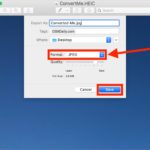
  • From the ‘Export As’ window, click the contextual menu next to “Format” and choose “JPEG”
  • Adjust the quality or resolution if necessary, and then hit “Save”

Export PDF as a JPG to convert it

That’s all there is to it, the new JPG will be in the same directory as the PDF it came from unless you specified otherwise.

Thanks for the tip idea Shawnie

Search the Web from Mac OS X Finder, TextEdit, and Preview

Dec 13, 2011 - 5 Comments

Search Google from TextEdit

Mac OS X and several default apps have a built-in ability to quickly search the web. Highlight any text in the Finder, Preview, or TextEdit, and then hit Command+Shift+L to launch Safari with a Google search for the highlighted text selection.

The web browser will be set to Safari regardless of your default browser settings and doesn’t appear to be customizable. However, you can select either Google, Bing, or Yahoo as the search engine for the keyboard shortcut by going into Safari’s Preferences:

Search default options in Safari

Other apps beyond the three mentioned likely have the same ability, but the Command+Shift+L keyboard shortcut in Safari opens Reading List rather than searching the web.

Set the Default PDF Viewer in Mac OS X Back to Preview

Oct 31, 2011 - 5 Comments

Set the default PDF viewer in Mac OS X

If you’ve downloaded Adobe Acrobat on the Mac you’ve probably discovered that it takes over Preview as the default PDF viewer in OS X, which is annoying because Acrobat is slow to load and a fairly bloated application. There’s little need to use Acrobat Reader as the way to view PDF files, so here’s how to change it back to Preview.

Change the Default PDF Viewer in Mac OS X

  • From the Mac OS X desktop, find a PDF file and hit Command+i to “Get Info” on the file
  • Click on the arrow next to “Open with:” to expand and access the default application list
  • Click the pull-down menu and choose “Preview” from the list, or if it’s not visible, navigate to it by choosing “Other”
  • With Preview.app selected, click on the “Change All” button

This will restore the leaner and very capable Preview app as the default PDF viewer in OS X and prevent the lengthy launch of Acrobat anytime a PDF is opened. This tip will be of less use if you need the full functioned Acrobat version, but for the average person just looking to quickly open pdf docs this can be a significant time saver.

If you want a quick PDF file to use for this tip, you can grab the Apple history book “The Macintosh Way” for free (direct PDF link).

Increase the Contrast of a PDF to Sharpen & Darken Text

Oct 24, 2011 - 2 Comments

Increase contrast of a PDF

With Preview you can adjust the contrast of a PDF, this makes the text sharper and darker, and for scans or dubious quality PDF’s this makes them significantly easier to read.

  • Open the PDF with Preview
  • From the ‘File’ menu, choose “Export”
  • Click on the “Quartz Filter” drop-down menu and choose “Lightness Decrease”
  • Choose “Save”

For a very practical example, I noticed this was sorely needed after downloading Guy Kawasaki’s freely available “The Macintosh Way” book, which is a great look at early Apple history. Unfortunately the PDF’s text is very light making it difficult to read, but the Quartz Filter mentioned above greatly helps this. The downside you may notice with some files (including The Macintosh Way) is an increase in noise. That noise is most noticeable on older PDF’s of scanned books or documents, and at times the trade-off may not be worth it.

Increase the contrast of a PDF to make the text more readable

Use the Magnifying Glass Tool in Preview to Zoom Into Image Detail

Oct 3, 2011 - 9 Comments

Magnifying glass tool in Preview

Preview in OS X Lion has been updated to include a helpful magnification tool that follows the mouse cursor. To activate it, just hit the ~ (tilde) key with an image open in Preview, then by using the trackpad you can pinch or spread to increase or decrease the size of the magnifier.

This is pretty useful and offers a much more precise option than zooming in on a full sized image with the command + and – shortcuts and then navigating around.

Thanks for the tip Alejandro

Capture & Save Screen Shots with Preview in Mac OS X Lion

Sep 7, 2011 - 6 Comments

Capture Screenshots with Preview in OS X Lion

Preview in OS X Lion now includes the ability to capture screen shots directly within the app, with the resulting images opening directly into Preview rather than saving to the Mac desktop. There are three different capture modes available that are almost identical to the standard keyboard shortcuts, here’s how to use them:

  • Launch Preview
  • From the “File” menu select “Take Screen Shot” and choose one of three options:
    • From Selection – brings up the selection tool, just like command+shift+4
    • From Window – enables the window selection tool, like command+shift+4+spacebar
    • From Entire Screen – capture the entire screen (or both screens if you’re using two), same as command+shift+3
  • The screen shots launch automatically into Preview where they can be cropped, manipulated, and saved. All of this is instant with the exception of capturing the entire screen, which causes a timer to be displayed

The timed screen shot feature was previously limited to the Terminal or Grab, but it’s pretty handy to have directly in Preview, with the countdown timer showing up in the center of the screen like so:

screen shots captured by preview

Update: Apparently this feature exists in the 10.6 Snow Leopard version of Preview as well, thanks for the heads up Makeup!

Sign PDF Files with a Digital Signature in Mac OS X Lion Preview

Aug 17, 2011 - 22 Comments

Digital Signature in Mac OS X Lion

Mac OS X Lion brings a revamped Preview app that includes the extremely useful Digital Signature feature built right in. Using your Macs built-in iSight camera to capture your signature, Preview can keep multiple electronic signatures on file which can then be appended to PDF’s.

Setting a Digital Signature in OS X Lion Preview

  • Launch Preview, and from the Preview menu select “Preferences”
  • Click on “Signatures” and then “Create Signature”
  • Write your signature on a piece of white paper and hold it up to the camera, try to have it somewhat straight on the blue line and watch the “Signature Preview” pane until you are satisfied with the way it looks
  • Click on “Accept” to capture the digital signature

Now you can access and stamp your signature onto any PDF files opened within Preview. Technically you can store multiple signatures, so if you want to set additional ones or if your signature has changed, it’s the same steps as above.

Using the Digital Signature in OS X Lion Preview

  • Open the PDF file you want to sign
  • Click on the Annotations button (pencil icon) followed by the Signatures button (see image below)
  • Now click within the document where you want the signature to appear

Voila, once the PDF is signed, just save the document and it’s ready to be used.

Use your digital signature in Mac OS X Lion Preview

This works quite well and it’s a lot faster than printing out, signing, then scanning or faxing a document just so you can get your signature onto something. If you haven’t set your elecronic signature yet in Mac OS X, do it, it’s a very useful feature.

Extract & Save High Resolution Icons from Mac OS X Apps

Jul 1, 2011 - 2 Comments

Extract High Resolution Application Icons in Mac OS X

Using the same trick to create a new image file based on clipboard contents, you can extract high resolution icons from any Mac OS X application. Preview is smart enough to extract just the icon and not try to copy the app file itself (like Windows would).

  • Select any app in Mac OS X Finder and hit Command+C to copy to clipboard
  • Launch Preview and hit Command+N to create “New from Clipboard” (alternatively, use the File menu)
  • Save the app icon as an image of your choice

This trick is great because it extracts each size variation of the icon automatically, giving you the full resolution range ranging from the tiny thumbnails up to 512×512 pixels, assuming the developer created an icon at that resolution.

Graphic designers and artists should be particularly fond of this one, as it allows you to easily inspect icons at their full resolution to see how they’re crafted.

Quickly Create a New Image File from Clipboard Contents with Preview

Jun 29, 2011 - 8 Comments

Create new image from clipboard

With Preview you can quickly create a new image file from your clipboard contents. On it’s own that might not be too enthralling, but this feature extends beyond Preview, meaning any image that you have copied from anywhere using Command+C will work as the source image to create a new image file. This includes images copied from all web browsers, other Mac apps, and even files in the Mac OS X Finder.

Once you have an image copied to the clipboard:

  • Open Preview
  • Hit Command+N to create a new image based on the clipboard (or access via the File menu as screenshot demonstrates)
  • Save the File as usual in your preferred format

I use this frequently when saving images from the web since it cuts out any digging around in the Finder for a saved image file. Instead, I can just copy an image to my clipboard from Safari, and go straight to Preview to create a new file which can instantly be edited or converted.