Apple has released iOS 11.2 beta 6 to users enrolled in the iOS beta testing program, along with macOS High Sierra 10.13.2 beta 6 for Mac users who are beta testing the latest Mac operating system.
The new small software update, which apparently resolves the file sharing issue along with the root login bug, changes the build of macOS High Sierra to 17B1003. The new update should download and arrive automatically to impacted Macs running macOS High Sierra 10.13.1.
While the Security Update 2017-001 patch is a critical update to install to prevent unauthorized access to any Mac running macOS High Sierra, breaking file sharing on Macs is not particularly desirable either.
The good news is that Apple has provided a workaround to fix the broken file sharing problem that might occur after patching the root bug problem, so you can still install the critically important security patch without giving up file sharing capabilities on the impacted MacOS High Sierra computer.
All macOS High Sierra users should install the security update as soon as possible to protect their Mac, even if they have already used the root login fix detailed here. This is perhaps the most urgent Security Update for macOS High Sierra system software released yet, as it will patch the security hole completely.
A significant security vulnerability has been discovered with macOS High Sierra, potentially allowing any person to log into a Mac with full root administrative capabilities without a password.
This is an urgent security problem, and while a software update should arrive to resolve the problem soon, this article will detail how to protect your Mac from this security hole.
If your Mac is experiencing unusual problems that you suspect may be a result of a hardware issue, using Apple Diagnostics may help to identify and even troubleshoot a problem.
Apple Diagnostics will run a suite of tests on the Mac to check for hardware issues – meaning, not a problem with system software, but instead it searches for trouble with some sort of hardware component on the Macintosh. For example, if a port is no longer working, a battery has failed, an issue with the graphics card or display, things of that nature that are not related to system software or software related trouble.
Apple has started to run four new iPhone X commercials. Three of the advertisements focus primarily on Face ID, and the fourth commercial demonstrates the Animoji, the animated emoji icon feature available in the Messages app for iPhone X. Each commercial is soundtracked to a pop song and prominently features a persons face to demo the iPhone X capabilities.
The videos are airing now on television and have also been embedded below for easy viewing.
If you discover that Face ID is not reliably unlocking iPhone or iPad, you may want to try resetting Face ID and then setting it up again. Additionally, you can disable Face ID completely by resetting Face ID on a device and then not setting it up again. Resetting Face ID is pretty simple and it causes iPhone 11, 11 Pro, XS, XR, X, & iPad Pro to ditch the facial recognition data on the device, which you can then configure again if desired. Some users may find they need to do this if they dramatically change their personal appearance, but it can also be a helpful troubleshooting step if you’re trying to get Face ID to work better.
Whether you have already bought or plan to buy an iPhone X, you’ll undoubtedly noticed that using the iPhone is quite different from prior models, not only because it lacks a Home button and requires learning a series of new gestures to perform familiar tasks, but also because there are a handful of new features introduced on iPhone X that don’t yet exist on any other Apple device.
Apple has apparently anticipated that the changes with iPhone X may require some adjustment and learning, and they have helpfully created a four and a half minute long tutorial video that walks through various tentpole features on iPhone X, including using Face ID, Animoji, Portrait Lighting mode on the new camera, and also learning and using the various new gestures required for the device.
You can convert any photo on your iPhone or iPad into a PDF file if need be. Typically this would be necessary for compatibility purposes only, since the default file type of a photo in iOS is a JPEG and already widely compatible. Nonetheless if you need to convert a photo into a PDF in iOS, this tutorial will show you exactly how to do it.
We’ll demonstrate how to convert a photo into a PDF file on an iPhone or iPad. Read more »
The holidays are here, which means it’s time for overeating, visits with friends and family, gift giving, and of course, shopping. If you’re one of the brave souls who doesn’t mind battling the lines and crowds over this weekend than I salute you, but if you’d rather do some shopping from the comfort of your own home then Amazon has a wide variety of sales and great deals for Black Friday and Cyber Monday, and best of all everything gets delivered right to your doorstep.
Head on over to Amazon.com to checkout the sales and deals, or check out the list below to get a few ideas for the techy and geekier folks in your life. From discounted App Store and iTunes gift cards, to TV deals, gaming consoles, drones, gadgets, LEGOs, and more! Read more »
Apple is now running an annual holiday commercial for the 2017 holiday season. This years holiday ad is kind of like a miniature little movie that emphasizes iPhone X and AirPods wireless earbuds, and has been embedded below for easy viewing.
If you have a Touch Bar equipped MacBook Pro and you’re a frequent command line user, you may appreciate a trick that allows you to use Touch ID to authenticate sudo and su, rather than typing out your password in the Terminal like some kind of digital neanderthal.
If you’re on a Mac with recent macOS release (Sierra or El Capitan), then Apple is defaulting to try and automatically downloading the 5GB installer for macOS High Sierra in the background to your computer. When the download completes, the Mac then sends you a notification suggesting that High Sierra is ready to install, with the notification only having two options; “Install” and “Details”. Some users may find this convenient to automatically download a major software update and casually suggest to install it onto a Mac, but other users may be less than excited about this behavior, particularly if you’re not yet ready to install macOS High Sierra onto a computer.
If you do not want macOS High Sierra to be automatically downloaded onto a Mac, maybe because you’re avoiding the macOS update or postponing it while a particular bug or issue is sorted out, we’ll walk through a few steps on how to prevent a Mac from automatically downloading the MacOS High Sierra installer.
Have you ever wondered how to stop autoplay video in Chrome? You’re not alone, since most users consider autoplaying video and autoplaying audio on the web to be annoying. The good news is that with a little secret settings adjustment you can easily disable autoplay video and autoplay audio on Chrome for Mac, Windows, Linux, Chrome OS, and Android.
The walkthrough below will show you exactly how to disable autoplay video and audio in the Google Chrome web browser. This goes beyond muting a tab or browser window in Chrome that is playing audio or video, as it actively prevents any Chrome browser tab or window from starting the media playing in the first place. Once activated, you must manually start playing audio or video in Google Chrome, all autoplay events will end.
Do you wish you had Lucida Grande as the system font in macOS High Sierra? Wish no more, it’s possible to easily change the system font away from San Francisco and to the fan favorite Lucida Grande again in macOS 10.13.
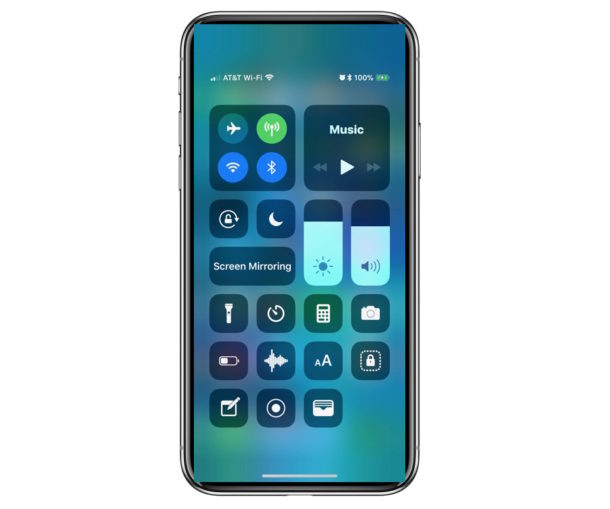
You might be wondering where AirDrop went in iOS 16, iOS 15, iOS 14, iOS 13, iOS 12, and iOS 11 Control Center, and you’re probably not alone. AirDrop allows for rapid wireless transfer of pictures and files between iOS devices or Macs, and is one of the more convenient features available on the Apple platforms. Many users quickly enable and access AirDrop through Control Center on their iPhone or iPad, but with iOS 11 you may have noticed that AirDrop is no longer in Control Center… at least initially. While it may be hidden now, enabling AirDrop is still possible from Control Center for iOS 16 through iOS 11 on iPhone 14, iPhone 14 Pro, iPhone 13, iPhone 12, iPhone 11, iPhone 11 Pro, 11 Pro Max, iPhone XS, XR, XS Max, iPhone X, iPhone 8, iPhone 7, and all other iPhone models, as well as cellular iPad devices. Once you learn how to access it you’ll discover toggling AirDrop from Control Center is otherwise just as easy to enable or disable as before.