OK this is a little random, but I came across one of those cute animals sites today that featured of all things… Dogs with Macs! If you don’t like dogs, well, just ignore this post, but dogs love Macs too!
Quick Look is one of the many Mac OS X features that make my OS choice cemented, I use it so often that I simply can’t live without it, and here’s a tip that I’ve been using a lot lately.
If you want to create an instant slideshow of images, simply select multiple images in a Finder window, and then hit Command-Option-Y to launch them into a full screen Quick Look mode. Now just press play, sit back, and enjoy!
Alternatively, you can hit the Spacebar to quickly enter Quick Look, and then manually select the Full Screen button, but the keyboard shortcut is much faster method. This is a really underused feature of OS X and deserves to get some use by anyone who frequently browses through images or just wants to show off some pictures to another party without any desktop clutter or launching additional apps.
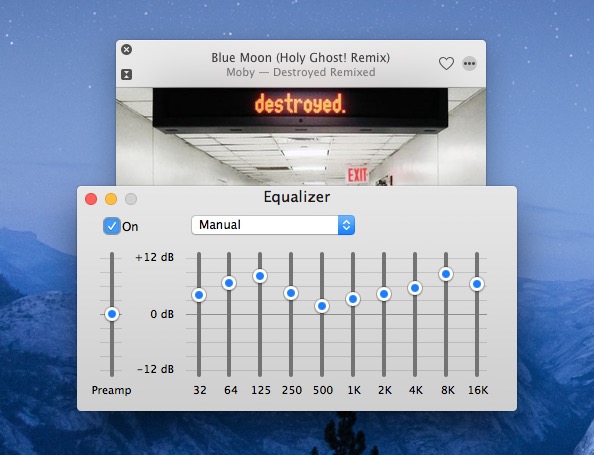
In what may be the boldest claim ever to hit iTunes users, what is said to be the best iTunes equalizer settings have surfaced on the internet. Now that is quite a proclamation obviously, but after seeing the bold statement, I gave the suggested settings a try with the iTunes equalizer, played some music, and it sounds really good!
The included image shows the so-called best iTunes Equalizer settings as follows:
Stacks are what list items and folders turn into when pulled into the Dock of OS X. There are several views for Stacks, like a grid, or a fan, or a list in modern OS X versions. But with a little secret defaults string, a list view can be enabled in prior releases of OS X too.
Recently the LAN at my office had been running slower than usual, and I couldn’t pinpoint what was using up all the extra bandwidth. I had a suspicion that P2P traffic was to blame but I just couldn’t see anything obvious on the offending machine. So the question of course, is how do you see what processes are connecting to the internet or the outside world from Mac OS X?
Using the lsof command line tool, we can pass the -i argument to list only the active and open internet connections on our Macs, and we can find out if there’s anything peculiar (or in my case, something hidden) going on and connecting to an outside address, and, this command will also show you what the process ID is of the offending application or task, so that we can kill it and stop the activity if desired.
There’s several ways to send free SMS text messages, here’s the best ways I know of to send free texts from the computer, using either the AIM protocol (with iChat or Adium), Google’s GTalk within Gmail, and finally a free website known as GizmoSMS.
When using any of these methods, keep in mind the SMS messages may be free for you to send, but they are not necessarily free text messages for the other person to receive! Read more »
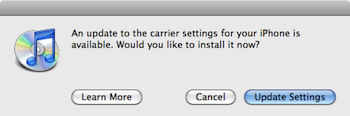
After reading all the bad press for iPhone OS 3.1, I decided to hold out on upgrading, which means that I also can’t get MMS working, right? Wrong! The only thing you need to enable MMS on iPhone 3.0 (or 3.01) is the updated carrier file, which you can download from here. After you download the carrier file, type the following command in the terminal:
Do this with iTunes closed. Then launch iTunes again, and select your iPhone, then ‘Restore’ while holding down the option key, navigating to the .ipcc file you just downloaded. The update will take a few seconds, and then all you need to do is reboot your iPhone for MMS to work with 3.0!
The Google Chrome for Mac is still very much in Beta, but the latest Dev Channel build is actually pretty decent for web browsing, while other features are still lacking, but overall it’s a great start and a cool new web browser.
One of the biggest advantages to Google Chrome is that each Browser Window or Tab is ‘sandboxed’, meaning if a website goes haywire and crashes, only that websites window or tab crashes and not the entire browser!
Safari has a similar feature for plugins but not for tabs, I’d bet that in time they will though.
Anyway check out the latest Dev Channel version of Google Chrome:
There are two ways to enable the root super user account in Snow Leopard, the first is probably the quickest. Launch the Terminal and type the following command:
sudo passwd root
You’ll be asked for the admin password, then you’ll have to set a password for the root account. When you’re finished, the root account is now enabled.
The other way is through the GUI, which has changed for Snow Leopard because the “Directory Utility” application moved from the /Applications/Utilities folder to /System/Library/CoreServices
* Navigate to /System/Library/CoreServices
* Unlock the application by entering the admin password and clicking the padlock icon
* Go to the Edit menu and scroll down to “Enable root user”
* Now choose Edit and select “Change Root Password” , and set a password for the root user
* All done! root user is now enabled
Note that enabling the root account can potentially leave your Mac vulnerable to some security attacks, so it’s best to keep disabled unless you know what you’re doing.
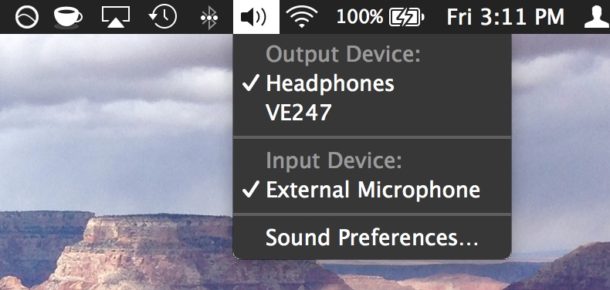
If you want to quickly change your sound input device on a Mac, by far the fastest and simplest way to do so is to Option-Click the Sound menu icon at the top of your screen.
Option-clicking the sound icon menu bar item enables an alternate pull-down menu including a list of clearly labeled and named available input devices. From this menu, select your new input source, whether that’s an external microphone, bluetooth device, or whatever, and it will immediately be set as the universal input to the Mac. Read more »
Backing up your iPhone text messages is made extremely easy thanks to a freeware utility called Syphone. Since the iPhone has a limited number of text messages it can store at any one time, Syphone allows you to backup all the text messages and read through the archived text messages yourself on your Mac in an easy to read iChat-like interface.
In a move that has surprised many, Apple has decided to open source their multiprocessor task management technology known as Grand Central Dispatch. This comes as a surprise because the technology has barely gotten into the hands of customers through 10.6 Snow Leopard, and it’s widely considered to be a competitive advantage. So why would Apple release such a thing into the open source community? AppleInsider offers this possible explanation:
“Significant new outside interest in Grand Central Dispatch could result in a wider support base for building parallelism compatible with Apple’s other open technologies, such as OpenCL. The availability of the dispatcher on Linux and other Unix operating systems would also help generate demand for other command line utilities that tap into its power. That would help Apple leverage its technologies in markets where it has a minority position, such as in the enterprise and supercomputing.”
Grand Central Dispatch is not the only Apple technology to be open sourced however. The core technology behind the Safari webbrowser, known as WebKit, is also an open source project, which has led to the development of Google’s Chrome browser and other webkit-based browsers (which all tend to be lightning fast).
iTunes 9.0 removed the ability to click the green ‘minimize/maximize’ button to get into iTunes Mini Player mode, you had to hold down Option to get the Mini Player. iTunes 9.0.1 Update fixed this problem (as if it was a bug, but I imagine it was changed back due to user confusion and complaints), but if you happened to like the way the iTunes 9.0 green widget button behaved, then you can get that quirky maximize behavior (and option-click for Mini Player) back with the following Terminal command:
AT&T iPhone users of 2009 can now officially join the cellular world of 2002, with the ability to finally send and receive MMS messages. You have to upgrade to iPhone 3.1 and download a new carrier file to enable MMS on your AT&T iPhone. After reading so many negative reviews about the iPhone 3.1 update, I am holding out on this ancient technological ‘upgrade’ from AT&T until Apple sorts out the 3.1 bugs, I waited 7 years I think I can wait a few more weeks/months. If you already have 3.1 installed, or you don’t mind installing 3.1 with the risks, then plug in your iPhone and open iTunes to get MMS capabilities. You can read more from Apple here:
Want to almost instantaneously put a Mac to sleep from your external keyboard? It’s much easier than you’d think, and you don’t need to pull down the Apple menu to accomplish this task. Instead, to quickly sleep your Mac just hold down Command + Option + Eject for about two seconds, and the computer will immediately enter sleep.
That’s one fancy Cupertino Coffee or Cappuccino! I came across this Apple themed coffee drink on Twitter, not sure where the original source or coffee house is but it sure looks nice. Has anyone ever seen one of these in person? Maybe it’s at the Cafe Macs restaurant on the Cupertino campus of Apple? Who knows?
It would take some serious effort to make such a perfect Apple logo that’s for sure. If you want to try yourself, here’s where to begin:
Then you just need a fresh cup of coffee and some steamed milk or cream. Best of luck with your Mac Mocha or Cupertino Cappuccino!
I had to develop an iPhone specific website recently and working with the iPhone resolution was a key aspect in this development process. The actual pixel density differs on the iPhone models as well, which will effect the appearance of interface elements and graphics for websites and iPhone applications. Of course knowing the resolution and PPI should not be limited to developers, it dramatically effects the graphic and picture quality of any user experience with the device. Here are each iPhone’s details and a picture comparing the two screens:
iPhone 4 screen resolution & pixel density
* iPhone 4 has a screen resolution of 960×640 pixels, which is twice that of the prior iPhone models
* The iPhone 4 also has a much higher pixel density than it’s predecessors, displaying 326ppi (pixels per inch).
Original iPhone, iPhone 3G, iPhone 3GS PPI & screen resolution
* iPhone 2G, 3G, and 3GS screen resolution is 480×320 pixels
* The iPhone 2G, iPhone 3G, and iPhone 3GS has a display of 163ppi (ppi is pixels per inch whereas dpi is dots per inch).
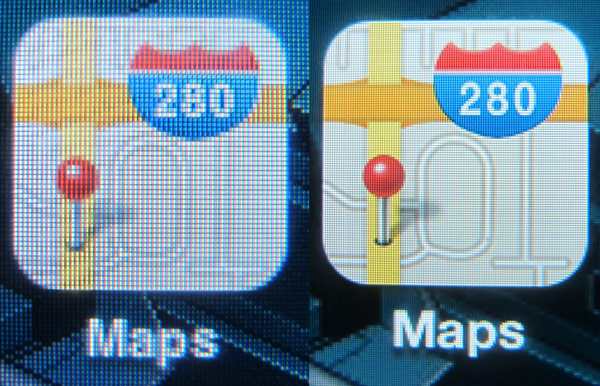
The below image compares the screen resolution of iPhone 3 on the left vs iPhone 4 on the right:
As you can see, the iPhone 4’s increased pixel density makes the resolution significantly better.
“This was a very typical time. I was single. All you needed was a cup of tea, a light, and your stereo, you know, and that’s what I had.” – Steve Jobs
This is rather iconic, isn’t it? Something about that picture captures the minimalist aesthetic that Apple successfully translated to the digital age, with our iPhones and Macs. Quite an amazing picture and quote, both of which come from Diana Walker, who photographed Steve Jobs on several occasions.
You may have seen this picture before made into black and white, which makes the rounds from time to time, again capturing the minimalism of Jobs and therefore Apple known under Jobs.



 Recently the LAN at my office had been running slower than usual, and I couldn’t pinpoint what was using up all the extra bandwidth. I had a suspicion that P2P traffic was to blame but I just couldn’t see anything obvious on the offending machine. So the question of course, is how do you see what processes are connecting to the internet or the outside world from Mac OS X?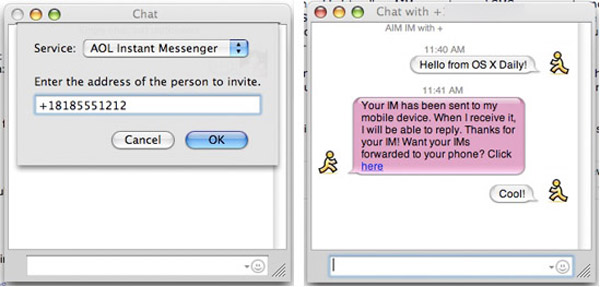
 After reading all the bad press for iPhone OS 3.1, I decided to hold out on upgrading, which means that I also can’t get MMS working, right? Wrong! The only thing you need to enable MMS on iPhone 3.0 (or 3.01) is the updated carrier file, which you can

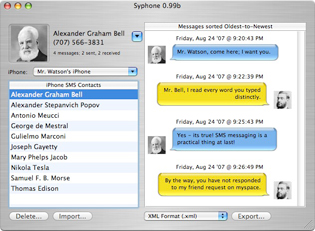 Backing up your iPhone text messages is made extremely easy thanks to a freeware utility called Syphone. Since the iPhone has a limited number of text messages it can store at any one time, Syphone allows you to backup all the text messages and read through the archived text messages yourself on your Mac in an easy to read iChat-like interface.
  iTunes 9.0 removed the ability to click the green ‘minimize/maximize’ button to get into iTunes Mini Player mode, you had to hold down Option to get the Mini Player. iTunes 9.0.1 Update fixed this problem (as if it was a bug, but I imagine it was changed back due to user confusion and complaints), but if you happened to like the way the iTunes 9.0 green widget button behaved, then you can get that quirky maximize behavior (and option-click for Mini Player) back with the following Terminal command:
 AT&T iPhone users of 2009 can now officially join the cellular world of 2002, with the ability to finally send and receive MMS messages. You have to upgrade to iPhone 3.1 and download a new carrier file to enable MMS on your AT&T iPhone. After reading so many


 I had to develop an iPhone specific website recently and working with the iPhone resolution was a key aspect in this development process. The actual pixel density differs on the iPhone models as well, which will effect the appearance of interface elements and graphics for websites and iPhone applications. Of course knowing the resolution and PPI should not be limited to developers, it dramatically effects the graphic and picture quality of any user experience with the device. Here are each iPhone’s details and a picture comparing the two screens: