How do you take apart an iPhone?
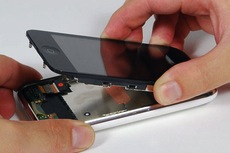 Tye Campbell wrote to us with the following question: “Do you guys know how to take apart an iPhone? Specifically the 3G model, I can’t find any way to get to the display and I’d like to do my own screen replacement since mine is cracked but I have another one available to me from a water-damaged iPhone. I’m pretty patient and don’t mind learning, but I don’t even know where to begin, any tips or starting points?”
Good question! I had to take apart an iPhone 3GS recently to replace the back case, I used the guides offered by iFixIt, they are comprehensive and really walk you through accessing various parts of the iPhone including the display. The key is to have the right tools at your disposal before disassembly, otherwise you can end up in a really frustrating situation. Also be sure to track each individual iPhone part and where it comes from inside the device so that when you reassemble it you won’t have any extra pieces laying around! These guides will help you with selecting the right tools and staying organized during the iPhone repair, follow it carefully and you should have no problems. If you’re wondering how to take apart an iPhone, I would go this route:

 There are times when a user will need to to manually set an IP address in Mac OS X to one which will be compatible with a joined network, either wi-fi or ethernet.
 I just came across a really useful QuickLook plugin called SuspiciousPackage that lets you inspect those .pkg package installer files that so many Mac apps and downloads come in. Using this plugin, you can determine if an admin password is required, how many install scripts are in the package file, where the installation locations of files is going to be, and if a restart is required.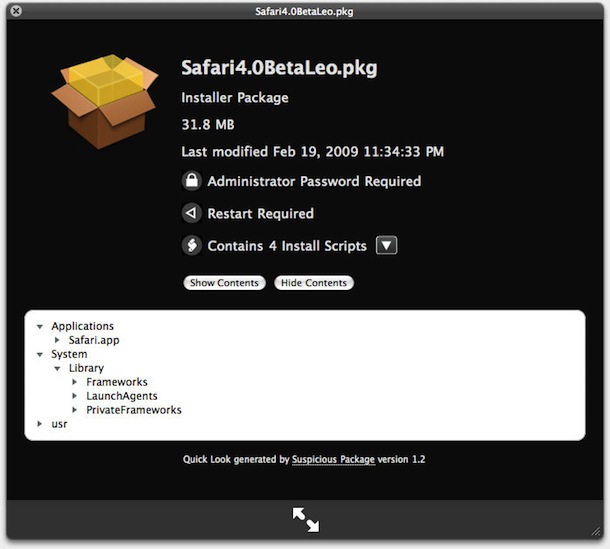
 You can change the Mac OS X login screen background picture using a few different methods. We have covered this tip before but it was based around a few Terminal commands that might not be easy to follow for the average Mac user without command line experience. With that in mind, here are ways to change the Mac login wallpaper:
 You can convert many different image file formats in Mac OS X for free using the included Preview application, there’s no need to download additional tools or do anything overly complex.
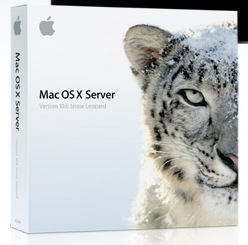 Mac OS X Server is infinitely better equipped, more stable, and just generally more pleasant than any of Windows offerings (yes I am biased, but it’s true), if you’re needing a server I highly recommend checking out Apple’s offering. Instead of shelling out the $499 for a copy though, you can get a free evaluation copy! If you’re a large corporation, small business, nonprofit organization, government agency, or educational institution, you can get a free and fully functional evaluation copy of Mac OS X Server directly from Apple. I just found out about this and I think it’s a pretty great thing for Apple to do, so if you qualify for a copy, check it out and you will be impressed.
 If you’re ever wondering how long your Mac has been turned on and running for, you can discover exactly how long the computer has been on since last boot with two different methods available in OS X.
 You can delete specific pages from a PDF file with the built-in Mac Preview app, available in all versions of OS X. This is really useful for paring down large PDF documents if you only need a few select pages, and learning how to delete specific pages from PDF files is bound to make any student or researchers life easier when emailing or printing documents.
 Locker is a very simple Dashboard widget that does something Mac OS X should have included by default, it instantly locks your Mac desktop.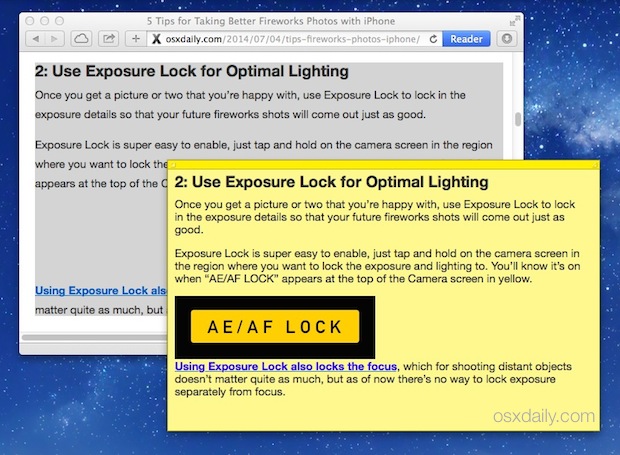
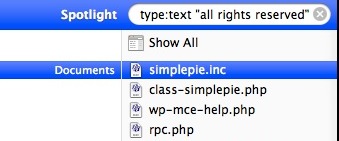 If you know a phrase that is contained within a document, but can’t remember the document file name, try searching for the phrase that you know appears within the document. Make this phrase search even more precise by putting the phrase itself within quotation marks, for example “all rights reserved” will find all files that contain that exact phrase only.
  I love icons and customizing my Mac desktop, so I decided to share with you all my personal bookmark list of free mac icons. These are the sites I visit when I want to change my Mac appearance and all the icons that define the OS X desktop and dock. Of course if you’re on the other end of the spectrum and you hate icons you can