
Precisely Adjust Volume Levels on your Mac
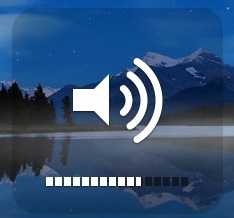
You can precisely adjust the volume levels on a Mac by holding down the Shift+Option keys while pressing the Volume Up / Down keys. This lets you adjust the sound level by 1/4 of each notch (as opposed to a full notch), offering precise incremental control to how loud or soft output is from the speakers.
This is perfect if you like to precisely adjust the audio level of speakers, though it’s maybe used best with external speakers which tend to play either too soft or too loud. It works on the Mac internal speakers too, and headphones as well. Easily the best way to find the best volume for you, try it out and find something that sounds good for your speakers and your ears.
You’ll find this great little trick works in all versions of Mac OS X, from the earliest versions onward through Mavericks and Yosemite. Note that newest versions of OS X require a slightly different modifier of the Option key and the appropriate function keys,.
Oh and a bonus tip that many users may enjoy: this neat little precision trick works to change the brightness in incremental levels of any Mac display and screen as well!






It IS available in Lion 10.7.4 (I have not tested in any other versions):
Shift+Option+Volume or
Shift+Option+Brightness
Adjusts those settings in smaller notches.
This feature is not available on Lion (and presumably Mountain Lion).
RIP
Is there a terminal command to make this default?
i just recived a used Mac from my cousin, however i have only worked with Windows my whole life. There for i am useing a keyboard with numberlock ect. and i dont know how to change the volume. help?
you can adjust the sound volume using the menubar too, the icon looks like a speaker with sound coming out of it.
Otherwise you can just navigate to Apple menu -> System Preferences -> Sound and adjust the ‘Sound output’ level to whatever you desire.
[…] You can do the same type of precise adjustments when changing your Mac volume levels. […]
wow. this is awesome. I have been so wanting something like this. thank you
But on the screen brightness is no using because it only changes at every 4th frame
Hey, the trick works when setting screen brightness too! :)
That’s pretty neat. So I started playing with it a bit on my MB and found that holding shift mutes the sound it makes when adjusting the volume, and holding just option will open the sound system prefs. Which then lead me to find that you can hold option and press the expose, dashboard, keyboard (if you have the illuminated keyboard) and brightness options.
Is there a way to change that you have without pressing the Shift+Option
key the volume at that way?