Subscribe to OSXDaily

Subscribe to RSS Subscribe to Twitter Feed Follow on Facebook Subscribe to eMail Updates

Shared on Facebook

Shop at Amazon

Ad

OSXDaily on Facebook

Search iPad 3

How to Jailbreak iPhone, iPad, or iPod touch on iOS 5.1.1 with Absinthe 2.0

May 25, 2012 - 5 Comments

How to Jailbreak iOS 5.1.1 with Absinthe 2.0

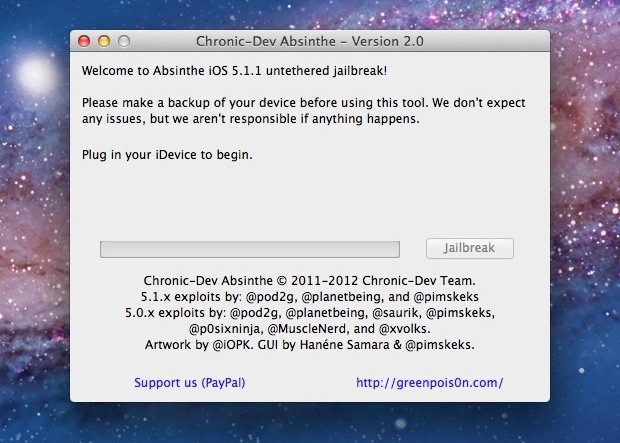
The newly released Absinthe 2.0 jailbreak app may be one of the easiest to use jailbreaking tools of all time. If you’re interested in exploring the jailbreak world or running third party tweaks on an iPhone, iPad, or iPod touch, here is how to jailbreak any such device that is running iOS 5.1.1, yes that includes the new iPad 3 and iPhone 4S.

If you are already jailbroken on iOS 5.1.1 but stuck with a tether, just launch Cydia and search for “Rocky Racoon” to untether your existing device. You do not need to run Absinthe. For everyone else, here is how to jailbreak iOS 5.1.1 untethered:

  1. Connect your iOS device to the computer via USB and do a quick manual local backup by right-clicking on the device name in iTunes and choosing “Back Up”. You will need this in the odd event something goes wrong.
  2. Download Absinthe 2.0 and launch the Absinthe utility
  3. Click on the Jailbreak button and let Absinthe perform its magic, this may take a minute or two
  4. Absinthe will inform you when the jailbreak is finished, when done look for the Cydia icon on the iOS home screen
  5. Launch Cydia and enjoy

That’s about it. Because Absinthe 2 is untethered, you are free to reboot at any time without being attached to a computer. If you want to undo the jailbreak at any point you can restore from the iTunes backup you made and be back to normal.

13 Beautiful High Resolution Retina Wallpapers for the New iPad

Mar 24, 2012 - 11 Comments

Retina iPad wallpapers

Looking for some gorgeous high resolution images for your new iPad? Here are a handful of gorgeous retina wallpapers, each measuring 2048×2048 pixels.

Click on any of the images below for a full sized version, though some of the links go to InterfaceLift and the iPad 2048×2048 version must be selected manually from their drop-down download menu, labeled as “new iPad (3rd gen)”. Enjoy!

Read more »

Solution to the iPad 3 Heat Problem [Humor]

Mar 23, 2012 - 13 Comments

iPad 3 in the snow

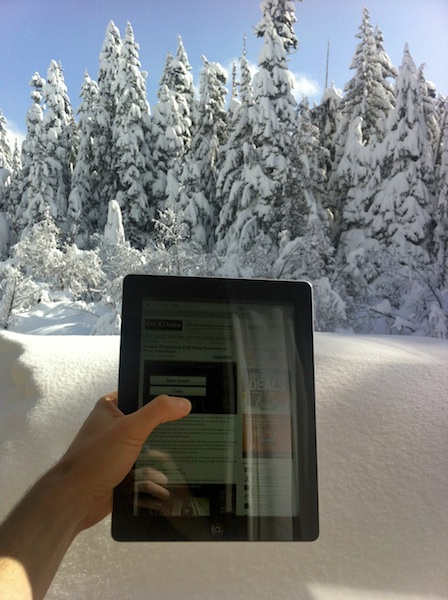
If your iPad 3 is getting too hot to handle, the solution is to use the iPad outdoors in three feet of snow. Three feet of snow is required because there is a direct correlation between the iPad generation and the amount of snow required to cool the device, thus iPad 3 requires 3 feet of snow. For those of you who don’t have access to three feet of snow, try placing the iPad 3 in a freezer at least three feet under ground, while holding three fingers in the air for at least three seconds while counting backwards from three.

This is obviously a joke, and you’ll notice we haven’t mentioned anything about the mythical iPad 3 heat problem, mostly because it doesn’t exist and we don’t want to reward manufactured controversy. This was funny enough to post on a Friday though, so enjoy a tip that’s about as useless as the original Consumer Reports BS that started it all.

Thanks to Ryan for the picture

How to Quickly Fix iPad 3 Wi-Fi Reception Problems

Mar 21, 2012 - 43 Comments

iPad 3 No Reception

If your new iPad 3 has poor wi-fi reception, you’re not alone. After getting a shiny new iPad 3rd gen, I immediately noticed it wasn’t registering any bars of wireless reception, and wi-fi was strangely slow regardless of the network I joined or the distance to the router. It must be defective and I should storm down to the Apple Store and get a refund, right? Wrong. It’s actually really easy to fix, so before you call AppleCare support, give this fix a try, it worked for me.

  • Open Settings and tap on “General”
  • Tap “Network” and tap “Wi-Fi”
  • Tap the blue arrow next to the wireless router you are connected to
  • At the next screen, tap “Forget this Network”
  • Go back to Wi-Fi and rejoin the network you just forgot

Like magic, you should now have full reception bars, as visible in the upper left wifi indicator.

iPad 3 with Full Wi-Fi Reception

If wi-fi is still not working, try this as well:

  • From Settings, tap “General” then “Reset”
  • Tap “Reset Network Settings”
  • Reboot the iPad
  • Connect to a wireless network again

Resetting network preferences loses router passwords, be sure to have those handy beforehand.

Often these issues are software related and fairly easy to handle, as I’ve resolved a number of times with OS X Lion too, so don’t assume some of the complaints you’ll read on Gizmodo and Apple Discussions are all hardware related. That said, if you’ve attempted both of the methods outlined above and your 3rd gen iPad wi-fi is still problematic, you might actually have a genuine problem and it would be worth contacting Apple or AppleCare.

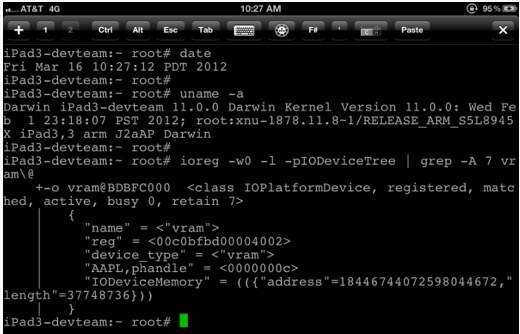
iPad 3 Jailbroken Already

Mar 16, 2012 - 6 Comments

Jailbroken iPad 3

The new iPad 3 is barely getting into peoples hands but has already been jailbroken by renowned hacker @MuscleNerd (BTW, you can follow us on Twitter too). At this point, it’s more a proof of concept and MuscleNerd cautions it’s “Just a first step, still lots of work to do!

There is no estimate on when the iPad 3 jailbreak will be publicly available, though typically things move quick from discovery to release. Because the iPad 3 shares a similar processor to the iPhone 4S and iPad 2, it’s quite likely those two devices will become jailbroken along the way. Assuming things go well, it’s possible some variation of an iOS 5.1 jailbreak for A5 devices will become available within a week or two.

Currently, iOS 5.1 is jailbreakable as tethered for older hardware only. Stay tuned for more.

How to Transfer Everything from an Old iPad to New iPad

Mar 16, 2012 - 11 Comments

Transfer from Old iPad to New iPad

So you just upgraded to a new iPad, and you want to move all of your apps, pictures, settings, and data from an old iPad to the new iPad, right? Doing this is easy, you can go the post-PC route with iCloud (recommended), or the old fashioned way with iTunes, we’ll show you both.

Transfer Data from Old to New iPad with iCloud

Using iCloud is by far the easiest method, but you’ll obviously need to have iCloud set up and configured for this to work. This is the post-PC method, you won’t need to use a computer at all.

From the Old iPad

  1. Launch “Settings” and tap on iCloud, then tap on “Storage & Backup”
  2. Tap on “Back Up Now” to initiate a manual iCloud back up
  3. Let the backup finish and then leave the old iPad alone

Your work on the old iPad is finished, now pick up the brand new iPad and turn it on.

From the New iPad

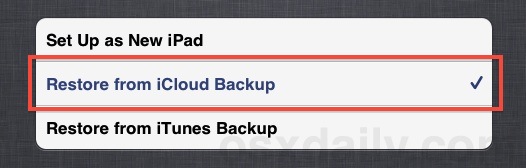
  1. At the “Set Up iPad” screen, choose “Restore from iCloud Backup” and tap “Next”
  2. Restore from iCloud Backup

  3. Login to your iCloud account and choose the most recent backup from the old iPad you just made
  4. Tap on “Restore” to transfer the data from the old iPad backup to the new iPad

How long the transfer takes depends on how much stuff you keep on the iPad and how fast your internet connection is. Just let the process complete and don’t interrupt it or lose the wifi connection.

Move an Old iPad a New iPad with iTunes

You can also migrate an old iPad to a new iPad with the help of iTunes. This is the old fashioned way since it requires hooking up the iPads to a computer, but it works just fine if you don’t have iCloud or you aren’t on a fast internet connection. These instructions are the same for Mac OS X or Windows.

With the Old iPad

  1. Launch iTunes and connect the old iPad to the computer
  2. Right-click the iPad in the iTunes sidebar and choose “Back Up”
  3. Back up with iTunes

  4. Let the iPad backup finish within iTunes, keep iTunes open but disconnect the old iPad from the computer

With the New iPad

  1. Turn the new iPad on and at the “Set Up iPad” screen choose “Restore from iTunes Backup” then tap “Next”
  2. Connect the iPad to the computer and within iTunes choose the most recent backup from the restore menu
  3. Click “Continue” and let the restore via iTunes take place, do not disconnect the iPad until the transfer is completed and the iPad has rebooted

Restoring from iTunes may actually be quicker than restoring from iCloud, depending on the size of your backups and the speed of the internet connection. Even so, migrating with iCloud is the easiest and thus what is most recommended.

Note: If you already set up the new iPad, you can easily return to the original set up and configuration screen required for the transfer by tapping from Settings > General > Reset > Erase All Content and Settings, this will reset any iOS device to factory defaults. This erases everything on the iPad, so only do this if you are certain.

Get a New iPad 3 Tonight at Midnight from Walmart, 15-25 iPads in Stock Per Store

Mar 15, 2012 - 7 Comments

Walmart iPads

Walmart was listed in our “where to buy a new iPad” post as a good place to get the third gen iPad, but today they sent out an email to several sites stating they will actually start selling the hotly anticipated device tonight at 12:01AM local time. This means if you want to beat the morning lines at Apple Stores and don’t want to wait a few weeks for a delivery, spending your evening at Walmart may be the best bet.

We confirmed the sale by calling around to a handful of Walmarts in various western states and all but a few stores confirmed the midnight offering, though they either didn’t know or wouldn’t specify which models were to be available other than “black and white” colors. We were told stocks ranging from 15 to 25 units on hand, though many stores were mum on details and some said they weren’t allowed to say.

Here’s the original email quote from Walmart, courtesy of MacRumors:

If you want to be the first person amongst your friends and colleagues to have the new iPad, you will need to head to your local Walmart. Starting at 12:01 a.m. local time on March 16, a limited supply of the new iPad will be available at your local 24-hour Walmart. Other retailers’ doors don’t open until 8 a.m. local time, so you can get to work on time and beat the rush by coming to Walmart.

You can find a local 24 hour Walmart using their store locator, though it may be worth calling ahead to confirm the sale is on and that units are in stock. Good luck!

iPad 3 Reviews Roundup

Mar 15, 2012 - 2 Comments

New iPad 3 Reviews Roundup

Early reviews of the new third generation iPad are starting to appear and they’re all pretty much glowing. Whether you’re still trying to figure out which model to get and where to buy one or you just want to pass the time until the FedEx truck arrives this Friday, take a peak at a handful of reviews below.

TheVerge:

Let’s be clear: the new iPad is in a class by itself, just as its predecessor was. As the latest product in a lineage of devices that defined this category, the iPad continues to stand head and shoulders above the competition. With the addition of the Retina display, LTE, more memory, and a more powerful CPU, Apple has absolutely held onto the iPad’s market position as the dominant player and product to beat.

…The new iPad is the most functional, usable, and beautiful tablet that any company has ever produced.

TechCrunch loves it:

If you’re at all interested in LTE in an Apple product, obviously, get a new iPad. If you read a lot on your iPad, get the new iPad. If you take a lot of photos and videos (yeah you, the joker in the front row of the concert with your iPad in the air), get the new iPad. If you play a lot of games on the iPad, get the new iPad.

If you don’t yet have an iPad, get the new iPad.

Telegraph loves the screen and proclaims it the best tablet on the market:

If you have been holding off getting a tablet then this is the one to go for. In my view, it’s the best that money can buy. Existing iPad owners who are thinking of upgrading should take a look at this new device. You’ll see the difference very, very clearly indeed.

DaringFireball:

The retina display is amazing, everything in the UI feels faster, and the price points remain the same. What’s not to love? It’s that simple.

New York Times provides the most critical review, though it’s still overall positive:

The new iPad doesn’t introduce anything that we haven’t seen before, either in the iPhone or in rival tablets. There’s no Steve Jobs “one more thing” moment here; Apple just took its white-hot iPad and added the latest screen, battery and cellular technologies.

MacWorld suggests users of the iPad 2 will be fine without upgrading, as long as they don’t see the new Retina screen:

The new iPad is just that: The iPad, updated for a new year and millions of new iPad users. It’s not smaller or lighter, but it’s got a remarkable screen, a much better rear camera, and support for cellular networking that can run at Wi-Fi speeds. It’s the iPad that millions of people have embraced, only one year better.

Users of the iPad 2 shouldn’t fret: Their iPad investment is certainly good for another year. But they might not want to look too closely at the new iPad’s screen. Once you get a load of that Retina display, it’s hard to go back to anything else.

Where to Buy a New iPad 3

Mar 14, 2012 - 5 Comments

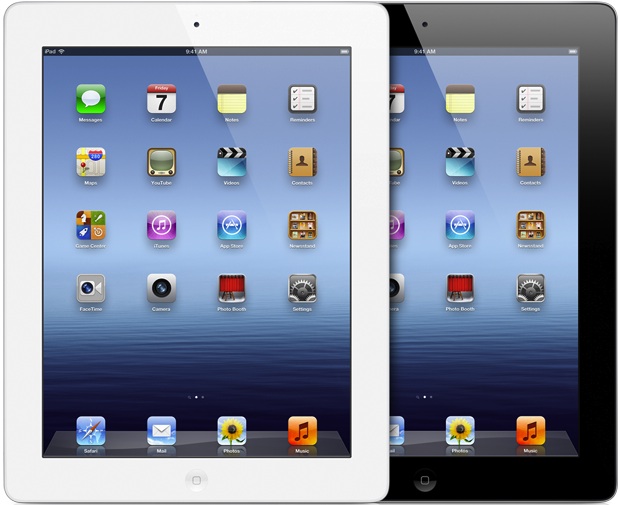
iPad 3

Update 3/15/2012: Walmart will begin selling the new iPad tonight at midnight, 12:01AM local time. We confirmed this with several Walmart stores, each apparently has about 15-25 units on hand.

The new iPad will be released this Friday at 8AM. As usual with a new iPad or iPhone release, you can expect to see some pretty major lines and it’ll be tough to get your hands on one if you didn’t pre-order. Knowing who is carrying the device and where they are will increase your odds of grabbing an iPad early, though don’t be surprised if they all sell out quickly.

iPad 3 Retailers

  • Apple Store – Opens at 8AM. Guaranteed to have the most stock and widest model variety of new iPads, but almost certain to sell out within a short amount of time every morning. Your best bet is to get there early and wait in line, with a little patience in the morning you’ll probably get your hands on an iPad 3 sooner than later.
  • Best Buy – Usually opens at 10AM, but you’ll want to confirm with your local store beforehand to insure that you arrive early enough to get one. Expect Best Buy to sell out quick.
  • Radio Shack – Typically opens at 9AM, verify your local store. Radio Shack is a lesser known iPad retailer and so you may be able to get one on launch day if you’re quick. Don’t expect large stock in the earlier days though.
  • Target – A traditionally reliable source of new iPads if you move quick. They open at 8AM and even have a reliable stock indicator on their website. Expect sell outs.
  • Walmart – Because the average Walmart customer is less tech-conscious, Walmarts often have a fairly good record of having a few iPads in stock. You will almost certainly see lines during the initial availability periods though, and more rural stores may not get iPads on launch day at all.
  • Sam’s Club – Same story as Walmart means a potentially higher likelihood of getting an iPad quickly, the downside is that you need a membership to shop at Sams
  • AT&T Store – If you’re in the market exclusively for an iPad 4G LTE on AT&T, aiming to be at an AT&T store when they open gives you a fairly decent chance of buying one. Expect sell outs.
  • Verizon Store – Verizon is known for having a large 4G coverage area, so if this is that is the iPad you want, heading to a Verizon Wireless store early in the morning just may be enough to get your hands on one

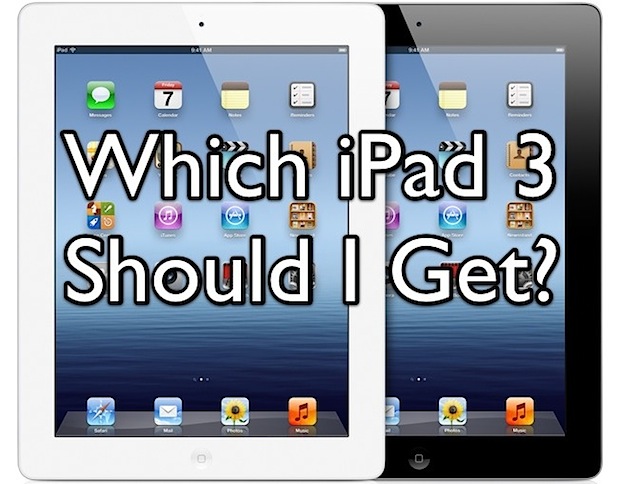
Traditionally, retailers get significantly fewer iPads than the Apple Stores do, and often in fewer model choices. If you aren’t picky about which iPad 3 you buy, any store that you can get to early should work. Just be aware you may only have 32GB White models, or 16GB Black 4G, or 64GB Wi-Fi, or some other slim variety of models to choose from. The widest variety of choices are almost always at Apple Stores this early in the buying cycle. Plan accordingly, and remember that other than the storage capacity and wi-fi/4G ability, the features and specs of each iPad 3 are the same.

Alternate Places to Buy New iPad

  • Craigslist – If all the local stores are sold out and you absolutely must get your hands on an iPad 3 right away, Craigslist works. Expect to pay inflated prices to cover the cost of whoever spent time waiting in a line somewhere, it’s not unusual to see a $100-$200 markup.
  • eBay – Similar markup to Craigslist, but you’ll have to wait until it’s shipped to you. Buying on eBay doesn’t make a whole lot of sense unless you are in a country that has a stronger currency and doesn’t have the iPad 3 near release day

Don’t Mind Waiting? Buy Online from Apple

  • Order Online from Apple – All early availability sold out quick, and there is currently a 2-3 week delay for shipment on new orders. Nonetheless, if you don’t mind waiting a couple weeks and you don’t want to wait in line somewhere or pay an inflated rate on the resale market, buying online from Apple is a no brainer.

iPad 3 Benchmarks Show 1GB RAM and 1GHz Processor

Mar 13, 2012 - 9 Comments

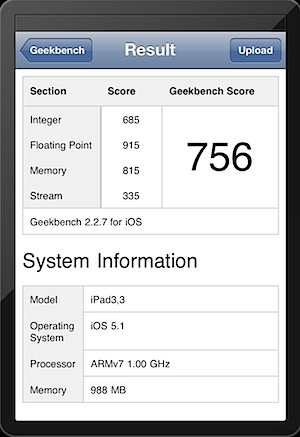
iPad 3 Benchmarks with Geekbench The iPad 3 has been benchmarked to reveal tech specs of 1GB of RAM and an A5X 1GHz processor. The RAM is double that offered by its predecessor, and the CPU appears the same as that found in iPad 2′s A5 chip, suggesting the only major changes to the processor are in graphics capabilities.

Benchmarks were ran by Tinhte.vn, who managed to get their hands on a new third gen iPad a bit early and used the popular benchmarking app GeekBench. The new iPads score of 756 is roughly the same of an iPad 2, though Geekbench does not seem to adequately test the graphics processor on either chip, thus performance of graphics intensive activities like gaming and photo or video manipulation are yet to be determined.

The A5X processor is a dual-core CPU that includes quad-core graphics capabilities. The boosted graphics and increase in RAM are necessary to work with the high resolution Retina display included on the new iPad.

The third generation iPad is available in stores this Friday, March 16.