Download iOS 11.1.2 Update with Bug Fixes for iPhone X [IPSW Links]
Nov 16, 2017 - 5 Comments
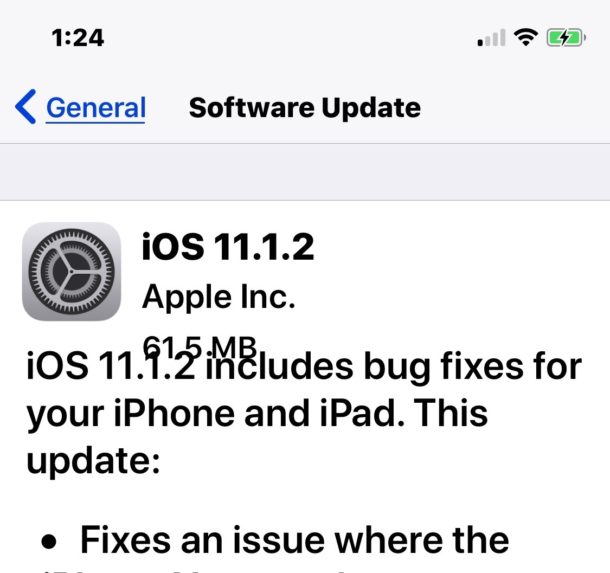
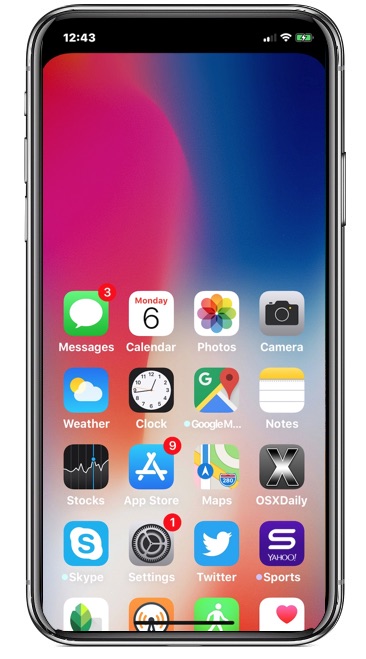
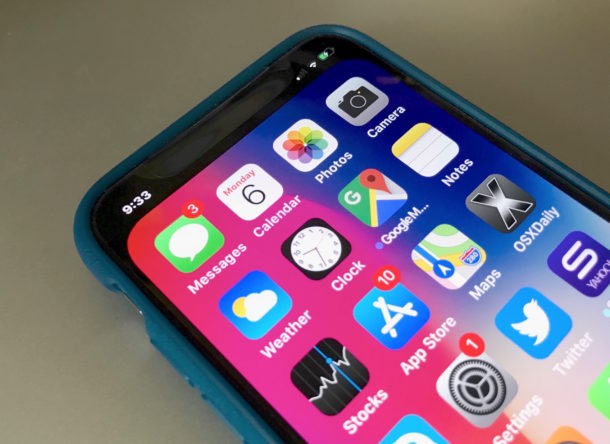
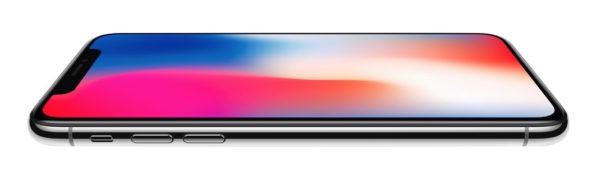
Apple has released iOS 11.1.2 for iPhone and iPad users. The small point release software update appears to primarily focus on solving two particular issues with iPhone X, including a problem where the iPhone X screen becomes unresponsive in cold weather, and with distorted video capture on iPhone X.
Despite the software update release notes primarily mentioning iPhone X, iOS 11.1.2 is available for other devices as well. You can find IPSW download links below, along with the release notes of the update.
By Paul Horowitz - iPhone, News - 5 Comments