Getting disk usage information on a Mac is often gathered by selecting a file, directory, or hard drive and hitting Command-I for Get Info, then appears a nice GUI interface with extended information about the selected object including disk usage. Command-I isn’t the only way to get disk info however, with the command line there are two useful utilities to gather this data that you should know; df and du. The following is a brief explanation of each command and how you can use them:
Need to quickly see where you are in the Finder by showing the current windows path on a Mac?
There are a few ways to do this in Mac OS X, for example you can use a defaults command to show the full path in Finder window title, and we’ll show you another couple of great tricks that are super easy to display the path itself at all times.
First, you may be aware that you can show the path bar in Mac Finder windows to always see the current path to folders on the Mac. That method was discussed by Lifehacker, who posted the following Mac tip about including a specific Path button in Finder windows:
“One of my main complaints about Mac’s Finder versus Windows Explorer is the inability to move up and down a folder tree easily. However, Finder’s Path button lets you do just that. The Path button isn’t included on the Finder toolbar by default, but you can add it by Ctrl-clicking and choosing “Customize Toolbar.” Then drag and drop the Path button – which kind of looks like a staircase – onto the toolbar. From there, use it to see where you are in the folder tree, and move up to enclosing folders in a click.”
That will enable a path button and it’s a great tip, but… there is an easier way to see the path details, and even navigate within the file system through the path structure: Just Command-Click on the Finder window’s titlebar to get the same path on the Mac.
Command + Click on Finder Titlebars to see the Directory Path on Mac
You can then select any of the directories within the pulldown path menu to instantly jump to that directory. Keep in mind that you can navigate down to parent directories this way, but not to child directories, which is best handled through the traditional Mac OS X File browser (you know, just double-clicking a folder to open it like usual).
This nifty path trick also works in some other applications too, particularly the ones from Apple, but many third party developers also include the support in their own Mac apps too. Try it out!
We’ve received several questions asking how to block specific sites from being accessed directly on the Mac. The frustration seems to lie in how easy it is to circumvent the typical measures, such as setting Parental Controls and blocking sites in Safari, only to have them accessed in Camino or Firefox. Well, a quick and efficient way to block access to specified sites is by editing the /etc/hosts file, which has the added bonus of providing system wide results. Whether it’s children or your roommate who you’re trying to stop from visiting a particular website, here’s how to do it.
Gmail is arguably the best web based mail client, featuring a clean no nonsense interface and a monstrously large mailbox size hovering right under 3gb currently, you really never have to delete emails ever again.
Google Notifier brings Gmail to your Mac’s desktop by putting a convenient icon in the menu bar that alerts you to new mail messages, and like Gmail, it is unobtrusive and simple.
The icon is red if you have new mail, gray if you don’t.
It’s a small and free download and makes a great desktop addition for Mac Gmail users.
It’s long been known that Mac OS X 10.5 is due out sometime this year, but when exactly nobody knows and speculation on the release date has been all over the board. SwitchtoaMac.com uses empirical evidence to suggest that Leopard will be released in May, but they go a step further and predict the exact date: May 11, 2007. How they arrive at that date is interesting, if you enjoy the rumors and speculation game then it’s worth a glance.
Everyone enjoys a cool desktop background and OSXPlanet just might take the cake for its automatically updating planet wallpaper. You can choose any of the nine planets (eight if you’re anti-Pluto) and have them displayed as your background. Perhaps the most impressive is with our very own planet Earth, which you can set to display an automatically updated map showing where the sun is shining, where it’s night time, as well as current weather patterns. It’s an effect you really have to see for yourself, so check out the screenshots below and download OSXPlanet. The app is free so you have nothing to lose.
You’ve probably noticed by now that we frequently rave about Spotlight, an invaluable tool and one of the greatest features of Mac OS X. Although it’s main intention is to be an instant search utility for documents, pictures, music, emails, whatever, it also works wonders as a super quick application launcher (often I will use Spotlight more than the Dock for this purpose).
If you aren’t enjoying Spotlight quite yet, you are really missing out on one of the better features of the Mac operating system. That’s what these six handy little keystrokes are aimed at, they will help get you started to get the most from your Spotlight usage in Mac OS X.
Let’s get started! From opening the search menu, opening a separate search window, launching the first return, revealing items in the Finder, skipping category results, and clearing out the search results to start anew, we have them covered. In no particular order… the six keystrokes are: Read more »
Dashboard is the kind of thing you either love or hate, using the widgets constantly or not at all. How much use you get out of Dashboard will probably determine if you want the feature to stick around in Mac OS X or not. As regular readers may recall, we have discussed how unused Dashboard widgets can take up a lot of memory and slow your systems performance on older Macs running versions of OS X prior to more modern releases with better memory management (think Leopard, not Mavericks), and we also showed you how to reclaim that memory by terminating the individual processes. But of course users can choose to go further, and this is relevant to all versions of OS X, so for those that don’t use Dashboard or its widget features at all, we’ll show you how to disable Dashboard completely (but don’t worry, it is just as easy to enable again should you change your mind). Read more »
Have you ever watched an online video tutorial, or record a screencast of what you’re doing on your Mac screen? Ever wondered how to create one of these yourself? Of course getting the right software is part of the mix, but many users don’t even know where to begin.
Fortunately, there are many options available for capturing screen casts of OS X, one option is even bundled into the Mac! So regardless of what you are planning on doing and what version of software is running on your Mac, you will have options for recording your very own screencasts.
Let’s review a few of the top choices for creating screencasts on Mac.
Looks like we’ve gotten one step closer to Leopard with the release of Mac OS X 10.4.9 today. Plenty of updates, fixes, some new features, and performance tweaks are included. While it’s unlikely there will be any problems with the update, some prudent users often wait a day after a release to insure a trouble free update, figuring that if there should be any trouble it will exposed by the second day. Whether you install it today, tomorrow, or next week, it’ll be waiting for you in Software Update. Read on for more info directly from Apple:
We all want our Mac’s to run their very best, but sometimes it’ll require a bit of tweaking to get there. We have shown many simple tips to speed up older Macs, but for the really ancient Macs out there the site LowEndMac has posted a good read that includes eleven great tips to improve and optimize your Mac’s performance. Ranging from running programs written for the appropriate architecture, to keeping your Mac cool, they can help in some unexpected ways for those dusty Macs around the basement.
Ever wondered how you can get image thumbnails to show up in the Finder of the Mac? You’re not alone, and a good question from one of our readers came in on this very topic. A recent switcher to the Mac, Carol Kavanaugh writes: “I got a Mac a few months ago and love it so far, but when I browse a folder full of pictures in Windows a thumbnail image of each picture shows up as its icon, on my Mac I get just a generic icon, is there any way to have Mac OS automatically make thumbnails of my images?” There sure is Carol, in Mac OS it’s called ‘icon preview’ and here is how you would enable this helpful feature:
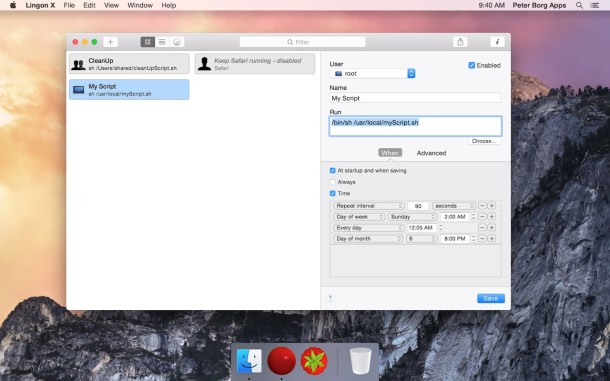
Lingon is one of the more useful apps for advanced Mac users, sysadmins, and network administrators out there. Essentially lingon functions as an easy tool to manage launchd without tinkering with launchd manually from the Terminal, providing a much appreciated GUI to configure the launchd system daemon, which allows you to set schedules for applications and scripts to run like cron, load and unload system daemons and kernel extensions, and so much more.
Generally speaking Mac OS X is secure by default, certainly more so than your average Windows counterpart at least. Of course things can always be more secure, that’s just the nature of computing. I personally don’t sit around and worry about the security of my Mac, but if you’re a bit worried about the potential vulnerability of your Mac, than this may be a good read for you. The article lays out a couple simple and advanced methods to further secure Mac OS X before the release of Leopard.
I like Dashboard a lot, I really do, but it can be an awful memory hog even when it’s not being used. Once you hit F12, the widgets are loaded and don’t quit automatically which makes accessing them later faster, but it also wastes system resources. It’s not uncommon for each widget to take up 15mb of real ram and over 300mb in virtual memory. Having a bunch of widgets open aimlessly in the background can lead to system slowdowns, so here are three different ways to free up memory and kill the Dashboard temporarily.
To all the US Mac users out there, this is just a reminder that Daylight Savings time is coming early this year, so be sure to install the update from Apple to have your clocks working properly. While some news networks are predicting a mini-Y2K and all sorts of chaos, the worst that could really happen on your personal Mac is the time will be inaccurate. The Daylight Savings update has been available for a while now via Software Update, so if you haven’t installed it yet, now is the time. For earlier versions of OS X and for more information in general, check out this Ars Technica article:
According to this report we might see a portable Apple offering with solid state drives (or at least a hybrid) in the second half of 2007. This is very exciting for many reasons. Solid state drives do not fail nearly as much as spinning drives, they use less power and they generate less heat all while increasing performance. Obviously a “hybrid” solid state/spinning drive is still going to have moving parts, and therefore will continue to run a risk of “breaking”, but this is a giant step forward for solid state drive technology. Of course Apple is not commenting on the “rumor” at this point, but this is standard operating procedure for their Public Relations department. The first question that comes to my mind is whether or not I’ll be able to swap out my SATA drive for a new hybrid drive. I’d love to get more battery life from my MacBook Pro and it sounds like a solid state drive would be ideal. Exciting stuff from Cupertino!
Brian W. asks the following great question: “I’d like to click a link such as “mailto..someone@anywhere.com” and have it automatically open up my web browser to Yahoo mail. Is there a way to set my default email client to my Yahoo mail account? I’d prefer not to use Apple’s Mail client.”
Well Brian, you’re not the only one to wonder. Millions of people use webmail clients instead of Mail or Outlook and the answer to your question is: Yes! It’s very easy to do with a simple and free third party preference pane called Webmailer.

 Getting disk usage information on a Mac is often gathered by selecting a file, directory, or hard drive and hitting Command-I for Get Info, then appears a nice GUI interface with extended information about the selected object including disk usage. Command-I isn’t the only way to get disk info however, with the command line there are two useful utilities to gather this data that you should know; df and du. The following is a brief explanation of each command and how you can use them:
 You can then select any of the directories within the pulldown path menu to instantly jump to that directory. Keep in mind that you can navigate down to parent directories this way, but not to child directories, which is best handled through the traditional Mac OS X File browser (you know, just double-clicking a folder to open it like usual).
 We’ve received several questions asking how to block specific sites from being accessed directly on the Mac. The frustration seems to lie in how easy it is to circumvent the typical measures, such as setting Parental Controls and blocking sites in Safari, only to have them accessed in Camino or Firefox. Well, a quick and efficient way to block access to specified sites is by editing the /etc/hosts file, which has the added bonus of providing system wide results. Whether it’s children or your roommate who you’re trying to stop from visiting a particular website, here’s how to do it.
 It’s long been known that Mac OS X 10.5 is due out sometime this year, but when exactly nobody knows and speculation on the release date has been all over the board. SwitchtoaMac.com uses empirical evidence to suggest that Leopard will be released in May, but they go a step further and predict the exact date: May 11, 2007. How they arrive at that date is interesting, if you enjoy the rumors and speculation game then it’s worth a glance.
 Everyone enjoys a cool desktop background and OSXPlanet just might take the cake for its automatically updating planet wallpaper. You can choose any of the nine planets (eight if you’re anti-Pluto) and have them displayed as your background. Perhaps the most impressive is with our very own planet Earth, which you can set to display an automatically updated map showing where the sun is shining, where it’s night time, as well as current weather patterns. It’s an effect you really have to see for yourself, so check out the screenshots below and download OSXPlanet. The app is free so you have nothing to lose.
 You’ve probably noticed by now that we frequently rave about Spotlight, an invaluable tool and one of the greatest features of Mac OS X. Although it’s main intention is to be an instant search utility for documents, pictures, music, emails, whatever, it also works wonders as a super quick application launcher (often I will use Spotlight more than the Dock for this purpose).
  Dashboard is the kind of thing you either love or hate, using the widgets constantly or not at all. How much use you get out of Dashboard will probably determine if you want the feature to stick around in Mac OS X or not. As regular readers may recall, we have discussed how unused Dashboard widgets can take up a lot of memory and slow your systems performance on older Macs running versions of OS X prior to more modern releases with better memory management (think Leopard, not Mavericks), and we also showed you how to reclaim that memory by terminating the individual processes. But of course users can choose to go further, and this is relevant to all versions of OS X, so for those that don’t use Dashboard or its widget features at all, we’ll show you how to disable Dashboard completely (but don’t worry, it is just as easy to enable again should you change your mind).
 I like Dashboard a lot, I really do, but it can be an awful memory hog even when it’s not being used. Once you hit F12, the widgets are loaded and don’t quit automatically which makes accessing them later faster, but it also wastes system resources. It’s not uncommon for each widget to take up 15mb of real ram and over 300mb in virtual memory. Having a bunch of widgets open aimlessly in the background can lead to system slowdowns, so here are three different ways to free up memory and kill the Dashboard temporarily.
 According to
  Brian W. asks the following great question:



