
Rip DVD’s in Mac OS X
 There are several different ways to rip dvd’s on your Mac, we’ll cover ripping DVD’s with HandBrake and with VLC here.
HandBrake is probably the best choice for ripping a DVD in Mac OS, and it makes DVD rips very easy to create in a variety of file formats. Basically the steps are this easy:
- Insert a DVD into your drive
- Launch HandBrake
- Handbrake will then scan the DVD disk and read all the chapters and titles. Tip: be sure to select the proper title because if there’s any special features or extras on the DVD you could inadvertently rip that instead of the actual movie.
- If HandBrake doesn’t automatically find the DVD just click on File > Open Source and manually select the DVD
- Select the file format you want to export to and the destination (default is mp4 to desktop), and rip!
It will take a while to rip the DVD depending on the speed of your Mac but the ripped DVD will appear on your Desktop when it’s done.
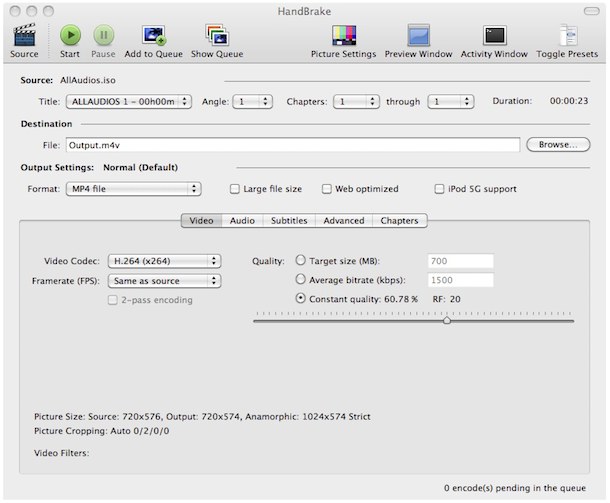
You can pick up Handbrake for Mac at the Developer home
Another option is VLC. VLC includes a simple DVD ripper, it’s not ideal simply because there are better ones out there (think handbrake) but if you’re in a bind VLC works. Here’s how to rip a DVD with VLC on your Mac: with a DVD in the drive, launch VLC, go to the File menu and select “Open Disc”, from there you can select “Convert” and adjust the starting positions to the right chapter, click ‘save’ and wait a while for it to rip! You can also get VLC from the Developer home.
Note that some versions of Handbrake require VLC to preview the rip, so download both of them!






Thanks! this was quick and effective the way I like it!
Saved my morning, Thanks!
MacX DVD Ripper is a far superior product. It is well worth the 30-40 bucks to spend on it. It crushes through the latest encrypted DVD’s, including Rango, Transformers 3, etc. You can also convert to many more types of output formats than any other software.
I’ve used Handbrake, DVD Shrink, MacTheRipper (no longer works on Lion), and this is by far the best experience. Brilliant product.
I requested a dmg for installing/making a bootable 10.6.6 DVD as lion is next month’s purchase.
This Handbrake seems to not work very well. I think it hangs on my computer… so maybe my 10.5.8 is too old?
[…] is famously known to allow you to rip DVD’s but the new version also works wonders as a video conversion tool to get your favorite videos and […]
@ Laura
In iTunes, use the “Get Info” option. Go to options and there you can change “Media Kind” in TV Show
yours, Hga
what is the best setting to use for ripping to the mac mini that is connected to a 42in but also want to stream to a 55in via apple tv but also with the option to stream to ipad and iphone both locally and remotely
[…] while now. It will play virtually any video file type or stream and even has a built in ability to rip DVD video for local storage. If you don’t have it for the desktop yet either, it’s highly […]
Mac the Ripper isn’t supported anymore. Ifound the best and simplest way to rip on a mac is Ripit.
[…] Rip DVD’s on your Mac – what media center is complete without media to watch? Rip your DVD’s and watch them from your Mac hard drive […]
[…] the codecs you’ll need to play various video formats. Download and install Handbrake – Rip DVDs to your Mac hard drive in an array of different file types, store them on the Mini for easy access within […]
[…] the graph above for the gains against the previous top-end model, the Core 2 Duo at 2.8Ghz. Even ripping a DVD with Handbrake took almost 40% less time on the new Core i7 chip. Some of the performance gain is […]
I second the above comment from Andrew. The review about DVD Ripper For Mac is second to none! I’ve followed their recommendation and pretty happy! Saved $5 too :D Happy Easter.
What if the DVD is a tv show rather than a movie? I downloaded Handbrake, and I have VLC so it ripped the DVD, but it appears to have ripped only the first episode, leaving the other titles behind. Is there a setting I can change in Handbrake or a better program I can download?
Thanks.
Handbrake does require VLC to work but it allows you to save as m4a or same video format iTunes use for digital copy dvd’s and podcasts. So its easy to remember your place when watching movies, like iTunes does it thing. Only drawback, a powerful computer will half the time of ripping a movie .. takes 1 to 5 hours.
Dude, there is NO “Convert” button to hit on .8.6 thru 1.0.2
Try to press the “start” button
I suggest Mac The Ripper for ripping. I’ve used it for a couple years and it works quite well.
It’s a false distinction because Handbrake requires VLC for ripping.
if you read the text, you can see that it is in the text. So yes, you’re right