
How to Check if your Mac Malware Definitions List is Updated

The malware protecting Mac OS X Security Update will automatically download and update it’s malware definitions list from Apple, but if you’re like me you probably want to know how to manually check if the malware list is updated or not.
We’ll show you where the malware list is located on Mac, and how to determine when it was last updated, and if you want to, we’ll additionally show how to forcibly update the malware definition file on Mac so that everything is up to date as it should be.
By the way, the malware definition list is commonly referred to as “Xprotect” and it is one of a variety of major security features in Mac OS aimed at preventing malware, along with Gatekeeper and MRT.
How to Check When the Mac Malware Definitions List was Last Updated
You’ll need to use the command line for this, but it’s otherwise a pretty simple procedure:
- Launch the Terminal (/Applications/Utilities/)
- Paste in the following command
- Look at the most recent date entry shown in the returned results
For MacOS Catalina and Mojave:
system_profiler SPInstallHistoryDataType | grep -A 5 "XProtectPlistConfigData" |grep "Date"
For MacOS Sierra and earlier
cat /System/Library/CoreServices/CoreTypes.bundle/Contents/Resources/XProtect.meta.plist
The date listed shows when the file was last modified, and the integer tag shows you which version the definitions list is. Assuming you haven’t disabled the anti-malware automatic updates (not recommended) and you are connected to the internet, this list should update on it’s own from Apple every day.
Note for modern macOS versions, you’ll be able to see the Xprotect data through system_profiler, whereas earlier versions are easiest to refer directly to the plist for Xprotect.
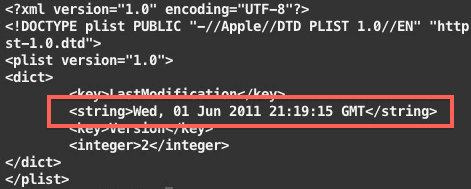
Depending on the version of Mac OS X, you may find that sometimes the XProtect malware listing document is located at the following location instead:
/System/Library/CoreServices/CoreTypes.bundle/Contents/Resources/XProtect.plist
The location is the same, the file name is slightly different (XProtect.plist vs XProtect.meta.plist).
How to Force the Malware Definitions List to Update in Mac OS X
If your malware definitions are outdated, or you are managing the updates yourself, you can force the list to download the newest version from Apple by doing the following:
- Launch System Preferences and click on the “Security” panel
- Click on the unlock icon in the bottom corner, enter your Administrator password to make changes
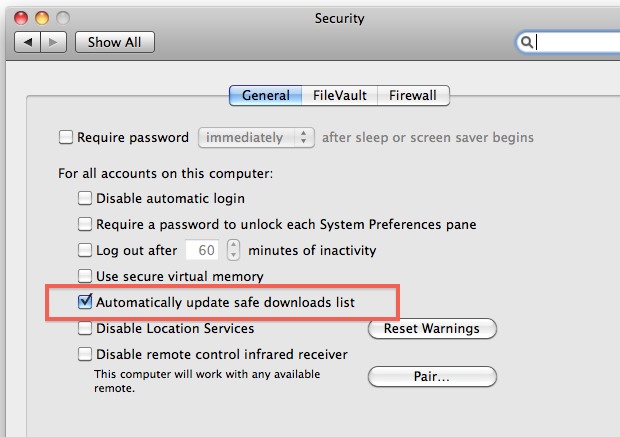
- Under the “General” tab, click to uncheck and then recheck the box next to “Automatically update safe downloads list”
The list should now update from Apple, you can verify you have the most up to date version by using the command line again as shown above.
This is a great tip, heads up to amarold, although they chose to use the ‘more’ command and I went with ‘cat’ mostly because it is shorter.






DOesn’t work in High Sierra:
/System/Library/CoreServices/CoreTypes.bundle/Contents/Resources/XProtect.meta.plist yielded Access Denied.
There is no “Automatically update safe downloads list” checkbox in Privacy and Security
Yes it does. Use sudo, root, disable SIP, or any other method to overcome simple permissions issues.
You’re doing it wrong rz, you don’t know how to do it. I would say, don’t try this any further. This might be too technical and is not for you? It is just beyond what your technical level is and that is OK, it’s the same reason I don’t try to be a biologist, because I do not have that skill set and I would not know what I’m doing in a biological lab setting.
Is there a terminal command I can send out via ARD that will do the equivilant of un-checking the “Automatically update safe downloads list” for all users ?
We are a school district and our main school data application on our Mac OS X 10.6.8 computers will not function completely without Java (Infinite Campus/Gradebook won’t work). We have to edit the Xprotect.meta.plist to get Java working again, then un-check “Automatically update safe downloads list” in Security control panel on thousands of computers. Looking for some terminal commands to resolve this via ARD.
Our service provider, an entity that works in all school in our area, has blocked the malicious attacks at firewalls and such and we have antivirus running on all computers so we should be safe with Apples items disabled until Oracle/ JAVA issue is resolved or until infinite campus gets a fix for JAVA issues from Oracle.
On Mountain Lion, after entering your administrator password, you’ll need to click on the Advanced button at the bottom of the General tab to see that setting.
[…] [via] Condividi questo articolo […]
Yes, “cat” is shorter than “more” but only if you have a short file to display other wise it is longer because you have to type: “cat|more” to page and doing so is really a waste of time.
Is it just me or is this too complicated for Apple? Why can’t the definitions list update information be in the Security prefs right alongside the option itself? Wouldn’t that make more sense?
A rare failure of Apple’s generally simplistic handling of complex tasks.
pfbbt…
as root, a la sudo, if you please…
# ls -l /System/Library/CoreServices/CoreTypes.bundle/Contents/Resources/XProtect.plist
-rw-r–r– 1 root wheel 7881 May 31 16:44 /System/Library/CoreServices/CoreTypes.bundle/Contents/Resources/XProtect.plist
# /usr/libexec/XProtectUpdater
# ls -l /System/Library/CoreServices/CoreTypes.bundle/Contents/Resources/XProtect.plist-rw-r–r– 1 root wheel 8991 Jun 2 14:48 /System/Library/CoreServices/CoreTypes.bundle/Contents/Resources/XProtect.plist
huzzah!
Huzzah indeed! Why eat grass with the sheep when you can have bread and mutton with the farmer?
This seems to not be applicable to Snow Leopard Server.