
Use the Magnifying Glass Tool in Preview to Zoom Into Image Detail on Mac
Oct 3, 2011 - 11 Comments

Preview in Mac OS includes a helpful magnification tool that follows the mouse cursor, allowing you to zoom into details on whatever picture is on screen.
How to Use the Magnifying Glass in Preview on Mac
To activate the Preview Magnifying Glass tool:
- Open a picture in Preview on Mac
- Now hit the ~ (tilde) key with an image open in Preview
- Adjust the zoom level by using the trackpad or tracking surface of Magic Mouse you can pinch or spread to increase or decrease the size of the magnifier
You can also the Magnifying glass tool from the Tools menu and choosing “Show Magnifier”
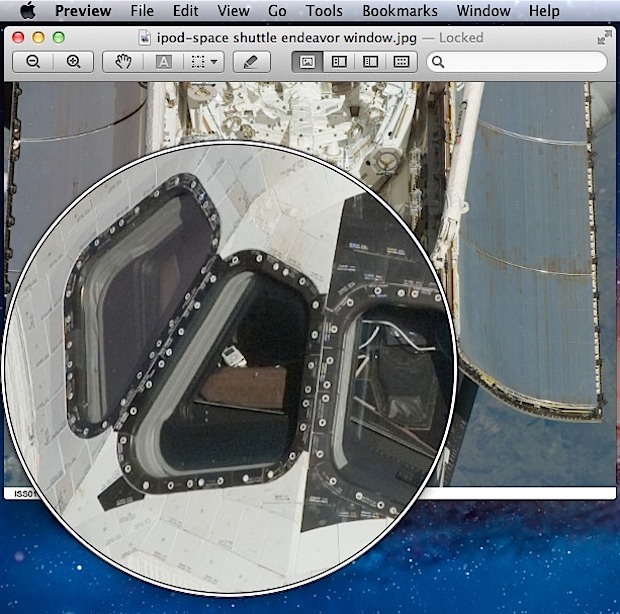
This is pretty useful and offers a much more precise option than zooming in on a full sized image with the command + and – shortcuts and then navigating around.
The magnifying glass tool in Preview has been included in Mac OS X for quite some time, from Lion onward through Sierra and beyond.
Thanks for the tip Alejandro






My magnifying glass in preview keeps changing shape while I’m reading pdfs. Itll be a rectangle then suddenly it gets a little wider, or a little smaller or will turn into a square. Its incredibly irritating.
> My magnifying glass in preview keeps changing shape while I’m reading pdfs
I *just* noticed this when I accidentally hit the tilde key (*). And noticed the strange zoom-area-getting-bigger behavior.
I assume it’s the trackpad misinterpreting a finger-move as a “spread” gesture (“opposite of pinch”, whatever that is called), or something to do with force-touch. Of course there seems to be no help topic on this, nor anything in the “Accessibility” preference pane.
(*) Apple seems to be good at this. They put useful features into things – that could actually be used as *selling points for macOS* – and then *not telling anyone about them! How does this make any business sense?
You’d think the Accessibility prefPane would be where they’d put at least *instructions* for ALL the “accessibility features” in ALL the apps that support them. They could call the system framework to support this “AccessibilityKit”.
Another tip: if you don’t have the track pad, use the + sign to make the magnifying circle bigger, and the – sign to make it smaller (like in Photoshop when changing the pen sizes).
[…] via OSX Daily […]
So that’s how CSI solves all those crimes. I always wondered.
Now this may just be my keyboard, but for me it’s actually the backtick (`) key that does it. The tilde (~) is Shift-`
[…] Use the Magnifying Glass Tool in Preview to Zoom Into Image Detail Use the Magnifying Glass Tool in Preview to Zoom Into Image Detail… Source: osxdaily.com […]
My magnifier glass is rectangular; how do I get a circular one?
It seems that JPEG, TIFF and other image files get a circular magnifying glass, whereas PDF files get a rectangular one.
Thanks for this! On a German keyboard layout we don’t have such a specific tilde key. Can you tell me the key for the magnification tool on a German keyboard?
Go to Tools in the menubar
There should be a sign next to Show Magnifier
This is the key you should use.
In Belgium it’s the ` key.