
Format an External Hard Drive or USB Flash Drive for Mac OS X
 If you want to insure full Mac compatibility of a new external hard drive or flash disk, you’ll want to format the drive to the Mac OS Extended filesystem. This is particularly necessary for purchases of generic PC drives, which almost always come preformatted to be Windows compatible rather than for Mac OS X.
Yes, connecting an external hard drive or USB flash key to a Mac will generally read and work fine as is because the Mac can easily read other filesystem formats, including Windows MSDOS, FAT, FAT32, ExFat, and NTFS formats, but unless you intend on using the drive between a Windows and Mac machine, formatting it to be entirely Mac compatible filesystem is highly recommended, and necessary for Time Machine and to make disks bootable.
If you have never formatted a drive before on the Mac, don’t worry, it’s super easy and we’ll walk you through the entire process.
How to Format an External Drive for Mac Compatibility
This is a simple procedure and is achieved the same way for all drive types and through all connections, be they USB, Firewire, or Thunderbolt. Formatting a drive will erase all data and partitions on the disk:
- Connect the hard drive or USB key to the Mac
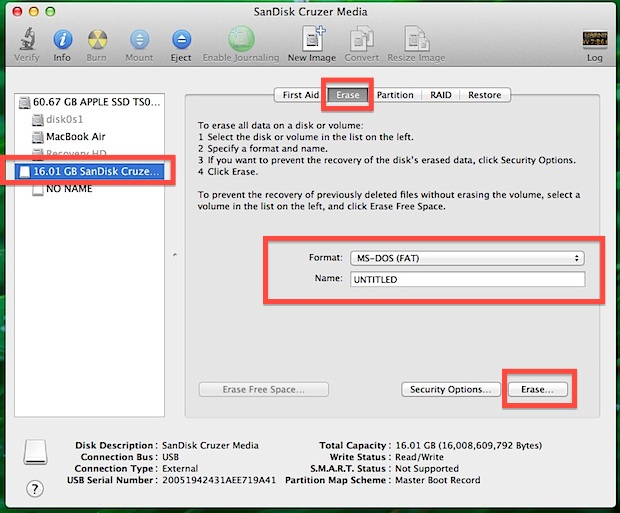
- Launch Disk Utility, located in Applications > Utilities
- Locate the drive name from the left hand side of Disk Utility and click on it
- Click on the “Erase” tab across the top
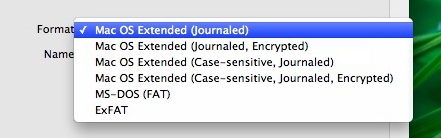
- Next to “Format:” click the contextual menu and select “Mac OS Extended (Journaled)”
- Name the drive if you want, the name can be changed at any point
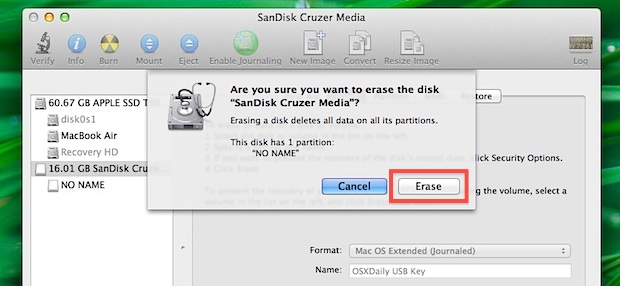
- Click the “Erase” button and confirm again on the next pop-up window, this will erase all data on the drive and format it to be compatible
That’s all there is to it, the drive will now format and erase everything on it.
Smaller external hard drives, SSD’s, and USB flash keys format quickly, while a larger hard drive may take a while longer. When completed, the drive will be formatted to the Mac OS X compatible HFS+ filesystem.
The videos below demonstrate the complete process of formatting an external hard drive for full Mac OS X compatibility, this uses the new Disk Utility in modern versions of Mac OS X:
Similarly, you can perform the same type of process in Mac OS X for making a USB flash drive compatible with Mac OS using the Disk Utility in Mac OS X, as you can see, it’s a quick procedure that is done in short order on any Mac:
Should you intend to make an Mac OS installer drive (for OS X Mavericks, OS X El Capitan, OS X Yosemite, etc) or create any other bootable Mac OS X volume from a drive, or use a new drive as a fully compatible Time Machine backup drive, you will also need to complete this process.
The process of formatting a drive to be compatible with Windows PC and Mac OS X requires a different format choice, but is otherwise quite similar.






Many thanks, this worked perfectly! I bought a new iMac that would not write on my year-old Seagate EHD* so I purchased a WD Elements 4TB drive several months ago. Only got around to setting it up today and encountered the same problem. I was about to blow $$ on a Mac-only drive when I found the solution here. Thank you for helping me save time, money and sanity. ❤️
* The old iMac, which was pretty darn old, allowed writing on a number of different drives
It deleted all the file on my HD!!!!
Yes formatting a hard drive deletes all data on the drive, that is why you choose “Erase” because it erases the data.
Did you even bother reading the article? It states this specifically “Formatting a drive will erase all data”
Happy New Year Obver!
Ever consider English may not be the persons first language? Was that public shaming really necessary?
Wishing you the best (an example of kindness)
How do I unlock my Apple MacBook Air with my pen drive?
HELP PLEASE !
I am Computer-Eleteret lol. My Husband bought me a “Tara-Bit ” Hard Drive to put All my pictures on Before I blow Up my Mac,Like I did with our H.P., He Even put in an “Extra”500 gb. Hard Drive in it & My pictures still over loaded The Thing. Now My Mac is about There. I keep trying to get 1 of my Brainiack kids to Help Me Set Up My “Tara Bit” Extrnal Hard Drive. I just have no Clue how to do it. And Can Not Seam to find a Easy Manual for Dummies like Myself set it up “Format” ?
PLEASE HELP,Before I run out of space on my mac, Real Close.
Cómo formatear un disco duro externo para compatibilidad con Mac:
Este es un procedimiento sencillo y se realiza de la misma manera para todos los tipos de unidades y a través de todas las conexiones, ya sean USB, Firewire o Thunderbolt. Formatear una unidad borrará todos los datos y particiones del disco.
1-Conecte el disco duro o la memoria USB al Mac
2-Inicie la Utilidad de discos, ubicada en Aplicaciones > Utilidades
3-Localice el nombre de la unidad en el lado izquierdo de la Utilidad de Discos y haga clic en él (Es fácil porque se identifica como externo)
4-Haga clic en la pestaña “Borrar” en la parte superior
5Junto a “Formato:”, haga clic en el menú contextual y seleccione “Mac OS Extended (con registro)”.
6Nombra la unidad si lo deseas, el nombre se puede cambiar en cualquier momento.
7-Haga clic en el botón “Borrar” y confirme nuevamente en la siguiente ventana emergente, esto borrará todos los datos en la unidad y la formateará para que sea compatible.
8-Eso es todo lo que hay que hacer, la unidad ahora se formateará y borrará todo lo que contenga.
Why after format the computer shows “The disk you inserted was not readable by this computer” Thank you!
Will I be able to copy and share media across both Mac and Windows? That’s all I need to know 🙏 thanks
Thank you sooooo much!! What a relief!! Had been struggling!!
I’ve had a USB for a few months now, and it’s proven to be reliable, if hard to connect. At one point, however, it uninitialized itself and now I can’t access the 5+ gigabytes it still has on it. Is there an option besides just declaring the data irretrievable, and more importantly, how does a USB uninitialize itself?
I purchased a 4TB WD external drive and having a heck of a time reformatting this drive. I have tried all the above advice without getting to have this new hard drive formatted. Any other suggestions? I just keep getting the error Disk erase failed.
same here. can’t figure it out either.
Same problem.
Erase and then the drive is no longer mountable and can’t be repaired or partitioned.
I’ve used this procedure for a dozen of the same drives over the last year without problem. There must be something new with High Sierra 10.13.3 that has messed things up. (?)
Try formatting in safe mode… Good Luck!
How would I format it in safe mode? I’m having the same issue with my new external hard drive.
I have a Mac, the HDD failed, so I had to get a new one. At the moment, I have access to a Windows 10 PC, how do I create a bootable USB for the Mac, using a Windows 10 PC?
Thanks in advance.
This ruined my drives
If you format a hard drive it erases the data on it. That is what formatting does, it erases a drive. It does not “ruin” anything, but it does remove the data on it. What else do you think erasing a drive is supposed to do except erase the data?
This process ruined my USB … It no longer show on external drives
Hi, I did what it said. But two of my USB are ruined, my computer cannot read them anymore. I kinda wanna cry
THANK YOU SO MUCH!! I was beating myself up about accidentally buying a 2TB hard drive for PC instead of Mac, and now I’m so relieved! Still works and I’m on a 13 inch retina MB Pro working on Yosemite (i’m too lazy to update). This post is a lifesaver even 5 years down the track!
If I want to send a flash drive/flashstick to someone (who has a MacBook) with video files (from a MS-based laptop) already on the drive, will that person be able to format the flash drive retroactively for her/his MacBook?
Thank you.
If I already have files on the external hard drive, will “erasing” it permanently erase the files or just erase them and then automatically re-download and format them?
Just trying to figure out if I need to back my pictures up to a second hard drive before I do this.
Backup everything you want to save. Nothing is left on the external hard drive after formatting is completed.
The one single thing, arguably one of the most important bits has been skipped altogether from this guide…. when creating/formatting the USB device, whether to use GPT or MBR partitioning schemes :\
Majority if not all flash drives come not only with Windows dominant file systems, but also MBR formatted, vs the Mac where the operating system is always installed to a GPT partitioned disk.
It’s not obvious whether the usb installer should be MBR or GPT partitioned
Format for Mac compatibility as described, I use it with every disk. You do not need to mess with schemes, this is not Windows. This is Mac. You use MBR or GPT depending on what you want the drive to do. In this case you are formatting the drive to be Mac compatible. This is not about Windows.
Bhosadda, it’s quite sad Ina Carlo had a lot to say yet didn’t answer your question. Even sadder still is the fact the original article foolishly overlooked that popup menu. I will not remedy that. Although you could opt for either, technically Macs should use GUID. MBR is for Windows.
I have a 1TB Toshiba external hard drive, I have been using on my iMac and have been able to read an write on it. I recently purchased a macbook pro and tried to write on the external drive but it won’t let me. Why is it working on my iMac and not on my macbook pro? It seems that the hard drive is formatted for Windows but it does work (read and write) on my iMac. Do I need to format this external drive to be able to use in more than one Apple computer? I’d appreciate your help!
I know it sounds stupid but it didn’t work… Tried to do it with a drive I previously used as a time machine
What if it says.
“Erase process has failed.”
I have an Iomega Ext. drive with files from a Windows based PC that I want to keep. The storage is half full with over 567MB of storage left. Am I able to continue with the formatting without erasing the current files that are already on it?
I have a new maxone external drive, and it is not recognized in the left-hand panel of the Disk Utility. It is connected by USB cable, plugged directly into mu iMac.
Just bought a 4TB Segate Drive for my Mac to use with Time Machine . . . when I try to use disk utility . . .
Connect the hard drive or USB key to the Mac
Launch Disk Utility, located in Applications > Utilities
Locate the drive name from the left hand side of Disk Utility and click on it
Click on the “Erase” tab across the top . . .
It Fails and says: Disk Erase Failed. Couldn’t Unmount Disk . . . . what can I try to reformat this disk?
Try a different USB port and make sure the hard drive USB is plugged directly into the Mac and not through a USB hub. For whatever reason the Mac commonly struggles with USB hubs, I think because they are not powered. I get similar errors constantly when using USB hubs on Mac with external drives, but when plugged directly into Mac the hard drives work.
Also make sure the external drive is not locked.
Having the identical problem connected directly to USB on the back of iMac. Since the Disk Utility changed I have not been able to reformat Seagate drives, Western Digital are fine. How do you tell if it is locked?
I want to use the pendrive and hard drive on both OS’s so which settings should I have to use ?
The Disk Utility has changed, you might want to update the screen shots to reflect the new version, the Partition tab is noticeably different.
so i just did everything what it says, and now my tv cant read my usb. what should i do?
Thanks :P
The same problem – trying to reformat my flash drive and I keep getting failed response – first erased free space and it came up with an error/reason it couldn’t work – the second time it said “A disk with a mount point is required.” Then I hit plain old “erase” and it tells me it “couldn’t modify partition map.” Help?
Same here! This is the exact message. It’s a brand new 32 GB flash drive. I didn’t set up any partitions. It came straight from the box:
“Are you sure you want to erase the partition “Lexar”? Erasing a partition deltes all the data on that partition, but does not affect other partitions on the same disk.”
I click [Erase], then
Volume Erase failed
Volume Erase failed with error: Couldn’t modify partition map.
Same here. “Erase process has failed. Click Done to continue.” Details say: “Unmounting disk. Couldn’t modify partition map. Operation failed…”
i tried to do this and it failed. it would not give me details.
OK so you did something wrong, try again to format for Mac OS X
https://osxdaily.com/2012/01/04/format-an-external-hard-drive-or-usb-flash-drive-for-mac-os-x/
I purchased a WD my passport 1 TB external hard drive through Amazon.com. What I didn’t realize was that it wasn’t one for mac. Is it okay to keep it and reformat it for mac or am I much better off returning it and buying another one specifically for mac?
Yes just format the drive for the Mac as described in this article on formatting an external hard drive to Mac OS X compatibility.
https://osxdaily.com/2012/01/04/format-an-external-hard-drive-or-usb-flash-drive-for-mac-os-x/
Very well written!
Thank you so much for your help
The comment at the end is confusing (see the last phase in quotes below)…Is that just an advertisement?…it goes to a Dell site. I want to follow the 7 step instructions to format a backup drive for my 10.4.4 Yosemite Time Machine system. Can I follow the 7 steps and achieve that? and just ignore this addition instruction in quotes? “Should you intend to make an OS X installer drive (for OS X Mavericks, OS X El Capitan, OS X Yosemite, etc) or create any other bootable Mac OS X volume from a drive, or use a new drive as a fully compatible Time Machine backup drive, you will also need to complete this process.”
Yes, you can format an external hard drive for Time Machine this way. And no this is not the Dell site.
Thank you so much !!! :]
I have an external drive and tried going to disk utilities….Erase…Mac OS extended (journaled)….Erase I get an error that it is unable to format. Any suggestions? the external drive is brand new 1TB Tuxera NTSF external hard drive.
I have an external hard drive that used to work with my mac. Now it is reasonable only on a mac but I can read and write in a windows pc. How can i make it read and write for both mac and windows
i have a WD portable hard drive – 500 gb
I want to format it for my mac, but when i plug it in the USB port , the mac does not read the drive and therefore i cannot format it
please help
Rgds
Deon
If the drive is not recognized by the Mac, you can use Disk Utility to recognize the PC formatting and then format it for Mac compatability: https://osxdaily.com/2012/01/04/format-an-external-hard-drive-or-usb-flash-drive-for-mac-os-x/
even in Disk Utility the external drive is not recognized and therefore i cant select anything to erase or format
this is a brand new WD external hard drive
rgds
Deon
[…] both Mac and Windows, are not compatible for using as a Time Machine drive, and as they are not exclusively formatted for the Mac, will have other limitations which are not desirable for exclusive Mac OS X […]
Thanks man. It worked perfectly
I have external HD and want to use it with my mac. But I have several pictures on this HD. I want to be able to add folders and continue to put several of my pictures and files on it. WHat do I need to do?
Thank You So much dude, now i am really happy :)
OMG THANK YOU SO MUCH – so easy an quick. everything works fine.
Oh my gosh. Thank you. Thank you. Thank you. I have been fighting with a Click Free external drive (just plug in and it’s done!) for over a week. I have contacted customer service. I have reinstalled NTSF whatever. error. error. error. I was going to mail it back this morning. I just did what you said and it is now backing up. Keeping my fingers crossed but SO relieved! Can check this off my list and move on.
Help – new mac user. If I want to read files, videos etc on a mac, that I loaded onto my hard drive through a pc, how can this be done?
Appreciate your hep in advance
If you’re intent is to only read files loaded from a pc from a mac, the standard windows NTFS format should suffice. As the article mentioned, this is one of the common formats in external hard drives.
If you want the ability to read and write in both windows and mac, format to the MS-DOS (DAT) format.
your*
(FAT*)
So I tried to do the MS-DOS (DAT) FORMAT so I could read and write in pc and mac but I clicked erase and it said it failed then I tried to select it again and it’s no longer available for that drive neither is fat 32 please help. I have a new WD MY BOOK 3TB USB 3.0 + USB 2.0
FAT 32 DOS cannot format a 3Tb drive you need to get WD software from WD site to see if you can do that or if you have to make partitions to use for mac
Use ExFat compatible with both formats
thanks man. Works great :)
[…] you only intend on using the drive on a Mac it’s recommended to format for Mac OS X use only using the journaled file system. Just be aware that the Mac-only formats are typically not readable […]
What if that USB drive has U3 software on it. I read that you can ruin the USB drive if you don’t do it in a special way.
I did this with a WD 1TB, but it took me 600 MB of space!!!!
600MB compared to 1TB is nothing. Thats like a mouse’s size compared to the sun’s size
That’s not a good analogy.
While the proportion of 600MB to 1TB is 0.06% is small, it is not even close to the proportion between the sun and a mouse. Say a mouse is about 10cm long while the sun 1,400,000km in diameter, and the proportion of a mouse to the sun is 0.00000000714%.
You might want to be mathematically more precise.
Note that Windows can not read/write HFS+ so if you have any Systems running Windows or friends who you might borrow a USB stick or external HDD they will not be able to access these media if formatted to HFS+ (except if they install software like MacDrive which enables to read/write HFS+ media from Windows).