
Preview Not Saving JPG Rotation? Use Exif Data to Fix Rotated Image Display

I was driving myself up the wall recently trying to figure out why the Mac Preview.app would not save my image rotations when I exported a picture from Preview in OS X, so in looking for a solution I stumbled onto our friend MurphyMac‘s site and found a solution!
Basically after you have rotated the JPG image in Preview to your desired orientation do the following:
- Go to Save and click on “Use Exif Orientation Tag” to insure that your image rotation will be preserved
This is a minor difference but it’s very important if you want to resolve this problem. Here’s what this looks like in the Preview Save window:
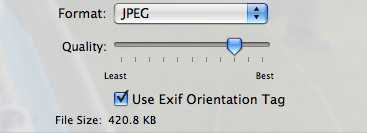
Something to note about this method of rotation is that if you or anyone else strips all EXIF data from the image then the rotation may be lost, so sometimes pixel level rotating is a preferred trick.
Regarding the latter, however, MurphyMac warns that if you don’t use Exif Orientation, you may experience some loss of image quality since the pixels are being rearranged, so it might be best to use the images backup – that basically means you’ll want to make a copy of the picture before modifying the actual image, this insures that you’re not modifying or disrupting the original image quality, which is important if you want to use the picture again for something else. Thanks a bunch to Murphy for the solution!






Same thing here as jf — also on 10.4.11. What a silly thing to omit, Apple.
Doesn’t work on a jpeg in Tiger 10.4.11.
Save exif data not given as an option in either save or save as.
Did the rotatation in GIMP and interesting side note, save exif data option / checkbox is grayed out…. but the rotation was saved.
Frank, that is correct. With EXIF checked the rotation is lossless, without it, there may be loss of quality.
Just to be clear, checking the tag box is lossless, right? If you want to rearrange the pixels you have to export the image with the box unchecked?