
Use Special Characters & Emoji Directly in the Finder of Mac OS X
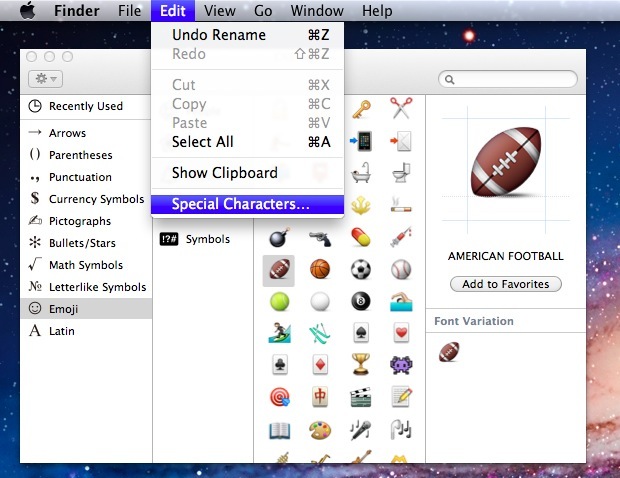
If you want to quickly style your folders or Launchpad with Emoji, you can access the Special Characters panel directly from the Finder in Mac OS X and then drag or enter those special characters or emojis into the folder or file names.
The first thing you’ll want to do is go to the Finder and then access the special character menu:
How to Access Emoji from Finder in Mac OS
- Click on the Finder or the Mac OS X desktop
- Pull down the “Edit” menu and select “Emoji & Symbols” or “Special Characters”
This will bring up the Emoji & Special Characters panel directly in the Finder on the Mac.
Now you can just get the icon or character into the file name by doing either of these:
- Drag and drop an icon from the Special Characters panel onto the desktop to create a .textclipping containing the special character or icon
- Drag and drop the character directly into a folder or file name
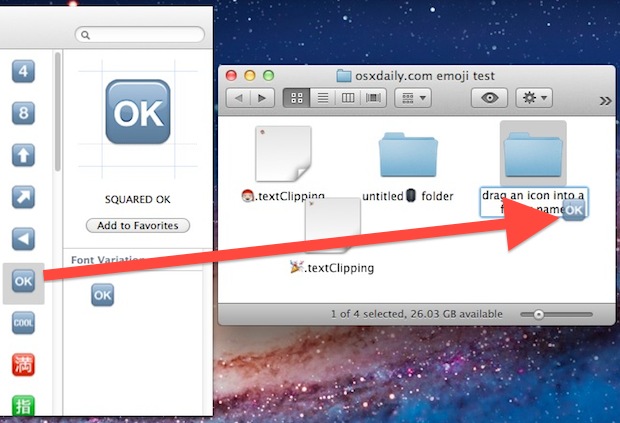
Even with it’s quirks, this is quicker than using TextEdit or another app to access the Emoji icons.
A quick weird side note for some versions of Mac OS, and this could be a bug or maybe it’s intentional, but if you right-click on an item from the Special Characters panel and chose “Copy Character Info”, instead of getting just the icon into your clipboard you’ll get the full unicode and more, like this:
“🎃JACK-O-LANTERN Unicode: U+1F383 (U+D83C U+DF83), UTF-8: F0 9F 8E 83”
You can either just delete all the text after the Emoji character since it appears at the front of the string, or leave it as is if you want to see the unicode for some reason.
Thanks to ram who left this tip in our comments!






Or just double-click the character and it will be auto-pasted to active text window.
Is it possible to make my own ‘ Special Characters ‘ or Emoji? Please HELP. I could keep busy for days making my own.
FTFY
“Copy Character Info”, instead of getting just the icon into your clipboard you’ll get the Character Info.