
Change the Mail Font Size on iPhone
The font size of mail messages can appear really small on the iPhone, iPad, and iPod touch screens, but the default setting can be adjusted and increased substantially if the text size just looks too small.
If you want to know how to change the font size of Mail on an iPhone and iPad, you’re in the right place. You can change the text size quite dramatically, so you will want to try a few different options out, and ultimately it will depend on the quality of your eyesight as to what you’re most comfortable with. I have fairly decent eyesight but wear corrective glasses, and find that increasing the size a little bit is enough for me. If the smaller sizes make you squint though, boost the text size considerably and the minimum displayed font size won’t ever be smaller than the setting you choose.
You can change the font size on most versions of iOS, but the process is slightly different per device. We’ll show you how to change text size on iPhone and iPad with iOS 11, iOS 10, iOS 9, iOS 8, 7, 6, and 5, and before. This covers all the bases so no matter what iOS version your device has, it should have the option to adjust font size.
How to Change Mail Font Size in iOS 11 and iOS 10
Changing the font size in Mail app is done by changing the font size everywhere in iOS for iPhone and iPad:
- Open the Settings app and go to “Display & Brightness”
- Now go to “Text Size”
- Adjust the dynamic font size slider to set the desired text and font size for Mail and text found in iOS
The font size you’ll want to go with is a matter of personal preference, keep in mind that adjustments made to the font size here will also change the text size of some other elements on iPhone too – for most users, that’s a good thing.
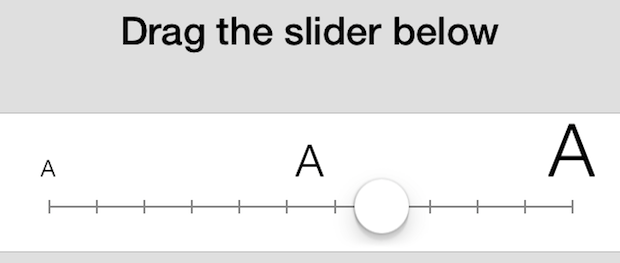
This is nice because it gives you a live preview of what the text size will end up looking like in mail app and elsewhere.
How to Change Mail Font Size in iOS 7 & iOS 8
With other versions of iOS, adjusting font size is a system-wide affair and that extends to Mail app and emails as well:
- Open the Settings app and go to “General”
- Now go to “Text Size”
- Adjust the slider to the right (or left) according to the desired font size for mail and some other text in iOS
The toggle font size screen looks similar on all modern iOS versions.
Increase or Decrease the Mail Text Size in iOS 6
iOS 6 made increasing text size more universal, and the setting for Mail will also boost other apps:
- Open Settings and go to “General” followed by “Accessibility”
- Tap “Large Text” and then choose the text size appropriate for your needs (OFF is default, 20pt-24pt are reasonable for most individuals, and 32pt and higher gets quite large)
Changing Mail Font Sizes in iOS 5 and before
Earlier versions of iOS limited the font size adjustments to Mail, Contacts, and Calendars:
- Tap on “Settings” and tap on “Mail, Contacts, Calendars”
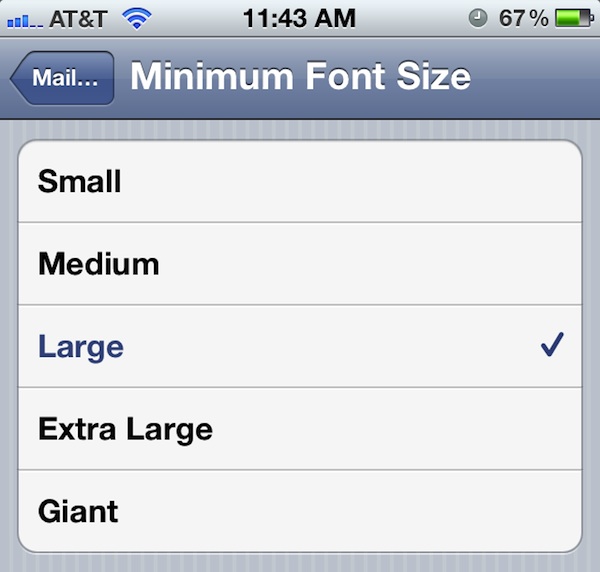
- Scroll down to and tap on “Minimize Font Size”
- Choose either a larger or smaller font
The default setting is “Medium” and “Large” is a reasonable size if your vision is mildly impaired or you just forgot your glasses somewhere. Extra Large and Giant are accurate descriptions of their accompanying text sizes, you will want to take a look at just how big they are before using them as primary settings.
A temporary adjustment to text size can also be done with webpages within Safari by using Reader on the iPhone, iPad, or iPod screen, or by using this bookmarklet trick.






I need to change my script fonts size to Lagers/ Smaller on my apple phone.
How to do it plz
Is there a way to change font colors in AOL email on iPhones (7+).
Thank you.
I have an iphone 5 and I can’t find “minimise font size” in setting, mail, contacts, calendars.
Do you know if it’s available and maybe placed somewhere else like “location Services” now under Privacy??
Thanks
You don’t have to use Reader. You can put the AA in your Toolbar by going to View>Customize Toolbar and increase the website text using it without Reader.