
How to Move an Off Screen Window Back Onto the Active Mac Screen in Mac OS X
Aug 14, 2013 - 55 Comments
Ever had a window get lost partially off screen in Mac OS X, where the window titlebars and close/minimize/maximize buttons are no longer accessible? Typically this looks something like the following screen shot:
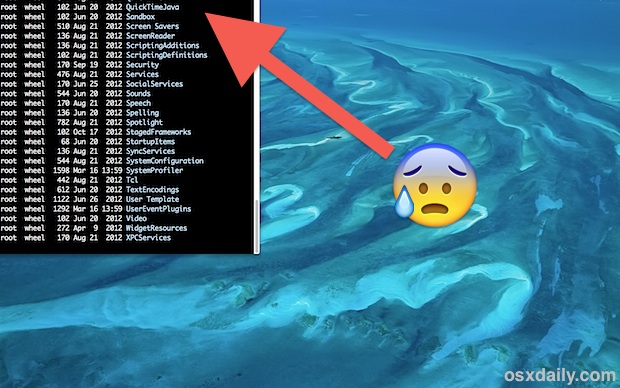
There a variety of potential causes and even random situations for windows to move offscreen like that, but it often happens with multi-display situations where one display is disconnected, leaving a large window behind where it’s titlebar is inaccessible off screen. The next time you find yourself in such a situation, try these two tricks to move any window back onto the Mac screen and regain access to the title bar and buttons again.
By Paul Horowitz - Mac OS, Tips & Tricks - 55 Comments
 Don’t you hate it when you misplace your iPhone and can’t find it? Or when it slides between the couch cushions or under a pile of laundry and you spend 20 minutes checking every possible place in the house to no avail? The old trick many of us use is to call the iPhone from another phone, but if you don’t have another phone handy that’s not particularly helpful.
  Like every other operating system, iOS stores temporary files and app caches locally on the iPhone, iPad, and iPod touch, and these files can build up over time. Generally iOS is pretty good at housekeeping, but if you’ve had a device for a long time and haven’t deleted old unused apps, resynced recently, or restored from a backup, you may have more of these temporary files and caches stored on your iOS device than you think. That’s where PhoneClean comes in, it’s a free app that targets some of the “junk” that can accumulate over time, helping to free up storage space on an iPad, iPhone, or iPod touch.
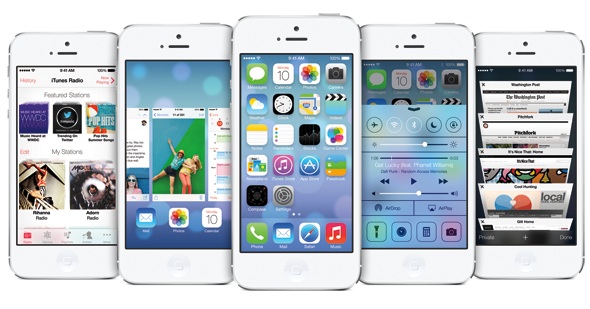
 No longer want an email account on your iPhone, iPad, or iPod? Entire email accounts are very easy to remove from an iPhone or iPad, so whether you changed jobs, email addresses, an email provider was shut down, or perhaps you just don’t want to get emails for a particular account on your device any more, you can easily delete the entire account from the device rather quickly and in one fell swoop.

 Calendar is one of the most useful features of the iPhone, iPad, and iPod touch, and many of us wind up managing our schedules entirely through the app. But even if you’re just a casual Calendar user, you’ll still get some great use out of these five tips aimed at improving the speed of your interactions with Calendar app. You’ll learn to quickly move appointment and event times, change the calendar associated with a specific event, create new events and appointments faster, quickly check for schedule conflicts, and to navigate around all of your Calendars faster than you thought possible.
 If you have multiple Gmail accounts that you juggle between, rather than adding them all to the default iOS Mail app, do yourself a favor and grab Google’s official Gmail app for the iPhone, iPad, or iPod touch. Not only is Gmail for iOS an excellent full-featured mobile email client, it also makes managing multiple accounts extremely simple. This helps to take the strain off your primary Mail app account for iOS by not cluttering it up with too many notifications and alerts, and works well in line with our general recommendation to
 Any photo taken in Instagram will automatically post directly to your Instagram feed, sharing the picture with the world (or at least whoever follows you). But what if you want to take a picture or two with the Instagram app, apply those fancy filters, and not actually share them with anyone? That’s not an option directly within the Instagram app itself, but you can use a neat little trick on the iPhone (or Android if it floats your boat) to indirectly obtain such an ability yourself.



