
Quickly Create a New Image File from Clipboard Contents with Preview
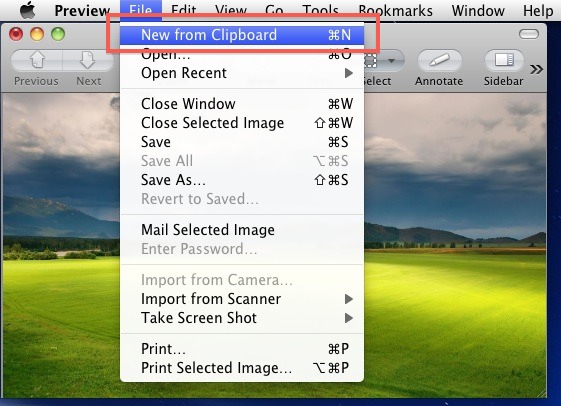
With Mac Preview you can quickly create a new image file from your clipboard contents. On it’s own that might not be too enthralling, but this feature extends beyond Preview, meaning any image that you have copied from anywhere using Command+C will work as the source image to create a new image file. This includes images copied from all web browsers, other Mac apps, and even files in the Mac OS X Finder.
If you use the clipboard and copy/paste with images often, you’ll surely find this feature useful. It’s easy to use, here is how it works.
Create New Image File from Clipboard on Mac with Preview
Once you have an image copied to the clipboard:
- Open Preview on the Mac
- Hit Command+N to create a new image based on the clipboard (or access via the File menu as screenshot demonstrates)
- Save the File as usual in your preferred format
I use this frequently when saving images from the web since it cuts out any digging around in the Finder for a saved image file. Instead, I can just copy an image to my clipboard from Safari, and go straight to Preview to create a new file which can instantly be edited or converted.
Enjoy this great feature, it adds to my productivity on a Mac and surely it will for you too.






Or you could just use the shortcut to select the area you would like and have it automatically save the contents to your clipboard OR to your desktop
Cmd + Ctrl + 3
Cmd + Ctrl + 4
Cmd + Ctrl + Shift + 3
Cmd + Ctrl + Shift + 4
[…] the same trick to create a new image file based on clipboard contents, you can extract high resolution icons from any Mac OS X application. Preview is smart enough to […]
I use this to save desktop backgrounds from Flickr all the time, great little trick
thanks
I use Jumpcut… but I found the default hotkeys interfere with other hotkeys so I changed mine to ALT-⌘-V.
I wish apple would give us a clipboard with a history function.
Try one of these, Mike..
Clyppan
Open source and free
Simple
Jumpcut
Open source and free
Even simpler
That will be one of YOUR images saved from the web I hope , and not a copyrighted images your about to steal.
What a total *** you are, Mark. There’s a world of difference between saving an image to your personal computer for private, non-public, non-commercial enjoyment and saving it to utilize on products for commercial sale. “Steal” is a strong word to use when you obviously do not know your head from your @$$.
You can also use the selector tool in Preview to highlight and copy aspects of an image to create a new document from those. That is what I do for quick edits and crops.