
How to Install the Older Preview App from Snow Leopard in Mac OS X Lion
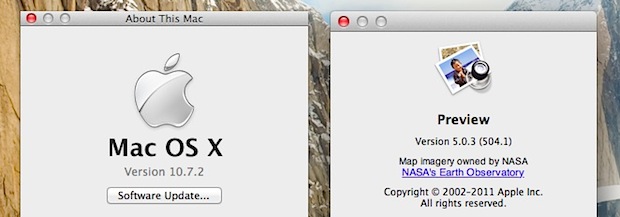
Preview in Mac OS X Lion brought with it several improvements and new features like digital signatures, but it also removed some very useful abilities like the file size estimator, Save As, and added the sometimes obnoxious Auto-Save.
If you miss the old version of Preview from Snow Leopard, and you either have a Mac OS X 10.6 Snow Leopard machine or backup handy, you can restore the older version of Preview (5.0.1) from Snow Leopard to run in OS X 10.7 Lion. Here is how to do this without replacing the OS X Lion version of the app (5.5.1), just in case you want to go revert to the newer version again.
- From Snow Leopard, make a copy of these folders and transfer them to the desktop of the Mac OS X Lion machine:
- From OS X Lion, rename the old Preview.app to something else like “PreviewSnow.app”
- Copy PreviewSnow.app to the /Applications/ folder in OS X Lion
- Copy “MeshKit.framework” to /System/Library/PrivateFrameworks/ in OS X Lion and authenticate the change – this folder should not exist on the Lion machine already and you will not be overwriting anything else
/Applications/Preview.app

 /System/Library/PrivateFrameworks/MeshKit.framework/
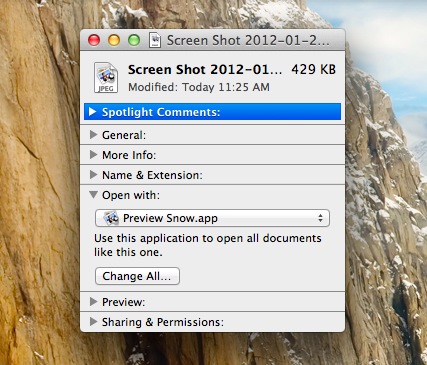
Launch PreviewSnow.app from /Applications and it will run as usual, minus the frustrating Lion features and feature removals. If you want to set PreviewSnow.app as the new default app, right click on an image filetype, select “Get Info” and under the “Open With” menu find PreviewSnow.app and then click the “Change All” button underneath:
A true “Save As” is also back with this version, which is better than using the Export or Duplicate functions for many of us.






Hi,
does anyone know how (if?) I could run old Preview from Snow Leopard as a stand-alone app (renaming it naturally) on Yosemite 10.10.5 (putting it off, but soon will be Forced to upgrade to El Capitan no doubt) while keeping my current version of Preview so not to mess anything up?
I’m happy with just accessing old preview separately/manually when I don’t have the patience for the newest version.
Thanks!
Can someone tell me if this still works with Yosemite? Moreover, if I can’t find my Snowleopard disc, where can I get the necessary programming.
Preview 5.0.3 moved onto Yosemite as per above instructions – DOES NOT WORK.
“You can’t use this version of the application “Previewsnow” with this version of OS X.”
I for one and bloody disappointed. I’m still looking for a workaround as Yosemite’s preview is severely cramping my workflow.
@ Ureason – it’s been over 10 months so I doubt you’ll ever read this but I pray it finds you.
I was thrilled to use your PreviewSnow.app on 10.9 as it saved me from a world of pain.
Lately I’ve upgraded to Yosemite 10.10 and I’m stuck with Preview v8 which is just terrible. The missing features have actually impacted my study!
I’ve tried getting the old PreviewSnow on 10.10 and what happens is it opens (after copying mesh framework) but crashes when ever I open a file.
Can you please update it to work on 10.10?
Yes, please! I have a new Mac with Yosemite and I’d like to run my old Preview 5.0.3. They took away something as simple and useful as viewing a whole image by clicking “command-0.” Ugh!
Thank you so much for this post ! I have Black MacBook and it worked for me.
One by one I am disabling annoying features of Lion and this was one of the worst one.
If anybody have trouble with changing the filename just do
cp -r Preview.app PreviewSnow.app in your terminal. Unlike “mv” or changing the name in Finder, you dont need to have permission for copying…
Hi, I was wondering if this still works with Mavericks 10.9.4? Apparently the Preview version in Snow Leopard allows one to search a doc and print only those pages with said search term. This is, moreover, a unique feature that NO ONE else can replicate, not even Apple, I guess. I’d appreciate any help. Thank you.
Anyone know how to run Snow Leopard dictionary on Mavericks (or somehow get the wordlist pane on the left to go away)?
@ Ureason
works fine under 10.8.5 …
thanks for sharing =)
I also miss the old Preview in Mavericks.
I adapt the Preview.app for the new systems (for 10.8 and 10.9).
Adapted version can be found here:
https://www.dropbox.com/s/kpl55v6l240akuo/preview-snow-app.zip
The MeshKit.framework is included in this archive — read readme.txt :)
Please try and tell me if it helped you or nope.
Thanks. I tried this but PreviewSnow quits unexpectedly whenever I try to open a document. Do you know how to fix this?
This is exactly what I need, but it quits every time I try to open a document. I’m running OS 10.9.5. The old preview was so much better when you needed to take lots of notes in a hurry, which of course is what every student in the entire world needs.
I don’t know how you did it, but the 10.9 version runs and works for image files in Mavericks! But it crashes when I try to open a pdf. Do you have a solution for that?
I just switched from Lion to Mavericks, same issue, my old Preview Snow Leopard doesn’t work now, please a tip! I cannot live without this old version that I used a lot to copy and paste selected picture areas in the same place, it goes to the center of the picture with the new versions…
please help…
Thanks.
Arnaud
Please a hack to run Preview Snow Leopard on Mountain Lion!
Thanks.
Tom
Anyone know how to get Snow Leppard Preview/Textedit in Mountain Lion!?? Why all the tips for Lion but not Mountain Lion? Whosever idea it was to change the document model in Lion/Mountain Lion should kill himself to preserve the integrity of the human race. Apple is worthless now. Bunch of primates.
Agreed. Please, anybody, I need Mt. Lion’s version of the “MeshKit.framework” because I overwrote it and Mt. Lion will no longer boot up. It just hangs at either the grey screen just before coming up on the desktop, or it hangs at the rotating hash circle and never finishes.
Will somebody please email me a copy of their Mt. Lion’s “MeshKit.framework” found in /System/Library/PrivateFrameworks? PLEASE!
Yes – anyone with tips? I’m trying to even just transfer Lion’s version of preview onto Mountain Lion and it’s not working.
I agree. Would also like to use the “old” Sow Leopard Preview in Mountain Lion. Is there a trick to get this back. the old trick used for Lion does no longer seem to work.
Thanks for any clues
How I can get back to Preview 5.5.1 from 6.0 (Mountain Lion)?
Hand tool disappeared in Preview 6.0! This is extremely frustrating!
I want to use the older Address Book App from Snow Leopard in Mac OS X Lion!
Is it possible?
Someone is successful?
Just a little that you for this tip :)
http://img526.imageshack.us/img526/5135/preview3h.png
*thank
Really nice touch Nick thanks for posting that, it will look so nice as the icon for SL Preview in Lion.
Thank You, doing this now. Lion preview is so rubbish.
Unfortunately, this tip has limited results….
I used Preview to change and attach color sync profile to my photo files. Preview SL could do it without changing the file itself, beside the obvious CS profile change.
Lion Preview will do it only using the Export command and doing so will change the exif.
Restoring PreviewSL does not help. Assigned CS Profile will not be preserved and upon saving it will revert to original profile. Save As will change the file….
It looks like something is missing and has to be restored in addition to two folders mentioned in the article.
ahhhh… much better, thanks!!
Thanks for this work around.
HEEELPPP!!! anyone know the meshkit.framework equivalent folder in 10.5.8 (Leopard)? or anyone know how to transfer the 10.5.8 (leopard) version of Preview.app to Lion? there is no meshkit.framework folder in Leopard.
Mahalo Nui!!!
Hey dano_t, that was something people have been trying to do since Snow Leopard came out – I never saw anyone figure out how to do it (i.e. moving Leopard’s preview to Snow Leopard, let alone Lion).
You can also use the combo client update and open it with Pacifist.
I’m currently making a PKG with those folders for SL Preview app.
[…] without running through the OS installation itself. This would let you use our recent tip to run the old version of Preview in OS X Lion, despite not having Snow Leopard actually installed […]
re the SAVE AS “missing” in Lion … Is having to do the following not quick enough or elegant enough?
(Have the file open on screen)…
FILE–>DUPLICATE
When new file appears on screen with COPY at end of file name
FILE–>SAVE…
Then rename the file and destination.
Perhaps a keyboard shortcut for the DUPLICATE command would be handy. The Cmd+S keyboard shortcut will work as as “SAVE AS…” after the file has been Duplicated.
No, not quick enough.
Any thoughts on how to do this with iCal? I tried installing just off the Snow Leopard DVD but it wouldn’t run under Lion. I know that BusyCal would solve my problems with Lion iCal, but I hate to spend $40 for features that were available under Snow Leopard.
Thanks for this tip – frustrated by the lack of ‘save as’ only yesterday, so very timely….
You can use the Terminal command:
xattr /Applications/Preview.app
to manipulate OS X extended file attributes. See also:
ls -l@
and
man xattr
for more information.
Thanks for the tip.
I managed to get Preview 5.0.1 as the default by using AppZapper to delete Preview and all it’s associated plists, etc., after I copied it to an external drive.
I copied the Snow Leopard version to my applications folder as “PreviewSnow”, and set it as the default and then copied Preview (Lion) back to my applications in the off chance I might need it for something. That process changed the attributes so that System no longer owned it.
Thank you so much!!! I used CleanMyMac to do the same thing after I read your post. Yaaaay!
::Save As:: ::Save As:: ::Save As:: ::Save As:: ::Save As:: ::Save As:: ::Save As:: ::Save As:: ::Save As:: ::Save As::
:D
Thank you all!!
As a complete amateur when it comes to Terminal etc., would someone kindly explain in baby steps just what to do to make Preview from SnowL become the default in Lion? I have managed to import the older Preview, but can’t make it be the default. If someone could possibly explain how to “manipulate OS X extended file attributes” as David P Oster wrote, I would be most grateful!!!!
I tried this tip and found that it kept defaulting to the Lion version of Preview. When I checked permissions, it indicated that Preview was owned by the system file and even when I changed the permissions, was still the default app. It would not allow me to remove System from the permissions list nor would it allow me to add Administrators to the list.
It appears on my machine, that all the applications installed with Lion are listed as System files and the system applications are the default application and it can’t be changed.
Any suggestions, anyone?
Oh man! Quicktime to pct to jpg… back again! Sweet find!
Now if we could only rip it off the Snow Leopard disk and install it would be that much handier. Is there anyway of doing it?
Yes, get Pacifist and you can extract and install things from pkg files and the boot disks.
Excellent! I still have an image of my old Snow Leopard boot disk so this was very easy to do.
I was wondering if other apps could be copied over too, and found we can do the same thing with TextEdit, at this point it’s only a matter of copying over the same application bundle since it also requires MeshKit
http://www.formaceyesonly.com/2011/11/25/how-to-downgrade-lions-preview-and-textedit-to-snow-leopard-versions/
I haven’t tried others, but for me Preview and TextEdit are some of the more frustrating updates in Lion. Now if only Safari would stop that auto-refreshing crap I could be a happy camper.