
10 Essential Keyboard Shortcuts for the Open & Save Dialog in Mac OS X
Jul 6, 2012 - 9 Comments
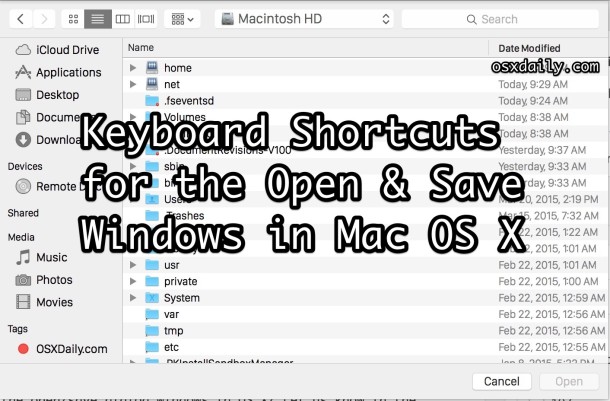
The next time you end up in an Open or Save dialog window in Mac OS X, try out a few of these helpful keyboard shortcuts to make navigating around the dialog and filesystem much faster.
This list is in the keystroke – description order, they work in any Save box or Open file window screen throughout Mac OS X and its apps.
- Spacebar – View the selected item in Quick Look
- Command+D – Selects Desktop as the destination
- Command+Shift+H – Sets the Home directory as the destination
- Command+Shift+A – Sets Applications directory as the destination
- Command+Shift+. – Toggle invisible items
- Command+Shift+G – Bring up Go To Folder window
- Tab – Tab key auto-completes paths and file names from the aforementioned Go To window
- Command+R – Open the selected item in the Finder
- Command+F – Move the cursor to the Find field
- Command+. – Close the Open/Save dialog window
Remember these keystrokes and you’ll be jumping around the Open and Save boxes of OS X faster than ever before, keyboard shortcuts really help to master your Mac! And yes, these work in just about every version of OS X out there for Mac.
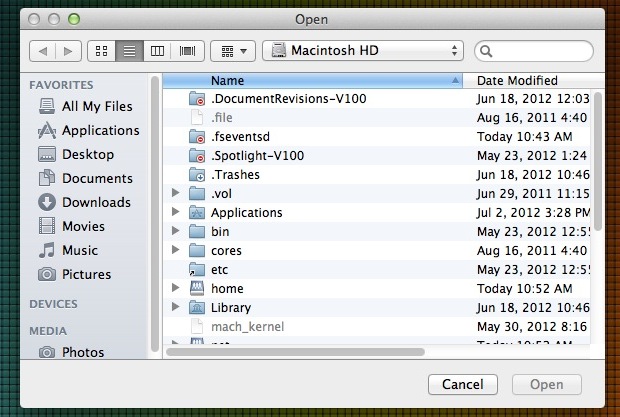
Know any other great keyboard shortcuts or usability tips for the open/save dialog windows in OS X? Let us know in the comments!






Please add all these to the article! Thank you, all.
One shortcut I would love to know (if it even exists), is how to shift focus from the file browser area (e.g. column view, where I may have been arrowing around to get to a desired folder) back to the file name box at the top.
As it stands now, I either have to use the mouse and click up in the box, or press Tab 5x, or sometimes 6? I think it differs in different conditions, but either way, I don’t know a reliable single-stroke keyboard shortcut.
Ctrl-tab does that.
Command+Backspace selects do not save
You can also start by typing ~ to start a path in your home folder.
Paul, please add what JamesC said to the main article. I’m using the ‘/’ shortcut all the time — it is so much easier to remember than ‘Command+Shift+G’. After all, when you want to go to ‘/Applications/…’ you’d have to start typing a ‘/’ anyway, isn’t it?
Save dialog: click on any (grayed-out) file name in the list to copy it into the Save/Save As field.
Command+Shift+N creates a New Folder
Command+Shift+C goes to the main Computer selection letting you select networked machines, other hard drives, external devices and more.
Command+I opens the selections Get Info box
You can also simply type / to bring up the “Go to the folder:” box.