
Reset App Access to Mac OS X Privacy Data from Command Line
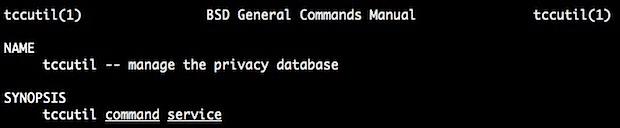
If you accidentally permitted a Mac app to gain access to things like your personal contacts list or location, or you’d just like to start over again and have granular control over which applications can access certain data, you can use the command line tool tccutil to change this and reset Mac app access to personal data.
Think of the tccutil command as a kind of command line interface to the Security & Privacy control panel, which let’s you control apps access to things like contacts, location services, usage statics, and more. This is separate from GateKeeper, which controls the ability of certain applications to launch.
Most users will be better off using the friendlier preference panel, but for those who like to tweak things from the Terminal, here’s the basics of tccutil command:
How to Reset Mac App Privacy Database
You’ll need to launch the Terminal, found in /Applications/Utilities/ to be able to use this feature.
At it’s core, tccutil is used to manage the privacy database like so:
tccutil reset [service name]
The example given in the tccutil man page resets the privacy database for which apps can access the Address Book (Contacts) like so:
tccutil reset AddressBook
This will revoke all applications access to AddressBook, meaning the next time you attempt to open any application which wants to access the contacts information, you will be prompted to either allow or deny access for that specific application. That process will repeat itself for each additional app who attempts to access such data.
How to Reset Location Services Database App Access on Mac
Similarly, you could apply the same reset to Location Services with the following command:
tccutil reset CoreLocationAgent
The same applies here, all apps that have access to Location Services will be removed, requiring a confirmation again in the future.
Displaying a List of Services
You can find a detailed list of services – not all of which will be relevant to tccutil – by entering “launchctl list” into the terminal.
launchctl list
Again, not all of these will be relevant to tccutil and app access, but things like location, address book, camera, microphone, should be found here.
As mentioned at the beginning of the article however, if you don’t know what you’re doing here and why, it’s best to stick to the Privacy preference panel to control this type of personal data access.
This capability exists in all modern macOS versions including Catalina 10.15, Mojave 10.14, and prior, basically anything from Mac OS X 10.8 and later has the tccutil function and can reset app access this way.






Hi, I was wondering if something like this is existing for iOS as well? For my automation testing I need to reset the location&privacy settings via command. so far my research didnt give me any solutions instead of Apple restricts this.
thanks
This trick does not work to reset on an application basis on Maverricks. I tried several times to delete access for launchd_startx, which is part of XQuartz. It had no effect at all.
what font are you using in terminal and what size?
Well I hate to be the bearer of bad news, but this will not work to reset the location database on 10.8.2. I’ve tried many different approaches but it will not reset the location database.
Address database will reset fine, but not locations database
I’ve been looking for this ability for a long time, ever since tweetbot left orphaned records in the Location database.
tccutil reset CoreLocationAgent doesn’t work for me. I get an error stating it was unable to reset the database. I even tried in under the root user account, still no go.
launchctl list |grep ocation
com.apple.locationmenu
com.apple.CoreLocationAgent
Entire comment didn’t post probably because of special characters, anyway that will serve the gist.
But you can retract Location Services specifically in Preference panel for Security & Privacy too. Tweetbot will be there.
I’ve tried to remove tweetbot from the within security and privacy prefs with no luck. How do you do that?
I can uncheck tweetbot but I wanted it completely removed from the list since I no longer have the app installed.
Since there wasn’t any additional info given, I tried the following commands and get the same “failed to reset database” error:
tccutil reset locationmenu
tccutil reset com.apple.CoreLocationAgent
Please, can help you give give we be greatly appreciated
If you uninstalled TweetBot then it can no longer access anything because it’s not installed. If you want to remove it from those lists though you’ll just need to delete the plist files associated with it.
I’ve searched my mac looking for plist for tweetbot but have been unable to find anything. I checked all the normal locations that plists will be located, nada. Any suggestions?