Subscribe to OSXDaily

Subscribe to RSS Subscribe to Twitter Feed Follow on Facebook Subscribe to eMail Updates

Shared on Facebook

Shop at Amazon

Ad

OSXDaily on Facebook

Search iPhone 4S

Fix “No SIM Card Installed” Error on iPhone 4S by Installing iOS 5.0.1 Build 9A406

Dec 16, 2011 - 8 Comments

No SIM Card Installed error on iPhone

The recently released iPhone 4S specific build of iOS 5.0.1 resolves an ongoing SIM card issue that was effecting some users. The issue would cause some iPhone 4S’s to not recognize a SIM card, with the iPhone reporting a “No SIM Card Installed” or “Invalid SIM” error message, in addition to the phone not connecting to a cellular network.

To resolve the error, users have two choices:

This makes the latest iOS 5.0.1 update a welcome change for iPhone 4S users who frequently encountered the problem, and this also answers the question as to what exactly the iPhone 4S specifc 9A406 build of iOS 5.0.1 aimed to accomplish. Thanks to MacRumors for discovering this.

Apple Posts Minor iOS Updates for Apple TV and iPhone 4S

Dec 15, 2011 - 4 Comments

Apple TV 2 Apple has rolled out two minor iOS updates, the first is for the second generation Apple TV and the second for the iPhone 4S. For Apple TV 2, the new build (9A406a) updates system software to 4.4.4, but it’s unclear exactly what the changes are, indicating this is likely a bug fix update. For iPhone 4S, it’s simply a new build (9A406) of iOS 5.0.1, and also doesn’t appear to offer any significant changes.

You can get the updates directly through either devices software update, although the iPhone 4S update doesn’t appear unless you haven’t updated to 5.0.1 yet anyway, indicating it’s not a crucial update for all users. If you prefer to use IPSW manually, these are the direct download links from Apple:

There is some speculation that the iPhone 4S update may relate to international releases of the device, which is occurring tomorrow in a variety of new countries, including Russia, Brazil, Chile, Thailand, Malaysia, Taiwan, Philippines, South Africa, Saudi Arabia, Turkey, Israel, and Vietnam.

Broadcast the iPhone’s Camera Live to an Apple TV with AirPlay

Dec 12, 2011 - 3 Comments

AirPlay By using AirPlay and the video mirroring feature, you can broadcast live images / video from your iPhone’s camera directly to an Apple TV on the same network.

To do this, you’ll need iOS 5 or later, an Apple TV, and the AirPlay compatible iPhone 4S or iPad 2 with a camera. All hardware must be on the same wireless network as well. With those requirements met, here’s how to set up the live camera broadcast:

On the Apple TV:

  • Go to Settings > AirPlay > turn Airplay ON

From the iPhone 4S or iPad 2:

  • Double click the home button and swipe to the right, then tap on the AirPlay button
  • Select the Apple TV and enable Mirroring
  • Now click the Home button again and tap on the Camera app to start the live feed

Broadcast iPhone Camera Live to Apple TV

Assuming you did this all correctly, the Apple TV will export whatever the iPhone camera sees live, thanks to the video mirroring feature.

This fun little trick was found on TUAW, who suggests you can use the camera mirroring feature to look at your ear or nose… LOL.

Whatever use you find for this one, have fun!

Background Music from the iPhone 4S Commercial

Dec 11, 2011 - 7 Comments

Apple has been airing several iPhone 4S commercials, a few focus on Siri, while others center on iCloud or the new camera. Each ad shares the same background music, and what’s the tunes name? The song is Orchestral – “Goldengrove v2″ by Keith Kenniff, an American composer.

The song is instrumental, contrasting the poppy sound of the song played in the new iPod touch ad or The Beatles classic heard in the recent “Cover” commercial.

Somewhat strangely, Orchestral – “Goldengrove v2″ doesn’t appear to be available for purchase on iTunes, but you can listen to it above, on YouTube below, or directly on the artists Soundcloud page, it’s about 1:30 long.

Thanks for sending this in Stuart
Read more »

The Future of Siri is Now: Start a Car, Adjust Home Thermostat, and More [Videos]

Nov 25, 2011 - 4 Comments

Siri Starting a Car “Siri, start my car”, “Siri, Set the thermostat to 72 degrees” – saying that to the iPhone and having an AI agent perform those tasks sounds futuristic doesn’t it? It’s not from the future though, it’s now, thanks to the ambitious work of a third party developer who created something called Siri Proxy.

As the name suggests, SiriProxy is a proxy server to Apple’s Siri assistant that allows for creating custom plugins that perform virtually any function, including tasks like remotely starting a car, locking and unlocking car doors, and even querying and controlling a home thermostat. The potential here is huge, and none of it requires any on-device hacks or jailbreaks because it’s handled away from the iPhone on a remote server.

Due to it’s very early stage in development, setting up Siri Proxy isn’t the most easy thing in the world. You’ll need an iPhone 4S, and some experience with Ruby, certificates, web servers, and OpenSSL (you’re setting up a web server, after all). If that’s you, check out the source code and instructions on how to get it working here.

Here are some videos of Siri Proxy in action:
Read more »

Unlock the iPhone 4S with an iOS 5 Bug

Nov 17, 2011 - 16 Comments

Unlocked iPhone 4S

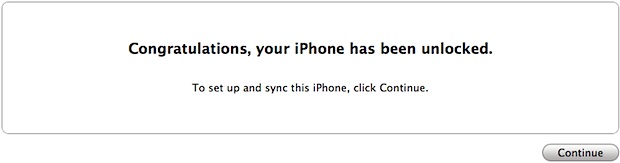
If you didn’t already buy an unlocked iPhone 4S from Apple or take advantage of Sprint and Verizons 90 day unlock request, you can apparently unlock the 4S’s GSM SIM card slot yourself by taking advantage of a strange bug in iOS 5 and how the iPhone 4S handles the Edge network.

Here’s what you’ll need to attempt this:

  • GSM activated iPhone 4S (AT&T model on contract, for example)
  • AT&T SIM card
  • T-Mobile Micro SIM

If you have all of that, completing the unlock is a matter of tripping up iOS 5 by performing a virtual song and dance routine, how someone figured this is out is fairly impressive on its own:

How to Unlock the iPhone 4S

Do this at your own risk:

  • Insert original carrier AT&T SIM card
  • Dial 611 for AT&T customer service hotline and drop the call
  • Turn on Airplane Mode
  • Take out AT&T SIM card
  • Insert T-Mobile SIM card
  • Make sure WiFi is off ( also tap on ‘Forget this Network” to make sure it doesn’t connect automatically later)
  • Switch off Airplane Mode and iPhone will search for network. This is followed by the Apple splash screen appearing.
  • Activation Required will be displayed on the screen
  • EDGE network will activate automatically – notice the ‘E’ on the top left corner of the screen
  • Wait for about 20-30 seconds and turn off the phone
  • Turn on iPhone and the same Activation Required screen will be displayed
  • When you see one signal bar, tap on Use Cellular Connection
  • Eject SIM card
  • Activation Required screen will be displayed the second time
  • Insert SIM card
  • Unlocked!

Multiple users are reporting success with this method, although some had to repeat it many times to get it to finally work.

Apparently this trick has been around for a few weeks now, although it hasn’t been widely publicized for some reason or another. Here’s a YouTube video of someone completing the procedure as described above:
Read more »

Buy an Unlocked iPhone 4S Now from Apple Online or in Stores: $649 and Up

Nov 12, 2011 - 22 Comments

Unlocked iPhone 4S

The unlocked iPhone 4S is now officially available for purchase through Apple through their website and in Apple Stores. An unlocked iPhone is sold at a high price due to the lack of a contract subsidy, but the major advantage is that the phone can be used on any compatible GSM network through the purchase of a microsim card. In the USA, this means an unlocked iPhone would work with T-Mobile, AT&T, and some pay-go plans. Additionally, anyone in possession of an unlocked phone can use the device in another country simply by picking up a local sim card, avoiding costly roaming fees.

Buying an Unlocked iPhone 4S Costs You…

  • iPhone 4S 16 GB – $649
  • iPhone 4S 32 GB – $749
  • iPhone 4S 64 GB – $849

These prices are from Apple in the USA.

Unlocked iPhone 4S prices

Buying one online is easy through the Apple Store, select the color of the phone you want and then select the “Or get iPhone unlocked and contract-free” link near the bottom of the page.

Apple cautions that you can’t use unlocked phones on CDMA networks like Verizon or Sprint. However, if you buy an iPhone 4S from Verizon or Sprint, you can request the SIM card slot be unlocked through them after you’ve had the iPhone within their contract for 90 days.

Unofficially, all off-contract iPhone 4S models have been sold unlocked anyway.

Change Siri’s Voice from Female to Male and Vice Versa

Nov 10, 2011 - 5 Comments

Change Siri's voice

Siri’s gender and voice is different based on the region, with a female voice for USA and Australian users, and a male voice in the UK. Regardless of which location you’re in or where you bought the iPhone 4S, you can change the gender of Siri yourself just by switching the language settings.

Changing Siri’s Voice & Gender

A word of caution: Siri is trained to identify and work with particular accents and dialects, changing the language setting for Siri can result in diminished dictation quality and reduced voice recognition. Generally it works best if you can pull off a fake accent of whatever version you are changing to, but it’s fun to test out regardless:

  • Launch “Settings” and then tap on “General”
  • Tap on “Siri” and choose a different language from the settings
  • Close out of Settings

Current choices and their accompanying genders are

  • English (Australia) – female
  • English (United Kingdom) – male
  • English (United States) – female

This is a fun tip from MacTrast, but don’t be surprised if you end up changing Siri’s voice back to the default setting for it to work at its best with your accent. @JGKunzler reports that it worked ok for him, but your mileage will vary.

iOS 5.0.1 Beta Resolves Battery Life Issues for iPhone 4S & iOS 5, Public Release Soon

Nov 2, 2011 - 10 Comments

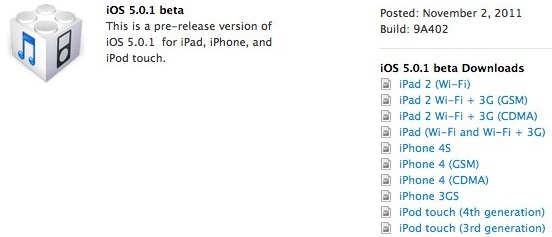
iOS 5.0.1 beta fixes battery problems

Apple has acknowledged battery draining issues with iOS 5 and has since released a beta version of iOS 5.0.1 to developers, indicating a public release is due soon. The update aims to fix iOS 5 battery problems without modifications of settings, bring multitasking gestures to iPad 1 without the third party tweak, and resolve several other bugs and issues that shipped with iOS 5.

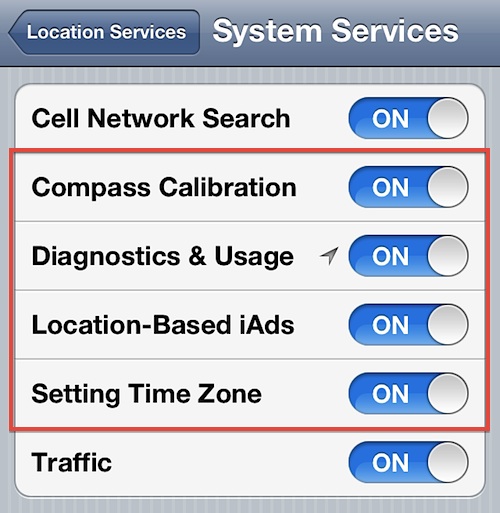
Currently iPhone 4S can disable Location Services like Reminders and Time Zone to improve their battery life, but the official fix from Apple will appear soon and should allow 4S users to re-enable such features.

Some battery life issues with the iPhone 4S and iOS 5 were confirmed directly by Apple in a short statement to The Loop, saying:

“A small number of customers have reported lower than expected battery life on iOS 5 devices. We have found a few bugs that are affecting battery life and we will release a software update to address those in a few weeks.”

This was quickly confirmed by developers indirectly, with the release of the iOS 5.0.1 beta update. The primary fixes in the developer build 9A402 are:

- Fixes bugs affecting battery life
- Adds Multitasking Gestures for original iPad
- Resolves bugs with Documents in the Cloud
- Improves voice recognition for Australian users using dictation
- Contains security improvements

The beta release is available for all models of iPad and iPad 2, iPhone 4 CDMA & GSM, iPhone 4S, iPhone 3GS, and iPod touch 3rd and 4th generations.

If you are not a developer, try some of these tips to regain battery life until the 5.0.1 update becomes publicly available.

Phone 4S vs the $2000 Canon 5d MKII [Video]

Oct 31, 2011 - 9 Comments

How does the iPhone 4S’s new cameras 1080p video recording stack up to a pro-level $2300 Canon 5d MKII digital camera? Surprisingly well, as is demonstrated by this video from Robino Films. Both cameras shot footage at the same time and side-by-side, with the scenes in perfect sync so that video can be paused and examined more closely.

The settings for both cameras are as follows:

iPhone 4S

- AE.AF locked. That’s all you have!

Canon 5D MKII

- Canon 50mm 1.4
- ISO 160 ~ 640 (varied per shot to match the iPhone)
- F 7~22 (varied per shot to match the iPhone)
- Shutter 1/60th
- Auto WB
- Standard Picture Style
- 1080p 30

Check out the full video in 1080p on Vimeo, the iPhone 4S’s camera is quite impressive.

Thanks for sending this in Matthew